

Converting a photo into a PDF can be useful in many everyday situations. You may need to send a document, receipt, form, school assignment, or signed paper to someone who specifically requests a PDF file.
Fortunately, you usually do not need complicated software to do this. Modern smartphones and computers provide several simple ways to turn an image into a PDF.
The best method depends on the device you are using and what you want the final document to look like.
Why Convert a Photo to PDF?
A photo and a PDF are different types of files.
A photo is usually stored as an image such as JPG, JPEG, PNG, or HEIC. A PDF is a document format that is easier to share, print, and combine with other pages.
For example, you might receive a request to send:
- A photographed receipt
- A scanned identity document
- A signed form
- A handwritten page
- A school assignment
- Several pages of a document
Instead of sending several separate images, you can combine them into a single PDF.
Before Converting the Image
Take a moment to check the photo before creating the PDF.
Make sure the document is readable and that important information is not cut off.
For documents photographed with a phone, try to capture the entire page and avoid excessive shadows or reflections.
If the image contains personal information, also make sure you are sending it only to the intended recipient.
Convert a Photo to PDF on Android
Many Android phones provide a print or sharing function that can be used to create a PDF.
The exact menus vary between Samsung, Motorola, Google Pixel, and other Android devices, but the general process is similar.
Open the image in your Gallery or Photos application.
Then look for the Share option or a menu containing additional actions.
Depending on your device, you may find a Print option.
Select the printer option and choose Save as PDF when available.
You can then choose where to save the new file.
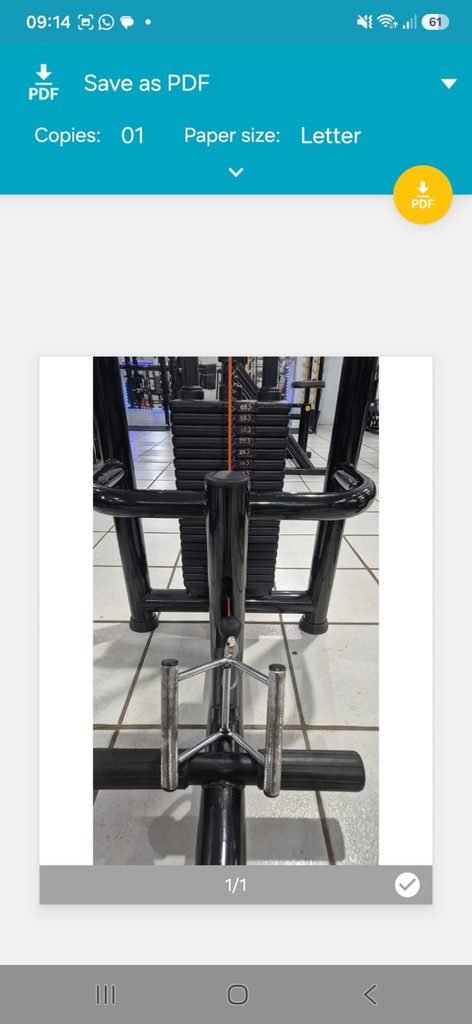
An Android phone displaying an image with options for sharing or printing the file as a PDF.
Convert Multiple Photos Into One PDF
One of the most useful reasons to convert images into PDF format is combining several pages into a single document.
For example, suppose you photographed a three-page form.
Instead of sending:
Page1.jpg
Page2.jpg
Page3.jpg
you can create one PDF containing all three pages.
When your gallery or file application supports selecting multiple images, select the pages in the correct order and use the available print or PDF option.
The exact steps can differ depending on your phone.
Before saving the final document, check the page order carefully.
Check the Order of the Pages
Page order matters when creating a PDF from multiple photos.
If the first page is accidentally placed at the end, the recipient may have difficulty understanding the document.
Before sending the file, open the PDF and quickly review all pages.
Make sure:
The first page is actually first.
The pages are in the correct order.
Nothing is missing.
All text is readable.
This takes only a few seconds and can prevent unnecessary confusion.
Convert a Photo to PDF on Windows
Windows computers also provide simple ways to turn an image into a PDF.
Open the image in an application that supports printing.
Choose Print and select Microsoft Print to PDF as the printer.
You can then choose the file name and where you want to save the PDF.
This method is useful because you do not necessarily need to install another application.
Convert Multiple Images on a Computer
You can also create a PDF from several images on a Windows computer.
Select the images you want to include and open the printing options.
Depending on the application and version of Windows, you can choose Microsoft Print to PDF and create a document from the selected pictures.
Before saving the file, make sure the images are selected in the correct order.
If order matters, renaming the files with numbers can help.
For example:
01_Page.jpg
02_Page.jpg
03_Page.jpg
This makes the intended order easier to recognize.
Make the PDF Easier to Read
Simply converting an image into a PDF does not automatically improve its quality.
If the original photo is blurry, dark, tilted, or poorly framed, the PDF will usually have the same problem.
For documents, take the photo as straight as possible.
Place the paper on a flat surface and make sure there is enough light.
Avoid strong reflections, especially when photographing glossy documents.
If the document contains small text, move the camera close enough to capture it clearly without cutting off the edges.
Use a Document Scanner When Available
Some phones include scanning features that are more suitable for documents than ordinary photographs.
A scanning feature may detect the edges of the paper and automatically adjust the image.
This can produce a cleaner result than simply taking a regular picture.
If your phone offers a document-scanning option, consider using it when the original paper needs to look like a scanned document.
Be Careful With Personal Documents
Photos converted to PDF can contain highly sensitive information.
Examples include:
- Identification documents
- Bank statements
- Medical paperwork
- Tax documents
- Contracts
- Utility bills
Before sharing the PDF, make sure you are sending it through a trusted channel.
Also check that you created the PDF from the correct image and did not accidentally include another page containing private information.
Rename the PDF Clearly
Once the PDF is created, give it a useful filename.
Avoid names such as:
Document.pdf
or
Scan123.pdf
Instead, use something descriptive.
For example:
Insurance_Form_2026.pdf
Electricity_Bill_August_2026.pdf
School_Assignment.pdf
A clear filename makes the document easier to find later.
Check the File Size
High-resolution photos can produce relatively large PDF files.
If the recipient has a file-size limit, the document may need to be compressed.
Before using an online compression service, consider whether the document contains private information.
Uploading sensitive documents to an unknown website is not a good idea simply to reduce the file size.
For private documents, prefer trusted applications or services you already use.
Avoid Random Online Converter Websites for Sensitive Documents
Many websites advertise free image-to-PDF conversion.
These services can be useful for non-sensitive files, but you should be careful with documents containing personal information.
Uploading an identity document, bank statement, contract, or other private file to an unfamiliar website means trusting that service with your data.
For ordinary photos that contain no sensitive information, an online converter may be convenient.
For private documents, use a built-in device function or a trusted application whenever possible.
Check the Final PDF Before Sending It
Always open the PDF after creating it.
Do not assume that the conversion worked exactly as expected.
Check that:
The entire image is visible.
The text is readable.
The page is not rotated incorrectly.
The correct file was converted.
Multiple pages are in the right order.
There are no unexpected blank pages.
This is especially important when the PDF will be used for an application, registration, school assignment, or official document submission.
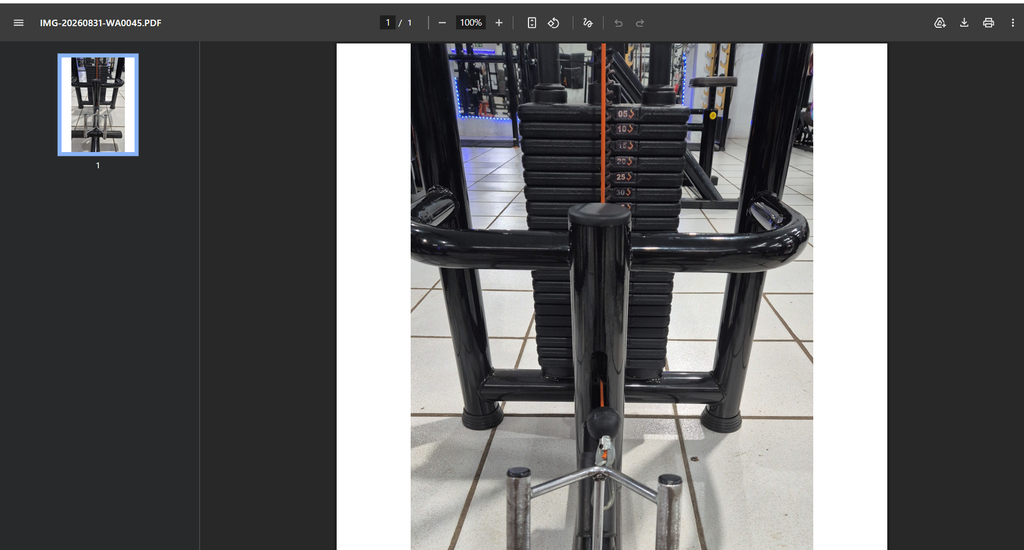
A PDF document opened on a computer showing a converted image ready to be reviewed before sharing.
When a Photo Should Stay as a Photo
Not every image needs to be converted into a PDF.
If someone asks you to send a photo for a simple visual reference, JPG or PNG may actually be more appropriate.
PDF is most useful when the image represents a document or when several pages need to be combined into one file.
Think about the recipient’s requirements before converting.
If a form specifically asks for a PDF, create a PDF.
If someone simply wants to see a picture, keeping the original image format may be easier.
Keep the Original Image
When converting an important image into a PDF, do not immediately delete the original photo.
Keep it until you have confirmed that the PDF is correct and safely stored.
The original image may also be useful later if you need to create another version of the document.
For example, you may eventually need a higher-quality PDF or a different page arrangement.
Organize Converted PDFs
Once you start converting documents regularly, PDFs can accumulate quickly.
Create a simple folder structure to keep them organized.
For example:
Documents
→ Bills
→ Work
→ School
→ Receipts
This makes it easier to find an old PDF without searching your entire device.
A Simple Way to Convert Images to PDF
The overall process is straightforward:
Choose the photo or photos.
Check that they are clear and complete.
Use your phone’s or computer’s print function when available.
Select Save as PDF.
Choose a descriptive filename.
Open the new PDF and check it.
Store it in an appropriate folder.
Then send it through a trusted method.
You do not need specialized software for many everyday PDF conversions.
Common Mistakes to Avoid
One of the most common mistakes is converting a poor-quality photo and expecting the PDF to look better.
Another is forgetting to check the page order when combining multiple images.
People also sometimes delete the original image before confirming that the PDF was created correctly.
Finally, avoid uploading sensitive documents to unfamiliar online conversion websites simply because they are free.
A little care during the conversion process can prevent problems later.
The Easiest Method Is Usually the One Already on Your Device
When you only need to convert a normal photo into a PDF, start with the tools already available on your phone or computer.
Android devices and Windows computers can often create PDFs through built-in printing functions.
That means you may not need to install another application at all.
The exact menus can vary by device, but the basic principle remains the same: select the image, choose the print option, select PDF, save the file, and check the result.
Converting photos to PDF is a simple task once you know where to look. Whether you are submitting a document, combining several pages, or simply creating a file that is easier to share, the process can usually be completed in just a few steps.
The most important part is not the conversion itself. It is making sure the original photo is clear, the final PDF is correct, and sensitive information is handled carefully.
