
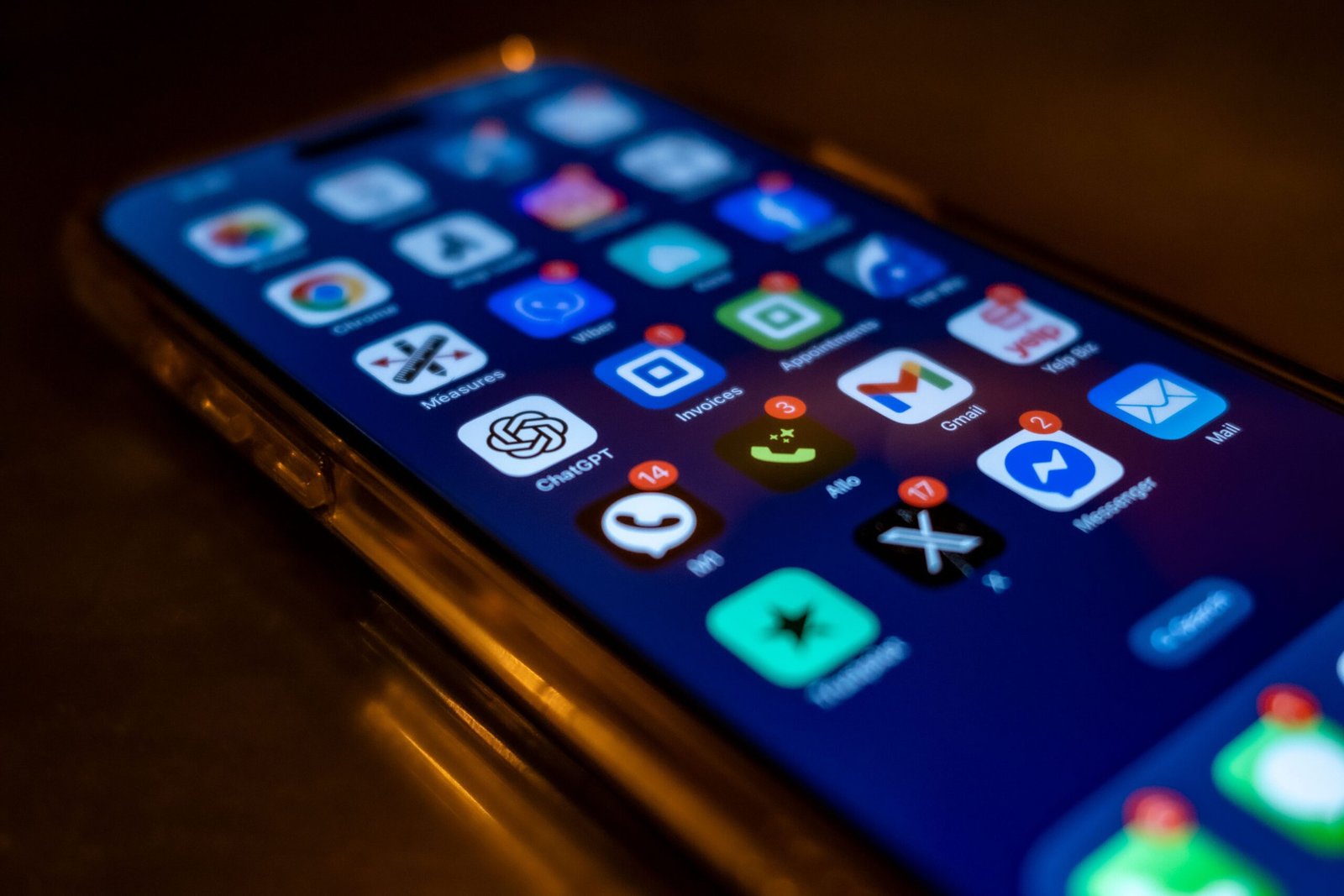
Learn how to stop unwanted app notifications on Android, silence specific apps, manage notification settings, and reduce distracting alerts without uninstalling apps.
Notifications are useful when they tell you about something that actually matters. The problem starts when your phone constantly displays alerts from apps you rarely use, shopping services, games, social networks, or other applications.
You do not necessarily need to uninstall those apps to reduce the interruptions. Android allows you to manage notification settings for individual applications, although the exact names and locations of these settings can vary between phone manufacturers and Android versions.
This guide shows how to identify applications that send unwanted notifications and how to control them without turning off notifications for your entire phone.
Practical example: The screenshots in this guide were captured on a Samsung Galaxy. Your Android phone may show slightly different menus or options.
Why Android Notifications Can Become Annoying
Most Android users install applications for specific purposes. Over time, however, those applications may start sending notifications for promotions, recommendations, reminders, updates, or other events that are not important to you.
A phone with dozens of installed applications can therefore generate a large number of alerts throughout the day.
The important thing is that you do not have to treat every notification the same way.
You may want to continue receiving:
- Messages from communication apps
- Banking alerts
- Security notifications
- Delivery updates
- Calendar reminders
At the same time, you may want to silence:
- Promotional notifications
- Game advertisements
- Shopping recommendations
- Social media suggestions
- Notifications from apps you rarely use
Android gives you control over notifications at the app level, so you can make these decisions individually.
Step 1: Open Your Android Notification Settings
Start by opening the Settings app on your phone.
Look for Notifications.
On many Android devices, you will then see an option similar to App notifications, App notifications settings, or a list of applications with notification controls.
The exact path can vary depending on the manufacturer and Android version. Google’s Android documentation also notes that some steps can differ between devices.
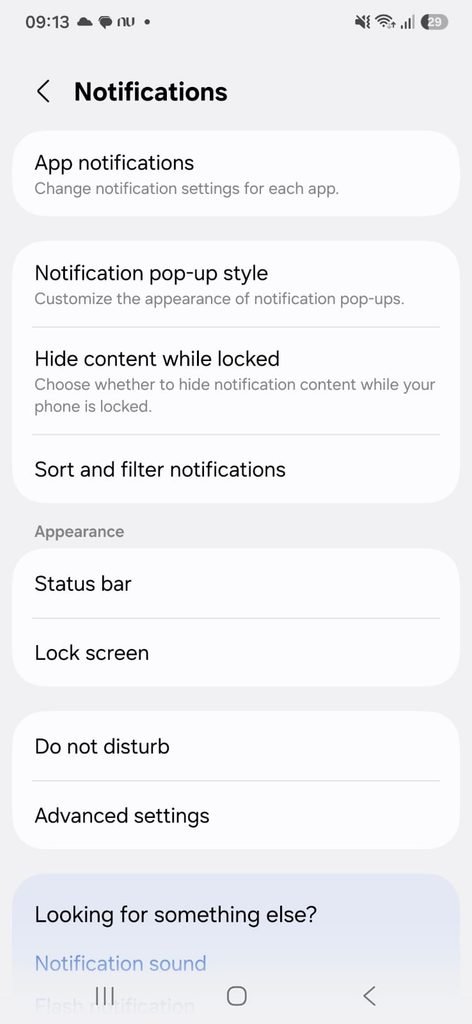
This screen is the starting point for deciding which applications are allowed to interrupt you.
Step 2: Find the Apps That Are Sending Too Many Notifications
Once you reach the application notification settings, look through your installed apps.
The exact layout depends on the device, but Android provides controls for managing notifications from individual applications.
Instead of turning notifications off for everything, think about which apps actually need your attention.
For example, a messaging application may need notifications because people contact you through it.
A game, shopping application, or social network may not need to interrupt you every time it has something to promote.
This distinction is important because the goal is not to eliminate useful notifications. It is to reduce unnecessary interruptions.
A practical way to decide
For each app, ask:
Would I notice something important if this notification were disabled?
If the answer is no, the app may be a good candidate for notification restrictions.
Step 3: Turn Off Notifications for an App You Do Not Need
Select the application you want to manage.
On many Android devices, you will see a switch that controls whether the app can send notifications.
If you do not want that application to send any notifications, turn the notification setting off.
PUT IMAGE 2 HERE
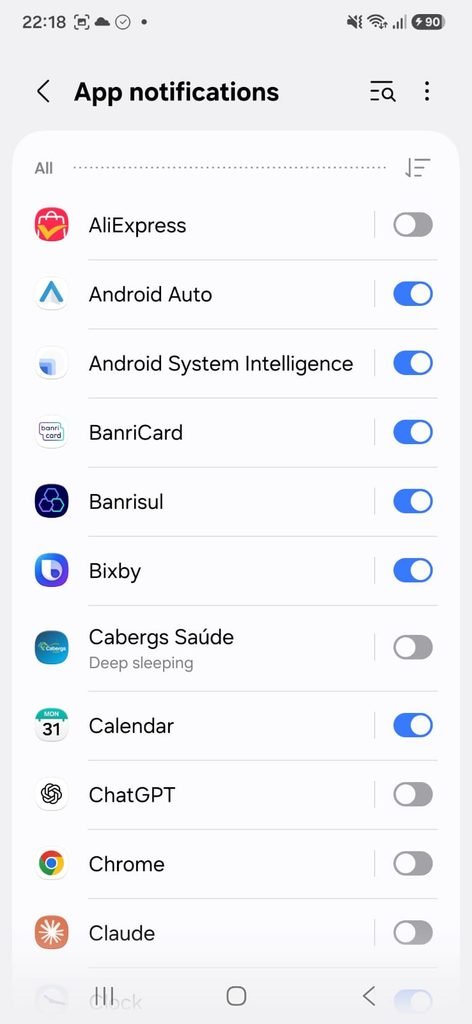
This is useful for apps that you do not need to hear from during the day but still want to keep installed.
For example, you might want to keep a shopping app on your phone while preventing it from sending promotional alerts.
Turning off its notifications does not necessarily mean you have to uninstall the application.
Step 4: Keep Some Notifications and Silence Others
Completely turning off notifications is not always the best solution.
Some applications divide their notifications into different categories or types.
Depending on the app and Android version, you may be able to allow useful alerts while blocking less important ones.
For example, an application might have separate notification types for:
- Messages
- Promotions
- Recommendations
- Reminders
- Updates
The available categories depend on the individual app.
This can be a better approach when you still need certain alerts but do not want every notification generated by the application.
Step 5: Manage Notifications Directly From the Notification Panel
There is another convenient way to control notifications.
When an unwanted notification appears on your phone, press and hold the notification.
Depending on your Android version and phone manufacturer, this can open controls or shortcuts related to that notification.
You may then be able to change how the application handles future notifications.
This approach is useful because you can make the change at the moment you notice the problem rather than searching through the Settings app later.
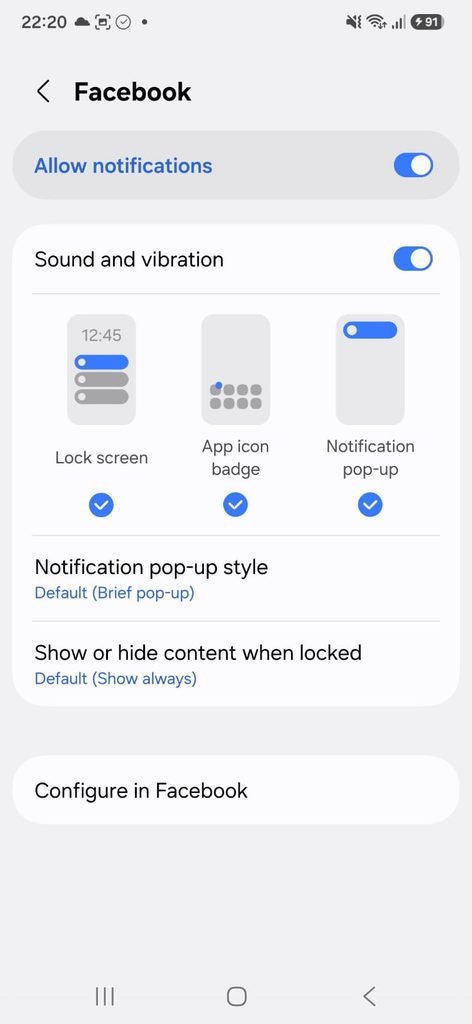
If your phone displays different options, that does not necessarily mean something is wrong. Android interfaces can vary by device.
Step 6: Reduce Notifications Without Removing the App
Some people uninstall applications simply because the notifications become irritating.
That may be unnecessary.
A better approach is to separate the application itself from its notifications.
For example, you may still use a shopping app occasionally while choosing not to receive promotional alerts throughout the day.
The same logic can apply to:
- Social media apps
- Food delivery apps
- Shopping apps
- Games
- Travel apps
- News applications
Keeping the app installed can be useful when you actually need it.
Step 7: Review Apps You Rarely Use
Android also has features designed to help manage apps that are not used frequently.
Google explains that Android can optimize unused apps by removing temporary files, revoking certain permissions, preventing some background activity, and preventing notifications from unused apps.
This does not mean every unused app should be deleted immediately.
Instead, periodically review applications you have not opened for a long time.
You may find that some apps can simply be uninstalled because you no longer need them.
Others may be worth keeping for occasional use.
Step 8: Be Selective With Important Apps
Not every notification is merely an inconvenience.
Some alerts can be important.
For example, you may want to keep notifications enabled for applications related to:
Security
Messages
Important transactions
Appointments
Deliveries
Two-factor authentication
Before disabling notifications, consider what you could miss.
A useful strategy is to silence less important applications while keeping essential services active.
Step 9: Use Your Phone’s Notification History When Available
Some Android phones provide a Notification history feature.
When available, this can help you understand which notifications have been appearing recently, including notifications that you may have dismissed.
The exact availability and location of Notification history depend on the Android version and device.
If your phone has this feature, it can be useful when you know that your phone feels unusually noisy but cannot remember which application is responsible.
Step 10: Check the Result After Making Changes
After changing notification settings, use your phone normally for the next day or two.
Pay attention to whether the notifications that bothered you have stopped.
Also make sure that you are still receiving important alerts.
There is no need to disable dozens of applications at once.
It is better to make a few changes and see how they affect your daily use.
That way, if you accidentally disable something useful, it will be easier to identify which setting caused the problem.
Should You Turn Off All Android Notifications?
Usually, no.
Notifications are designed to provide useful information without requiring you to open every application manually.
The better strategy is to control them selectively.
For example:
Keep: messages, security alerts, important reminders.
Reduce: recommendations, promotions, marketing messages.
Disable: notifications from apps that provide no useful information to you.
This creates a quieter phone without sacrificing alerts that actually matter.
What Happens When You Turn Off an App’s Notifications?
Turning off notifications generally means the app will no longer display those notifications through Android’s notification system.
It does not necessarily uninstall the application or prevent you from opening it manually.
That distinction is useful because you can continue using an app when you want to while preventing it from constantly interrupting you.
The exact behavior can differ by application, especially when an app has its own notification settings.
Why Some Notifications May Still Appear
Sometimes users disable notifications and still see alerts.
There are several possible reasons.
The application may have multiple notification categories.
The notification may come from another app.
The setting may have been changed only for one category.
Or the app may have its own internal notification settings.
When this happens, open the notification’s settings and check which application generated it.
This is often faster than guessing which application is responsible.
A Simple Notification Cleanup Routine
You do not have to completely reorganize your phone every month.
A quick review every few months is enough for most users.
Look at the applications you have installed and ask:
Do I still use this app?
Do I need its notifications?
Could I receive an important message another way?
Are most of its alerts actually useful?
These questions can help keep notifications under control as you install more applications.
Frequently Asked Questions
How do I stop one app from sending notifications on Android?
Open Settings, go to the notification settings, select the application, and disable its notifications. The exact menu names can vary depending on your Android device.
Can I block notifications without uninstalling the app?
Yes. Android allows you to manage notification permissions independently from whether an application remains installed.
Can I allow some notifications but block others?
On devices and apps that support notification categories, you may be able to keep certain types of notifications while disabling others.
Will an app stop working if I turn off its notifications?
Usually, disabling notifications does not uninstall the app or prevent you from opening it. However, you may stop receiving alerts from that application.
How do I stop promotional notifications?
Start by identifying the application sending them and adjust its notification settings. Some apps also have separate settings inside the application for marketing or promotional messages.
Should I disable notifications from unused apps?
It can make sense, particularly if you no longer need alerts from those applications. Android also has features that can optimize apps that have not been used for a long time.
A Quieter Android Phone Takes Only a Few Minutes
You do not need to uninstall half of your applications to make your Android phone less distracting.
Start with the applications that send the most unnecessary alerts. Disable notifications that provide little value, keep important notifications active, and review the result before making more changes.
The best notification setup is not the one with the fewest alerts.
It is the one where the notifications you receive are actually worth seeing.
