
When you install an app on your Android phone, it may ask for permission to access certain features or information. Depending on the app, these permissions can include your camera, microphone, location, contacts, photos, files, or other device functions.
Giving an app access to a feature does not necessarily mean there is a problem. Many permissions are necessary for legitimate features to work. A navigation app, for example, may need your location, while a messaging app may need access to your contacts or microphone.
The problem is that permissions can accumulate over time. You may have granted access months ago and forgotten about it, or an application may no longer need a permission because the way you use it has changed.
Android provides tools that allow you to review permissions for individual apps and, on supported versions, see permission activity through the Privacy Dashboard.
This guide shows how to check those permissions and decide which ones should remain enabled.
Practical example: The screenshots for this guide will be captured on a Samsung Galaxy. The exact menu names and locations can be different on other Android phones.
Why App Permissions Matter
An app permission determines whether an application can access a specific feature or type of information on your phone.
Depending on the application and Android version, permissions can include:
- Camera
- Microphone
- Location
- Contacts
- Phone
- SMS
- Photos and videos
- Files
- Calendar
- Nearby devices
- Physical activity
Android lets you control many of these permissions individually.
The goal is not to deny every permission.
Instead, you should ask whether a particular permission makes sense for what the app actually does.
For example, a navigation application having access to your location is understandable because location is part of its main purpose.
A simple calculator requesting access to your contacts would deserve more attention because that permission is not obviously required for basic calculations.
Step 1: Open the App Settings
Start by opening Settings on your Android phone.
Look for Apps.
On many Android devices, this section contains the complete list of applications installed on the phone.
From there, select the app whose permissions you want to examine.
Google’s current Android instructions use the general path Settings → Apps → select the app → Permissions, although the exact wording can vary depending on the device.
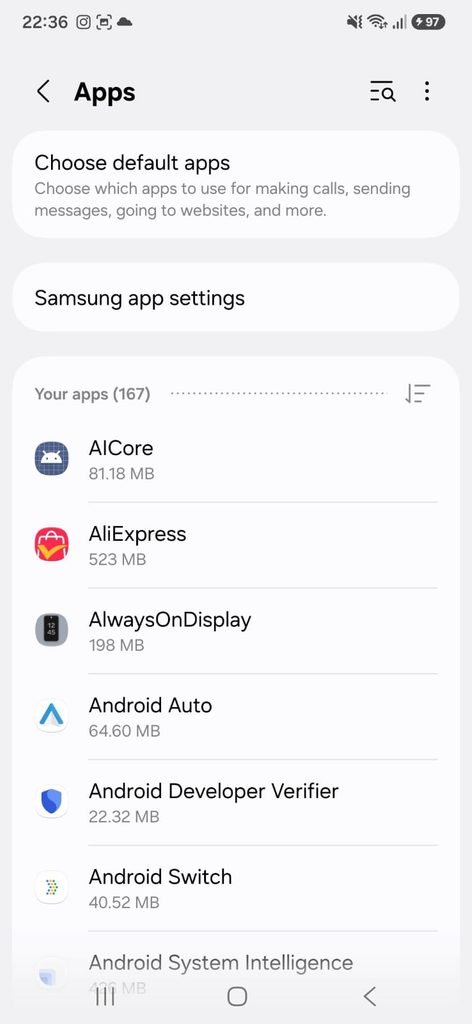
This is the first place to begin because Android organizes permission controls around each individual application.
Step 2: Select an App You Want to Review
Choose an application from the list.
For this guide, use an application that is installed on your phone and that does not expose personal information on the screenshot.
A social media app, shopping app, utility app, or another commonly installed application can work well.
Once you open its settings, look for Permissions.
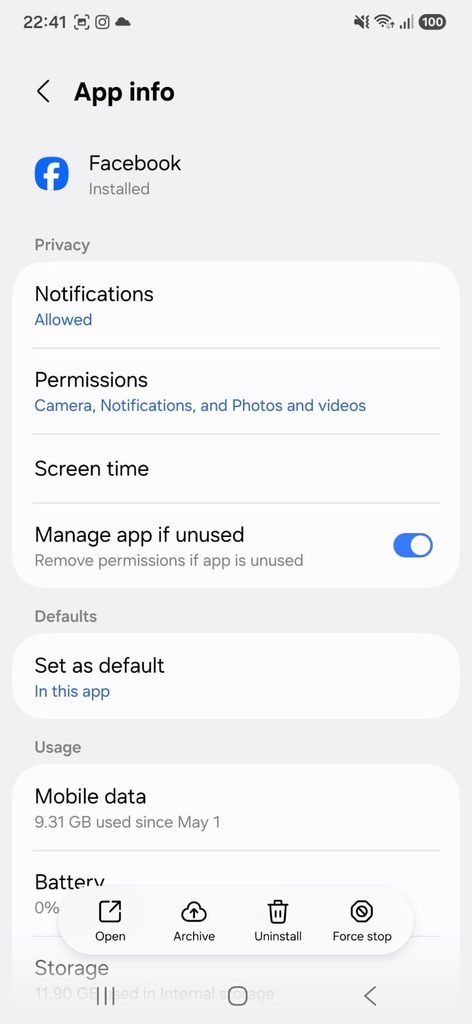
At this stage, you are not changing anything.
You are simply locating the controls that determine what the app can access.
That distinction is useful because reviewing permissions does not automatically revoke anything.
Step 3: Open the Permissions List
Tap Permissions.
You should now see the permissions associated with that application.
Depending on your Android version and the app itself, permissions may be grouped into sections showing which ones are currently allowed and which ones are not.
Google explains that permissions can be changed individually from this screen by selecting the permission and choosing an available option.
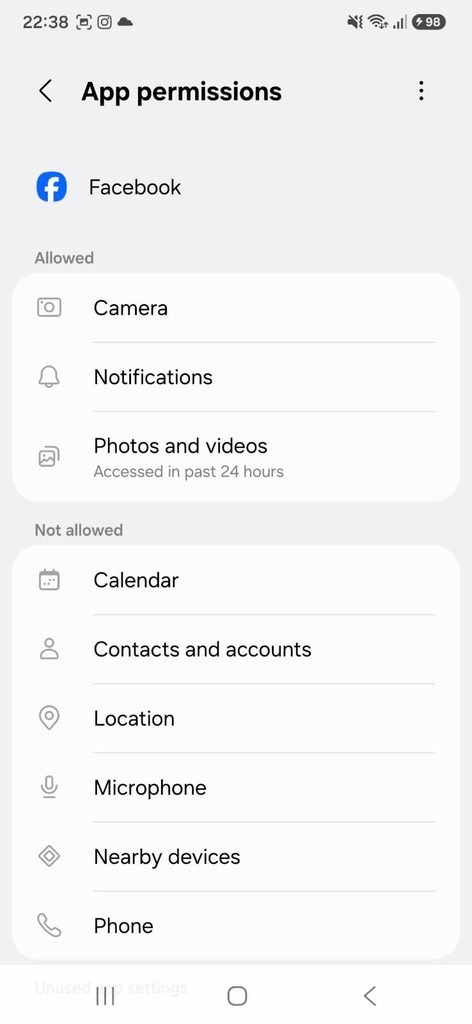
This screen is the most important part of the process because it shows what the application has been allowed to access.
Take your time here.
Do not disable permissions simply because they are listed.
The right question is whether the permission is appropriate for the app.
Step 4: Review the Camera Permission
Camera access deserves particular attention because it allows an application to use the device’s camera when the operating system permits it.
Some applications legitimately need camera access.
Examples include:
- Camera applications
- Video calling apps
- QR code scanners
- Document scanners
- Social media apps when you use their camera features
If the application does not have a reasonable reason to access the camera, consider whether that permission should remain enabled.
Android lets you deny permissions individually, although the available choices can depend on the permission and Android version.
Step 5: Review Microphone Access
Microphone permissions should also be reviewed carefully.
Applications such as:
- Video calling services
- Voice recording apps
- Messaging applications
- Voice assistant tools
may need microphone access for specific features.
If you rarely use those features, you can investigate whether the app provides a more restrictive permission option.
For location, camera, and microphone, Android versions that support the relevant controls can offer choices such as allowing access only while the app is in use, asking each time, or not allowing access.
The options shown on your phone can differ.
Step 6: Review Location Access
Location is another permission worth reviewing periodically.
A navigation app may need location information while you are using it.
A weather app may use your location to provide local forecasts.
Other apps may request location for features that are less essential.
Google explains that Android can offer different levels of location access depending on the device and version, including allowing access all the time, only while using the app, asking every time, or not allowing access.
When an app does not need continuous location access, a more restrictive setting may be appropriate.
A useful question
Ask:
Does this app actually need to know where I am when I am not using it?
If the answer is no, investigate whether your device offers a less permissive option.
Step 7: Review Photos, Videos, and Files
Modern Android versions can also separate access to photos and videos from other types of files.
This is particularly relevant for:
- Photo editors
- Social networks
- Messaging apps
- Cloud storage apps
- Document tools
An application may need access to selected photos rather than your entire library, depending on the Android version and the way the application is designed.
Review what your device shows and use the most limited option that still allows the feature you actually need.
Step 8: Review Contacts and Phone Permissions
Contacts and phone-related permissions can expose information that users may not realize an app can access.
A messaging application may have a legitimate reason to access contacts.
A dialer application may need access to phone functions.
But if an app has access to contacts even though you never use a feature that requires that information, it is worth reviewing the setting.
Android lists contacts, phone, SMS, calendar, camera, microphone, location, photos and videos, and other permission types among the controls available on supported devices.
Step 9: Check the Privacy Dashboard
On supported Android versions, the Privacy Dashboard provides another way to investigate permissions.
Google says the Privacy Dashboard can show which apps have accessed certain permissions and when that access occurred. On Android 13, it can show activity from the previous seven days, while Android 12 provides a shorter activity window.
On supported devices, the path is generally:
Settings → Security & Privacy or Privacy → Privacy Dashboard
The exact wording can change depending on your phone.
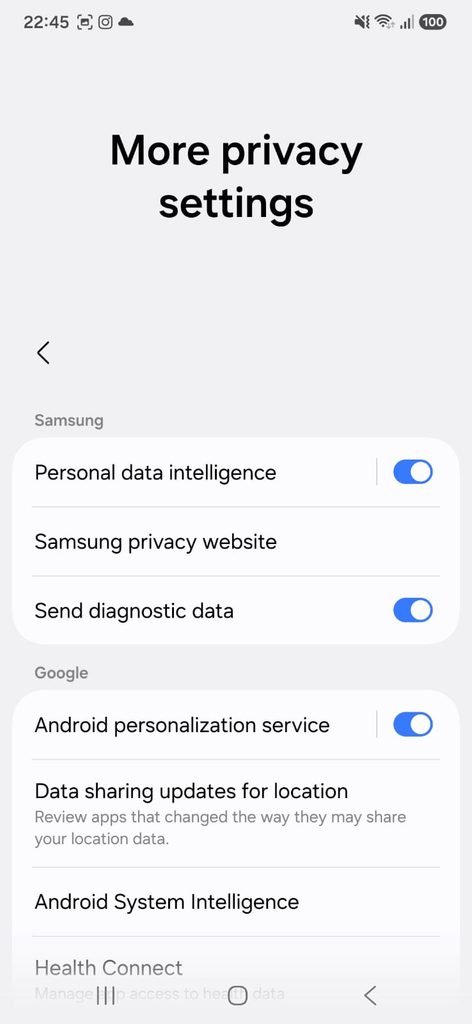
This screen is especially useful when you want to investigate permissions based on actual activity rather than simply looking at the list of permissions an app has been granted.
For example, you may discover that an application has accessed a particular permission recently.
Step 10: Change a Permission You No Longer Want to Allow
After reviewing an app’s permissions, choose one that you believe no longer needs access.
Tap the permission and select the appropriate option.
Depending on the permission and device, Android may provide choices such as:
Allow
Don’t allow
or, for certain permissions, more specific options such as allowing access only while the app is being used.
Do not change several permissions at the same time unless you understand what each one does.
Making one change at a time makes it easier to identify whether an app loses functionality.
What Happens When You Deny a Permission?
Denying a permission does not necessarily mean the application is unsafe.
It simply means the application can no longer use the feature or information controlled by that permission.
However, the app may stop offering a feature that depends on it.
For example, a document-scanning app may not be able to scan a document if camera access is denied.
A navigation app may not be able to provide location-based directions if it cannot access your location.
If an important feature stops working, you can review the permission and decide whether you want to allow it again.
Should You Deny Every Permission You Don’t Recognize?
No.
The name of a permission alone does not tell you whether it is appropriate.
Look at the application’s purpose first.
A photo-editing application requesting access to photos makes sense.
A navigation application requesting location access makes sense.
A communication application requesting microphone access may make sense when you use voice calls.
The important thing is to consider the relationship between the permission and the application’s actual function.
Review Permissions for Apps You Rarely Use
Applications that you no longer use regularly deserve particular attention.
Google provides a feature that can automatically pause activity for some unused apps, which can include removing temporary files, revoking permissions, and preventing certain background activity.
The exact behavior depends on the device and Android version.
You can also simply uninstall applications you no longer need.
There is little reason to leave an old application with permissions enabled when you no longer use it.
Be Careful With Restricted Settings
Android has additional protection around certain sensitive settings.
Google warns that harmful applications can attempt to persuade users to enable restricted settings that could expose sensitive information or increase the app’s ability to interact with the device.
For that reason, be cautious if an unfamiliar application tells you that you must change a security or accessibility setting to make the app work.
A legitimate application may occasionally require advanced access for a specific purpose, but you should understand what that access allows before enabling it.
How Often Should You Check App Permissions?
You do not have to inspect every permission every day.
A practical approach is to review them:
When installing a new app
After a major Android update
When an app changes significantly
When an app starts behaving unexpectedly
Every few months as a general privacy check
The goal is to prevent old permissions from being forgotten.
A Simple Permission Review Checklist
When reviewing an application, ask:
Does this app need this permission for a feature I actually use?
Does it need permanent access or only access while I am using it?
Would I be comfortable with this app having access to this information?
Do I still use the app?
If you cannot find a good reason for a permission, investigate the setting before leaving it enabled.
Frequently Asked Questions
How do I check what permissions an Android app has?
Open Settings → Apps → select the app → Permissions. The exact menu labels can vary depending on your Android version and phone manufacturer.
Can I turn off an app’s camera permission?
On supported Android devices, you can review the app’s camera permission and choose whether it is allowed. The available options depend on the device and Android version.
How do I check which apps have accessed my location?
Android provides location permission controls, and supported versions can show permission activity through the Privacy Dashboard.
Should I allow an app to access my location all the time?
Not necessarily. When an app does not require continuous location access, a more limited option may be appropriate. Android can provide options such as access while using the app, depending on the device and version.
What happens if I deny a permission?
The application will no longer have access to the protected feature or information. A feature that depends on that permission may stop working until the permission is restored.
Can an app still work if I deny some permissions?
Often, yes. It depends on the application and what the denied permission is used for. Some features may become unavailable while other parts of the app continue working normally.
What is the Privacy Dashboard on Android?
The Privacy Dashboard is a tool on supported Android versions that allows you to see which applications have accessed certain permissions and when that access occurred.
A Few Minutes Can Improve Your Android Privacy
You do not need to disable every permission on your phone to improve your privacy.
A better approach is to review permissions individually and make decisions based on what each application actually does.
Start with applications you rarely use and permissions involving sensitive information such as location, microphone, camera, contacts, and photos.
Then use the Privacy Dashboard, when available, to understand which apps have recently accessed those resources.
The goal is simple: your apps should have access to the information they need for useful features, but not necessarily everything on your phone.
