
Finding a file that you downloaded to your Android phone should be simple, but it can be surprisingly confusing when you do not remember which app downloaded it or where Android stored it.
A PDF downloaded from a website, an image saved from a browser, a document received through an app, and a file transferred from another device may not always appear in the same place.
Android generally provides access to your files through a file-management app. On some phones this is Files by Google, while manufacturers such as Samsung may provide their own file manager. Google notes that the exact steps can vary depending on the device.
This guide explains how to find downloaded files, search for a file when you do not remember its name, check where a file is stored, and move or share it when necessary.
Practical example: The screenshots in this guide will use a Samsung Galaxy as the Android example. The names and locations of menus can vary depending on the device and Android version.
Where Are Downloaded Files Stored on Android?
On many Android phones, downloaded files can be found in a folder named Downloads.
However, that does not mean every downloaded item will always appear there.
Google explains that different types of content can be downloaded by different apps. For example, some media should be managed from the app that originally downloaded it.
For ordinary files such as PDFs, documents, images, and other downloads, the file manager is usually the best place to start.
Step 1: Open Your Phone’s File Manager
Start by opening the file-management app on your Android phone.
On a Samsung Galaxy, this is commonly My Files.
Other Android phones may use Files, Files by Google, or another file-management application provided by the manufacturer.
Google explains that if you cannot find the Files app, your device manufacturer may use a different application.
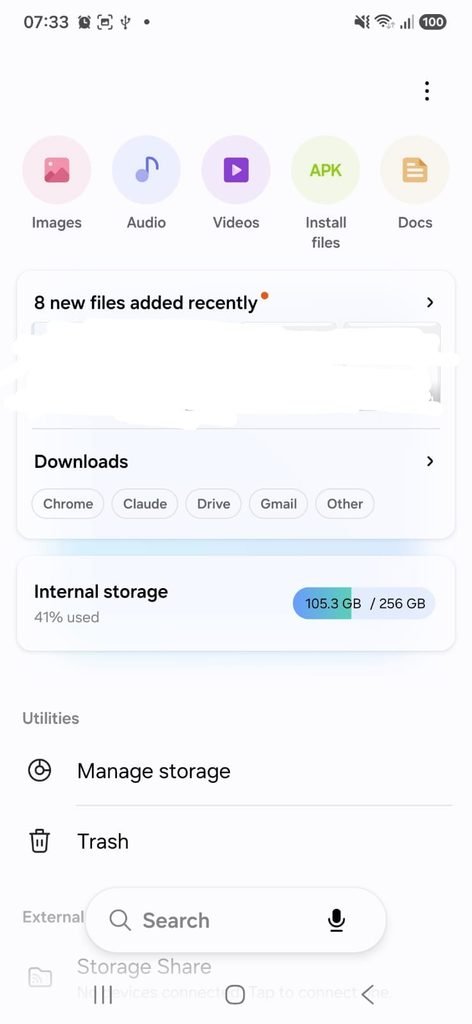
Samsung Galaxy file manager showing the main screen where files and storage locations can be accessed.
Step 2: Open the Downloads Folder
After opening the file manager, look for Downloads.
On many Android devices, it can be found under internal storage or in a category for downloaded files.
Tap Downloads to see the files stored there.
Google’s Android help explains that the Files app can be used to locate and open files on the device, while files can also be organized by categories.
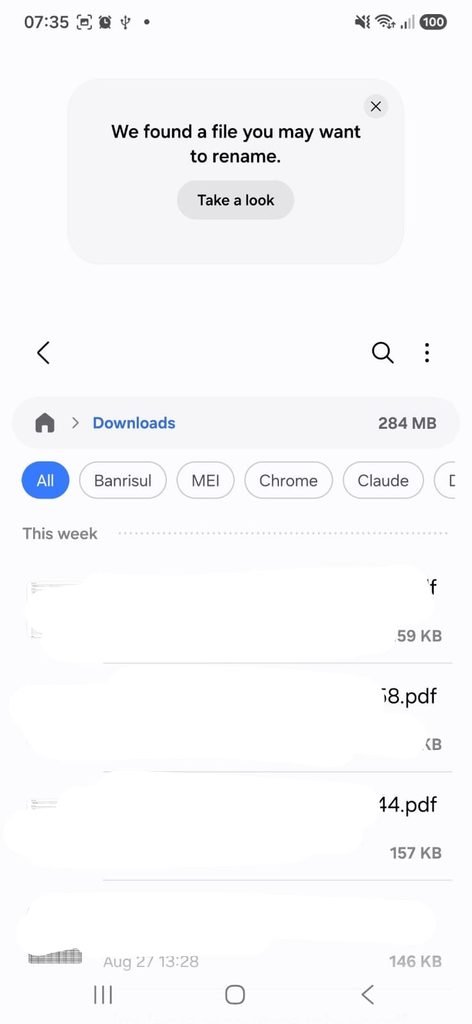
Android file manager showing the Downloads folder and files stored inside it.
Depending on how long you have used the phone, you may find PDFs, images, documents, installation files, and other types of content in this folder.
Step 3: Open a Downloaded File
Tap the file you want to open.
Android will normally use an appropriate application to display the content.
For example:
- PDF files may open in a PDF reader
- Images may open in a gallery or photo application
- Text documents may open in a compatible document app
- Audio files may open in a media player
If Android asks which application you want to use, select an appropriate app.
You do not need to move the file just to open it.
Step 4: Sort Files by Date or Size
Finding a file can become difficult when the Downloads folder contains many items.
A useful approach is to sort the files.
Google’s Files app allows files to be sorted by factors such as name, date, or size.
On a supported file manager, open the relevant category or folder and look for a Sort or Order by option.
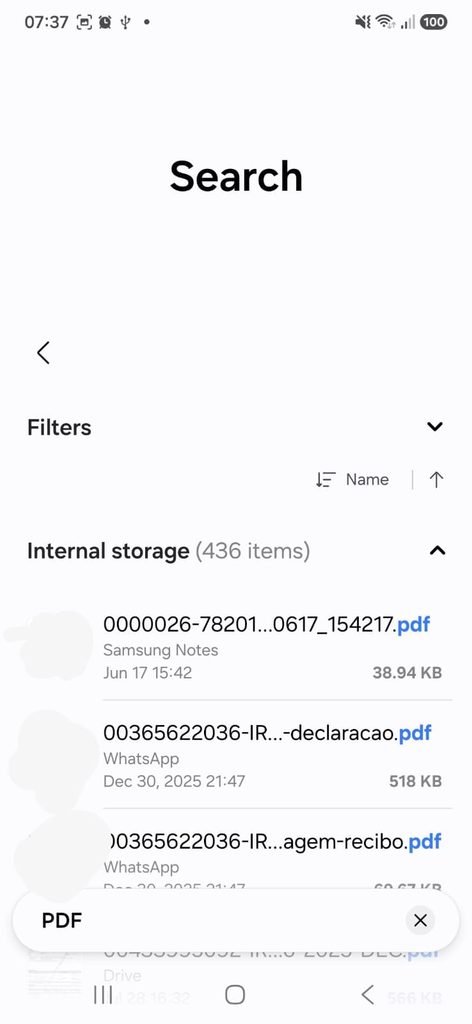
Android file manager showing file-sorting options such as name, date, or size.
Sorting by date is especially useful when you downloaded the file recently but do not remember its exact name.
Sorting by size can help when you are looking for a large video, ZIP file, or document.
Step 5: Search for a File by Name
If you know part of the file’s name, use the search function in your file manager.
With Files by Google, you can search for a file by typing its name into the search bar. Google also allows filtering by file type or date.
For example, if you downloaded a document named:
tax-document-2026.pdf
you could search for:
tax
or
2026
This can be much faster than opening individual folders.
Step 6: Search by File Type
Sometimes you remember what kind of file you downloaded but not its name.
In that situation, filtering by file type can be useful.
Depending on your file manager, you may be able to browse categories such as:
Images
Videos
Documents
Downloads
Audio
Google’s Files app organizes content into categories, making it possible to browse files by type instead of searching folder by folder.
This is particularly useful if you remember downloading a PDF but have no idea what it was called.
Step 7: Check the File’s Location
When you find the file, you may want to know exactly where it is stored.
Files by Google can display information about a file, including its location and modification time.
This can be useful when you need to locate the same file again later or transfer it to another folder.
The file manager may show a path similar to:
Internal storage → Download
The exact path can differ depending on the application and device.
Step 8: Find a File You Downloaded From a Browser
If you downloaded a PDF or image through a web browser, start by checking the Downloads folder in your file manager.
You can also check the browser’s own download history.
The browser may show the name of the file and provide an option to open it again.
If the file is not in the Downloads folder, check whether the browser was configured to save files somewhere else.
The important distinction is between the download history shown by the browser and the physical location where the file is stored.
The browser can tell you what was downloaded, while the file manager is usually better for finding the actual file on the device.
Step 9: Find a File Downloaded From an App
Not every type of downloaded content is handled like a normal file.
Google explains that music, movies, books, and similar content may need to be accessed through the application that originally downloaded them.
For example, if an app provides offline video downloads, those files may not appear as ordinary video files that you can browse and open from the file manager.
In those cases, open the original app and look for its Downloads, Offline, or Saved section.
Step 10: Find Recently Downloaded Files
If you downloaded a file recently and cannot remember its location, start with the Recent section if your file manager provides one.
Files by Google shows recently added, downloaded, and modified files in its Recents section.
This can be quicker than manually checking every folder.
Step 11: Check Whether the File Is Still on Your Phone
Sometimes a file appears in a download history but is no longer stored on the device.
It may have been:
- Deleted
- Moved to another folder
- Automatically removed
- Saved to cloud storage
- Opened without being permanently stored where you expected
The easiest way to confirm is to search for the file using your file manager.
If the file cannot be found, check the original application or service from which it was downloaded.
Step 12: Move a Downloaded File to Another Folder
Once you find your file, you may want to organize it.
Files by Google allows users to move files to different folders on the device.
For example, you might create separate folders for:
Documents
Work
Receipts
Travel
Personal
This can make future searches much easier.
Step 13: Share a Downloaded File
You can also share a downloaded file directly from the file manager.
Google’s Android documentation explains that you can select a file and use the Share option to send it through a compatible application.
Depending on your device, you may be able to send the file through:
- Quick Share
- Messaging apps
- Cloud storage
- Other installed applications
You do not need to copy the file to another folder before sharing it.
Step 14: Delete a Downloaded File You No Longer Need
Once you have confirmed that a downloaded file is no longer necessary, you can delete it through the file manager.
Google explains that files can be selected and moved to the trash or deleted from the device.
Before deleting an important document, check whether you have another copy.
A downloaded PDF or image may be easy to download again, but that is not always the case.
Why You Cannot Find a File in Downloads
There are several possible reasons.
The file was saved somewhere else
Some apps use their own folders instead of the standard Downloads folder.
The file was downloaded inside an app
Offline media may only be accessible through the original application.
The file was moved
You or another application may have moved it to another folder.
The file was deleted
The download may still appear in a browser’s history even though the physical file is gone.
You are searching for the wrong name
The downloaded file may have a name that is different from the title shown on the website.
When this happens, try searching by file type, date, or part of the filename.
What Is the Difference Between Downloads and Recent Files?
Downloads is a location or category containing downloaded files.
Recent files is a view of files that have been recently added, downloaded, or modified.
Files by Google provides both concepts, which can make the Recent view useful when you remember roughly when the file appeared but not where it was stored.
They are useful for different situations.
How to Find a PDF Downloaded to Android
If you downloaded a PDF through a web browser, start with:
File manager → Downloads
If you do not see it, use the search function and enter part of its name or filter for documents.
You can then tap the PDF to open it with a compatible application.
If the PDF was downloaded through a specific app, check that app’s own download section as well.
How to Find Images You Downloaded
For images, check:
Downloads
Images
Pictures
and any application-specific media folders that may be relevant.
A browser download and a photo received through a messaging service may be handled differently.
If you know approximately when you received the image, sorting by date can make the search considerably easier.
Can You Search for a File Without Knowing Its Name?
Yes, on supported versions of Files by Google you can search using more than the exact filename.
Google says its current smart-search feature can find files using information such as text contained in images and PDFs, as well as information about images, audio, and video.
The availability of this feature can depend on your device and Files by Google version.
Even without smart search, filtering by date, category, or filename can help narrow down the results.
How to Make Downloaded Files Easier to Find
One of the easiest ways to avoid losing files is to organize them soon after downloading them.
For example, instead of leaving every document inside Downloads, move important files to folders with clear names.
You might use:
Documents → Receipts
Documents → Work
Documents → School
Documents → Personal
The goal is not to create dozens of folders.
A small number of meaningful categories is usually easier to maintain.
Should You Delete Everything in the Downloads Folder?
No.
The Downloads folder may contain files that are still important.
Before deleting anything, open or review the files and determine whether they are still needed.
Google specifically recommends deleting downloaded files that are no longer needed when you want to free storage, but this should be done deliberately rather than by deleting the entire folder.
Frequently Asked Questions
Where do downloaded files go on Android?
Many ordinary downloads are stored in a Downloads folder that can be accessed through your phone’s file manager. However, the exact location can vary, and some apps store downloaded content separately.
How do I find a PDF I downloaded on Android?
Open your file manager and check Downloads. You can also search for the filename or use a document category if your file manager provides one.
Why can’t I find my downloaded file?
It may have been saved somewhere other than Downloads, moved, deleted, or downloaded inside an app that uses its own storage system.
How do I search for files on Android?
You can use the search function in your file manager. Files by Google also lets you filter searches by type and date.
Can I move downloaded files to another folder?
Yes. File-management apps such as Files by Google allow you to move or copy files between folders on the device.
Can I delete downloaded files?
Yes, provided you no longer need them. Android’s file-management tools allow you to delete files from the device.
Where do Quick Share files go?
On supported Android devices, files received through Quick Share can be found in the device’s file manager under Downloads → Quick Share.
Finding a Downloaded File Doesn’t Have to Be Difficult
When you cannot find something you downloaded, start with your phone’s file manager and check Downloads.
If it is not there, use search, sort files by date, or browse the relevant category. If the content came from an app that manages its own downloads, check the original app as well.
The most useful habit is to avoid relying only on memory. Android’s file-management tools allow you to search, sort, inspect, move, and share files, making it much easier to keep downloaded content organized.
