
Moving files from one Android phone to another can be useful when you buy a new phone, replace an older device, or simply want to share photos, videos, documents, and other files with another Android user.
Android offers several ways to transfer files between nearby phones. Quick Share is one of the simplest options for sending selected files wirelessly, while Android’s device-to-device setup can transfer a larger amount of supported data when you are moving to a new phone. Samsung devices also offer additional transfer options through Smart Switch.
The best method depends on what you are trying to move. Sending a few photos is different from transferring most of your information to a new phone.
This guide focuses on practical ways to move files between two Android devices while reducing the risk of losing important data.
Practical example: The screenshots in this guide will use a Samsung Galaxy as the Android example. Menus and available options can vary depending on the manufacturer, Android version, and device model.
Before You Start
Before transferring files, make sure both phones have enough battery and are unlocked.
If you are moving a large amount of data to a new phone, Google recommends having both devices charged, unlocked, signed in to your Google Account when appropriate, and connected to Wi-Fi.
It is also useful to know exactly what you want to transfer.
For example, you might need to move only:
- Photos
- Videos
- Documents
- PDFs
- Music files
- Downloads
A complete phone migration is a different process and may include apps, settings, messages, and other supported information.
Method 1: Use Quick Share for Selected Files
Quick Share is particularly convenient when you want to send individual files or smaller groups of files between nearby Android devices.
Google describes Quick Share as a way to send and receive files between nearby devices. It is available on supported Android devices, including Android 6 and newer.
You can use it for photos, videos, documents, and other supported files.
Step 1: Open the File You Want to Send
On the first Android phone, open the photo, video, document, or other file you want to transfer.
For example, you can open Google Photos if you want to send pictures or open a file manager if you want to send documents.
Tap Share.
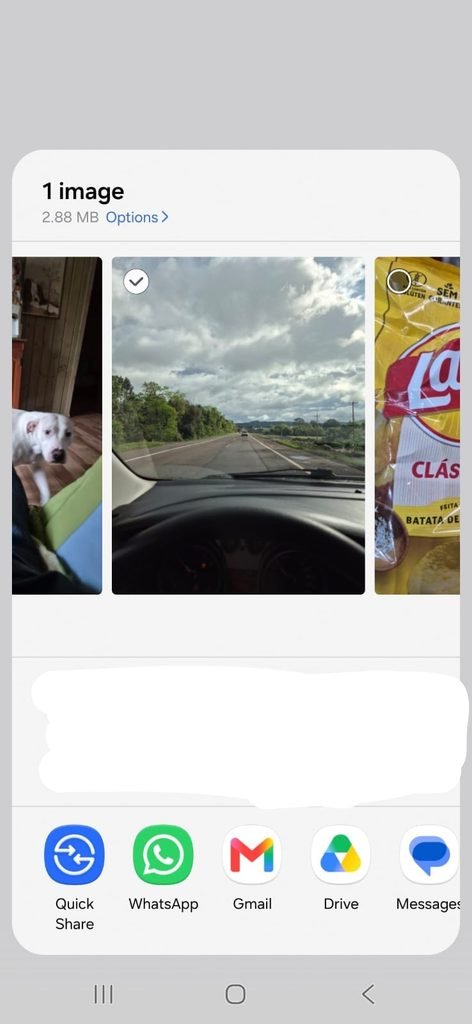
Android sharing menu showing Quick Share as an option for sending a file to a nearby device.
Step 2: Select Quick Share
After tapping Share, look for Quick Share.
On some devices, the feature may still appear under older terminology related to nearby sharing, although Google says the feature is now called Quick Share.
Tap Quick Share.
The receiving Android phone needs to be nearby and available to receive the file.
Step 3: Make the Receiving Phone Visible
On the second Android phone, open Quick Share if necessary.
Depending on the device, you may be able to find it by searching for Quick Share in Settings or through the Quick Settings panel.
Google’s current instructions explain that Quick Share can be opened from the Share menu, Quick Settings, or device settings.
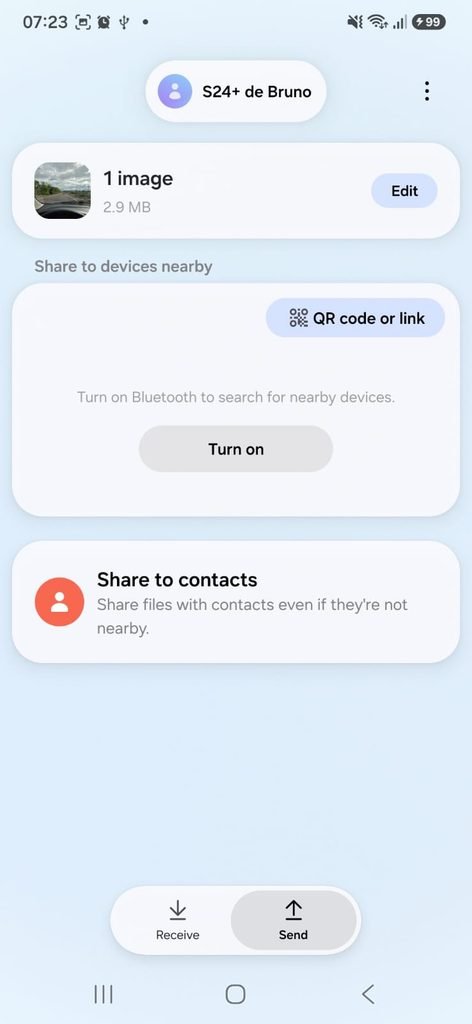
Quick Share settings on the receiving Android phone showing the device’s availability for nearby file transfers.
Make sure the receiving device is visible when necessary.
Google notes that if the other device cannot be found, you should check whether it is set to receive content in the Quick Share settings.
Step 4: Select the Receiving Phone
Return to the phone sending the file.
Quick Share should display nearby devices that are available.
Tap the receiving phone.
The second phone should display a request asking the user to accept the transfer.
If the two phones belong to you and use the same Google Account, Google explains that files can be accepted automatically in some circumstances.
Step 5: Accept the Transfer
On the receiving phone, review the sharing request and tap Accept.
The file transfer will then begin.
Google states that the receiving device should be unlocked when accepting a Quick Share request.
Once the transfer has started, you can monitor its progress on the screen.
Step 6: Find the Transferred File
After the transfer finishes, open the appropriate app on the receiving device.
For example:
Photos for pictures and videos
Files for documents and other files
Google states that files received through Quick Share are saved in the Quick Share folder inside Downloads on supported devices.
Open the transferred file to verify that it works correctly.
Method 2: Use Android’s Device-to-Device Transfer
Quick Share is excellent for selected files, but it is not necessarily the best choice when you are moving a large amount of information to a new Android phone.
When setting up a new Android device, Google provides a device-to-device transfer process that can copy supported apps and data from the old phone to the new one.
This process can use either a cable or a wireless connection.
For Samsung phones, Samsung also provides Smart Switch as another transfer option. Google specifically notes that Samsung devices have several transfer options, including Smart Switch.
Step 7: Prepare the New Android Phone
Turn on the new phone and begin the normal setup process.
When Android asks whether you want to set up the phone using another device, select the option to transfer or copy data from an Android device.
Google recommends connecting the phones to Wi-Fi and having the old phone unlocked before starting the process.
The exact setup screens may vary depending on the phone manufacturer and Android version.
Step 8: Connect the Two Phones
Android can offer a wired or wireless method depending on the devices.
With a compatible cable, follow the instructions shown on the new phone to connect both devices.
Google recommends using a cable when available and notes that an adapter may be required if the connectors are different.
If a cable is not available, supported devices can transfer data wirelessly during setup.
Step 9: Choose What to Transfer
The setup process can allow you to select supported apps and data to copy.
Depending on the device, the available categories can include:
- Apps
- Contacts
- Messages
- Call history
- Device settings
- Some media and other supported information
Google notes that the exact information transferred depends on the device and Android version.
Review the selections before starting.
You do not necessarily need to transfer everything.
Step 10: Wait for the Transfer to Finish
Once the transfer starts, leave both phones connected and avoid interrupting the process.
The amount of time required depends on how much data is being moved.
Google notes that a transfer can take anywhere from several minutes to more than an hour depending on the amount of data.
For a large transfer, it is better to start when you do not immediately need either phone.
What Android Does Not Always Transfer
An important point is that a device transfer does not necessarily copy every file and every application exactly as they appear on the old phone.
Google notes that certain items may not be copied during setup, including some downloads, photos or videos stored in hidden folders, apps that did not come from Google Play, data from apps that do not use Android backup, and some accounts or data associated with non-Google services.
This is why it is important to check the old phone before considering the transfer complete.
How to Transfer Photos With Quick Share
Quick Share is particularly convenient for transferring photographs.
Open the image in Google Photos or your gallery.
Tap:
Share → Quick Share → select the receiving phone → Accept
You can select multiple photos before opening the Share menu.
For a small collection of pictures, this can be faster than setting up a full device transfer.
How to Transfer Documents Between Android Phones
Documents can also be shared with Quick Share.
Open your file manager and locate the document.
Tap:
Share → Quick Share
Then select the receiving Android phone.
After the transfer, open the document on the second phone to make sure it was received correctly.
This is useful for PDFs, text documents, spreadsheets, and other supported files.
What If Quick Share Cannot Find the Other Phone?
Start with the basic checks.
Make sure both phones are nearby.
Make sure the receiving phone is unlocked.
Check that Quick Share is enabled and that the receiving device is visible.
Google specifically recommends checking the receiving device’s Quick Share settings when another device does not appear.
You can also try turning Quick Share off and back on.
If necessary, restart both phones and try again.
What If the Transfer Stops?
For a large transfer, first check the connection between the two phones.
If using a cable, make sure it is firmly connected to both devices.
If the transfer is wireless, keep the phones close together and avoid moving one of them far away.
For a new-device migration, Google recommends maintaining an internet connection during the setup process.
If the transfer repeatedly fails, consider using a different method.
For Samsung phones, Smart Switch may be a useful alternative when moving a large amount of information.
Should You Use Quick Share or Full Device Transfer?
The answer depends on your goal.
Use Quick Share when:
You need to send a few photos.
You want to send a document.
You are sharing selected videos.
You want a simple wireless transfer.
Use device-to-device setup when:
You are moving to a new Android phone.
You need to transfer supported apps and settings.
You have a large amount of data to move.
You want the new device to resemble the old one as closely as supported.
Neither method is necessarily better for every situation.
Always Check the Files After Transfer
A successful transfer message does not mean you should immediately erase the original phone.
Open several transferred files on the receiving device.
Check:
- Recent photos
- Older photos
- Videos
- Documents
- Important downloads
If you are moving to a new phone, spend some time using it normally before resetting the old device.
This gives you an opportunity to identify anything that did not transfer as expected.
Do Not Erase the Old Phone Too Soon
This is one of the most important precautions.
Keep the old phone until you have confirmed that the information you need is available on the new device or in another backup location.
Google’s Android guidance recommends backing up data before changing devices, and the company’s transfer documentation identifies several types of information that may not be copied automatically.
A few extra minutes of checking can prevent an unnecessary data loss problem.
How Much Data Can Quick Share Transfer?
Google’s Quick Share documentation focuses on sharing files between nearby devices rather than defining a single universal maximum transfer size for Android-to-Android transfers.
For small and medium groups of files, Quick Share can be convenient.
For extremely large libraries, a full device transfer or another backup method may be more practical.
The best choice depends on the amount of data and the devices involved.
Can I Transfer Files Between Samsung and Other Android Phones?
Yes.
Quick Share is designed for sharing files between compatible nearby devices, and Google notes that Galaxy devices may have additional options and variations in their settings.
Samsung phones can also use Smart Switch for supported transfer scenarios.
The menus may look different when the two phones come from different manufacturers.
Frequently Asked Questions
What is the easiest way to transfer files between two Android phones?
For a few photos, videos, or documents, Quick Share is one of the simplest options because it allows nearby Android devices to exchange files wirelessly.
Can I transfer everything from one Android phone to another?
Android provides a device-to-device setup process that can copy supported apps and data. However, Google notes that some types of files and data may not be transferred automatically.
Do both phones need Wi-Fi for Quick Share?
Quick Share uses nearby-device connectivity and its available connection methods can vary. Google recommends keeping the devices nearby and notes that internet or mobile data behavior can vary depending on the sharing method and device.
Is Quick Share safe?
Quick Share requires the recipient to accept incoming transfers in normal sharing situations, and Google states that transferred files are protected by encryption.
Where do Quick Share files go?
Google states that files received through Quick Share are saved in the Quick Share folder inside Downloads on supported devices.
Can I transfer WhatsApp data to another Android phone?
WhatsApp has its own backup and restoration process. Before changing devices, check WhatsApp’s backup settings and complete the backup before moving to the new phone.
Should I keep the old phone after transferring everything?
Yes. Keep it until you have checked the new phone and confirmed that the important data and files are available.
The Safest Way to Move Your Files
There is no need to use the same method for every type of transfer.
For a few photos or documents, Quick Share provides a convenient way to send files directly between nearby Android phones.
When replacing an old phone with a new one, Android’s built-in device transfer can move supported apps and data during setup, while Samsung users may also have Smart Switch available.
Whatever method you choose, the final step should always be the same:
Check the new phone before deleting anything from the old one.
That simple habit gives you an opportunity to catch missing photos, documents, or other files before the original copies are gone.
