
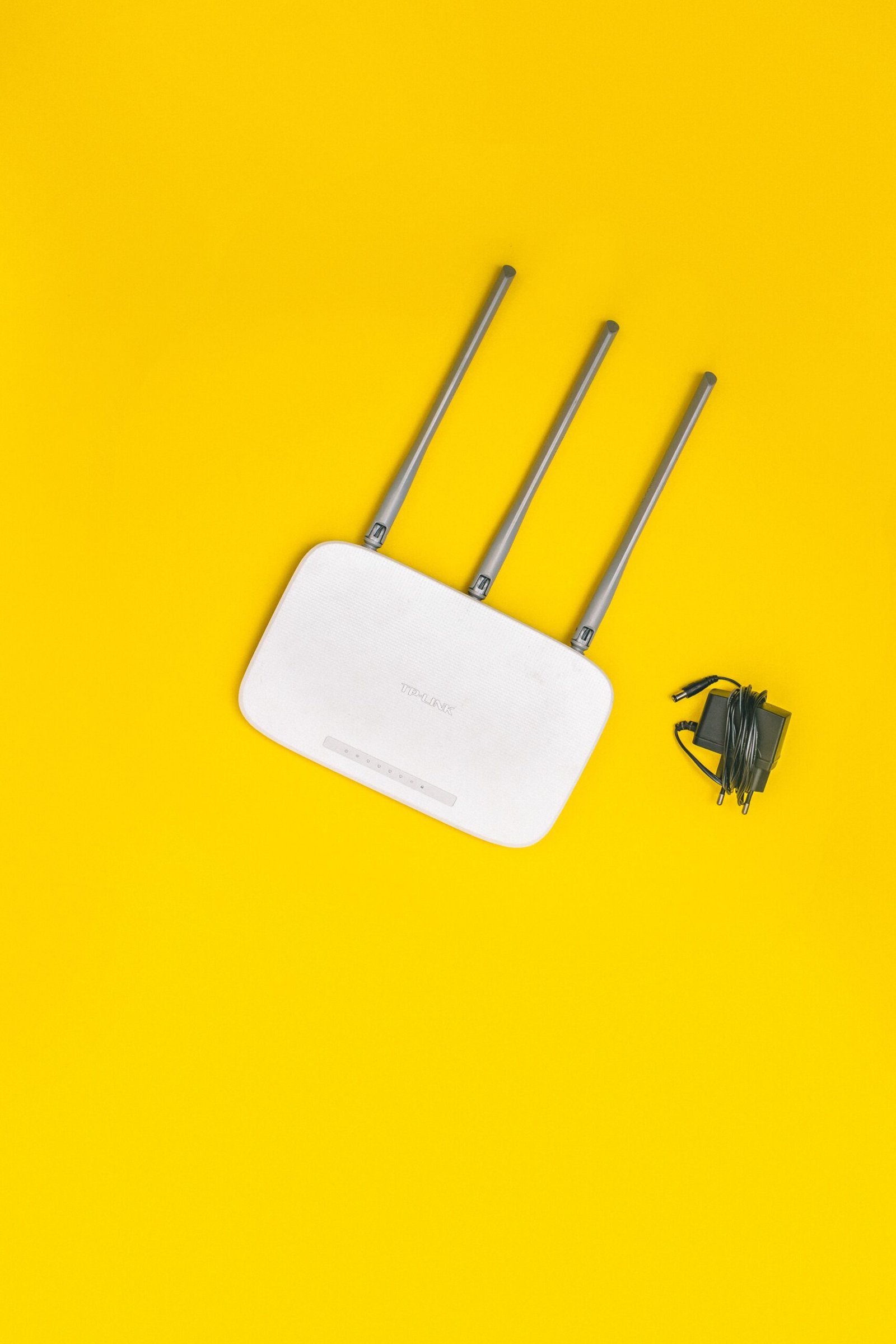
A Wi-Fi connection that suddenly becomes slow, disconnects repeatedly, or stops working can be frustrating, especially when other devices in the same home appear to be working normally.
The good news is that many Android Wi-Fi problems can be investigated without changing complicated settings. A few basic checks can help determine whether the problem is with the phone, the wireless network, or the internet connection itself.
Google recommends starting with simple troubleshooting steps such as checking the Wi-Fi connection, restarting the device, switching between Wi-Fi and mobile data, checking the router, and testing the connection again. The exact names of settings can vary between Android phones.
Practical example: The screenshots in this guide will use a Samsung Galaxy as the Android example. The appearance of Wi-Fi settings can be different on Samsung, Google Pixel, Motorola, Xiaomi, and other Android devices.
First, Determine What Is Actually Wrong
Before changing settings, try to identify what kind of problem you are experiencing.
For example, does the phone:
- Show the Wi-Fi icon but not load websites?
- Disconnect from Wi-Fi repeatedly?
- Connect successfully but have very slow internet?
- Fail to find your home network?
- Work normally on mobile data but not Wi-Fi?
These symptoms can point toward different causes.
If your phone cannot access the internet through Wi-Fi but mobile data works normally, the problem may be related to the Wi-Fi network or its connection to the internet.
If other devices connected to the same Wi-Fi network also cannot access websites, the router or internet service may be the more likely source of the problem.
Step 1: Check Whether Wi-Fi Is Turned On
Start with the simplest possibility.
Open your phone’s Settings and find Wi-Fi or Connections.
Make sure Wi-Fi is enabled.
You can also open the Quick Settings panel by swiping down from the top of the screen and checking the Wi-Fi control.
Google’s Android documentation recommends checking whether Wi-Fi is enabled and whether the device is actually connected to a network before moving on to more advanced troubleshooting.
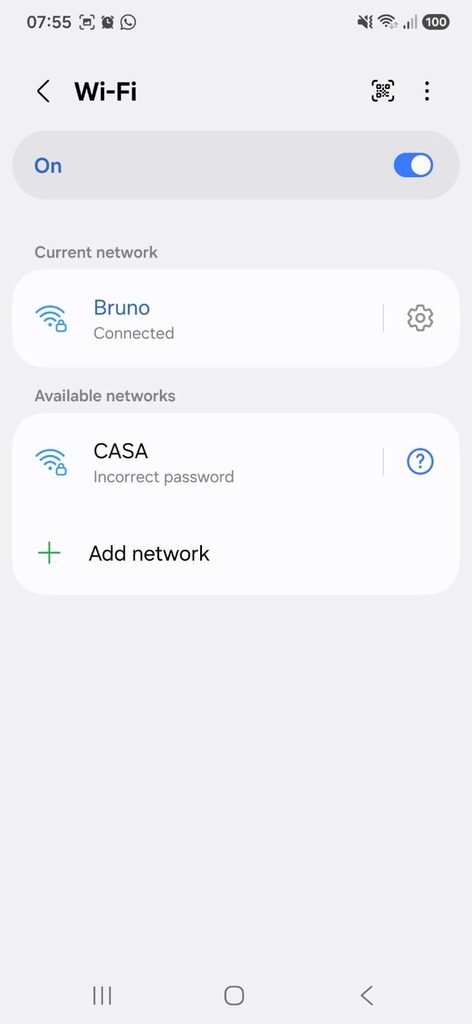
Samsung Galaxy Wi-Fi settings showing the available wireless network and connection status.
Step 2: Check Whether Your Phone Is Actually Connected
Having Wi-Fi turned on does not necessarily mean your phone has a working internet connection.
Open the Wi-Fi settings and check the network you are connected to.
Look at the Wi-Fi icon in the status bar as well.
If there is no active connection, select your home network and connect again.
If the network requires a password, make sure the password is correct.
Once connected, open a website or another internet-dependent app to test the connection.
Google explains that a device normally saves a Wi-Fi network after connecting to it, allowing it to reconnect automatically when the network is nearby and Wi-Fi is enabled.
Step 3: Move Closer to the Router
Wi-Fi signal strength decreases as you move farther away from the wireless router.
Walls, floors, furniture, appliances, and other obstacles can also affect the connection.
If the Wi-Fi signal looks weak, move closer to your router and test the connection again.
Google specifically recommends moving closer to the router when the Wi-Fi signal is weak or the device appears to be outside the network’s effective range.
This simple test can help distinguish a coverage problem from a completely failed connection.
Step 4: Turn Wi-Fi Off and Back On
A temporary connection problem can sometimes be resolved by reconnecting the phone to the network.
Open the Quick Settings panel and turn Wi-Fi off.
Wait a few seconds, then turn it back on.
Alternatively, open:
Settings → Wi-Fi
and switch the connection off and on there.
Google includes turning Wi-Fi off and back on among its general Android troubleshooting steps.
After reconnecting, open a website and see whether the problem has disappeared.
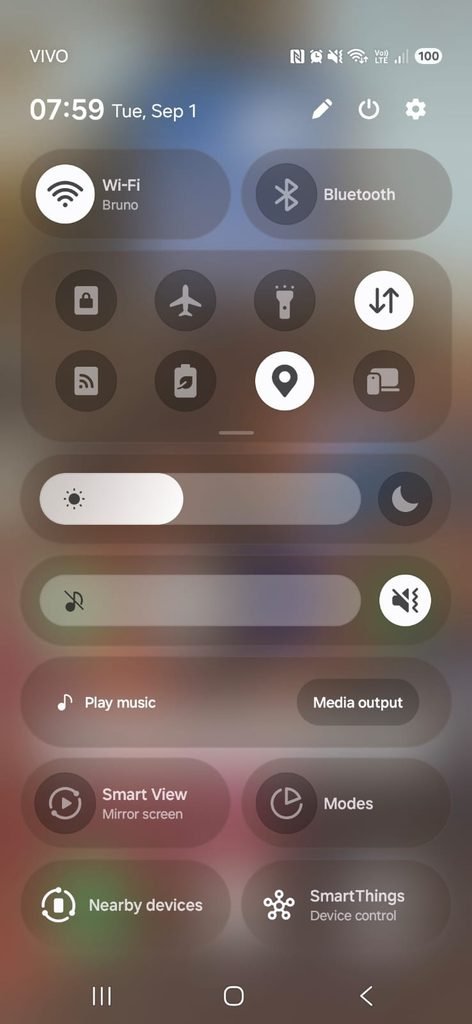
Samsung Galaxy Quick Settings panel with the Wi-Fi control.
Step 5: Restart Your Android Phone
Restarting the phone is one of the simplest troubleshooting steps, but it can resolve temporary software or network problems.
Press and hold the power button, then select Restart.
After the phone starts again, reconnect to Wi-Fi if necessary and test the connection.
Google lists restarting the Android device as one of the first general troubleshooting steps for internet connection problems.
Step 6: Restart the Router
If the phone still cannot connect properly, the problem may not be with the phone.
If you are using a home Wi-Fi network, restarting the router can help restore the connection.
Google’s Android troubleshooting guidance recommends disconnecting the router from power, waiting around 30 seconds, reconnecting it, and waiting for it to start up again.
Do not repeatedly restart the router every few minutes. Give it enough time to reconnect to your internet provider before testing the phone again.
Step 7: Check Whether Other Devices Have the Same Problem
This is one of the most useful diagnostic tests.
Try connecting another device to the same Wi-Fi network.
For example, you could check:
Another smartphone
A laptop
A tablet
If several devices cannot access the internet through the same Wi-Fi network, the problem is less likely to be limited to your Android phone.
If other devices work normally while your Android phone does not, it makes sense to focus your troubleshooting on the phone.
Step 8: Switch to Mobile Data Temporarily
Android’s official troubleshooting guidance recommends switching between Wi-Fi and mobile data to determine whether there is a difference.
Turn Wi-Fi off and allow the phone to use mobile data.
Then open a website or another service that requires internet access.
If everything works normally on mobile data, your phone’s general internet connection is working, which gives you another clue that the problem may be related to Wi-Fi.
Remember that mobile data can consume your cellular plan, so use it only for testing if your allowance is limited.
Step 9: Forget the Wi-Fi Network and Connect Again
If the phone repeatedly fails to connect, forgetting the saved network and joining it again can help.
Open your Wi-Fi settings and select your current network.
Look for an option similar to:
Forget
or
Forget network
After removing the saved connection, select the network again and enter the Wi-Fi password.
Google’s Android documentation includes forgetting saved networks as one of the available Wi-Fi management options.
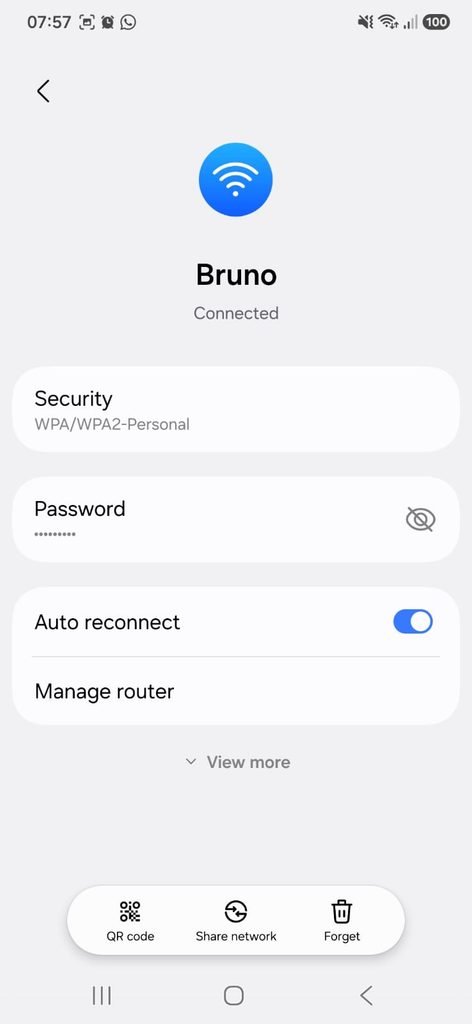
Android Wi-Fi settings showing the options available for a saved wireless network.
Before forgetting the network, make sure you know the Wi-Fi password because you will need it to reconnect.
Step 10: Check the Wi-Fi Signal Strength
Your phone’s Wi-Fi icon can provide a basic indication of signal strength.
A stronger icon generally indicates a better connection between the phone and the router.
If the signal becomes weak when you move to a particular room, the issue may be related to coverage rather than the internet service itself.
Google explains that the Wi-Fi icon provides an indication of signal strength and recommends moving closer to the router when the connection is weak.
This can be particularly helpful in larger homes or buildings where a single router may not provide equal coverage everywhere.
Step 11: Check Airplane Mode
Make sure Airplane mode is disabled.
You can also temporarily enable Airplane mode, wait about 10 seconds, and disable it again.
Google includes this step in its Android connectivity troubleshooting recommendations.
After disabling Airplane mode, wait for Wi-Fi to reconnect and test the internet again.
Step 12: Check Whether Only One App Is Having Problems
Sometimes the Wi-Fi connection itself is working correctly while one application has a problem.
For example, your browser may load websites normally while a particular app remains stuck loading.
Try opening several different services.
If only one app is affected, the issue may be specific to that application rather than the Wi-Fi connection.
You can try closing and reopening the app, checking for an update, or investigating the app’s own settings.
Avoid changing your entire Wi-Fi configuration when only one application is affected.
Step 13: Test a Different Website
A single website can sometimes be temporarily unavailable.
If one page refuses to load, try visiting several unrelated websites.
You can also test another internet service, such as an app that normally requires an online connection.
If multiple services fail, the problem is more likely to be the connection itself.
If only one website fails while everything else works, your Wi-Fi may not actually be the problem.
Step 14: Check Whether the Router Has Internet Access
Your phone can have a strong Wi-Fi connection to the router while the router itself has lost its connection to the internet.
This distinction is important.
Wi-Fi connection: Your phone is communicating with the router.
Internet connection: The router is communicating with your internet provider.
If other devices connected to the same router also cannot open websites, check the router’s status and, when necessary, contact your internet service provider.
Google recommends contacting the internet provider or the host of the Wi-Fi network when the problem persists after the basic troubleshooting steps.
Step 15: Check for a Captive Portal on Public Wi-Fi
Public Wi-Fi networks at hotels, airports, restaurants, schools, and other locations may require you to accept terms or sign in through a web page before internet access becomes available.
Your phone may show that it is connected to Wi-Fi even though you have not completed that login step.
Open a browser and see whether a sign-in or acceptance page appears.
This type of network behaves differently from a typical private home Wi-Fi connection.
Step 16: Try Another Wi-Fi Network
Another useful test is connecting your Android phone to a different Wi-Fi network.
For example, you could connect to a trusted network at another location.
If the phone works normally on another network, the problem may be related to your original router or Wi-Fi configuration.
If the phone has the same problem across several different networks, investigating the phone itself becomes more important.
Step 17: Reset Network Settings Only as a Last Resort
If simpler troubleshooting does not solve the problem, Android provides network-reset options on supported devices.
However, this should not be the first thing you do.
Resetting network settings can remove saved network information and may require you to reconnect to Wi-Fi networks afterward.
Before using any reset option, make sure you understand what information will be removed on your particular device.
If the problem only affects one saved Wi-Fi network, forgetting and reconnecting to that network may be a better first step.
What If Wi-Fi Keeps Disconnecting?
Repeated disconnections can have several possible causes.
Start by checking the signal strength.
Then test the phone closer to the router.
Restart both the phone and router.
If the problem continues, forget the network and reconnect.
You should also check whether other devices experience the same disconnections.
This process helps determine whether the problem is related to the phone, the wireless signal, or the router.
What If Wi-Fi Is Connected but There Is No Internet?
A Wi-Fi icon does not necessarily mean that the router currently has internet access.
First, test another device on the same network.
If that device also cannot access the internet, restart the router and check its connection.
If other devices work normally, focus on your Android phone by turning Wi-Fi off and back on, restarting the phone, and reconnecting to the network.
Google’s troubleshooting guidance specifically recommends switching between Wi-Fi and mobile data and checking the router when an Android device cannot access the internet.
What If the Wi-Fi Network Does Not Appear?
First, move closer to the router and refresh the available networks.
Make sure Wi-Fi is enabled.
If other devices can see the network but your phone cannot, restart the phone and check again.
If the network is hidden, you may need to add it manually using the network name and security information. Android provides an option for adding a saved network manually on supported devices.
What If the Wi-Fi Is Very Slow?
A slow connection does not necessarily mean your Android phone has a problem.
Check the signal strength first.
Then test another device on the same Wi-Fi network.
If every device is slow, the router or internet connection may be responsible.
If only your Android phone is slow, compare its performance closer to the router and after restarting the device.
Also remember that some activities, such as large downloads or video streaming, can temporarily consume much of the available connection capacity.
When Should You Contact Your Internet Provider?
Consider contacting your internet provider when:
- Multiple devices cannot access the internet
- The router repeatedly loses its internet connection
- The connection remains unavailable after restarting the equipment
- The problem occurs across several devices
- You suspect an outage in your area
Your provider can determine whether there is an issue with the service reaching your home.
When Should You Look for a Phone-Specific Problem?
Focus on the Android device when:
- Other devices work normally on the same Wi-Fi
- Your phone fails on several different networks
- Wi-Fi repeatedly disconnects only on your phone
- Mobile data works normally while Wi-Fi does not
- Reconnecting to the network only fixes the problem temporarily
At that point, checking for system updates, reviewing network settings, or contacting the phone manufacturer may be appropriate.
Frequently Asked Questions
Why does my Android phone say connected to Wi-Fi but have no internet?
Your phone may have a working connection to the router while the router itself has lost access to the internet. Test another device on the same network to help determine where the problem is.
Why does my Android keep disconnecting from Wi-Fi?
Weak signal, router problems, temporary software issues, or problems with the saved network connection can all contribute. Start by moving closer to the router, restarting the phone and router, and reconnecting to the network.
Should I restart my router when Android Wi-Fi stops working?
Yes. Google includes restarting a wireless router among its recommended troubleshooting steps for Android internet connection problems.
Should I forget my Wi-Fi network?
Forgetting and reconnecting to a saved network can help when the phone repeatedly has difficulty connecting. Make sure you know the Wi-Fi password before doing this. Android supports removing saved Wi-Fi networks from its network settings.
Why is Wi-Fi slow only on my Android phone?
Start by comparing the phone with another device on the same network. If other devices are fast, move the Android phone closer to the router and restart it. This helps determine whether the problem is device-specific.
Does turning Airplane mode on and off fix Wi-Fi?
It can sometimes refresh wireless connectivity. Google includes temporarily enabling and disabling Airplane mode among its Android connection troubleshooting steps.
Should I reset all network settings?
Not as your first step. Try simpler solutions first, such as reconnecting to Wi-Fi, restarting the phone and router, moving closer to the router, and forgetting the individual network.
A Simple Way to Troubleshoot Android Wi-Fi
When Android Wi-Fi stops working, start with the simplest possible explanation.
Check that Wi-Fi is enabled and that the phone is connected to the correct network. Move closer to the router, turn Wi-Fi off and back on, and restart the phone.
If that does not help, test another device on the same network and try your Android phone on another Wi-Fi network. These comparisons can help determine whether the problem is with the phone, the router, or the internet service.
Only after trying those basic steps should you consider changing more advanced network settings.
In many cases, a few simple checks are enough to identify the source of the problem and get your Android phone back online.
