
A strong password is one of the simplest ways to improve the security of an online account, but creating different passwords for every website can seem difficult.
Many people solve this problem by using the same password repeatedly or by choosing something easy to remember, such as a name, birthday, phone number, or a simple sequence of numbers. Those habits can make several accounts vulnerable if one password is exposed.
Google recommends using a strong, unique password for each important account and avoiding personal information, common words, predictable sequences, and reused passwords. Google also recommends passwords of at least 12 characters and suggests using a password manager when remembering many unique passwords becomes difficult.
The good news is that a strong password does not have to be impossible for you to remember. The key is to make it difficult for someone else to guess while making it practical for you to manage.
Practical example: The examples in this guide are fictional. Never use one of the example passwords as your real password.
What Makes a Password Strong?
A strong password has several important characteristics.
It should be:
Long
Unique
Difficult to guess
Free of obvious personal information
Different from passwords used on other accounts
Google currently recommends using passwords with at least 12 characters and avoiding passwords that contain information someone could easily discover about you.
The goal is not to create something complicated simply for the sake of complexity.
A long password that is unique and difficult to predict can be much more useful than a short password containing a few symbols.
Why Reusing the Same Password Is Risky
Suppose you use the same password for your email, a shopping website, and a social media account.
If one of those websites suffers a breach and your password becomes known, an attacker may try the same credentials on your other accounts.
Google specifically warns that reusing passwords across important accounts increases the risk that one compromised password could be used to access other accounts.
That is why a password for your primary email account should not also be the password for an online store.
Your email account is particularly important because it can often be used to reset passwords for other services.
Step 1: Start With a Password You Have Never Used Before
When creating a password for an important account, do not modify an old password by simply changing the final number.
For example, changing:
ExamplePassword1
to:
ExamplePassword2
does not create a genuinely independent password strategy.
A better approach is to create a completely different password.
Google recommends using a different password for each important account.
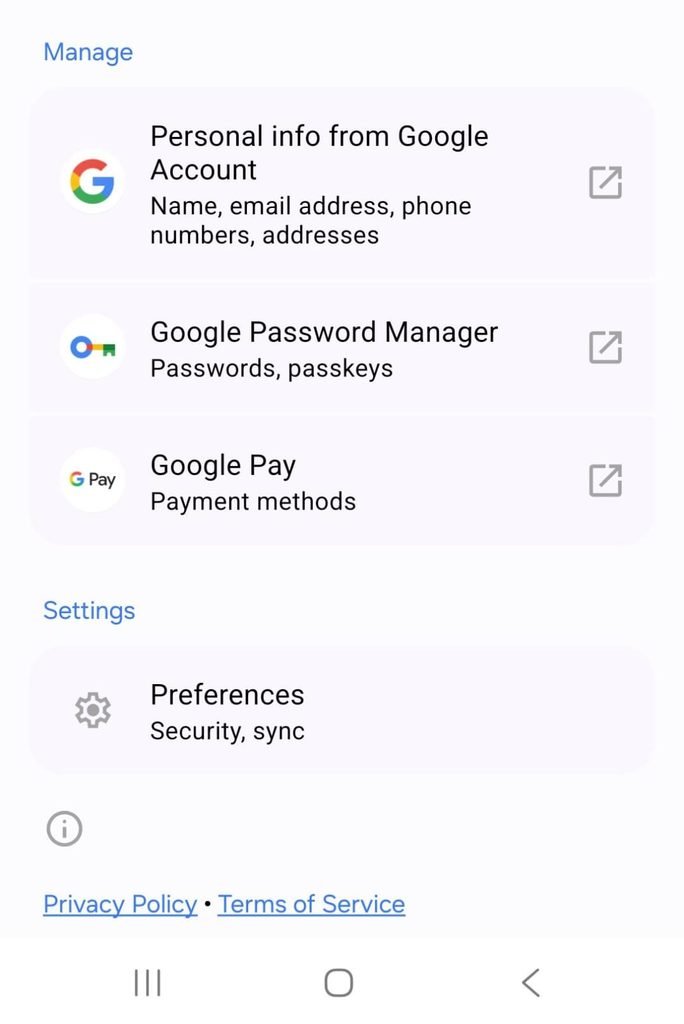
Example of a password creation screen showing the option to create a new password.
Step 2: Make the Password at Least 12 Characters Long
Length is one of the simplest ways to improve a password.
Google currently recommends using a password with at least 12 characters.
A password does not have to look like this:
X7!qP9#zLm2@
to be strong.
You can instead create a longer combination that is easier for you to remember.
For example, you might build a fictional password around several unrelated words rather than one short word.
The important point is that the example should remain an example. Do not take a password published in an article and use it for a real account.
Step 3: Use Several Unrelated Words
One practical approach is to combine multiple unrelated words into a longer password.
For example, imagine choosing concepts such as:
window
river
coffee
planet
Combining unrelated words can make a password easier to remember while giving it more length.
You can then apply your own system for combining them.
The exact combination should be unique to you and should not be published or shared.
Google suggests using a series of meaningful words or creating a longer password based on a phrase as ways to make passwords easier to remember.
Step 4: Avoid Personal Information
One of the easiest mistakes is creating a password using information that other people can discover.
Avoid using things such as:
- Your birthday
- Your phone number
- Your name
- Your nickname
- Your child’s name
- Your pet’s name
- Your street name
- An important year
- Information shown publicly on social media
Google specifically recommends avoiding personal information that other people could easily know or discover.
For example, a password based on your pet’s name combined with its birth year may feel personal and memorable, but those details could potentially be discovered through social media or conversations.
Step 5: Avoid Common Words and Patterns
A password should not be based on an obvious sequence.
Avoid examples such as:
123456
12345678
password
qwerty
abcd1234
Google specifically recommends avoiding common words, obvious phrases, simple sequences, and recognizable keyboard patterns.
Replacing a few letters with numbers does not automatically make a predictable password strong.
For example, changing:
password
to:
P@ssw0rd
still leaves an obvious underlying word and pattern.
Step 6: Do Not Use the Website Name in Your Password
It may seem convenient to create passwords such as:
Amazon2026...
or
Facebook123...
because they are easy to remember.
However, your password should not depend on the name of the service you are protecting.
Instead, create a unique password unrelated to the website name.
This also makes it easier to maintain the same security approach across different services.
Step 7: Use a Password Manager
Remembering dozens of unique passwords can become difficult.
This is where a password manager can help.
Google Password Manager can generate and save strong, unique passwords in your Google Account or on your device. It can also automatically fill saved passwords when you sign in to supported websites and apps.
Using a password manager means you do not have to memorize every individual password.
Instead, you protect access to your password manager and allow it to handle the individual credentials.
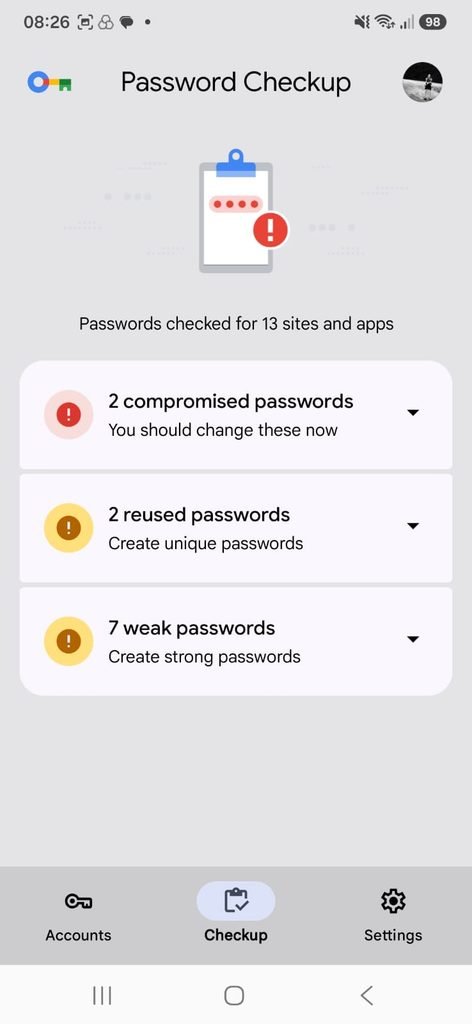
Google Password Manager showing saved password-management options on an Android device.
Step 8: Let the Password Manager Generate Passwords When Possible
A password manager can also create passwords for you.
This can be useful because the generated password does not need to be memorable.
Instead of creating:
MyFavoriteStore2026!
you can allow the password manager to generate a long, random password.
Google Password Manager can suggest and save strong, unique passwords for accounts.
This is often the easiest approach when an account is not important enough for you to need to know the password manually.
Step 9: Save Passwords Securely
If you are using a password manager, save passwords through the manager rather than keeping them in an ordinary text file.
Do not create a document containing something like:
Gmail — password
Bank — password
Shopping — password
and leave the document unprotected on your computer or phone.
Google recommends using a trustworthy password manager if remembering multiple strong passwords is difficult.
Step 10: Check Whether Your Saved Passwords Have Problems
If you use Google Password Manager, Google’s Password Checkup can identify saved passwords that are weak, reused, or potentially compromised.
This makes it possible to find problems that you may not remember creating yourself.
For example, you might discover that you have been using the same password on several websites without realizing it.
When that happens, replace the repeated password with a unique one for each important account.
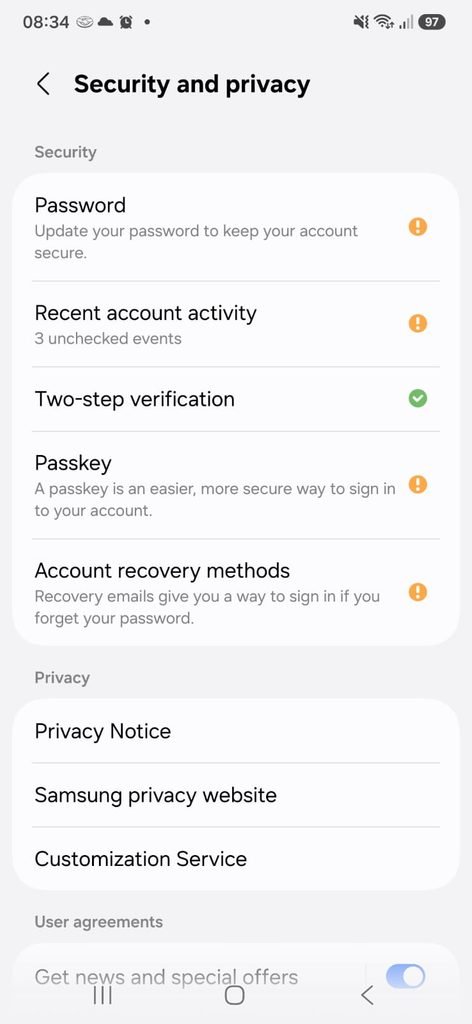
Google Password Manager security check showing the status of saved passwords.
Step 11: Protect Your Email Account First
Not every account deserves exactly the same priority.
Your primary email account is particularly important because it may be used to reset passwords for other services.
A compromised email account can therefore lead to problems across multiple services.
Use a unique, strong password for your primary email account and enable additional security features such as two-step verification when available.
Google recommends adding recovery information and enabling two-step verification as additional measures for protecting an account.
Step 12: Add Recovery Information
A strong password helps prevent unauthorized access, but you also need a way to recover your account if something goes wrong.
Google recommends adding recovery information such as a recovery email address or phone number to help regain access if you forget your password or if suspicious activity is detected.
Keep your recovery information current.
An old phone number that you no longer control is not a useful recovery method.
Step 13: Consider Passkeys for Supported Accounts
Passwords are not the only way to protect online accounts.
Google supports passkeys, which can allow you to sign in using methods such as a fingerprint, facial recognition, or the screen lock on your device.
Google explains that passkeys are designed to be more resistant to phishing because they cannot simply be copied or shared like a traditional password.
When an account supports passkeys, they can be an alternative worth considering.
Step 14: Do Not Share Your Password
A strong password loses much of its value if you give it to someone else.
Avoid sending passwords through:
- Text messages
- Social media
- Shared documents
- Public notes
- Screenshots
Even when the person asking appears trustworthy, sharing credentials creates additional risks.
When possible, use official account-sharing or delegated-access features instead of giving another person your password.
Step 15: Be Careful When Entering Your Password
A strong password cannot protect you if you enter it into a fake website.
Phishing pages can be designed to look similar to legitimate login pages.
Before entering credentials, check:
The website address
The domain
Whether you reached the website through an expected source
Whether the page is behaving normally
Google also provides Password Alert through Chrome to help identify situations in which a Google password is entered on a non-Google site impersonating Google.
Step 16: Change a Password When There Is a Reason
You do not need to change every password on a schedule simply because a certain amount of time has passed.
A password should be changed when there is a reason to believe it may have been compromised, reused improperly, exposed, or when the service requires a change.
Google says it may ask users to change a password if suspicious activity or a stolen password is detected.
If you receive a legitimate security warning about a compromised password, use the service’s official security settings to change it.
A Simple Password Strategy for Everyday Accounts
A practical system can be:
Important accounts: unique generated passwords stored in a password manager.
Less important accounts: still unique passwords, but managed by the same password manager.
Accounts supporting passkeys: consider using a passkey instead of a traditional password.
This approach avoids trying to memorize dozens of complicated strings.
Common Password Mistakes to Avoid
One of the most common mistakes is reusing a password because it is convenient.
Another is making a password longer by simply adding a predictable number to the end.
Other common problems include using names, birthdays, phone numbers, common words, or keyboard patterns.
Google specifically recommends avoiding these predictable elements.
The easiest solution is to move away from passwords that are designed primarily to be remembered manually.
Let a trusted password manager create and store unique credentials whenever possible.
How to Create a Password You Can Remember
For an account where you genuinely need to remember the password, start with several unrelated words.
Then turn them into a longer phrase or combination that is unique to you.
The important part is not the specific words.
Do not use a phrase demonstrated in an article, because anyone reading the article could know it too.
Instead, create your own structure privately.
Google recommends using meaningful words or a phrase as one way to create longer passwords that are easier to remember.
Why Password Length Matters More Than Adding Symbols Randomly
People often assume that simply adding !, @, or numbers to the end of a short password makes it strong.
That can help satisfy certain site’s requirements, but it does not solve the larger problem if the underlying password remains predictable.
A longer and unique password gives you a better starting point.
Google’s guidance emphasizes longer passwords and specifically recommends at least 12 characters.
What About Passwords With 20 or More Characters?
Longer passwords can be perfectly practical, particularly when they are generated by a password manager.
There is no need to memorize a random 20-character password if a trusted password manager can store it securely for you.
For passwords that you do need to remember, choose a length that is practical while keeping the password unique and difficult to guess.
Should Every Account Have a Different Password?
For important accounts, yes.
Google specifically recommends using a unique password for each important account because reusing the same password means one compromised credential can affect multiple accounts.
A password manager makes this much easier because you do not have to memorize every password individually.
What If You Already Reuse the Same Password?
You do not have to change every account in one sitting.
Start with the most important accounts:
Primary email
Financial accounts
Cloud storage
Social media
Accounts containing personal information
Give each one a unique password.
Then gradually update less important accounts.
Google’s Password Checkup can help identify saved passwords that are reused or potentially compromised.
Frequently Asked Questions
How long should a strong password be?
Google currently recommends using passwords with at least 12 characters. Longer passwords are generally easier to make difficult to guess, especially when they are unique.
Should I use a different password for every account?
For important accounts, yes. Google recommends using unique passwords because reusing the same password can allow one compromised account to put other accounts at risk.
Should I include numbers and symbols?
Numbers and symbols can be part of a strong password, but they should not give you a false sense of security. A predictable password with a symbol added to the end may still be easy to guess.
Should I use my birthday in a password?
No. Google recommends avoiding personal information such as birthdays, phone numbers, names, and other details that someone could easily discover.
Are password managers safe to use?
A reputable password manager can help you create, store, and manage strong, unique passwords without requiring you to memorize all of them. Google Password Manager provides these functions within a Google Account or supported device.
Can Google Password Manager create passwords for me?
Yes. Google Password Manager can suggest and save strong, unique passwords for supported accounts and services.
What is a passkey?
A passkey is a sign-in method that can use your device’s fingerprint, face recognition, or screen lock instead of a traditional password on supported services. Google says passkeys provide stronger protection against phishing because they cannot simply be copied or shared like passwords.
Should I change my password regularly?
There is no need to change a strong password simply because a fixed period has passed. Change it when there is evidence it has been compromised, reused, exposed, or when the service asks you to do so. Google may require a password change when suspicious activity or a stolen password is detected.
A Strong Password Is Only One Part of Account Security
Creating a strong password is an important first step, but your overall account security is stronger when several protections work together.
Use a unique password, avoid personal information, use a password manager when appropriate, keep recovery information current, and enable additional security features such as two-step verification.
For accounts that support them, passkeys can provide another convenient alternative to traditional passwords.
The most practical password is not necessarily the one you can memorize most easily.
It is the one that is unique, difficult to guess, securely stored, and protected by additional account-security measures.
