

Many people use their Google Account to sign in to websites and apps without creating a separate username and password for every service.
This can be convenient, but over time you may give several apps and services permission to access parts of your Google Account. Some of those connections may remain even after you stop using the service.
Google allows you to review and manage these third-party connections. You can see which apps and services have access, review the information they can use, and remove access when you no longer want the connection.
Removing an application’s access does not necessarily delete information that the company already received. Google explains that a third-party service may retain data that was previously shared, so deleting the connection and deleting the data are not always the same thing.
This guide explains how to review these connections and decide which ones should remain active.
Practical example: The screenshots in this guide will use a Google Account on an Android phone. Menu names can vary depending on your device and Android version.
What Is Third-Party Access to a Google Account?
A third-party app or service is a product created by a company or developer that is not part of Google.
When you connect one of these services to your Google Account, you may authorize it to access certain information.
Depending on the connection, a service might be allowed to access basic profile information, copy certain Google data, or perform actions involving specific Google services.
For example, an application may request access to Google Photos to help edit images, or it may use the Sign in with Google feature to create and access an account more conveniently.
The important point is that different apps can receive different levels of access.
Step 1: Open Your Google Account
On your Android phone, open:
Settings → Google → Manage your Google Account
You can also access your Google Account through a web browser.
Open the Security section or the section related to security and sign-in.
Google provides controls for reviewing third-party applications and services from the account’s security and connection settings.
Step 2: Find Your Third-Party Connections
Look for a section related to:
Third-party apps and services
Your connections to third parties
or similar wording.
Google’s current account-management system allows you to review apps and services that have access to your Google Account and manage those connections.
The exact wording may differ depending on the version of the Google Account interface you are using.
Step 3: Review the Complete List
Once you reach the third-party connections page, review the applications and services listed there.
You may recognize some immediately.
Others may be older services that you have not used recently.
Do not remove an application simply because you do not remember connecting it.
First open the entry and inspect the details.
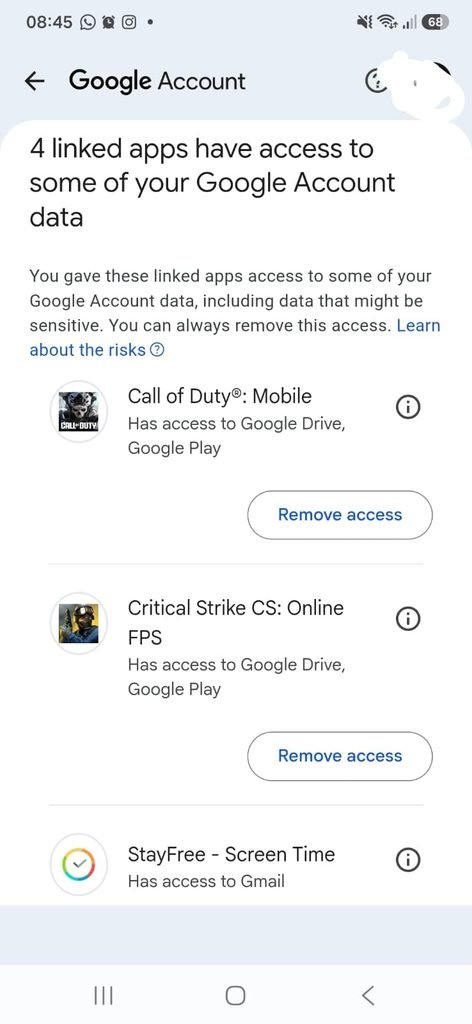
Google Account showing third-party apps and services connected to the account.
Step 4: Open an App or Service to See Its Access
Select one of the applications in the list.
Google allows you to review the type of access associated with the connection.
Depending on the service, you may find that it can:
- View basic account information
- Access specific Google data
- Copy information from a Google service
- Perform certain actions using connected data
The important thing is to look at what the application can actually access, rather than judging it only by its name.
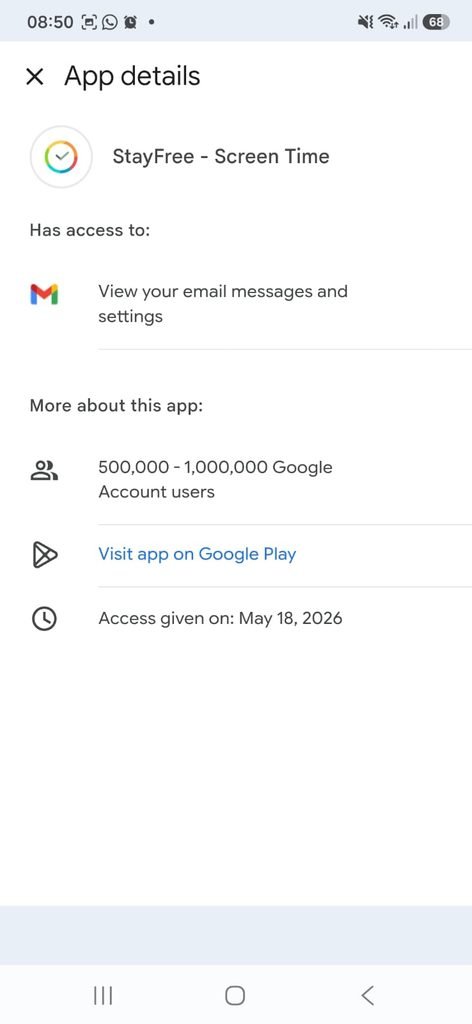
Third-party app details showing the information or Google services that the application can access.
Step 5: Understand Basic Profile Access
Some apps only receive basic profile information.
Google explains that this can include information such as your name, email address, and profile picture.
This is different from granting an application access to a service such as Google Drive, Photos, Contacts, or Calendar.
When reviewing an app, look at the specific information listed in its access details.
Step 6: Understand Access to Google Services
Some applications can request access to specific Google services.
Google gives examples including:
Gmail
Google Drive
Google Calendar
Google Photos
Contacts
The access requested depends on what the third-party service is designed to do.
An application that genuinely needs access to a specific service may have a reasonable reason for requesting it.
However, you should still review whether you continue to use that service.
Step 7: Consider Whether You Still Use the App
Ask yourself:
Do I still use this service?
Do I recognize the developer or company?
Do I still need this connection?
Do I understand what information it can access?
If you have not used the application for a long time, it may be reasonable to remove its access.
This is especially useful when reviewing old accounts that have accumulated connections over several years.
Step 8: Remove Access From an App You No Longer Need
When you decide that an application should no longer have access, Google provides an option to remove the connection.
The current process is to select the third-party app or service, review its access, and choose the option to remove access.
Google Account showing the option to remove a third-party app’s access.
The exact button may be labeled differently depending on the type of connection.
Before confirming, read the warning shown by Google.
Removing access may cause some features of the third-party service to stop working.
Step 9: Understand What Happens When You Remove Access
Removing the connection prevents the third-party app or service from continuing to access your Google Account through that authorization.
However, it does not necessarily delete information that the service already received.
Google specifically explains that a third-party service may retain data that was previously shared. To request deletion of that data, you may need to contact the third party or use its own account and privacy controls.
This is an important distinction.
Remove access ≠ automatically delete previously shared data
Step 10: Do Not Share Your Google Password With Third-Party Apps
A legitimate third-party connection should not require you to give the application your Google password directly.
Google explains that when apps receive authorized access to Google Account data, Google does not share your account password with them.
This is one reason Sign in with Google can be preferable to giving a third-party application your Google password.
If an app asks you to type your Google password directly into an unfamiliar interface, stop and investigate before continuing.
Step 11: Understand “Sign in With Google”
Some third-party services allow you to create or access an account by selecting:
Sign in with Google
This can be convenient because you do not have to create another password for that service.
Google explains that Sign in with Google allows users to authenticate with their Google Account without repeatedly creating and remembering additional usernames and passwords.
When you use this feature, Google shows information about what will be shared with the third-party service before authorization.
Review that information before continuing.
Step 12: Do Not Assume Every “Sign in With Google” Connection Is Permanent
A service using Sign in with Google can remain connected to your Google Account until you remove the connection.
That means an application you stopped using months or years ago may still appear in your account’s list of third-party connections.
Review old connections periodically and remove those you no longer need.
Google allows users to review and update these connections whenever they want.
Step 13: Check the Developer or Company Name
When an application is unfamiliar, look beyond its name.
Review the developer or company associated with the service.
If the service is one you remember using, search for additional information about the company through a trusted route.
Do not click unfamiliar links in unsolicited emails just to investigate a service.
Instead, use the company’s known website or app.
Step 14: Be Careful With Unverified Apps
Google explains that some third-party applications may be marked as unverified.
This can happen for legitimate reasons, such as an application still being tested or an internal application being restricted to a specific organization.
However, Google also warns that untrusted developers can misuse access to install unwanted software or steal personal information.
Do not automatically grant an unfamiliar unverified application access to your Google Account.
Only continue when you understand who developed the service and why it needs your information.
Step 15: Review the Privacy Policy Before Granting Access
Before connecting a third-party application, read its privacy information when appropriate.
Google specifically recommends reviewing the third party’s Privacy Policy and security statements before allowing access to your account data.
Look for information about:
What data is collected
Why it is collected
Where it is stored
How it is used
How you can request deletion
This is particularly important when an application requests access to sensitive information.
Step 16: Understand That Third-Party Data Has Its Own Risks
When you allow a third-party service to access Google data, that service may copy some of the information to its own servers.
Google explains that data stored on a third party’s servers is subject to the third party’s own security practices. If the third party’s systems are compromised, the copied data could be exposed.
This does not mean that every third-party application is unsafe.
It means you should understand the trust relationship before granting access.
Step 17: Remove Connections You No Longer Recognize
If you find a service that you genuinely do not recognize, do not automatically leave it connected.
Review its details first.
If you determine that you never intended to authorize the service or no longer trust it, remove its access.
Google allows users to remove third-party access from their account settings.
After removing the access, consider changing your Google password if you suspect that your account itself may have been compromised.
Step 18: Review Connections After Changing Important Accounts
It is particularly useful to review third-party connections after:
Changing your main Google password
Replacing your phone
Closing an old service
Deleting an old account
Recovering your Google Account
Responding to suspicious activity
These events are good opportunities to remove outdated connections.
Step 19: Check Connected Services After Installing New Apps
When installing a new app, pay attention to the permissions and Google Account access it requests.
Do not automatically approve every permission simply to get through setup faster.
Google says that third-party services should tell you what types of data they are requesting before you authorize access.
Read the request and decide whether the access makes sense for the application’s purpose.
Step 20: Use the Least Access You Actually Need
A useful principle is simple:
If an app does not need access to certain information, it does not need that access.
For example, an application may work with basic profile information without needing access to your Google Photos or Contacts.
The available choices depend on the service.
Whenever Google shows you different access levels, choose an option that provides what the application needs without unnecessarily expanding its access.
Step 21: What If Removing Access Breaks the App?
This can happen.
Google explains that removing a third-party connection may cause features that depend on that connection to stop working.
If you still need the service, you may be able to reconnect it later.
Before removing access, consider whether you still use the application and whether it depends on your Google Account.
Step 22: What If You Want Your Data Deleted Too?
Removing a third-party connection is only one part of the process.
If the service already received a copy of your Google data, you may need to contact the third party separately and request deletion.
Google specifically states that removing the connection does not necessarily cause the third party to delete information it previously received.
Check the third party’s privacy policy or account settings for its data-deletion procedure.
Step 23: Review Google Account Connections Regularly
You do not need to inspect third-party connections every week.
A practical routine is to check them every few months.
You should also review them after installing many new services or when you realize you have stopped using several old applications.
A short review can reveal connections you forgot about.
What You Should Not Do
Avoid entering your Google password directly into an unfamiliar third-party application.
Do not approve access requests without reading what information will be shared.
Do not assume that an app is trustworthy simply because it appears in an official app store.
Do not ignore an unfamiliar connection simply because you do not remember creating it.
And do not assume that removing access automatically deletes every copy of previously shared information.
How to Decide Whether to Remove an App
A simple decision process can help.
Keep the connection
You recognize the service, use it regularly, and understand the access it has.
Investigate further
You recognize the name but do not remember why you connected it or what it can access.
Remove the connection
You no longer use the service, do not recognize it, or no longer want it to have access.
This approach avoids both extremes: leaving everything connected forever or removing services you still rely on.
Frequently Asked Questions
How do I see which apps have access to my Google Account?
Open your Google Account and access the section for third-party connections or apps and services with account access. Google provides tools for reviewing and managing these connections.
Can I remove an app’s access to my Google Account?
Yes. Google allows you to select a third-party service, review its access, and remove the connection.
Does removing access delete my data from the app?
Not necessarily. Google explains that a third-party service may retain information that it already received. You may need to contact the third party to request deletion.
Does Google give my password to third-party apps?
No. Google says it does not share your Google Account password with third-party apps and services when you authorize access to your Google data.
Is Sign in with Google safe?
It can be a convenient way to authenticate without creating another password, but you should still review the information and permissions the third-party service requests before authorizing it.
What can a third-party app access?
The answer depends on the authorization you grant. Google says third parties may receive basic profile information, access specific Google data, or in some cases have permission to manage certain data.
Should I remove apps I no longer use?
Generally, reviewing and removing access from services you no longer use can help keep your account connections organized and reduce unnecessary access.
What should I do if I do not recognize a third-party app?
Open its details and review the company, access level, and purpose. If you cannot establish that the connection is legitimate or you no longer trust it, remove the access.
What does an unverified app mean?
An app can be unverified for legitimate reasons, such as being in testing or being intended for an organization. However, Google warns that untrusted developers can misuse third-party access, so you should only authorize an unverified app when you trust its developer and understand the request.
Can removing a connection stop an app from working?
Yes. Google warns that removing access can make features that depend on the connection unavailable.
How often should I review third-party access?
There is no need for a daily check. Reviewing your connections every few months, and whenever you stop using several services or notice unusual account activity, is a practical approach.
A Simple Third-Party Access Review
Your Google Account can become connected to many applications simply through normal everyday use.
Take a few minutes to review those connections.
Start with the services you no longer use, investigate anything you do not recognize, and look carefully at what information each application can access.
When you remove a connection, remember that this stops future authorized access but does not necessarily erase information that was already shared.
The goal is not to disconnect every application.
The goal is to make sure that the apps connected to your Google Account are services you recognize, trust, and still want to use.
