

Fake login pages are designed to look like legitimate websites so that visitors will enter information such as passwords, verification codes, email addresses, or payment details.
A fraudulent login page may copy the colors, logo, layout, and wording of a company you already know. It may even use HTTPS and display a secure connection in your browser. That does not prove that the website is legitimate.
Google explains that phishing can use deceptive websites, emails, messages, and advertisements to trick people into giving away personal information or account credentials. Google also recommends checking the website address carefully and avoiding suspicious links.
The safest way to deal with a suspicious login page is to slow down, verify the website independently, and avoid entering sensitive information until you know exactly where you are.
Practical example: The examples in this guide are fictional. Never enter a real password, verification code, banking information, or other sensitive information into a test page.
What Is a Fake Login Page?
A fake login page is a website designed to imitate a legitimate sign-in page.
The goal is usually to persuade you to enter information that the attacker can then use elsewhere.
A fake page might imitate:
- Microsoft
- Apple
- Amazon
- A bank
- A workplace service
- A cloud-storage provider
The page may look almost identical to the legitimate service.
That is why visual appearance alone is not enough to determine whether a login page is genuine.
Why Fake Login Pages Are Dangerous
A fake login page can capture credentials as soon as you enter them.
The danger becomes greater when people reuse passwords across several services.
For example, if you enter a reused password on a fraudulent page, the attacker may attempt that same email address and password on other websites.
This is one reason Google recommends using unique passwords for important accounts.
A stolen password can therefore create problems that go beyond the website you originally intended to access.
Step 1: Check the Website Address Before Logging In
Before entering a password, look at the address bar.
Do not rely only on the company name shown on the page.
Check the actual website address and look for unexpected spelling, extra words, or unusual domains.
For example, a website claiming to be a familiar company might use a domain that contains the company’s name but is actually registered to someone else.
Google recommends checking the website name in the address bar even when Chrome indicates that the connection is secure.
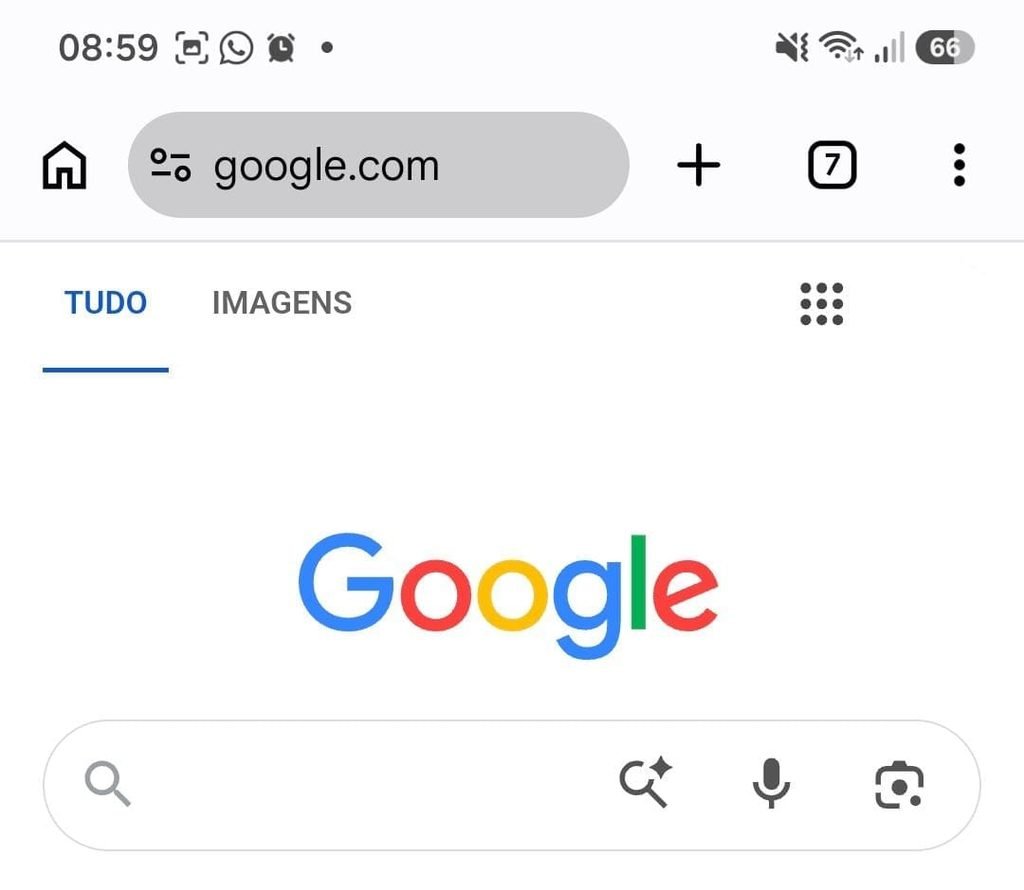
Google Chrome showing the website address before a user enters login information.
Step 2: Look at the Domain Carefully
The domain is one of the most important details to examine.
Do not assume that a familiar word appearing somewhere in an address means that the website belongs to the company.
A fraudulent website could use an address that contains a legitimate brand name as part of a much longer domain.
Look carefully at the actual domain rather than just reading the beginning of the URL.
A small spelling difference can also be significant.
For example, a fraudulent website may use a domain that looks similar to a legitimate one but changes one or two letters.
Step 3: Do Not Trust the Logo
A fake website can copy a company’s logo within seconds.
It can also copy:
- Colors
- Fonts
- Buttons
- Images
- Navigation
- Terms and conditions
- Login forms
A convincing design is therefore not proof of authenticity.
Think of the visual appearance as something that can be copied.
The website address is much more important.
Step 4: Check How You Arrived at the Login Page
Think about the path that brought you there.
Did you click:
- An unexpected email?
- A text message?
- A social media advertisement?
- A pop-up?
- A message from an unknown person?
- A shortened link?
An unexpected route should make you more cautious.
Google advises users not to click links in suspicious messages and recommends going directly to the intended service when possible.
Step 5: Open the Official Website Yourself
One of the safest habits is to bypass the suspicious link.
Close the login page.
Then open the official application or manually enter the website address you already know.
For example, if you receive a message telling you to verify your Google Account, do not use the link in the message.
Open the Google app or navigate to your Google Account directly.
This removes the suspicious website from the login process.
Step 6: Understand That HTTPS Does Not Prove Legitimacy
Many users assume that a padlock or HTTPS means a website is trustworthy.
That is not what HTTPS means.
HTTPS indicates that the connection between your browser and the website is protected.
Google explicitly explains that even when a site is marked as secure, you should still check the site name in the address bar before sharing sensitive information.
A fake login page can use HTTPS too.
Therefore:
HTTPS = protected connection
HTTPS does not automatically mean = legitimate company
Step 7: Check Chrome’s Security Indicator
Google Chrome provides a security-status icon beside the website address.
Tap the icon to see information about the connection.
Depending on the website, Chrome can indicate that the connection is secure, not secure, or dangerous.
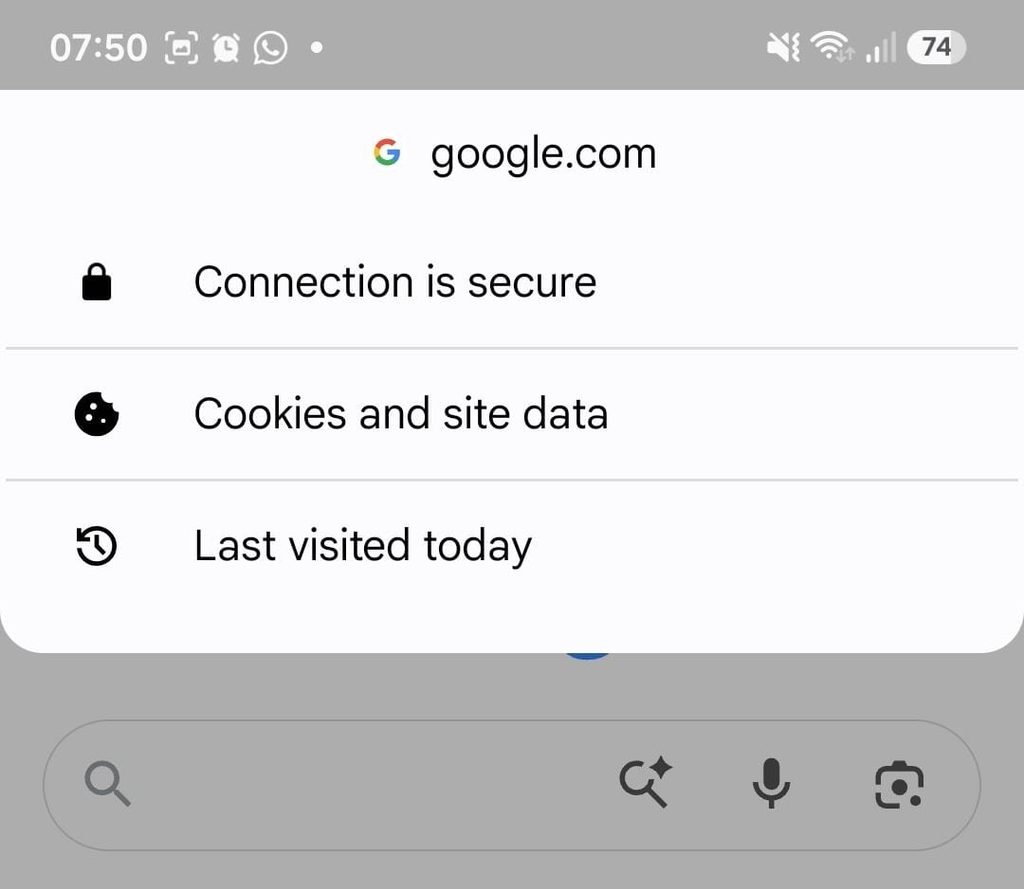
Google Chrome showing the security information for a website.
This is useful information, but it should be considered together with the website address.
A secure connection to the wrong website is still the wrong website.
Step 8: Pay Attention to Chrome’s Dangerous Website Warnings
Chrome’s Safe Browsing system can warn users about websites that Google identifies as dangerous.
Google says Safe Browsing helps protect users from phishing, malware, abusive websites, and other online threats.
If Chrome displays a full-page warning telling you that a website is dangerous, do not enter your password simply because the page claims that you need to continue.
Leave the page and find the legitimate service through another route.
Step 9: Be Suspicious of Unexpected Password Requests
A legitimate service can certainly ask you to sign in.
The important question is why you are being asked to sign in right now.
Suppose you receive a message saying:
Your account needs immediate verification.
Before entering your password, ask:
Did I request this?
Was I already trying to access this account?
Did I arrive at this page through an expected route?
If the answer is no, stop and access the service independently.
Step 10: Watch for Artificial Urgency
Phishing attacks often try to create urgency.
Examples include:
Your account will be deleted today.
Your payment has failed.
Your account will be suspended.
You have only 10 minutes to verify your identity.
Urgency is not proof of fraud.
However, it can be used to discourage you from checking the website carefully.
Google’s scam guidance recommends slowing down and verifying information rather than acting immediately because a message creates pressure.
Step 11: Look for Unexpected Requests for Verification Codes
Never enter a verification code into a website unless you are certain that you are using the legitimate service.
A verification code can be highly sensitive.
An attacker who already has your password may try to convince you to provide the second factor through a fake login page.
The same applies to backup codes and other authentication credentials.
Treat them as private information.
Step 12: Be Careful With Autofill
Password managers and browser autofill can provide an additional clue.
A saved password may automatically fill only on the website or domain for which it was stored.
However, you should not rely on autofill as your only security test.
If a login page looks suspicious, stop and verify the website rather than trying to force the password manager to fill the form.
Google recommends using password managers to create and save strong, unique passwords, which can also reduce the temptation to reuse passwords.
Step 13: Check Whether the Page Is Asking for Too Much
A legitimate login page normally asks for information appropriate to signing in.
Be suspicious when a page suddenly requests unrelated information.
For example, a supposed account-login page asking immediately for:
- Full banking details
- Credit card information
- PIN
- Password for another service
- Multiple verification codes
deserves careful investigation.
The requested information should make sense for the action you are trying to perform.
Step 14: Be Careful With Pop-Ups
A pop-up can attempt to imitate a login window.
It may claim that:
Your session expired.
Your device is infected.
You must sign in again.
You must verify your account.
Do not assume that a login form appearing in a pop-up is legitimate.
Close the window and navigate to the official service directly.
Step 15: Avoid Login Pages Opened Through Suspicious Advertisements
Online advertisements can sometimes lead to deceptive websites.
This does not mean every advertisement is unsafe.
However, when an ad takes you directly to an unexpected login page, verify the destination carefully before entering credentials.
For sensitive services, accessing the official website directly is usually a safer approach.
Step 16: Be Careful With Search Results
Search engines are useful, but do not assume that the first result is automatically the official website.
Sponsored results, unfamiliar websites, or similarly named domains can sometimes appear around legitimate results.
Before logging in, confirm that the destination belongs to the service you intended to access.
When dealing with financial or highly sensitive accounts, consider using the official app or a website address you already know.
Step 17: Check the Website on Multiple Clues
No single visual clue is perfect.
Instead, combine several checks:
Correct domain
Expected website
Secure connection
Expected login process
No unusual requests
No browser security warnings
The more pieces fit together, the more confidence you can have in the destination.
Step 18: What If the Page Looks Exactly Like the Real Website?
That can happen.
A phishing website can copy the appearance of a legitimate login page extremely closely.
In that situation, focus on the domain and how you reached the page.
If you arrived through an unexpected message, close the page and access the service independently.
A perfect visual copy can still be a fraudulent website.
Step 19: What If the Domain Looks Almost Correct?
Treat it carefully.
Scammers may register domains that resemble legitimate websites.
The difference could be:
- One letter
- A different domain ending
- Extra words
- Added punctuation
- A misspelled brand name
Do not enter credentials until you have verified the domain independently.
Step 20: What If Chrome Says the Connection Is Secure?
That means Chrome has established a secure connection to the website.
It does not mean Google has confirmed that you are interacting with the legitimate company.
Google specifically warns users to check the site name even when the connection is secure.
This distinction is one of the most important concepts to remember when identifying fake login pages.
Step 21: What If Chrome Displays “Not Secure”?
Do not enter passwords or sensitive information until you understand why the site is not using a secure connection.
Google recommends caution with websites that do not provide a private HTTPS connection, particularly when personal information is involved.
If you do not have a specific reason to use the website, leave it.
Step 22: What If Chrome Displays a Dangerous Warning?
Leave the website.
Google’s Safe Browsing system can display warnings when it detects a site associated with phishing, malware, or other unsafe behavior.
Do not disable the warning simply because the page claims that continuing is necessary.
Do not enter a password to “unlock” the page.
Do not download a program because the warning page tells you that you need one.
Step 23: What If You Already Entered Your Password?
Act quickly.
Open the legitimate website or official app directly.
Change the password.
Do not use the suspicious page to change it.
If you used the same password on other websites, change those passwords too.
Google recommends changing passwords when you believe someone else may have accessed your account.
Step 24: What If You Entered a Verification Code?
If you entered a verification code into a suspicious website, treat the situation seriously.
Go directly to the legitimate service.
Review account activity and security settings.
Change your password if appropriate.
Check whether unfamiliar devices or security methods were added.
Do not wait to see whether something happens before securing the account.
Step 25: What If You Downloaded a File?
Do not open the downloaded file if you do not trust its source.
Chrome provides warnings and protections against certain dangerous or unwanted downloads, but a download should still be treated carefully. Google’s Safe Browsing system helps protect users against dangerous downloads and malicious content.
If you already opened a suspicious file, investigate the situation using trusted security tools and follow the security guidance appropriate to your device.
Step 26: Report the Phishing Website
If you encounter a phishing website, reporting it can help security systems identify similar threats.
Google provides mechanisms for reporting phishing and unsafe content.
You can also report suspicious messages through the service where you received them.
Step 27: Turn On Strong Browser Protection
Chrome’s Safe Browsing feature is designed to warn users about dangerous websites and downloads.
Google also offers Enhanced Safe Browsing, which provides more proactive protection by using additional information to identify threats in real time.
The available settings can change over time, so check your Chrome security settings to see which protection level is currently enabled.
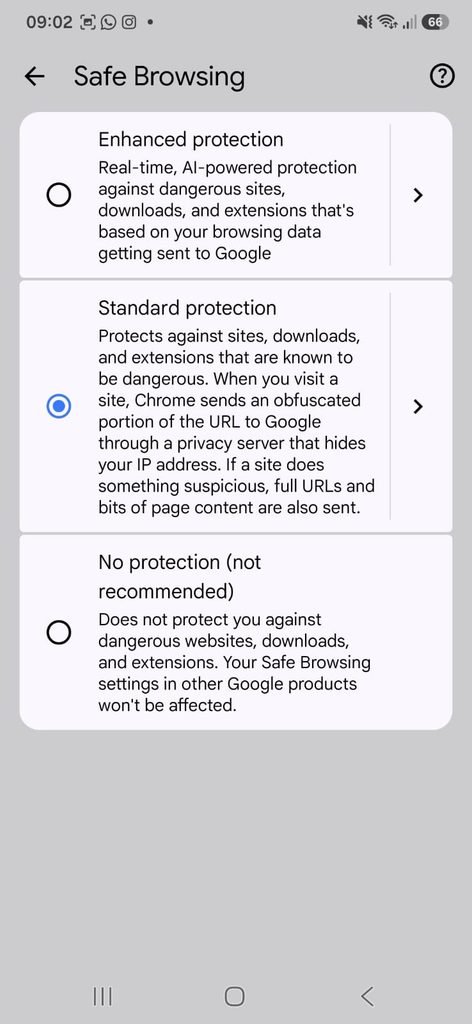
Google Chrome Safe Browsing settings showing available protection options.
Step 28: Keep Your Browser Updated
Browser security features are continually improved.
Installing updates can provide access to newer security fixes and protections.
This is especially important when using a browser to access email, financial services, cloud storage, and other sensitive accounts.
Step 29: Use Two-Step Verification
A strong password is important, but an additional authentication method can provide another layer of protection.
Google recommends using 2-Step Verification to make an account more secure if a password is stolen.
Two-step verification does not make phishing impossible, but it can reduce the damage caused by a stolen password when the attacker cannot complete the additional verification step.
Step 30: Use Passkeys When They Are Available
Passkeys provide another way to sign in to supported services.
Google says passkeys are designed to be resistant to phishing because authentication is tied to the device rather than requiring you to type a traditional password into a website.
When a service supports passkeys, they can be an alternative to traditional passwords.
The Three-Second Check Before Logging In
Before entering credentials into an unfamiliar login page, pause for a few seconds.
Check:
1. The domain
2. How you arrived at the page
3. Whether the request makes sense
If any of those three points seem wrong, stop.
It is much easier to close a suspicious browser tab than to recover a compromised account.
Common Mistakes That Make Phishing Easier
One of the biggest mistakes is trusting a website because it looks professional.
Another is assuming that HTTPS proves the website is legitimate.
Other mistakes include:
Clicking links in unexpected messages
Ignoring browser warnings
Entering verification codes into unfamiliar pages
Using the same password on multiple sites
Acting immediately because a page claims there is an emergency
Avoiding these habits removes many common opportunities for phishing attacks.
A Practical Example
Imagine receiving a message saying:
Your account will be suspended unless you verify it immediately.
You tap the link.
The page has the company’s logo.
The colors look correct.
The login form looks authentic.
Chrome says the connection is secure.
Should you enter your password?
No.
Close the page and open the official app or website yourself.
Then check whether there is actually a security issue with the account.
This process is safer because the login page provided by the suspicious message is removed from the equation.
Frequently Asked Questions
How can I tell if a login page is fake?
Check the actual domain, consider how you reached the page, look for unusual requests, and pay attention to browser security warnings. Do not rely solely on the design or logo.
Does HTTPS mean a login page is legitimate?
No. HTTPS protects the connection between your browser and the website. It does not prove that the website belongs to the company it claims to represent.
Can a phishing website have a padlock?
Yes. A fraudulent website can use HTTPS. Always verify the domain and the context before entering sensitive information.
Should I trust a login page that came from an email?
Not automatically. If the email was unexpected or asks you to perform a sensitive action, it is safer to open the official app or website directly.
What should I do if Chrome says a website is dangerous?
Leave the website and do not enter personal information. Chrome’s Safe Browsing system uses warnings to help protect users from dangerous websites and phishing.
What should I do if I entered my password on a fake website?
Go directly to the legitimate service and change the password immediately. If you reused that password elsewhere, change those passwords as well. Then review your account’s security activity.
What if I entered a verification code on a phishing page?
Secure the account immediately through the legitimate service. Review recent activity, change the password, and check whether unfamiliar devices or authentication methods were added.
Can a fake website look exactly like a real one?
Yes. Phishing websites can imitate the appearance of legitimate services. The domain and the way you reached the website are more reliable clues than the visual design.
Should I use a password manager?
A reputable password manager can help you create and manage unique passwords, reducing the need to reuse credentials across different websites. Google Password Manager provides these capabilities for supported accounts and devices.
Are passkeys safer against phishing?
Google describes passkeys as designed to be more resistant to phishing because they are tied to the device and do not work like traditional passwords that can simply be typed into a fraudulent website. (support.google.com)
Should I disable Chrome’s security warnings if a website is blocking me?
No. Security warnings are intended to prevent users from accessing potentially dangerous content. Investigate the website through an independent, trusted route instead.
Can search results lead to fake login pages?
Potentially. Treat unfamiliar results cautiously and check the actual destination before entering credentials.
Is a website safe if it has the correct logo and design?
Not necessarily. Logos and page designs can be copied. Verify the domain and access the service through a trusted route when possible.
A Safer Habit for Everyday Login Pages
You do not need advanced cybersecurity knowledge to avoid many fake login pages.
Before entering a password, stop and check the domain.
Then consider how you arrived at the page and whether the request makes sense.
If you received a surprising message, open the official app or website directly instead of using the provided link.
Remember that a secure connection is useful, but it does not prove that the website itself is legitimate. Chrome’s security tools, strong unique passwords, two-step verification, and careful browsing habits work together to reduce the risk of phishing.
The safest response to a suspicious login page is simple:
Do not rush. Verify the website. Never enter sensitive information until you know where you are.
