

Important digital files are easy to accumulate and surprisingly easy to lose.
Photos, videos, documents, receipts, work files, school assignments, scanned records, and other personal information may exist on a phone or computer for years without another copy being created.
A broken device, accidental deletion, theft, malware infection, or storage failure can turn an ordinary file into something impossible to recover.
The good news is that you do not need an expensive or complicated system to protect your most important files. A simple backup plan can be built around a few basic principles: identify what matters, keep more than one copy, use different storage locations, and check your backups occasionally.
The goal of a backup is not to store everything forever.
The goal is to make sure that losing one device does not mean losing something important permanently.
What Is a Backup?
A backup is a separate copy of information kept so that the original can be recovered if it is lost or damaged.
For example, if a photo exists only on your smartphone, it is not really protected from phone failure.
If the same photo also exists on a computer or in a cloud service, you have another copy.
That second copy becomes useful if something happens to the original.
A good backup should be separate enough from the original that the same problem is unlikely to destroy both.
Why One Copy Is Not Enough
Many people believe that their files are safe because they have never lost anything before.
The problem is that storage devices can fail without warning.
A phone can be lost.
A laptop can stop working.
An external drive can become unreadable.
A file can be deleted accidentally.
A ransomware infection can make files inaccessible.
If only one copy exists, there may be no practical way to recover it.
That is why a backup plan should always include at least one additional copy of important information.
Step 1: Decide Which Files Are Important
Start by identifying the files you could not easily replace.
These might include:
- Family photos
- Videos
- Work documents
- Financial records
- Tax documents
- Receipts
- Scanned certificates
- School files
- Personal projects
- Important PDFs
You do not necessarily need to back up every temporary file on your device.
Focus first on information that would cause a serious problem if it disappeared.
Step 2: Check Where Your Important Files Are Stored
Important files are often spread across multiple locations.
You may have photos on your phone, documents in Downloads, files on a computer, and other information inside specific applications.
Create a quick list of where your important data currently exists.
For example:
Phone → Camera
Phone → Downloads
Computer → Documents
Computer → Pictures
Cloud storage → Important folders
This simple inventory helps prevent you from creating a backup plan that protects only one part of your digital life.
Step 3: Choose Your First Backup Method
There are several ways to create a backup.
You can use:
Cloud storage
External storage
Another computer
A network storage device
A combination of these methods
For many users, cloud storage is the easiest starting point because the copy can remain available even if the original phone or computer is lost.
For large collections, an external drive can also be useful.
Step 4: Back Up Photos Automatically
Photos are among the most difficult files to replace, which makes them a good starting point.
On Android, you can use a cloud photo service that automatically uploads photos and videos.
Automatic backup reduces the chance that you will forget to perform the backup manually.
However, do not assume that every picture on your device is automatically protected.
Check which folders are included and verify that older photos are actually available in the cloud library.
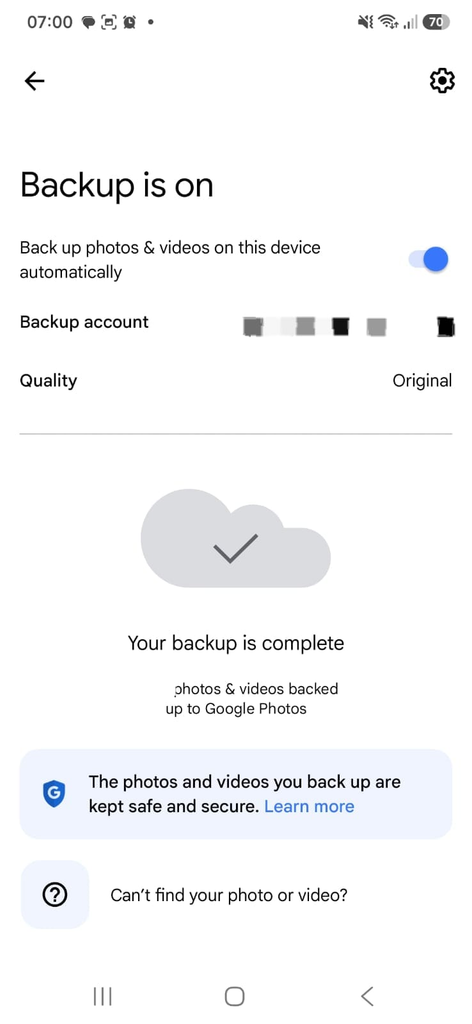
Google Photos backup settings showing the status of photo and video backup.
Step 5: Back Up Important Documents Separately
Documents deserve separate attention.
Important PDFs, spreadsheets, scanned records, and work files may not be covered by a photo backup.
Create a dedicated folder for important documents and make sure that folder is included in your backup process.
For example:
Important Documents
Work
Financial
Personal Records
This structure can make future backups much easier.
Step 6: Keep a Local Copy
Cloud storage is useful, but a local copy provides another layer of protection.
You can copy important files to an external drive or another computer.
For example, your most important photos could exist:
On your phone
In cloud storage
On an external drive
This means a problem affecting one location is less likely to destroy every copy.
Step 7: Use Different Storage Locations
Keeping two copies is helpful, but keeping both copies in the same place is not ideal.
Imagine having two external drives stored beside your computer.
If a fire, theft, flood, or other serious event affects the room, both backups could be lost at the same time.
A stronger plan uses different locations.
For example:
Primary device → home
Cloud copy → online
External drive → another secure location
The exact arrangement depends on the value of your files and how much protection you need.
Step 8: Consider an Offline Backup
An offline backup is a copy that is not continuously connected to the device or network.
For example, you might copy important files to an external drive and then disconnect it.
This can be useful because a problem affecting the computer does not automatically affect the disconnected copy.
An offline backup should be stored somewhere secure and protected from physical damage.
Step 9: Do Not Keep Your Only Backup Permanently Connected
A permanently connected backup drive can be convenient, but it is not always ideal as the only backup strategy.
If malware affects files on the computer and the backup drive is also continuously accessible, the backup may be affected too.
For highly important files, consider keeping an additional backup disconnected when it is not being used.
Step 10: Create a Folder Structure
Good organization makes backup maintenance easier.
A simple structure might look like:
Documents
Photos
Videos
Work
Financial
Important Records
Avoid creating hundreds of nested folders that make the backup difficult to understand.
The best organization is one you can maintain consistently.
Step 11: Use Clear File Names
A backup becomes more useful when you can find what you need.
Instead of:
IMG_49283.jpg
you may prefer a meaningful name or organized folder.
For documents, names such as:
2026_Tax_Receipt.pdf
or
Home_Insurance_2026.pdf
can make future searches easier.
The exact naming system does not matter as much as consistency.
Step 12: Decide How Often to Back Up
There is no universal schedule for everyone.
The correct frequency depends on how often your files change.
If you create important work documents every day, frequent backups make sense.
If you mainly store personal photos, a less frequent manual backup may be enough when automatic cloud backup is not available.
A simple rule is:
The more often the data changes, the more often it should be backed up.
Step 13: Automate as Much as Possible
Manual backups are easy to forget.
Automatic backup systems reduce that problem.
For example, you can configure your phone to automatically back up photos or your computer to synchronize important folders.
Automation is especially useful for files that are created frequently.
However, automation should still be checked occasionally.
A backup system can stop working because of storage limits, account problems, disconnected drives, or other configuration changes.
Step 14: Check Your Cloud Storage Space
Cloud backups require available storage.
If the account runs out of space, new files may stop uploading.
Check your available storage occasionally.
This is particularly important if you have a large collection of videos because videos can consume cloud storage quickly.
Do not assume that automatic backup is still operating simply because it worked several months ago.
Step 15: Verify That Backups Are Actually Working
This is one of the most important parts of a backup plan.
A backup icon or enabled setting does not automatically prove that every important file is protected.
Open the backup destination and verify several files.
Check:
Recent files
Older files
Photos
Documents
Videos
If the files can be opened normally, you have stronger evidence that the backup is functioning.
Step 16: Test the Backup Before You Need It
A backup should be tested before an emergency occurs.
Choose a few files from your backup and open them.
Check that:
- Photos display correctly
- Videos play normally
- PDFs open
- Documents contain the expected information
You do not need to restore your entire backup simply to test it.
A small verification sample can catch obvious problems.
Step 17: Keep More Than One Backup Method for Irreplaceable Files
Some files deserve additional protection.
For example, irreplaceable family photos might be stored:
In cloud storage
On an external drive
This gives you protection against problems affecting one storage method.
The more important the data, the more valuable redundancy becomes.
Step 18: Protect Your Backup Account
A cloud backup is only as secure as the account that controls it.
Use a strong, unique password.
Enable two-step verification.
Keep recovery information updated.
Review connected devices occasionally.
An attacker who gains access to your cloud-storage account could potentially access the backup as well.
Step 19: Protect External Drives
External storage should also be treated carefully.
Do not leave a backup drive where it can easily be dropped, stolen, or damaged.
Store it in a dry, secure place.
For particularly important information, consider keeping an additional backup in a separate location.
Step 20: Encrypt Sensitive Backups When Appropriate
Some backup drives may contain highly personal information.
If the files include financial records, identification documents, private work information, or other sensitive data, encryption can provide additional protection if the storage device is lost or stolen.
The exact encryption options depend on the operating system and storage device.
Do not assume that every external drive is automatically encrypted.
Step 21: Be Careful When Deleting the Original
Creating a backup does not mean you should immediately delete the original.
First verify that the backup contains the correct files.
Open some of them.
Check dates and sizes.
Make sure the copy is actually usable.
Only then should you consider deleting unnecessary duplicates from the original device.
Step 22: Keep Old Backups When Useful
You do not always want your backup to mirror the original device instantly.
Imagine accidentally deleting a folder today.
If an automatic system immediately removes the same folder from the backup, the backup may not help.
Some backup systems provide version history or deleted-file recovery.
For important projects, keeping older versions can provide additional protection against accidental deletion or unwanted changes.
Step 23: Protect Against Ransomware and Other Malware
Malware can damage or encrypt files on a computer.
A backup that remains constantly accessible to the infected computer may not provide complete protection.
This is one reason disconnected or otherwise isolated backup copies can be valuable.
Also keep your operating system, applications, and security software updated.
Step 24: Do Not Rely on a Single Cloud Service for Everything
Using a cloud provider can be very convenient, but no service should be treated as the only possible location for information that is truly irreplaceable.
For highly important files, an additional local or separate backup can reduce dependence on one service.
The goal is redundancy, not simply choosing a different brand.
Step 25: Back Up Before Major Device Changes
Create or verify a current backup before:
- Replacing your phone
- Resetting a computer
- Installing major system software
- Reformatting a drive
- Sending a device for repair
- Selling an old device
A backup performed immediately before a major change can provide useful protection if something goes wrong during the process.
Step 26: Check Your Phone Before Resetting It
If you plan to factory-reset your Android phone, review your important files first.
Check:
Photos
Videos
Downloads
Documents
Messaging media
Other files you cannot replace
Do not assume that a general device backup covers every file stored on your phone.
Step 27: Keep Important Photos in More Than One Place
Photos are one of the easiest types of information to preserve redundantly.
For particularly valuable images, consider maintaining:
Your phone
A cloud photo library
A computer or external drive
This may seem excessive for ordinary photographs, but it can be worthwhile for family memories or other irreplaceable images.
Step 28: Back Up Contacts
Contacts are another type of information that people often overlook.
Depending on your phone and account configuration, contacts may be synchronized to an online account.
Check that important contacts are actually stored where you expect.
Do not assume that every contact was automatically synchronized simply because your phone is connected to an account.
Step 29: Back Up Important Messages When Necessary
Messages can contain information that you may want to preserve.
The backup options depend on the messaging service.
Some applications provide their own backup system, while others may use device-level backup.
Check the specific service rather than assuming one general backup method covers everything.
Step 30: Keep a Record of Your Backup Locations
You do not need to document every file.
However, it can be useful to know where your major backups are stored.
For example:
Photos → cloud photo service
Documents → cloud folder
Archive → external drive
This is especially helpful if someone else needs to help you recover the files later.
Step 31: Review Backups After Buying a New Device
After moving to a new phone or computer, check that your backup system is still configured correctly.
The new device may have different folders, applications, accounts, or storage settings.
Do not assume that the backup process automatically followed every change.
Step 32: Check for Failed Backups
If your backup software or service reports an error, do not simply dismiss it.
Investigate the cause.
Common issues can include:
Insufficient storage
Disconnected drive
Network problems
Account authentication issues
Permission changes
A backup that stopped months ago is not useful during an emergency.
Step 33: Clean Up Old Backup Files Carefully
Over time, multiple backups can consume significant storage.
Do not delete older backups simply because they are large.
First determine whether they contain versions that are still useful.
If a backup system provides version history, understand how long older versions are retained before removing them.
Step 34: Create a Backup Routine
A simple routine could be:
Every week: verify that important current files are being backed up.
Every month: review storage and recent backups.
Every few months: test several files.
Before major device changes: create or verify a fresh backup.
The exact schedule is less important than consistency.
Step 35: Keep Your Backup System Simple
A complicated system is more likely to be abandoned.
You do not necessarily need multiple software applications, several servers, and advanced configuration.
A practical setup for many people could be:
Automatic cloud backup for photos
Cloud storage for important documents
External drive for an additional copy of irreplaceable files
The best system is one you can maintain without constantly thinking about it.
What Should You Back Up First?
If you are starting from zero, prioritize files that would be impossible or extremely difficult to replace.
Start with:
Family photos
Videos
Important documents
Financial records
Work files
Personal projects
Once these are protected, you can expand the backup to less important files.
How Much Backup Storage Do You Need?
There is no single answer.
It depends on how much data you have.
A phone containing several hundred gigabytes of photos and videos requires more storage than a computer containing only a few documents.
Before purchasing an external drive or cloud plan, check the total size of the files you actually need to protect.
Avoid buying storage based only on the device’s advertised capacity.
Should You Back Up Your Entire Device?
Sometimes.
A complete device backup can be useful when replacing a phone or recovering from a major failure.
However, you should still separately protect particularly important files.
A device backup is not always identical to a complete copy of every file stored on the device.
Understanding what your backup system includes is more important than simply turning it on.
What If You Cannot Afford a Cloud Storage Plan?
You can still create a useful backup system.
An external storage device can provide an additional local copy.
You can also prioritize the most important files instead of trying to preserve everything.
Start with irreplaceable data such as photos and important documents.
The amount of protection you have matters more than having an expensive setup.
Can a Backup Be Hacked?
A backup stored online can potentially be targeted if the associated account is compromised.
That is why cloud accounts should use strong authentication and additional security protections.
Local backups can also be stolen if the physical storage device is lost.
For sensitive information, consider appropriate encryption and physical security.
What Is the Difference Between Sync and Backup?
Synchronization keeps files aligned between locations.
Backup creates a separate copy intended for recovery.
This difference matters.
If a file is accidentally deleted and the deletion is immediately synchronized everywhere, synchronization alone may not protect you.
A proper backup system should provide a way to recover previous or deleted versions when possible.
Frequently Asked Questions
How many copies of important files should I keep?
At minimum, important files should exist in more than one location. For particularly valuable information, maintaining multiple copies across different storage methods provides stronger protection.
Is cloud storage enough for a backup?
Cloud storage can be an important part of a backup strategy, but for irreplaceable files, an additional copy on another storage method can provide extra protection.
Should I keep a backup drive connected all the time?
Not necessarily. For important files, keeping at least one backup copy disconnected when it is not being used can provide additional protection against certain types of malware and accidental changes.
How often should I back up my files?
It depends on how frequently your data changes. Files that change every day should be backed up more frequently than files that rarely change.
How do I know whether my backup worked?
Open the backup destination and check several files from different dates and folders. Verify that photos, documents, and other important file types open normally.
Should I back up my Android phone before resetting it?
Yes. Review your important files and verify that they are protected before performing a factory reset.
Are photos automatically backed up on Android?
They can be automatically backed up if you have configured a compatible photo-backup service. However, check the service’s backup settings and confirm that important photos are actually available in the backup.
Can an external hard drive fail?
Yes. External drives are storage devices and can fail or become damaged. They should not necessarily be treated as the only copy of irreplaceable information.
What if I accidentally delete a file from a synchronized folder?
Depending on the service, the file may also be removed from other synchronized locations. This is why version history, trash folders, and separate backups can be important.
Should I back up everything on my phone?
Not necessarily. Start with files that are difficult or impossible to replace, then expand your backup as needed.
Can I use the same computer for the original and backup?
You can, but a backup stored on the same physical device may not protect you from hardware failure. A separate storage location provides stronger redundancy.
Should I keep an offline backup?
An offline backup can be useful because it is not continuously exposed to changes or certain online threats. Disconnect the storage device when the backup is not being updated.
What should I do before selling my old phone?
Back up important information, verify the copies, remove your accounts, and only then perform the necessary reset or erase process.
Can a backup protect against ransomware?
A properly isolated backup can provide an important recovery option after ransomware, especially when the backup cannot be modified by the infected system. A continuously connected backup may be more exposed.
How long should I keep old backups?
It depends on the type of information and how useful previous versions are. Important documents may benefit from longer retention than temporary files.
Is backing up photos enough?
No. Photos are important, but documents, contacts, work files, financial records, and other information may also need protection.
What is the easiest backup plan for a beginner?
A simple starting point is automatic cloud backup for photos, cloud storage for important documents, and an external drive containing an additional copy of irreplaceable files.
A Simple Backup Plan You Can Maintain
You do not need a complicated system to protect your digital life.
Start by identifying the files that would cause the most damage if they disappeared.
Then create at least one additional copy.
For important files, use more than one storage location.
A practical setup could be:
Phone or computer → original files
Cloud → automatic backup
External drive → additional copy
Then verify the backups periodically.
The most important part is not how sophisticated your system looks.
It is whether you could recover your files after losing the original device.
A Few Minutes of Preparation Can Save Years of Memories
Digital files can represent years of work and personal memories.
A family photograph may take only a second to capture but can be impossible to recreate if the original disappears.
A financial document may be replaceable in some cases, but finding it again can take significant time.
A work project may represent weeks or months of effort.
A simple backup plan protects against these losses.
Start small.
Protect your most important photos and documents first.
Then add another copy, preferably in a different location.
Finally, check your backups periodically to make sure they still work.
The best backup plan is not the most complicated one. It is the one that quietly protects your important files before you ever need it.
