

Realizing that someone may have accessed one of your online accounts can be stressful. You might notice a login you do not recognize, receive a password-reset message you did not request, discover a device you have never used, or find messages and profile changes that you did not make.
Not every unusual event means that an account has been hacked. New devices, travel, browser sessions, and other legitimate activity can sometimes look unfamiliar. However, when several details do not match your own activity, it is important to act quickly.
The Federal Trade Commission recommends changing the password, signing out of other devices, enabling two-factor authentication, checking recovery information, and looking for signs that someone used the account after an unauthorized access event.
This guide explains what to do when you suspect someone else has access to an online account and how to reduce the chance of losing control of it.
Important: Do not use links from suspicious emails or messages to secure an account. Open the official app or type the service’s known website address yourself.
Signs That Someone May Have Access to Your Account
There are several warning signs worth investigating.
You may notice:
- A login from a device you do not recognize
- A security alert you did not expect
- A password change you did not make
- A new recovery email or phone number
- Messages sent from your account that you did not write
- Posts or comments you did not create
- New contacts or followers you do not recognize
- An unfamiliar application connected to the account
- Being unable to sign in with your normal password
The FTC lists several of these as common signs of a hacked email or social media account, including unexpected password changes, unfamiliar login notifications, inability to access the account, and messages sent by someone else using the account.
Step 1: Do Not Panic
The first step is to slow down.
Seeing an unfamiliar location or device does not automatically prove that someone has access to your account.
For example, account systems can sometimes show approximate locations, old devices, or several sessions associated with the same physical device.
Microsoft explains that travel, new devices, and certain application sign-ins can trigger unusual-activity warnings even when the activity is legitimate.
Look at the complete picture before deciding what happened.
Step 2: Stop Using Suspicious Links
If you received an email or text message saying that your account was compromised, do not automatically click its link.
Instead, open the official app or manually enter the website address you already know.
The FTC recommends contacting a company through a website or phone number you know is real rather than using an unexpected link in an email or text message.
This simple habit prevents a real account-security problem from turning into a phishing problem.
Step 3: Make Sure You Can Still Sign In
Try signing in through the official app or website.
If your normal password works, you may still have control of the account.
If the password no longer works even though you did not change it, the situation may be more serious.
The FTC specifically identifies losing the ability to log in as one possible sign of an account takeover.
Do not repeatedly try random passwords.
Use the service’s legitimate recovery process if necessary.
Step 4: Change Your Password
If you believe someone may have accessed the account, changing the password is one of the most important steps.
Create a new password that you have never used on another website.
Make it long and difficult to guess.
The FTC recommends creating a strong, unique password after an account compromise.
Avoid making a small variation of your previous password.
For example, changing the final number or adding another symbol does not provide the same benefit as creating a genuinely new password.
Step 5: Sign Out of Other Devices
After changing the password, review the devices or sessions connected to the account.
Where the service provides the option, sign out other sessions or devices that you do not recognize.
The FTC recommends signing out of the account on all devices after recovering a hacked account so that anyone who is still logged in elsewhere can be disconnected.
This is particularly important when you suspect that someone may still have an active session.
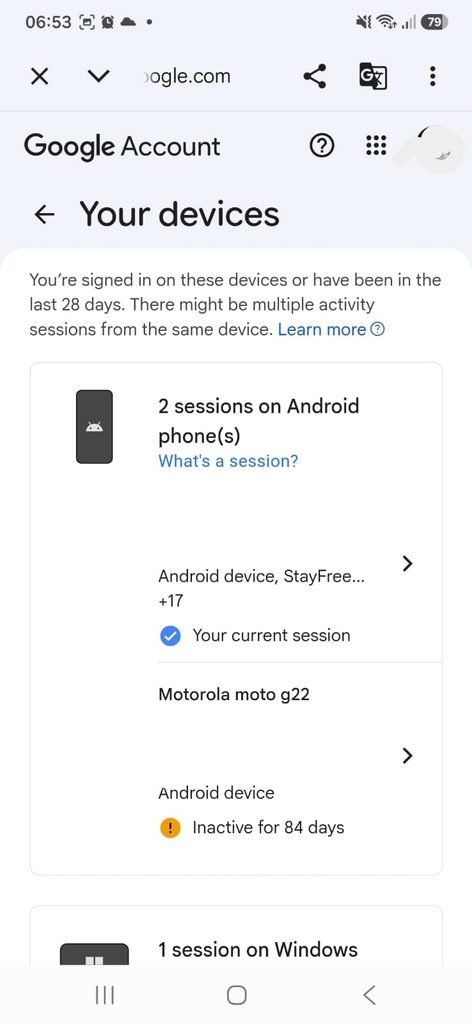
Account security settings showing connected devices or active sessions that can be reviewed and signed out.
Step 6: Turn On Two-Factor Authentication
Two-factor authentication, also called two-step verification, adds another authentication requirement in addition to your password.
Depending on the service, this may use:
- An authentication app
- A security key
- A device prompt
- A text message
- Another supported verification method
The FTC recommends enabling two-factor authentication when it is available because a stolen password alone may then be insufficient to access the account.
This is one of the most valuable security settings you can enable.
Step 7: Check Your Recovery Information
Review the email addresses and phone numbers used to recover the account.
Make sure they belong to you and that you can still access them.
If someone changed your recovery information without your permission, that is a serious warning sign.
The FTC recommends checking recovery information after an account compromise and making sure the listed contact methods are ones you entered and still control.
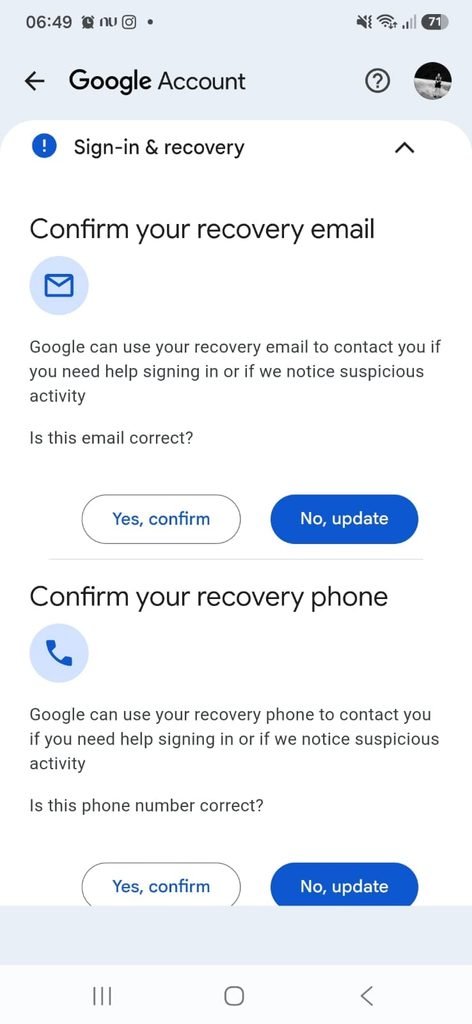
Account recovery settings showing the email addresses or phone numbers available for account recovery.
Step 8: Check Recent Account Activity
Open the account’s recent activity or security history.
Look for:
Successful logins
Failed login attempts
Password changes
Recovery changes
Security-setting changes
The information available varies by service.
Microsoft’s Recent activity page, for example, provides details about account usage during the previous 30 days and can show information such as date, location, device, operating system, browser, or application.
This type of information can help you determine whether the activity was legitimate.
Step 9: Check the Devices Connected to the Account
A recent activity page and a device list are not always the same thing.
The activity page may show individual events, while the device page may show sessions or devices currently associated with the account.
Review both when available.
If you find a device that clearly does not belong to you, sign it out.
If you are not sure whether a device is yours, investigate the details before taking action.
Step 10: Check for Password Changes You Did Not Make
An unexpected password-change notification deserves immediate attention.
If the password was changed by someone else, they may be trying to maintain control of the account.
Use the official recovery process if your current password no longer works.
Do not follow recovery instructions supplied through an unexpected message unless you have independently verified that the message is legitimate.
Step 11: Check Your Email Inbox and Sent Folder
Email accounts deserve special attention because they often serve as recovery methods for other accounts.
Look through your sent messages.
Ask:
Did I send these?
Are there messages containing links I do not recognize?
Did someone contact my friends or coworkers from my account?
The FTC specifically recommends checking sent and deleted folders for messages that may have been sent or handled by an attacker.
Step 12: Check Email Forwarding and Filters
An attacker who gains access to an email account may attempt to hide future messages or send copies elsewhere.
Review:
Forwarding rules
Filters
Automatic replies
Delegation
Remove anything you did not create.
The FTC specifically warns that hackers can create forwarding rules to send copies of email to another address.
This is one reason simply changing a password may not be enough.
Step 13: Check Connected Apps and Services
Review applications and services that have permission to access your account.
Remove connections that you no longer use or do not recognize.
A suspicious application does not necessarily prove that your password was stolen, but it is worth investigating.
Third-party access should be treated separately from ordinary device sessions.
Step 14: Check Your Social Media Activity
If the affected account is a social media account, inspect:
Messages
Posts
Comments
Followers
Accounts followed
Profile information
The FTC recommends checking social-media activity for messages or other actions you did not make.
If your account was used to send scam messages, warn people who may have received them.
Step 15: Warn Your Contacts
If someone used your account to send suspicious messages, let your contacts know.
Keep the warning simple.
For example:
Someone may have accessed my account. Please ignore any recent suspicious links or requests for money.
This can prevent your friends, family, or coworkers from becoming the next victims.
The FTC recommends notifying contacts after recovering a hacked account so that they know not to trust suspicious messages sent from the compromised account.
Step 16: Check Whether the Same Password Was Used Elsewhere
Ask yourself whether you used the compromised password on other websites.
If the answer is yes, change those passwords too.
This is extremely important because an attacker who gets one password may attempt to reuse it on other services.
The FTC recommends changing reused passwords on other accounts after a compromise.
Start with:
Financial services
Cloud storage
Shopping accounts
Other social networks
Step 17: Protect Your Email Account First
Your main email account deserves special attention.
It may be used to reset passwords for other accounts.
The FTC explains that someone with access to an email account could potentially request password-reset links for other services and receive those messages directly.
For this reason, securing your primary email account should be a priority after any suspected compromise.
Step 18: Check Financial Accounts When Necessary
If the compromised account contained payment information or was connected to financial services, check for unusual activity.
Look for:
Unexpected purchases
Unknown transactions
Changes to payment information
Unfamiliar bank details
Contact the financial institution using an official phone number or website if you find something suspicious.
Do not use contact information supplied only through a suspicious message.
Step 19: Check Your Cloud Storage
Cloud services can contain a large amount of personal information.
Review:
- Recently accessed files
- Shared files
- Deleted items
- New folders
- Sharing permissions
If you find changes you did not make, investigate the account immediately.
This step is particularly important when the same account provides access to documents, photos, or work files.
Step 20: Review Account Recovery Methods Again
After changing the password and signing out devices, return to the recovery settings.
Make sure nothing was changed.
Check:
Recovery email
Recovery phone
Two-factor authentication
Backup methods
An attacker who gained temporary access may have attempted to create a way back into the account.
Step 21: Review Two-Factor Authentication Methods
Do not stop at simply checking whether two-factor authentication is enabled.
Look at the methods associated with it.
Depending on the service, review:
Phone numbers
Authentication apps
Security keys
Trusted devices
Backup codes
If you find a method that you did not add, remove it and secure the account.
Step 22: Check Your Password Manager
If you use a password manager, review the affected account entry.
Make sure the stored password has been updated.
If your password manager warns that credentials have been compromised or reused, address those warnings as well.
The most important thing is to avoid returning to the old password.
Step 23: Check Other Devices You Own
Sometimes suspicious activity comes from a device you forgot about rather than a completely unknown computer.
Think about:
Old phones
Tablets
Work computers
Home computers
Browsers
Review the devices associated with the account and sign out of anything you no longer use.
Step 24: Consider Whether Your Device Could Be Compromised
An account can be exposed because of a stolen password, but a compromised device is another possibility.
If a computer behaves unusually, shows unexpected pop-ups, opens websites by itself, or displays other signs of malware, avoid using it for banking or other sensitive tasks until it has been checked.
The FTC advises keeping security software current and scanning a computer if you suspect malicious software after an account compromise.
Do not install random “security tools” recommended by suspicious pop-ups.
Step 25: Change Passwords From a Trusted Device
If you suspect that the device you normally use may be compromised, change important passwords from another trusted device when possible.
For example, if your computer is behaving strangely, you may choose to use your smartphone or another known-clean device to secure your accounts.
This reduces the risk of entering a new password into a potentially compromised environment.
Step 26: Do Not Delete Evidence Immediately
If you believe your account was compromised, take screenshots of important security information before changing or removing everything.
A record can help you remember:
- The date
- Time
- Device
- Location
- Security event
- Unexpected changes
Do not record or publish passwords, authentication codes, or other sensitive credentials.
The goal is to preserve useful information about the incident, not the credentials themselves.
Step 27: Use the Account Recovery Process If You Are Locked Out
If you can no longer access the account, do not keep guessing passwords.
Use the official account-recovery process provided by the service.
The FTC provides recovery guidance for several major email and social-media services and recommends following the provider’s official recovery instructions when you cannot log in.
Always make sure you are using the real service.
Step 28: Be Careful With People Offering to Recover the Account
After an account compromise, scammers may contact you claiming that they can recover the account for a fee.
Be cautious.
Do not give them:
- Passwords
- Verification codes
- Backup codes
- Remote access to your device
- Payment information
Use the service’s official recovery system instead.
Step 29: Check Whether the Attacker Changed Your Username or Profile
Some attackers modify account information to make the account harder for the original owner to recognize or recover.
Review:
Username
Display name
Profile photo
Email address
Phone number
Bio
Connected accounts
If any of these changed without your permission, restore them through the legitimate account settings when possible.
Step 30: Review Privacy Settings
After recovering an account, check what information is publicly visible.
An attacker may have changed privacy settings.
Review:
Who can see your posts
Who can contact you
Who can see your email or phone number
Location sharing
Profile visibility
This is especially useful for social media accounts.
Step 31: Check Shared Files and Permissions
If the compromised account provides access to cloud files, review sharing permissions.
Look for:
- New people with access
- Public links
- Unexpected shared folders
- New collaborators
Remove access you did not authorize.
Step 32: Check Your Other Accounts for Warning Signs
A compromised account can sometimes be the first sign of a wider problem.
Look at other important services for:
Unexpected login alerts
Password resets
New devices
Unknown third-party apps
Unexpected messages
You do not need to change everything immediately if there is no evidence of compromise, but connected accounts deserve attention when credentials were reused.
Step 33: Be Careful After Recovering the Account
Getting back into an account does not necessarily mean the problem is over.
Review the security settings again after the initial recovery.
The FTC recommends checking for other signs of access and securing the account after regaining control.
Take a few minutes to verify that nothing important remains changed.
Step 34: Create a Unique Password
Your replacement password should not resemble the old one too closely.
Avoid:
OldPassword1 → OldPassword2
or similar predictable changes.
Instead, create a genuinely new password.
Using a password manager is a practical way to generate and store a unique credential.
Step 35: Enable Two-Factor Authentication
If you have not already done so, enable two-factor authentication after recovering the account.
This is particularly important after a password has been exposed.
The FTC recommends enabling 2FA after an account compromise when the service supports it.
Step 36: Update Recovery Information
Make sure your recovery details are current.
Do not leave an old phone number or inaccessible email address attached to an important account.
Recovery information is part of your account’s security system.
Step 37: Remove Old Devices
Review your device list again after the password change.
Sign out of old phones, shared computers, and devices you no longer use.
This helps reduce unnecessary access.
Step 38: Check Your Contacts After a Social Media Hack
If an attacker sent messages from your account, your contacts may have received suspicious links or requests.
Notify them.
Ask them to ignore recent unusual messages and avoid opening links that appeared to come from you.
This is particularly important when the attacker attempted to impersonate you.
Step 39: Keep an Eye on the Account After Recovery
For the next few days, pay attention to:
New security alerts
Unfamiliar devices
Password-reset requests
Unexpected messages
Changes to account settings
Repeated suspicious events may indicate that another part of the account or recovery process still needs attention.
What If Someone Is Still Logged In?
If your account allows you to sign out individual sessions, remove unfamiliar sessions.
Then change the password and enable two-factor authentication.
The FTC recommends signing out of all devices after recovering a hacked account specifically because another person may still have an active session.
What If the Attacker Knows Your Email Address?
Knowing your email address alone does not provide access to your account.
Email addresses are often public or easy to discover.
The important questions are whether the attacker knows your password, has access to your recovery methods, or has another way to authenticate.
Do not panic simply because someone knows your email address.
What If the Attacker Knows Your Password?
Take the situation more seriously.
Change the password immediately through the legitimate service.
Then sign out other sessions, enable two-factor authentication, and check whether the password was reused elsewhere.
The FTC recommends changing a compromised password and any reused passwords on other accounts.
What If You Received a Password Reset Email You Did Not Request?
Do not click the link in the email automatically.
Open the official service yourself and check your account.
Someone may have entered your email address by mistake, or someone may genuinely be attempting to access the account.
The important thing is to investigate through a trusted route.
What If the Attacker Changed the Email Address?
This can make account recovery more difficult.
Use the service’s official account-recovery process.
Check whether the service provides a recovery notification or previous-address confirmation.
Do not trust anyone who contacts you privately claiming they can restore the account.
What If You Cannot Recover the Account?
Continue using the service’s official recovery process.
Provide accurate information when requested.
If the service offers official support, use that channel.
The FTC recommends following the provider’s recovery instructions when you cannot access a compromised account.
What If the Same Password Was Used for Your Email and Social Media?
Change both passwords immediately.
Then review other services that used the same password.
Your email account should be treated as a priority because it can be used to reset other accounts.
What If You Find Unauthorized Financial Activity?
Contact the financial institution through its official website or phone number.
Do not wait for more transactions before reporting something you do not recognize.
Check the affected service’s fraud and account-security procedures.
Frequently Asked Questions
What is the first thing I should do if I think someone has access to my account?
Access the account through the official app or website, change the password, and review active sessions. If the service supports two-factor authentication, enable it.
Should I change my password immediately?
If you have a reasonable indication that someone else accessed the account, changing the password is an important first step. Make it unique and do not reuse it elsewhere.
Should I sign out of all devices?
When you suspect unauthorized access, signing out other devices or sessions is recommended when the service provides that option.
What if I do not recognize a login location?
Do not automatically assume it is a hack. Locations can be approximate. Check the device, time, and type of activity as well.
Can a new phone trigger a security alert?
Yes. Microsoft notes that a new device or other legitimate changes can trigger unusual-activity warnings.
What if I cannot log in anymore?
Use the service’s official recovery process. The inability to access an account can be a sign of an account takeover.
Should I warn my friends after a social media account is hacked?
Yes. The FTC recommends notifying contacts so they know to ignore suspicious messages, links, or requests that may have been sent from the compromised account.
Do I need to change every password I have?
Not necessarily. Start with the compromised account and any other accounts where the same password was used. Then review your most important accounts.
What if someone changed my recovery email?
Treat that as a serious security event and use the service’s official recovery and security procedures to regain control.
Can a hacker remain logged in after I change my password?
Depending on the service, existing sessions may remain active. That is why signing out other devices or sessions is an important part of recovery when the option is available.
Should I enable two-factor authentication after a hack?
Yes. The FTC recommends enabling two-factor authentication when available after recovering a compromised account.
What if I used the same password on other websites?
Change those passwords too. Reusing a compromised password can expose multiple accounts.
Should I trust someone who offers to recover my hacked account?
Be extremely cautious. Use the service’s official recovery process rather than giving passwords, verification codes, or remote access to an unsolicited third party.
What if my computer is also acting strangely?
Avoid using it for sensitive tasks until you have investigated the possibility of malware. The FTC recommends updating security software and running a scan when malicious software may be involved.
A Simple Account Recovery Checklist
When you suspect unauthorized access, work through these steps:
1. Access the account through the official service.
2. Change the password.
3. Sign out other devices and sessions.
4. Enable two-factor authentication.
5. Check recovery information.
6. Review recent security activity.
7. Check connected apps.
8. Review email or social media activity.
9. Change reused passwords elsewhere.
10. Warn contacts if the account sent suspicious messages.
This sequence covers the main steps recommended by consumer-security guidance for recovering a hacked email or social media account.
How to Reduce the Risk in the Future
Once the account is secure, focus on prevention.
Use unique passwords for important accounts.
Enable two-factor authentication.
Keep your recovery information current.
Review connected devices occasionally.
Be cautious with unexpected links.
Do not share verification codes.
Keep your phone and computer updated.
Review suspicious account activity instead of ignoring it.
These habits make it more difficult for a stolen password or deceptive message to turn into a complete account takeover.
Regaining Control Is Only the Beginning
When you suspect that someone has accessed your account, the most important thing is to act methodically.
Do not follow suspicious links.
Secure the account through its official app or website.
Change the password.
End unnecessary sessions.
Enable two-factor authentication.
Check recovery information.
Then investigate what happened.
The biggest mistake is assuming that changing one password automatically fixes everything. An attacker may have changed recovery settings, created another session, connected an application, or used the account to contact other people.
A complete security check gives you a much better chance of restoring control and preventing the same problem from happening again.
The safest approach is simple: secure first, investigate second, and keep watching the account afterward.
