

Public Wi-Fi is convenient, but it is not always the safest way to connect your phone or computer to the internet. Airports, hotels, cafés, restaurants, libraries, shopping centres, and other public places often provide free wireless networks that anyone can use.
The problem is that you usually do not know who manages the network, how well it is protected, or who else is connected to it. A careless connection can expose more information than you might expect, especially when you sign in to important accounts or transfer sensitive data.
This does not mean you should completely avoid public Wi-Fi. With a few simple habits, you can reduce the risks and use these networks more safely.
Why Public Wi-Fi Can Be Risky
When you connect to a public wireless network, your device communicates through equipment that you do not control.
A legitimate network at a café or hotel may be properly configured, but there can also be fake networks designed to look official. Someone could create a Wi-Fi network with a name similar to the real one and wait for people to connect.
There is another problem: public networks are shared by many users. Although modern websites and apps generally use encryption, connecting to an unknown network still adds another layer of risk.
The safest approach is not to assume that a public Wi-Fi network is trustworthy simply because it has the correct name.
Confirm the Wi-Fi Network Before Connecting
Before joining a public network, check its exact name with the business or organisation providing the service.
For example, a coffee shop might have one official network name displayed near the counter. If you see several similar names on your phone, do not automatically choose the one with the strongest signal.
Ask an employee which network is legitimate when you are unsure.
This simple step can help you avoid connecting to a fake hotspot created to attract nearby users.
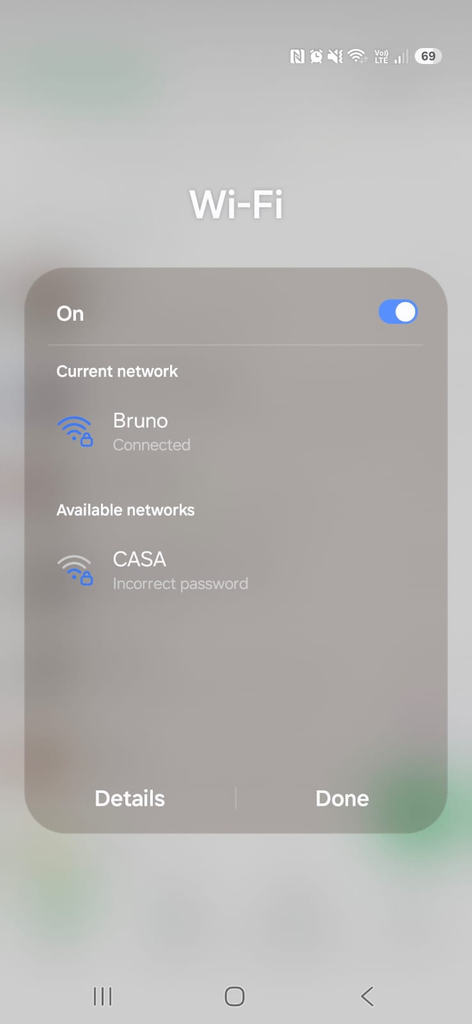
A phone showing the available Wi-Fi networks before connecting to a public hotspot.
Avoid Automatic Connections
One useful precaution is to prevent your device from automatically connecting to unfamiliar wireless networks.
When automatic connection is enabled, your phone or computer may connect to a network that you did not deliberately choose.
On many Android phones, you can review Wi-Fi settings and check options related to automatically connecting to networks. The exact wording can vary depending on the manufacturer and Android version.
On a Windows computer, you can also review saved wireless networks and remove networks that you no longer need.
The goal is simple: your device should connect to public Wi-Fi because you chose the network, not because it happened to be available.
Do Not Perform Sensitive Tasks on Unknown Networks
Public Wi-Fi is usually fine for ordinary activities such as reading news, checking opening hours, or browsing websites.
However, it is better to avoid sensitive activities when you do not trust the network.
Examples include:
- Online banking
- Changing important passwords
- Accessing highly sensitive work information
- Sending confidential documents
- Managing financial accounts
When something important needs to be done, mobile data can be a safer alternative when available.
For example, if you are sitting in an airport and need to access your bank account urgently, using your phone’s mobile connection may be preferable to connecting to an unknown hotspot.
Look for Secure Websites
When browsing on public Wi-Fi, pay attention to the website address.
Websites that use HTTPS encrypt information sent between your browser and the website. Most major websites and online services use HTTPS today.
You should still be careful, however. HTTPS does not mean that every website is trustworthy. A phishing website can also use HTTPS.
For this reason, check both the connection and the website address itself. Make sure the domain is the one you intended to visit before entering your password or personal information.
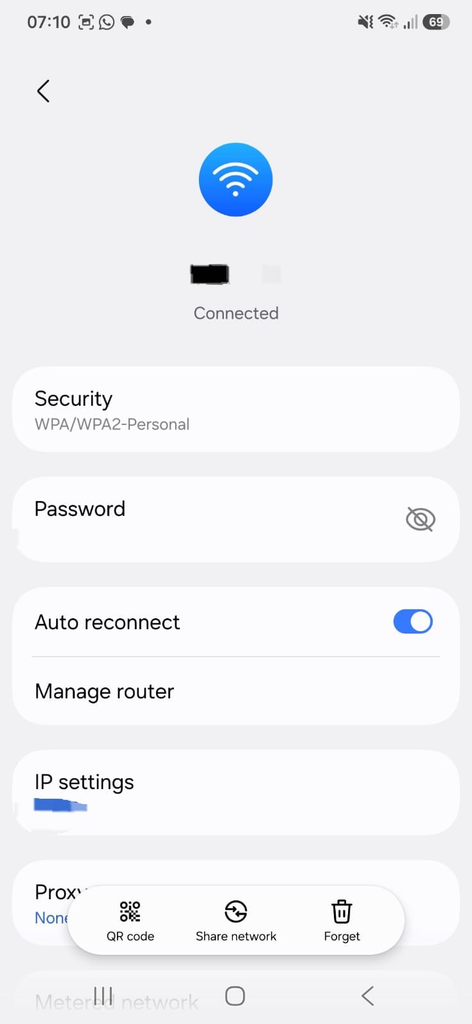
A browser showing the secure connection information for a website before sensitive information is entered.
Keep Your Device Updated
Software updates are important when using public networks because they often include security improvements and fixes for known vulnerabilities.
Before travelling or spending time in places where you frequently use public Wi-Fi, make sure your phone, computer, browser, and important apps are reasonably up to date.
You do not need to install every update immediately the moment it appears, but regularly delaying security updates can leave your device exposed to problems that have already been addressed by the manufacturer.
Use a Screen Lock
A secure screen lock protects your information if someone gets physical access to your device.
Use a PIN, password, fingerprint, or another security method supported by your device.
This is especially important when travelling. A phone left unattended at an airport or café can be just as much of a privacy concern as an insecure Wi-Fi connection.
Your Wi-Fi habits and physical device security should work together.
Turn Off Wi-Fi When You Are Finished
Once you leave a public location, disconnect from its Wi-Fi network.
You can also turn Wi-Fi off temporarily when you do not need it.
This reduces the chance that your device will remain connected to a network after you have left the area.
It is also worth reviewing saved networks from time to time. If you have accumulated dozens of old networks from hotels, restaurants, airports, and other locations, removing those you no longer use can make your device easier to manage.
Be Careful With File Sharing
Computers sometimes have sharing features that allow files, printers, or other resources to be accessed across a network.
Those features can be useful at home or in a trusted office, but you generally do not need them when connected to public Wi-Fi.
On a Windows PC, make sure your network is treated appropriately as a public network when you connect in places such as cafés, airports, hotels, or libraries.
Public network settings are designed to reduce unnecessary exposure to other devices on the same network.
Avoid Installing Unknown Apps or Files
A public Wi-Fi connection is not a reason to install software that suddenly appears on your screen.
Be cautious when websites display messages claiming that your computer or phone is infected, that you need a special security application, or that a browser update must be downloaded immediately.
Close suspicious pages and obtain software from the normal official source instead.
The same principle applies to files sent through unexpected messages or emails while you are using public Wi-Fi. The network may be unfamiliar, but phishing and malicious downloads remain common risks regardless of where you are connecting.
Be Extra Careful With Work Devices
If you use a laptop provided by your employer, follow your company’s security requirements when using public networks.
Some organisations require employees to use a company VPN, security software, or another protected connection when working outside the office.
Do not disable security features simply because they make connecting more complicated.
A work computer may contain company information, customer data, documents, or access to internal systems. Keeping those resources protected is more important than saving a few minutes when connecting to the internet.
Consider Using Mobile Data
One of the simplest alternatives to public Wi-Fi is your mobile connection.
Modern mobile networks can provide a practical way to access the internet without joining an unfamiliar local wireless network.
You can also use your smartphone as a hotspot when you need to connect a laptop.
This can be particularly useful when you need to perform an important task and do not want to rely on a public hotspot.
However, remember that mobile data usage may count toward your plan’s allowance, so check your available data before using it heavily.
What About VPNs?
A VPN can add another layer of protection by creating an encrypted connection between your device and a VPN service.
That can be useful when connecting through networks you do not control.
However, a VPN is not a magic security solution.
It does not automatically make phishing websites safe, prevent you from entering your password into a fake page, or protect you from every type of online scam.
You should still verify websites, use strong passwords, keep software updated, and avoid suspicious downloads.
If you decide to use a VPN, choose a reputable provider and understand what service you are actually using rather than installing the first free VPN application you find.
Forget Public Networks You No Longer Use
After using a public Wi-Fi network, consider removing it from your saved networks.
This is particularly useful for networks you are unlikely to use again.
Saved networks can accumulate over time, especially if you travel frequently. Keeping your list under control makes it easier to recognise networks you intentionally use and reduces unnecessary automatic connections.
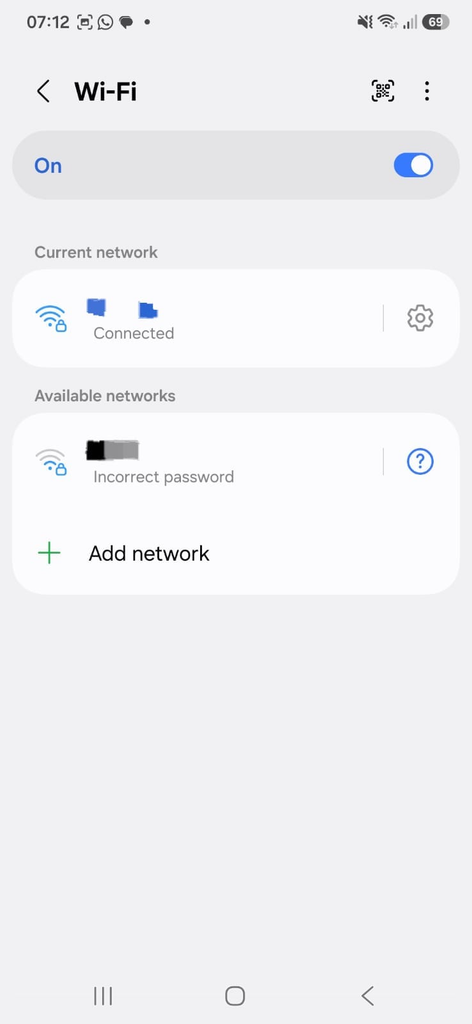
A device’s saved Wi-Fi networks screen showing how old or unused networks can be removed.
What to Do If You Connected to a Suspicious Network
Do not panic if you realise that you connected to a network that might not have been legitimate.
Disconnect from the network first.
Then think about what you did while connected. If you entered an important password, consider changing that password from a trusted connection, especially if you suspect the network was malicious.
It is also a good idea to review recent account activity if the account contains sensitive information.
If you downloaded an unexpected file or installed unknown software, take that seriously and check the device before continuing to use the account normally.
The important thing is to respond quickly rather than ignoring the situation.
Simple Public Wi-Fi Rules to Remember
You do not need to become a cybersecurity expert to use public Wi-Fi more safely.
A few basic habits make a significant difference:
Confirm the network name before connecting.
Avoid sensitive financial or account-related activities on unfamiliar networks.
Keep your phone and computer updated.
Use a screen lock.
Turn off automatic connections when appropriate.
Disconnect when you are finished.
Avoid suspicious downloads and fake security warnings.
Use mobile data for sensitive tasks when practical.
The biggest mistake is treating every public network as if it were your home Wi-Fi. Public networks deserve a little more caution because you do not control the equipment or the other devices connected to them.
By combining careful Wi-Fi habits with strong passwords, software updates, and basic account security, you can greatly reduce unnecessary exposure while still enjoying the convenience of being connected when you are away from home.
