
Changing to a new phone is usually an exciting process. You transfer your photos, install your favorite apps, sign in to your accounts, and start using the new device.
However, changing phones is also an important security moment.
Your old phone may still be signed in to email, social media, cloud storage, banking apps, messaging services, and other accounts. If you simply move your information to the new device and forget about the old one, some of those accounts may remain accessible from a device you no longer use.
The good news is that securing your accounts during a phone upgrade does not have to be complicated. A simple checklist can help you make the transition without leaving important information behind.
Start With Your Main Email Account
Your primary email account should be one of the first things you secure.
Email is often connected to many other services. Password resets, security alerts, account recovery messages, and verification codes may all be sent to your email address.
Before giving away or selling your old phone, make sure your main email account is properly configured on the new device.
Sign in to your account on the new phone and verify that you can access your inbox normally.
Then review the account’s security settings and check whether the old phone is still listed among your signed-in devices.
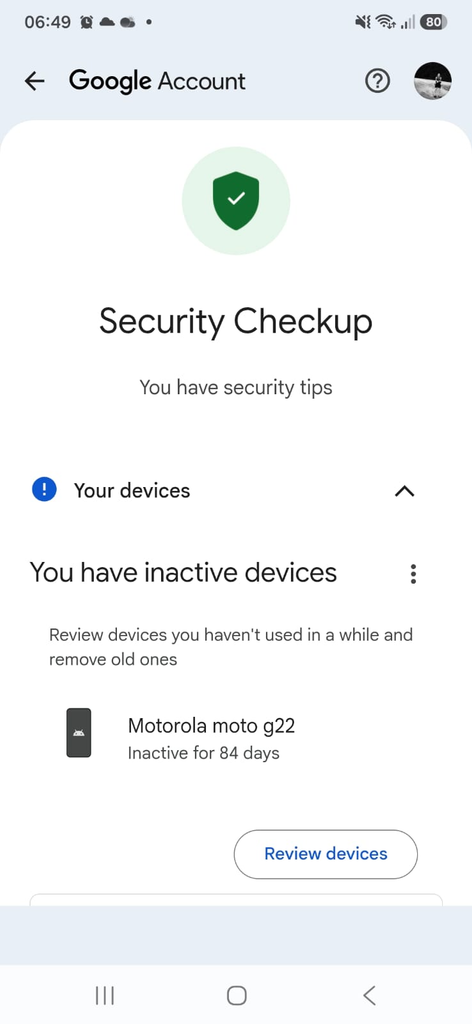
A Google Account security screen showing account protection options and signed-in devices.
Check Which Devices Are Still Signed In
One of the most important steps when changing phones is checking your account’s device list.
Many online services provide a section where you can see phones, tablets, computers, and other devices currently signed in to your account.
Look through the list carefully.
You may see your new phone, your computer, an older tablet, and the phone you are replacing.
If you no longer use the old phone, you can usually sign it out remotely from the account’s security settings.
This is especially important when you have already handed the device to another person.
Transfer Important Data Before Removing the Old Phone
Security is important, but you should also make sure your important information has been transferred successfully.
Before resetting your old phone, check that your photos, contacts, calendar information, documents, and other essential files are available on the new device.
Do not assume that everything was transferred simply because the phone setup process finished.
Open your most important apps and verify that the information you need is actually there.
For example, open your photo library and check whether recent pictures are visible. Open your contacts and make sure important numbers are present.
This gives you a chance to correct problems before erasing the old device.
Make Sure Your Photos Are Backed Up
Photos are one of the easiest things to lose during a phone change.
Cloud backup can help, but you should verify that the backup actually completed.
Open your photo application on the new phone and check for recent pictures.
If you have a large photo library, compare older and newer photos rather than checking only a few images.
Remember that backup and synchronization are not always exactly the same thing. Depending on the application and settings you use, some files may still exist only on the old phone.
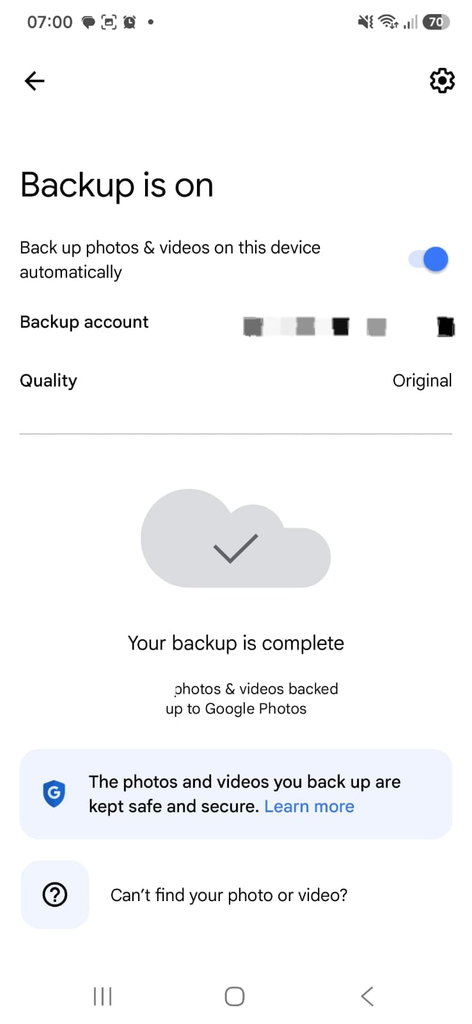
A photo backup screen showing that recent pictures have been successfully backed up.
Review Your Passwords
A new phone is also a good opportunity to review your passwords.
If you use a password manager, make sure you can access your saved passwords on the new device.
Do not erase the old phone until you have confirmed that your password manager is working correctly on the new one.
This is particularly important if you rely on saved credentials to access services you do not use every day.
It is also a good time to replace weak or reused passwords for important accounts.
Your email, cloud storage, financial services, and other critical accounts should use strong and unique credentials whenever possible.
Transfer Your Authentication Methods
Some accounts use additional security methods such as authenticator applications, passkeys, security keys, or approval notifications.
These methods may not automatically transfer in the same way as ordinary apps.
Before resetting your old phone, make sure your important accounts can still be verified from the new device.
For example, an account may ask you to approve a sign-in on your phone. If the approval is still tied to your old device, removing that device too soon can make signing in more difficult.
Take your time with this step.
Account recovery can be much more frustrating after the old device has already been erased.
Check Two-Step Verification
Two-step verification adds another layer of protection to an account by requiring something beyond the password.
When you change phones, check which verification methods are currently configured.
Depending on the service, you may have options such as:
- Text messages
- Authentication apps
- Passkeys
- Backup codes
- Security prompts
- Recovery email addresses
Make sure at least one reliable method is available on your new phone before disconnecting the old one.
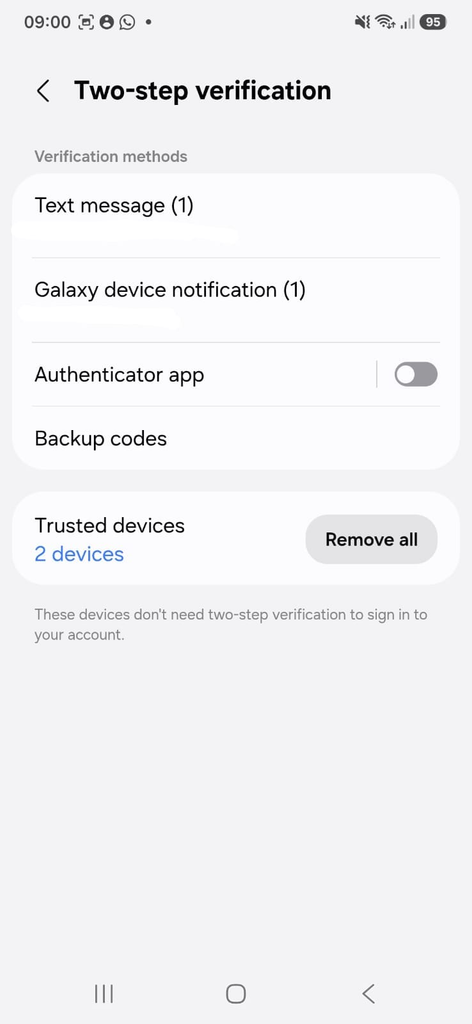
A two-step verification settings screen showing the security methods available for an account.
Update Your Recovery Information
Account recovery information can become outdated when you change phones.
For example, your recovery phone number may still be correct, but another recovery method may depend on your previous device.
Review the recovery options associated with your most important accounts.
Make sure the recovery email address and phone number are still accessible.
Do not remove every recovery method at once. First confirm that your new security options work properly.
Be Careful With Banking and Financial Apps
Financial applications deserve extra attention when moving to a new phone.
Open your banking or payment applications on the new device and complete any required security verification.
Some financial services may require you to approve the new device or register it before allowing certain transactions.
After everything works correctly, review the old device’s access according to your bank’s instructions.
Never erase the old phone before confirming that you can access your financial services from the new one.
Check Messaging Applications
Messaging apps can work differently when you move to a new phone.
Applications may use different methods for transferring conversations, media, or account access.
Before resetting the old phone, verify that important conversations and files are available on the new device.
You should also check whether the service shows the old phone as a connected or linked device.
If another person will receive your old phone, the old device should not remain connected to your messaging accounts.
Sign Out of Accounts You No Longer Need
During the transition, you may discover apps that you no longer use.
There is no reason to leave unnecessary accounts signed in on the old device.
Review apps such as:
- Social media
- Cloud storage
- Shopping services
- Streaming services
- Communication apps
For accounts you no longer need on the old phone, sign out before the device is erased.
Remove the Old Device From Your Accounts
Simply deleting an app from the old phone does not necessarily remove the device from your online account.
Some services maintain a list of devices that have previously signed in.
After completing the transfer, review the security settings of your most important accounts and remove the old phone when appropriate.
This reduces the number of devices associated with your accounts and makes future security reviews easier.
Do Not Forget Your Browser
Your browser may contain more information than you realise.
Depending on your settings, it can store passwords, bookmarks, browsing data, autofill information, and access to websites where you are signed in.
If you are giving the old phone to another person, do not rely on simply closing the browser.
The safest approach is to properly remove your accounts and reset the phone after verifying that all necessary data has been transferred.
Remove Sensitive Files From Local Storage
Even after transferring your information, some files may remain physically stored on the old phone.
Check folders containing:
- Documents
- Downloads
- Photos
- Videos
- Screenshots
- Scanned documents
Look especially for files that contain personal or financial information.
Once you have confirmed that the files are safely available elsewhere, they can be removed from the old device as part of the final cleanup.
Reset the Old Phone Only After Everything Is Ready
A factory reset is one of the final steps when preparing an old phone for another person.
Do not reset it immediately after buying your replacement.
First make sure your accounts, photos, contacts, files, authentication methods, and important applications are working correctly on the new device.
Then sign out and remove the old device from important accounts as necessary.
Once you are confident that nothing important is missing, perform the factory reset using the phone’s normal settings.
The exact process varies between manufacturers and Android versions, but the goal is to erase the old device and return it to its initial setup state.
Be Careful When Selling or Giving Away the Phone
When an old phone leaves your possession, you should assume that another person will eventually have physical access to it.
That makes the final reset extremely important.
Do not hand over an old phone while your Google account, social media accounts, messaging apps, banking applications, or password manager are still accessible.
Also remove physical items such as SIM cards or memory cards when appropriate.
A memory card can contain photos, videos, documents, or other personal information that is not necessarily erased during the phone’s normal reset process.
Keep the New Phone Protected
Once the transfer is complete, protect the new phone from the beginning.
Use a strong screen lock and install system and application updates regularly.
Review app permissions and avoid installing applications from questionable sources.
Also keep your account security methods enabled rather than disabling them just because setting up the new phone takes a little longer.
The security of your new device is not only about the phone itself. It also depends on the accounts connected to it.
A Simple Checklist Before Erasing Your Old Phone
Before resetting your old phone, take a few minutes to confirm:
Your main email account works on the new phone.
Your important photos and files are available.
Your contacts have been transferred.
Your password manager works.
Two-step verification works on the new device.
Recovery information is up to date.
Important financial apps work correctly.
The old phone has been removed from important accounts.
Your SIM card and memory card have been removed when necessary.
Only after these checks should you erase the old device.
Changing phones is a normal part of using modern technology, but it is also a good opportunity to improve your digital security.
Taking a little extra time to review your accounts, verify your backups, transfer authentication methods, and remove the old device can prevent problems later.
The most important rule is simple: never erase the old phone until you are certain that your important information and account access are working correctly on the new one.
