

A computer can become difficult to navigate when files have unclear names.
Names such as IMG_4837.jpg, Document (12).pdf, or New Text Document.txt may make sense when a file is first created, but they can become confusing after you have dozens or hundreds of files.
Giving files clear names makes them easier to find, sort, and understand later. It can also help prevent mistakes when you are working with several versions of the same document.
The good news is that renaming files and folders in Windows is simple. You can rename individual items manually or rename several files more efficiently when they belong to the same group.
Why File Names Matter
A clear file name tells you what something is without requiring you to open it.
Compare these two examples:
IMG_8472.jpg
Vacation_Canada_2026.jpg
The second name immediately provides useful information.
The same idea applies to documents.
Instead of:
Document7.pdf
you could use:
Car_Insurance_2026.pdf
Clear names make your computer easier to use and can save time when searching for information later.
Start With One Folder
Before renaming files, open the folder you want to organize.
It is usually better to work with one folder at a time rather than trying to rename hundreds of files across your entire computer.
Good places to start include:
Downloads
Documents
Pictures
Desktop
Projects
This allows you to see the files together and decide on a consistent naming system.
Rename a File in Windows
To rename a file, open File Explorer and locate the file.
Right-click the file and select Rename.
You can then type the new name and press Enter.
There are other ways to rename a file as well. Depending on your Windows version, you can also select the file and use the rename option in the File Explorer menu.
The original file remains the same file. You are simply changing its name.
Keep the File Extension Intact
One thing that can confuse beginners is the file extension.
A file may appear as:
Report.pdf
The .pdf part identifies the file type.
When file extensions are visible, be careful not to remove or change them accidentally.
For example, changing:
Report.pdf
to:
Report.txt
does not convert the document into a text file. It simply changes the extension and can cause Windows or other programs to handle the file differently.
When renaming ordinary files, change the descriptive part of the name and leave the extension alone.
Use Descriptive Names
A good file name should answer a simple question:
What is this file?
For example:
Electricity_Bill_August_2026.pdf
is more useful than:
Bill.pdf
You do not need extremely long names.
A short name with enough information is usually better.
For example:
Trip_Hotel_2026.pdf
is easier to understand than:
HotelReservationForTheTripThatWeAreTakingInSeptember.pdf
Add Dates When They Are Useful
Dates are particularly helpful for documents that are created regularly.
For example:
Invoice_2026-08-15.pdf
Invoice_2026-08-30.pdf
Invoice_2026-09-01.pdf
Using the same date format makes sorting easier.
The YYYY-MM-DD format is particularly convenient because Windows can sort the files chronologically.
Avoid Confusing Versions
When editing a document several times, people often end up with names such as:
Report_Final.docx
Report_Final2.docx
Report_Final_NEW.docx
Report_Final_ReallyFinal.docx
This can quickly become difficult to understand.
Instead, use a consistent version system.
For example:
Report_v01.docx
Report_v02.docx
Report_v03.docx
Or use dates:
Report_2026-09-01.docx
Report_2026-09-03.docx
Choose one method and use it consistently.
Rename Folders Too
The same principle applies to folders.
A folder called:
New folder
does not tell you what it contains.
A better name might be:
2026 Tax Documents
or:
Website Project
or:
Family Photos
Clear folder names make navigation much easier.
Avoid Names That Are Too Complicated
Good organization does not require complicated naming systems.
You do not need to include every detail in every file name.
For example:
Work_Project_August_2026_Client_Report_Final_Version_03.pdf
may be too much information.
A simpler name such as:
Client_Report_2026-08-30.pdf
may be easier to manage.
The best file name is one that gives you enough information without becoming difficult to read.
Rename Files While Organizing Them
Renaming and organizing can often be done at the same time.
Suppose you have a folder containing:
IMG_1023.jpg
IMG_1024.jpg
IMG_1025.jpg
If the photos are from a family event, you could rename them:
Family_Birthday_2026-01.jpg
Family_Birthday_2026-02.jpg
Family_Birthday_2026-03.jpg
The exact naming method is up to you.
What matters is that you can understand what the files are later.
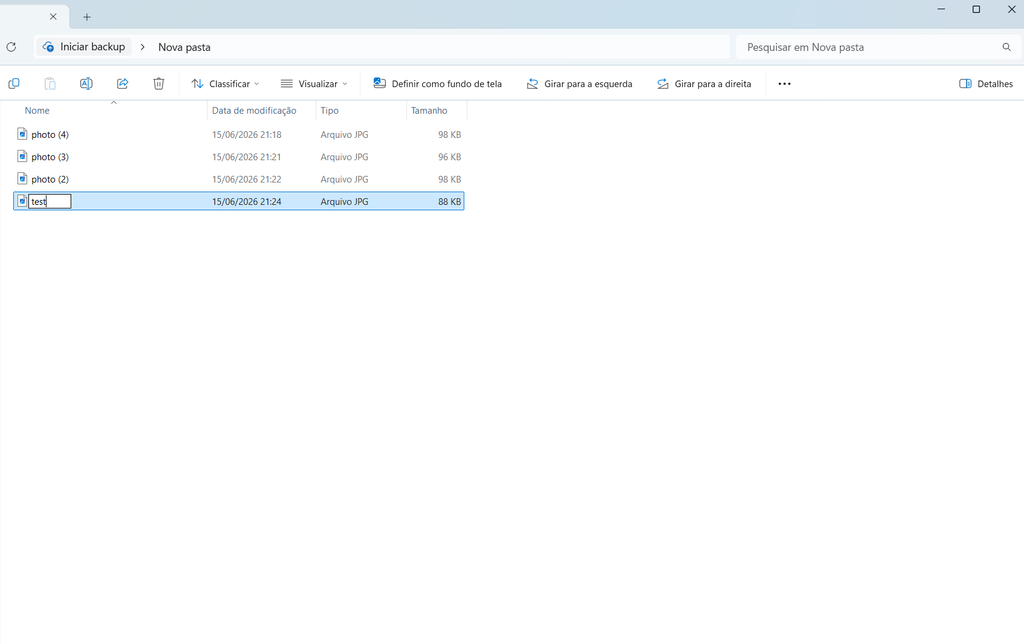
A Windows File Explorer window showing clearly named files instead of automatically generated file names.
Be Careful With Important Files
Renaming a file is normally safe, but you should still be careful with files used by applications or Windows itself.
Do not rename system files simply because the names look unusual.
Some programs depend on specific filenames to work correctly.
When organizing your personal files, focus mainly on documents, photos, videos, downloads, and project files.
If you do not know what a file is used for, leave it alone.
Check the File After Renaming It
After renaming an important file, open it once to make sure everything still works as expected.
This is especially useful for files used in work or shared with other people.
For example, after renaming a spreadsheet, document, or presentation, open it and confirm that the contents are still available.
Renaming a normal personal file should not change its contents, but checking important files is still a good habit.
Keep Names Consistent
A naming system becomes more useful when it is predictable.
For example, suppose you save monthly invoices.
Instead of mixing:
August Bill.pdf
September_Invoice.pdf
October bill final.pdf
use one consistent pattern:
Invoice_2026-08.pdf
Invoice_2026-09.pdf
Invoice_2026-10.pdf
This makes files easier to sort and recognize.
Use the Same Pattern for Similar Files
Consistency is especially useful for large collections.
For example, photos could use:
Vacation_2026_01.jpg
Vacation_2026_02.jpg
Vacation_2026_03.jpg
Documents could use:
Project_Proposal_2026-08.pdf
Project_Contract_2026-08.pdf
Project_Invoice_2026-08.pdf
You can adapt the pattern to whatever information matters most to you.
What About Multiple Files?
Windows allows you to select several files at once.
This can be useful when a group of files needs similar names.
For example, if you select several photos and choose Rename, Windows can automatically assign a common name with numbers.
You might end up with:
Vacation (1).jpg
Vacation (2).jpg
Vacation (3).jpg
This can be much faster than renaming every image separately.
However, check the results afterward to make sure the numbering and file selection are correct.
Be Careful When Renaming Many Files
Batch renaming saves time, but it can also create unwanted changes if you select the wrong files.
Before renaming multiple items:
Check which files are selected.
Confirm that they belong to the same group.
Choose a name that applies to all of them.
Review the results afterward.
This is especially important when working with hundreds of files.
Do Not Use the Same Name for Different Documents
Two files can have the same base name if they are stored in different folders, but this can become confusing.
For example:
Invoice.pdf
inside several different folders does not help much when you are searching for a specific invoice.
Adding a date, customer name, or category can make the distinction clearer.
Instead of:
Invoice.pdf
you might use:
Invoice_2026-08-30.pdf
or:
Electricity_Invoice_2026-08.pdf
Avoid Unnecessary Special Characters
Simple file names are usually easier to manage.
Characters such as slashes and backslashes cannot be used normally in Windows file names because they have special purposes.
Other unusual characters can also make file names harder to use across different systems.
A practical naming system usually relies on letters, numbers, spaces, hyphens, and underscores.
For example:
Travel_Photos_2026
is simple and recognizable.
Organize by Meaning, Not Just by Appearance
A file name should help you understand the purpose of the file.
For example:
BlueDocument.pdf
does not tell you much.
A better name would be:
Apartment_Lease_2026.pdf
The same principle applies to folders.
Instead of:
Stuff
use:
House Documents
A meaningful name reduces the amount of guessing required later.
Create a Naming System You Can Remember
You do not need a complicated system.
A simple structure can be enough:
Type + Date + Description
For example:
Invoice_2026-09_Electricity.pdf
or:
Project + Version
Website_v03.zip
The goal is to make the naming pattern easy enough that you will continue using it.
Do a Quick Review After Renaming
Once you finish renaming a folder, quickly scan the files.
Look for:
Incorrect names
Missing numbers
Accidental duplicates
Wrong dates
Files that should belong in another folder
This is especially important after batch renaming.
A quick review can catch mistakes before the folder becomes larger.
A Windows folder showing files with consistent names and dates after being organized.
Do Not Rename Everything Just for the Sake of It
You do not need to rename every file on your computer.
Some automatically generated names are perfectly acceptable, especially for files you rarely use.
Focus on files that are difficult to identify or groups of files that would benefit from a consistent system.
This keeps the process manageable.
Make Renaming Part of Your Routine
The easiest time to give a file a useful name is when you create or download it.
Instead of keeping:
Document (14).pdf
rename it immediately.
Instead of leaving:
IMG_9274.jpg
you can identify the event or date while you still remember what the photo is.
This prevents large amounts of future cleanup.
A Simple File Naming Checklist
Before finishing, ask yourself:
Can I understand the file without opening it?
Does the name make sense when sorted alphabetically?
Should I include a date?
Does the file belong to a specific project or category?
Did I accidentally change the file extension?
These quick checks can prevent unnecessary confusion later.
Renaming files is one of the simplest ways to make a Windows computer easier to use.
You do not need a complicated organization system. Clear names, consistent dates, sensible folder names, and a little care when renaming multiple files can make documents much easier to find.
The goal is not to create perfect filenames. It is to create names that make sense to you today and still make sense when you need the file months or years from now.
