

When you need to send several files to someone, attaching each one separately can be inconvenient. A better option is to combine them into a single ZIP file.
ZIP files are commonly used to group multiple documents, images, videos, and other files into one package. They can also reduce the total size of some types of files, making them easier to upload or send.
Windows includes built-in support for creating and opening ZIP files, so you usually do not need to install additional software.
What Is a ZIP File?
A ZIP file is a type of compressed archive that can contain one or many files and folders.
For example, instead of sending:
Photo1.jpg
Photo2.jpg
Photo3.jpg
Document.pdf
you could place everything inside:
Files_For_Client.zip
The recipient can then open the ZIP file and extract the contents.
ZIP files are especially useful when you need to send multiple related files together.
When Should You Use a ZIP File?
ZIP files are useful in many everyday situations.
You might use one when:
- Sending several documents by email
- Sharing multiple photos
- Uploading a group of files to a website
- Creating an archive of a project
- Moving several files between computers
- Keeping related files together
They are also useful when a service only allows you to upload one file instead of several separate files.
Select the Files You Want to Combine
Start by opening File Explorer and locating the files you want to include.
They can be documents, images, folders, or other supported file types.
You do not have to move the files into a special folder first.
You can select several files in the same location and create a ZIP file directly from them.
Before creating the archive, make sure you have selected everything you actually want to include.
Select Multiple Files in Windows
There are several ways to select multiple files in File Explorer.
You can hold Ctrl while clicking individual files.
You can also select a continuous group of files with Shift.
If you want everything in the folder, you can use Ctrl + A.
Take a moment to check the selected files before creating the ZIP file.
This is particularly important when the folder contains personal or unrelated information.
Create a ZIP File
After selecting the files, right-click one of the selected items.
Look for the option to Compress to ZIP file or a similar ZIP-related option, depending on your version of Windows.
Windows will create a new ZIP file in the same general location.
You can then rename the ZIP file to something more descriptive.
For example:
Project_Documents.zip
or:
Vacation_Photos.zip
The exact wording in the context menu can vary between Windows versions.
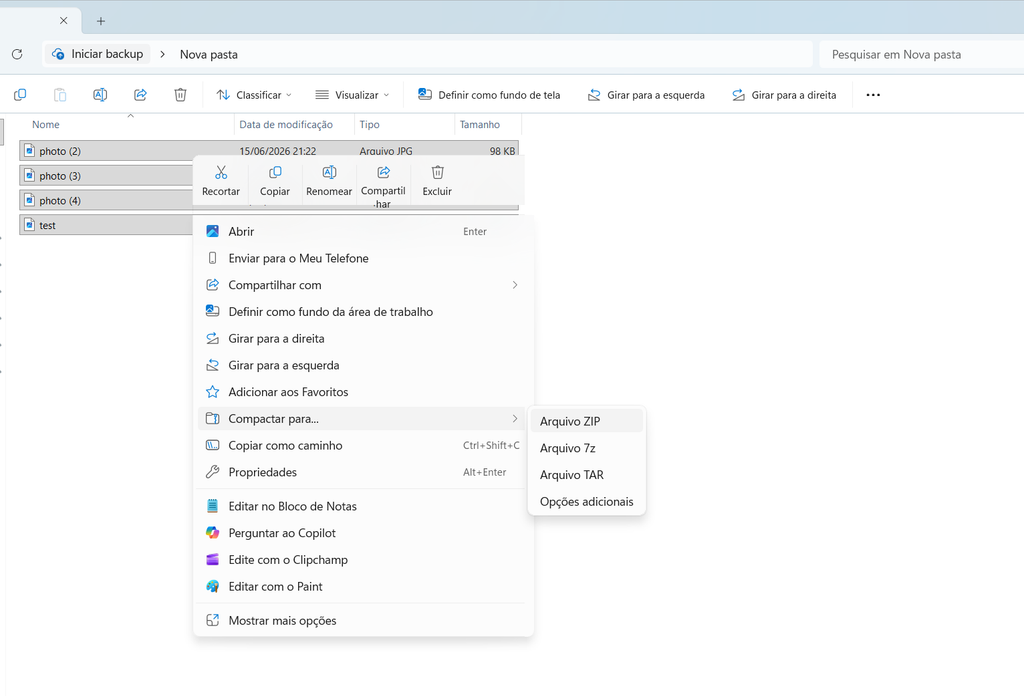
A Windows File Explorer window showing selected files and the option to create a ZIP file.
Rename the ZIP File
Windows may give the new archive a generic name based on one of the selected files.
You should usually rename it immediately.
A useful name helps you identify its contents without opening it.
For example:
Tax_Documents_2026.zip
is more useful than:
New Compressed Folder.zip
Keep the name short and descriptive.
Check What Is Inside the ZIP File
After creating the ZIP file, open it before sending it anywhere.
You should see the files you intended to include.
Check that:
The correct files are present.
Nothing important is missing.
There are no unrelated personal files.
Folders are organized correctly.
File names are readable.
This quick check is especially important when the ZIP contains many files.
ZIP Files Can Contain Folders Too
You do not have to add individual files one by one.
You can also place an entire folder into a ZIP archive.
For example, if you have a project folder containing documents and images, you can compress the folder itself.
The recipient will then receive the folder and its contents together.
This can be easier than selecting dozens of individual files.
How Much Space Can a ZIP File Save?
Compression does not reduce every type of file by the same amount.
Text documents and some other formats may become significantly smaller.
However, files that are already compressed may not become much smaller.
Examples include many:
JPG images
MP4 videos
MP3 audio files
These formats already use compression, so creating a ZIP file may mainly serve to combine the files into one package rather than substantially reduce their size.
Do Not Expect Every ZIP File to Be Small
A common misunderstanding is that putting files into a ZIP archive will always make them much smaller.
That is not the case.
If you place several high-resolution videos into a ZIP file, the resulting archive may still be almost the same size as the original files combined.
The main benefit in that situation is organization and easier sharing.
Use ZIP Files to Group Related Documents
ZIP files can be useful for keeping project materials together.
For example, you might have:
Project_Proposal.docx
Project_Images.jpg
Project_Budget.xlsx
Project_Notes.txt
Instead of sending four separate files, you can create:
Project_Files.zip
This makes the package easier to manage.
Be Careful When Sharing Personal Information
Before sending a ZIP file, check its contents carefully.
It is easy to accidentally include more information than you intended.
For example, a folder might contain:
Private documents
Old versions of files
Personal photos
Temporary files
Passwords stored in text documents
Before compressing a folder, review everything inside it.
A ZIP file does not hide the files from the recipient. It simply packages them together.
Do Not Put Passwords in the Same Folder
If you are preparing files for another person, avoid accidentally including documents containing passwords, private notes, or sensitive credentials.
A quick folder review before creating the ZIP can prevent this kind of mistake.
Never assume that because a file is hidden inside a ZIP archive, it will remain private.
Once the recipient extracts the archive, the files are available normally.
Open the ZIP Before Sending It
Windows allows you to open a ZIP file without extracting everything immediately.
Double-click the archive and review its contents.
This gives you one final opportunity to catch mistakes.
If the wrong file is included, delete the ZIP and create a new one rather than sending an archive that contains information you did not intend to share.
Extracting a ZIP File on Windows
Opening a ZIP file is just as simple.
Locate the archive in File Explorer and double-click it.
You can view the files stored inside.
To make normal copies of those files, use the extraction option provided by Windows.
You can usually choose where the contents should be placed.
For example, you could extract the files into:
Documents
Downloads
Desktop
or a dedicated project folder.
Do Not Work Directly From the ZIP When You Need to Edit Files
A ZIP archive is best treated as a package rather than your main working folder.
If you need to edit a document, it is usually better to extract the file first.
For example, if someone sends you:
Project.zip
extract the files into a normal folder before making changes.
This makes it easier to save updated versions and avoid confusion.
Keep the Original Files
Creating a ZIP file does not replace the original files.
The archive is simply another copy containing those files.
After creating the ZIP, the original files should normally remain where they were.
Do not delete your originals immediately unless you are certain you no longer need them and have another appropriate copy.
Use Descriptive Folder Names Inside the ZIP
If you are sending a large collection of files, organize the contents before compressing them.
For example:
Project_Files
→ Documents
→ Images
→ Spreadsheets
→ Final Versions
This makes the archive easier for the recipient to understand.
A well-organized ZIP file is much more useful than a large collection of randomly named files.
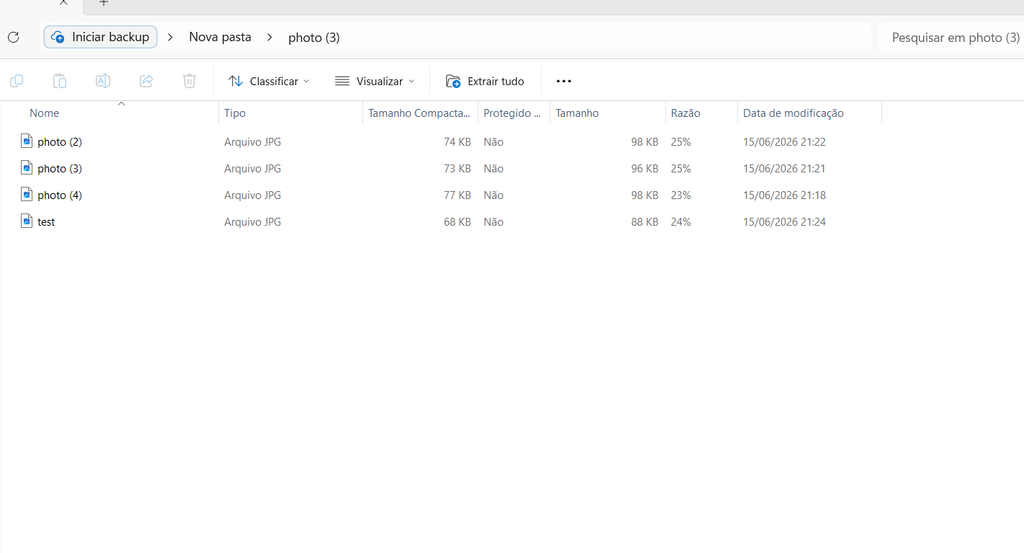
A Windows ZIP archive opened in File Explorer with related documents grouped together for easy sharing.
ZIP Files Are Useful for Backups, But They Are Not a Complete Backup Strategy
You can use ZIP archives to create a copy of a group of files, but a ZIP file stored on the same computer does not protect you against every problem.
If your hard drive fails, both the original files and the ZIP archive could be lost.
For important information, keep copies in another location such as external storage or a reliable cloud service.
A ZIP file is mainly a convenient way to package files.
Be Careful With ZIP Files From Unknown Sources
Receiving a ZIP file from an unfamiliar person or unexpected email deserves caution.
A ZIP archive can contain files that you did not expect.
Do not extract or open files simply because the archive has a professional-looking name.
If you were not expecting the file, verify the sender before opening it.
The same caution applies to ZIP files downloaded from unfamiliar websites.
Avoid Creating Unnecessarily Large Archives
There is no need to compress everything on your computer into one enormous ZIP file.
Large archives can become difficult to move, upload, or restore.
Instead, group related files together.
For example:
Photos_2026.zip
Tax_Documents_2026.zip
Website_Project.zip
This makes the files easier to manage.
Use a Consistent Naming System
If you create ZIP files frequently, use consistent names.
For example:
Project_Name_2026-01.zip
Project_Name_2026-02.zip
or:
Photos_2026_Summer.zip
This makes archived files easier to recognize later.
Including a date can also help when you create several versions of the same archive.
Delete Old ZIP Files When You No Longer Need Them
ZIP files are easy to forget.
After sending a collection of files, the ZIP may remain in your Downloads or Desktop folder indefinitely.
Review old archives regularly.
If you already have the original files stored safely and no longer need the ZIP, you may be able to delete it.
Before doing so, check whether the archive contains the only copy of any important information.
A Simple ZIP Workflow
Creating a ZIP file does not have to be complicated.
Select the files.
Confirm that you selected the correct items.
Use Windows’ ZIP compression option.
Rename the archive.
Open it and check the contents.
Then send or store the ZIP file.
This simple routine reduces the chance of accidentally sharing the wrong files.
Common Mistakes to Avoid
One of the most common mistakes is compressing an entire folder without checking what it contains.
Another is assuming that ZIP compression will dramatically reduce the size of videos or photos.
People also sometimes forget to review the archive before sending it.
Finally, a ZIP file stored on the same computer should not be treated as the only backup of important information.
The safest approach is to think of a ZIP file as a convenient package for files, not as a replacement for careful organization or backups.
When a ZIP File Is the Best Choice
A ZIP archive is particularly useful when you need to send or store several related files as one package.
It keeps those files together, simplifies sharing, and can reduce the size of some types of content.
Windows makes the process straightforward enough for everyday use without requiring additional software.
Once you get used to creating and extracting ZIP files, they can become a simple part of your normal file-management routine.
The most important habit is to check the contents before creating or sharing the archive. A few seconds of review can prevent you from sending files you did not intend to include.
