
Your Google Account may be signed in on several phones, tablets, computers, browsers, and other devices. Over time, it is easy to forget about an old phone you no longer use or a computer where you signed in temporarily.
Google provides a dedicated section where you can review devices and sessions that have recently accessed your account. From there, you can inspect activity, determine whether a device belongs to you, and sign out of devices you no longer use.
Checking this list occasionally is a simple way to keep your account organized and identify activity that deserves further investigation.
Practical example: The screenshots in this guide will use a Samsung Galaxy and Google Account settings on Android. The appearance of the menus may differ depending on your device and Android version.
Why You Should Check Your Google Account Devices
Your Google Account can remain signed in on devices that you have not used for months.
For example, you may have:
- An old smartphone
- A previous computer
- A tablet
- A work computer
- A browser session you forgot about
- A device that you gave to someone else
Google allows you to review devices where your account is currently or was recently signed in.
This does not mean that every unfamiliar-looking entry represents an unauthorized login.
Google explains that multiple sessions can sometimes belong to the same physical device. A new session can also be created when you sign in through a different browser, app, or service, or when you re-enter your password to confirm your identity.
That is why you should investigate an unfamiliar entry rather than immediately assuming the account has been compromised.
Step 1: Open Your Google Account
On your Android phone, open Settings.
Tap Google, then select Manage your Google Account.
You can also open your Google Account from a browser by signing in to your account.
Once your account is open, go to the Security section.
Google’s current documentation places device management under the account’s security settings.
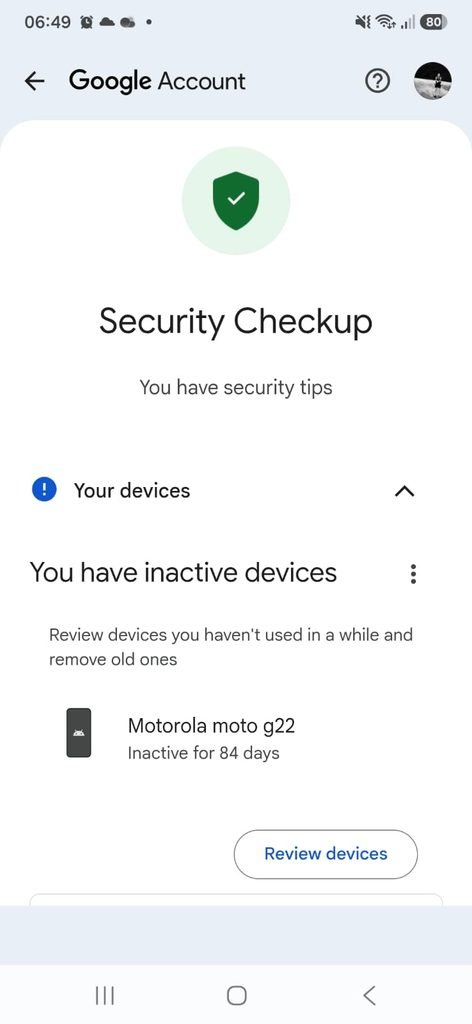
Google Account security settings showing the section used to review signed-in devices.
Step 2: Find “Your Devices”
Within your Google Account security settings, look for Your devices.
Select Manage all devices.
Google says this section displays devices where your Google Account is currently or was recently signed in.
You may see smartphones, tablets, computers, browsers, or other sessions associated with the account.
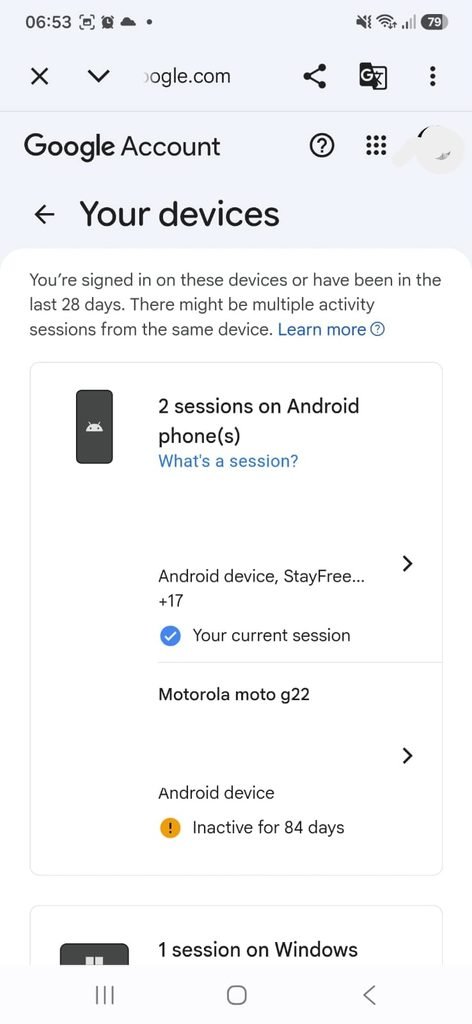
Google Account showing the Your devices section with recently used devices and sessions.
Step 3: Review the Device List
Take a moment to look through the complete list.
Do not worry if you see more entries than the number of physical devices you own.
Google explains that you can sometimes see multiple sessions associated with the same device. For example, signing in through another browser or app can create a separate session.
Look for information such as:
Device type
Approximate location
Recent activity
Browser or application
Whether the device is currently signed in
These details can help you determine whether the entry belongs to you.
Step 4: Open a Device for More Details
Select a device or session from the list.
Google provides additional information when you open an individual device or session.
Depending on the entry, you may see information about when it was last active and how the account was accessed.
This is particularly useful when you see several devices with similar names.
For example, two entries that look like Android phones may actually represent different sessions from the same phone.
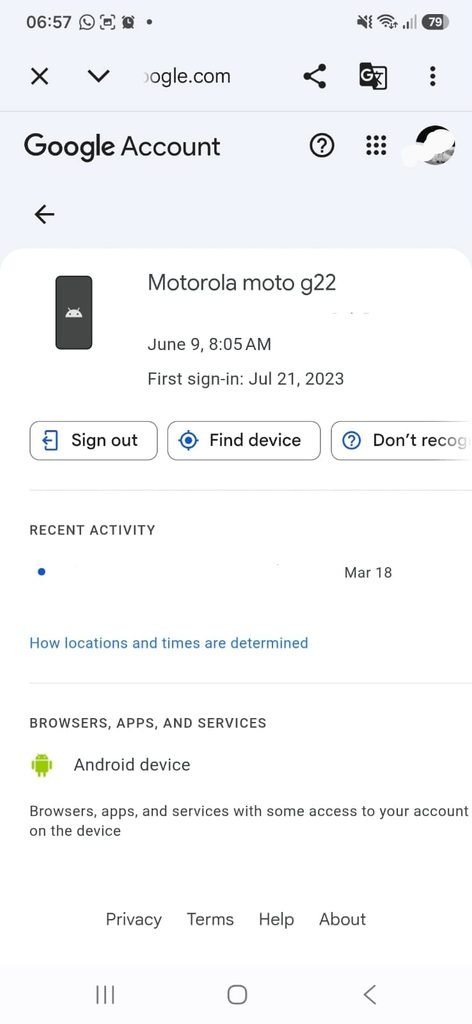
Google Account device details showing additional information about a signed-in device or session.
Step 5: Check the Last Activity
The time displayed for a device may not correspond exactly to the last moment you physically used it.
Google explains that the timestamp represents the last time the device or session communicated with Google’s systems. This communication can include normal user activity as well as automatic background synchronization.
Because of this, a recent timestamp does not automatically mean someone else is using your account.
For example, an Android device may communicate with Google services in the background even when you are not actively using the phone.
Step 6: Look at the Approximate Location Carefully
The device list may display an approximate location associated with the activity.
Do not expect this location to always match your exact physical position.
Google notes that you might see a nearby location rather than the precise place where the device was used. Travel, airports, mobile networks, and other factors can affect the location information shown.
For that reason, an unfamiliar city does not automatically prove that someone else accessed your account.
Use location as one clue among several.
Step 7: Check Whether the Device Is Actually Yours
When you find a device that looks unfamiliar, ask a few questions before taking action.
Did you recently use another phone?
Did you sign in on a friend’s or family member’s computer?
Did you use a public or work computer?
Did you recently reset an old phone?
Did you install a new browser or app?
Google specifically notes that old devices can remain visible after a factory reset and that sessions can exist for several reasons unrelated to unauthorized access.
This is why reviewing the details is better than relying only on the device name.
Step 8: Sign Out of a Device You No Longer Use
If you recognize a device but no longer have it, signing out can help reduce unnecessary access.
Google recommends signing out of devices that:
- You no longer own
- Were lost or stolen
- Belong to someone else
- You no longer use
To sign out, open the device in Manage all devices and select Sign out.
Google Account device management showing the option to sign out of a device.
If several sessions appear with the same device name, Google recommends reviewing them carefully. When you are not certain that all sessions belong to you, signing out of those sessions can help ensure that another device does not retain access.
Step 9: What If You Do Not Recognize the Device?
An unfamiliar device deserves closer attention.
Start by opening the device and reviewing the information provided.
Google lists several situations that can make a legitimate device look unfamiliar, including using a new device, using another person’s computer, recently resetting a device, or seeing a browser you do not normally use.
If you still cannot identify the device, treat the situation seriously.
Google’s guidance for suspicious account activity recommends reviewing the device and taking steps to protect the account when the activity was not yours.
Step 10: Change Your Password When Necessary
If you determine that an unfamiliar device really was not yours, do more than simply sign it out.
Google recommends changing your password when you identify suspicious activity or believe someone may have accessed your account.
Use a new password that you have not used for another account.
If you previously reused the same password on other websites, those passwords should also be changed.
Step 11: Check Recent Security Activity
Your device list is only one part of account security.
Google also provides Recent security activity or Recent security events, where you can review important changes and sign-in activity related to the account.
This can help you determine whether something unexpected happened.
Look for activity such as:
- Password changes
- New sign-ins
- Security setting changes
- Recovery information changes
If you find something that you did not initiate, follow Google’s instructions to secure the account.
Step 12: Check for Old Devices After Changing Phones
Changing smartphones is one of the best times to review your Google Account devices.
Your old phone may continue to appear in your account even after you stop using it.
Google notes that devices you have recently used can remain visible in the device list.
After confirming that everything you need is working on the new phone, review the old device and sign it out when appropriate.
Step 13: Check Computers You Used Temporarily
A forgotten computer can also remain associated with your account.
This can happen when you sign in at:
- Work
- School
- A friend’s house
- A hotel
- A shared computer
- A public computer
Google recommends signing out of devices that are not yours or that you no longer use.
This is especially important when you used a computer that other people can access.
Step 14: Understand the Difference Between a Device and a Session
This is one of the most confusing parts of Google’s device list.
A device refers to the physical equipment, while a session represents a period in which your Google Account was connected through a browser, application, or service on that device.
Google can therefore show multiple sessions for what is actually one physical phone or computer.
This does not automatically indicate multiple people using your account.
Step 15: Do Not Panic About Every Unknown Entry
An unfamiliar entry is a reason to investigate, not automatically a reason to panic.
Start by looking at:
Device
Location
Time
Browser or app
Recent activity
Compare that information with your own activity.
Google specifically notes that location, timestamp, and device information can sometimes appear unfamiliar even when the activity was legitimate.
Step 16: What If You Are Certain the Device Is Not Yours?
If you are sure the device does not belong to you and you did not use it, sign it out.
Then review recent security events.
Google recommends changing your password if you believe someone else has accessed the account.
You should also check whether your password is reused elsewhere.
If the same password was used on another service, change it there as well.
Step 17: Review Recovery Methods
Account recovery information is another important part of keeping your account secure.
Check whether your recovery email and phone number are still current.
Google recommends maintaining recovery information so it can help you regain access if you forget your password or encounter suspicious activity.
Old recovery information should be replaced.
Step 18: Check Your 2-Step Verification
Two-step verification provides an additional layer of protection beyond your password.
If you have already enabled it, review the verification methods associated with your account.
Make sure the devices and authentication methods listed are ones you recognize.
Google recommends using additional verification to make an account more difficult to access with a stolen password alone.
Step 19: Review Connected Apps and Services
Your Google Account can also be connected to third-party applications and services.
These connections are different from devices, but they are still worth reviewing when you are performing a general security check.
Google provides controls for reviewing third-party apps and services that have access to your account information.
Remove access for services you no longer recognize or use.
Step 20: Use Google’s Device Page Directly
Google also provides a direct page where you can review devices associated with your account:
google.com/devices
Google specifically recommends this page for checking devices that have recently been connected to your account.
This can be convenient when you are already signed in through a browser.
What If a Device Says “Signed Out”?
Google can continue to display devices or sessions even after they have been disconnected.
A device or session that has been signed out is marked accordingly in the device management page.
This does not mean the device currently has access.
It simply provides a record that helps you understand recent account activity.
How Often Should You Check Your Devices?
There is no need to check the list every day.
A practical time to review it is:
After changing phones
After using a shared computer
After losing a device
After changing important security settings
Every few months as a general security check
You should also review the list when Google sends you a security notification that you do not recognize.
What If Someone Is Actually Using My Google Account?
If you find a device that you know is not yours and you believe someone has accessed your account, act quickly.
Google’s security guidance recommends reviewing suspicious activity, changing your password, checking devices, and taking additional steps to secure the account.
Start by:
Sign out the unfamiliar device.
Change your Google Account password.
Review recent security events.
Check other devices.
Review recovery information.
Check your 2-Step Verification settings.
If the same password was used on other websites, update those accounts too.
Frequently Asked Questions
How do I see which devices are signed in to my Google Account?
Open your Google Account, go to Security and sign-in, find Your devices, and select Manage all devices. Google will display devices and sessions that recently accessed your account.
Why do I see multiple devices with the same name?
Google explains that multiple sessions can belong to the same physical device. Signing in through different browsers, apps, or services can create separate sessions.
Does an unfamiliar location mean someone hacked my account?
Not necessarily. Google says the displayed location can be approximate and may differ from the exact location where the device was used. Travel and network routing can also affect the location shown.
How do I remove an old phone from my Google Account?
Open your Google Account’s Your devices section, select the old phone, and choose Sign out.
Should I sign out of a device I no longer use?
Yes. Google recommends signing out of devices that you no longer own, that have been lost, or that do not belong to you.
What should I do if I find a device I do not recognize?
Review its details first. If you are certain that it was not yours, sign it out and follow Google’s account-security steps, including changing your password.
Why does Google show activity when I was not using the phone?
Google explains that timestamps can reflect automatic background communication between your device and Google services, not only actions you performed manually.
Can I check Google Account devices from an Android phone?
Yes. You can manage the account through Android settings or a browser. Google provides the device-management section within the account’s security settings.
Can I sign out of multiple sessions?
You can review individual devices and sessions and sign out of those you no longer want connected. Google recommends signing out of all sessions with the same device name when you are unsure whether they are all yours.
A Simple Google Account Security Check
Checking your signed-in devices is a small task that can provide useful information about the state of your account.
Start with Your devices, review unfamiliar entries carefully, and remember that multiple sessions can belong to the same physical device.
Remove old devices that you no longer use, keep your recovery information current, and review recent security activity when something looks unusual.
The goal is not to remove every device from your account.
The goal is to make sure that the devices and sessions with access to your Google Account are ones you recognize and still need.
A few minutes spent reviewing this list can help you catch forgotten devices and respond more quickly if genuinely suspicious activity appears.
