

When your Windows computer starts running out of storage space, it can be difficult to know which programs are responsible.
Some applications use only a few hundred megabytes, while others can occupy several gigabytes. Games, creative software, office applications, development tools, and other large programs can gradually consume a significant amount of disk space.
Instead of uninstalling programs randomly, Windows provides tools that allow you to review installed applications and identify which ones are taking up the most storage.
This makes it easier to decide what can be removed and what should stay installed.
Check Your Available Storage First
Before looking at individual programs, check how much storage is available on your computer.
Open:
Settings → System → Storage
Windows will display information about the storage used on the main drive.
This gives you a general idea of whether you actually need to free up space.
If you still have plenty of free storage, there may be no reason to remove applications simply because they are large.
Open the Installed Apps List
To examine your applications, go to:
Settings → Apps → Installed apps
Windows will display the programs installed on your computer.
You can usually see information such as:
Application name
Publisher
Installation information
Approximate size
Available options
The exact layout may vary depending on your Windows version.
Sort Applications by Size
One of the easiest ways to identify large programs is to sort the installed applications by size.
Look for a sorting option near the top of the Installed apps page.
Choose Size when available.
The largest applications will then be easier to identify.
For example, you may discover that one game occupies 80 GB while most of your other applications use less than 1 GB.
This immediately tells you where most of the storage is going.
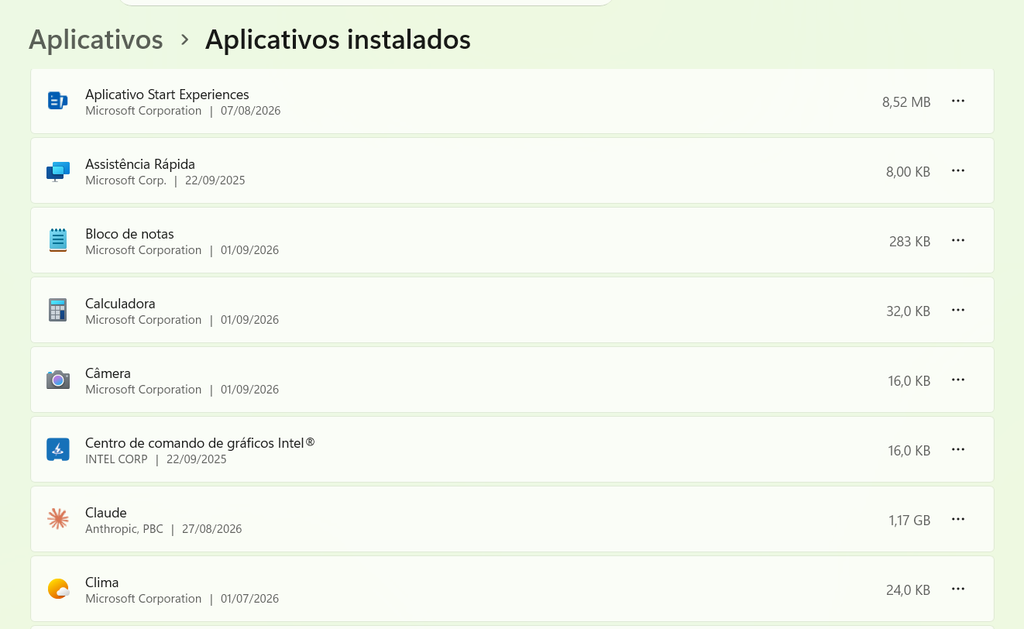
Windows Installed apps settings showing programs and their approximate storage usage.
Do Not Judge an App Only by Its Size
A large application is not necessarily unnecessary.
You may have a video editor that occupies several gigabytes but is essential for your work.
A large game may also be something you use regularly.
The purpose of sorting by size is to identify what is consuming storage, not to create a list of applications that should automatically be deleted.
Always consider how often you use the program and whether you still need it.
Identify Programs You No Longer Use
After sorting by size, look at the larger applications and ask yourself when you last used them.
You may find programs that you installed for a specific project and have not opened in months.
You may also find trial applications, old games, or software that you replaced with another program.
Unused applications are usually better candidates for removal than programs that you actively rely on.
Check the Publisher
The publisher information can help you understand what an application belongs to.
For example, you may recognize a program as being associated with:
Microsoft
Adobe
A hardware manufacturer
A game platform
A cloud storage service
Another application you intentionally installed
If you see an unfamiliar publisher, do not immediately uninstall the program.
First find out what it does.
Be Careful With System Components
Some installed programs are actually components required by Windows or other applications.
Examples may include:
Drivers
Runtime components
System utilities
Hardware support packages
Software libraries
These components can sometimes have names that are unfamiliar to ordinary users.
Do not remove them simply because they appear in the installed applications list.
If you are unsure what something does, leave it installed until you can identify it.
Check Apps You Installed Yourself
A useful place to start is with software that you clearly remember installing.
Think about applications such as:
Games
Photo editors
Video editors
Music software
Office programs
Development tools
Browsers
Communication applications
If you no longer use one of these programs and it occupies a significant amount of storage, uninstalling it may be worthwhile.
Large Games Can Use a Lot of Storage
Modern games can take up tens or even hundreds of gigabytes.
If your computer is running low on storage, check whether you have games installed that you rarely play.
Some gaming platforms allow you to uninstall individual games while keeping the platform itself installed.
This can free a substantial amount of storage without affecting the rest of your system.
Before removing a game, make sure that any saved data you want to keep is synchronized or backed up when necessary.
Check Creative Software
Applications used for photo and video editing can also consume considerable storage.
The main application may be large, but projects, caches, libraries, and additional content can sometimes use even more space.
If you no longer use a creative application, uninstalling it may help.
However, check where your project files are stored before removing the program.
Uninstalling an application does not necessarily remove every personal project or media file you created with it.
Browsers Usually Are Not the Largest Programs
Web browsers can use storage for cached data, profiles, extensions, and other information.
However, the main application itself may not be the largest item in your installed apps list.
If your storage is nearly full, focus first on applications that occupy several gigabytes.
For browser-related storage problems, you may need to review browser data separately.
Look for Duplicate Applications
Sometimes people install more than one application that performs the same task.
For example, you may have several PDF readers, multiple media players, or more than one browser that you rarely use.
This does not mean every duplicate is unnecessary.
Some users intentionally keep different applications for specific purposes.
However, if two programs perform essentially the same task and you only use one, the unused application may be worth removing.
Check the Installation Date When Useful
Some versions of Windows or third-party tools may provide additional information about when an application was installed.
This can help you identify old programs.
An application installed several years ago that you no longer remember using may deserve a closer look.
Installation age alone is not a reason to uninstall something, but it can be a useful clue.
Do Not Confuse Program Size With Personal Files
An application’s listed size is not the same thing as all of the data associated with that application.
A program might be relatively small while creating large project folders, downloaded media, caches, or other files elsewhere on your drive.
If you are trying to recover a large amount of storage, check both installed applications and your personal files.
Windows Storage settings can help show where other categories of data are located.
Check for Applications You Can Safely Remove
Once you identify software you no longer use, you can decide whether to uninstall it.
A good candidate is usually a program that:
You recognize
You no longer need
Is relatively large
Does not provide an important Windows function
Is not required by another application you still use
Take your time before confirming the removal.
Uninstall One Program at a Time
You do not need to remove several applications at once.
A safer approach is to uninstall one program, wait for the process to finish, and then check whether everything else still works normally.
This is especially useful when you are uncertain whether two programs are related.
Restart When Necessary
Some applications may ask you to restart Windows after uninstalling them.
When prompted, allow the restart when practical.
This can complete the removal process and ensure that related components are released properly.
Check Your Storage After Uninstalling
After removing an application, return to:
Settings → System → Storage
Check how much free space is available now.
This lets you see whether the cleanup made a meaningful difference.
If you removed a 20 GB game and recovered roughly that amount of storage, you know the application was a significant contributor.
If the available space barely changed, another category may be consuming most of the storage.
Some Applications Are Larger Than They Appear
The size shown in Windows should be treated as an estimate in many cases.
An application may store additional data elsewhere.
For example, a game may keep downloaded content in another folder, while creative software may generate large caches or project files.
If your drive is still nearly full after uninstalling large programs, continue investigating other storage categories.
Check Microsoft Store Apps
Applications installed through the Microsoft Store are also included in Windows’ application management tools.
You can review them alongside other installed applications.
The exact uninstall process can differ slightly depending on how the application was installed.
If an application came from the Microsoft Store, removing it through Windows is generally straightforward.
Check Traditional Desktop Programs
Programs installed from downloaded installers may appear differently from Microsoft Store applications.
They can still normally be managed through the Installed apps section or through their own uninstall process.
If Windows gives you an uninstall option, use that rather than manually deleting the application’s folder.
Never Delete a Program Folder Manually
Deleting an application’s folder from:
C:\Program Files
or another installation directory is not the same as uninstalling the program properly.
Doing so can leave behind registry entries, shortcuts, services, or other components.
It can also create problems when you try to reinstall the application later.
Use the normal uninstall process instead.
Be Careful With Driver Software
Hardware manufacturers often install software related to graphics cards, printers, keyboards, mice, audio devices, and other hardware.
Some of these programs may appear relatively large.
Do not uninstall them just because you do not recognize the name.
Check what hardware or function the software is associated with first.
Removing the wrong component can affect how your devices work.
Look at Software You Installed for a Temporary Task
Temporary projects are a common source of unused software.
You may install a specialized application for one task and forget about it afterward.
Months later, it may still occupy several gigabytes.
Review applications you installed for:
A short-term project
School work
A one-time editing task
An old device
A specific file format
If the task is finished and the software is no longer necessary, removing it may be reasonable.
Keep Software You Still Need
Storage cleanup should not become an excuse to uninstall useful programs.
Before removing anything, ask:
Do I still use this?
Do I need it for work or school?
Does another application depend on it?
Would reinstalling it be difficult?
Does it contain settings or data I still need?
If the answers suggest that you still need it, keep it.
Consider Moving Large Personal Data Instead
Sometimes the application is not actually the main problem.
A program may be large, but your videos, photos, backups, or project files may consume much more storage.
Instead of uninstalling useful software, consider moving large personal files to another storage location.
This allows you to recover space without removing tools that you still need.
Check Storage Before Installing Large Programs
It is easier to prevent storage problems than to fix them.
Before installing a very large game or application, check how much free space remains.
Make sure you have enough room not only for the application itself but also for temporary installation files and future updates.
Some programs can grow significantly after installation.
Keep Some Free Space Available
Do not aim to keep your drive almost completely full.
Windows and applications need free space for temporary files, updates, caches, and other operations.
Having some free space available gives you more flexibility and makes storage management easier.
Review Installed Apps Regularly
You do not need to inspect the Installed apps list every week.
A quick review every few months can be useful.
You may discover programs you no longer use, especially after changing jobs, finishing projects, or abandoning old hobbies.
Regular reviews prevent unused applications from accumulating indefinitely.
Be Careful With Automatic Uninstallers
Some applications include their own uninstallers.
These are usually preferable to manually deleting program folders.
However, avoid third-party tools that promise to uninstall everything automatically without explaining what they are doing.
For ordinary cleanup, Windows’ built-in application management is a good place to start.
Check for Large Components Before Removing Them
Some applications are made up of several related components.
A main program may have:
A helper application
A language pack
A runtime
A plugin
A support component
Do not uninstall individual components just because they appear unnecessary.
If you are removing the entire application, use its normal uninstall procedure.
Make Sure Your Files Are Safe
Uninstalling an application does not necessarily delete your personal documents, but you should still check where the application stores its data.
For example, editing software may keep projects in your Documents folder.
A game may use a separate save-data location.
Before uninstalling an application you care about, confirm that important files or saved data are backed up when necessary.
What If the Uninstall Option Is Missing?
Sometimes an application cannot be removed normally through the usual interface.
There may be several reasons for this.
The application may have its own uninstall program, be managed by another application, or have become partially damaged.
Do not immediately delete its folders manually.
Look for the program’s official uninstall method or repair instructions.
What If the Application Keeps Coming Back?
Some programs may reinstall themselves through another application or management service.
For example, a software suite may reinstall a component when another related program is updated.
If this happens, identify which application is responsible before repeatedly uninstalling the same component.
Check the Storage Usage Again
After your cleanup, return to the Storage page and compare the available space with what you had before.
This gives you a clear picture of whether the changes helped.
If you have recovered only a small amount of storage, look at other categories such as:
Temporary files
Videos
Pictures
Downloads
Other
The largest storage category should generally be your next focus.
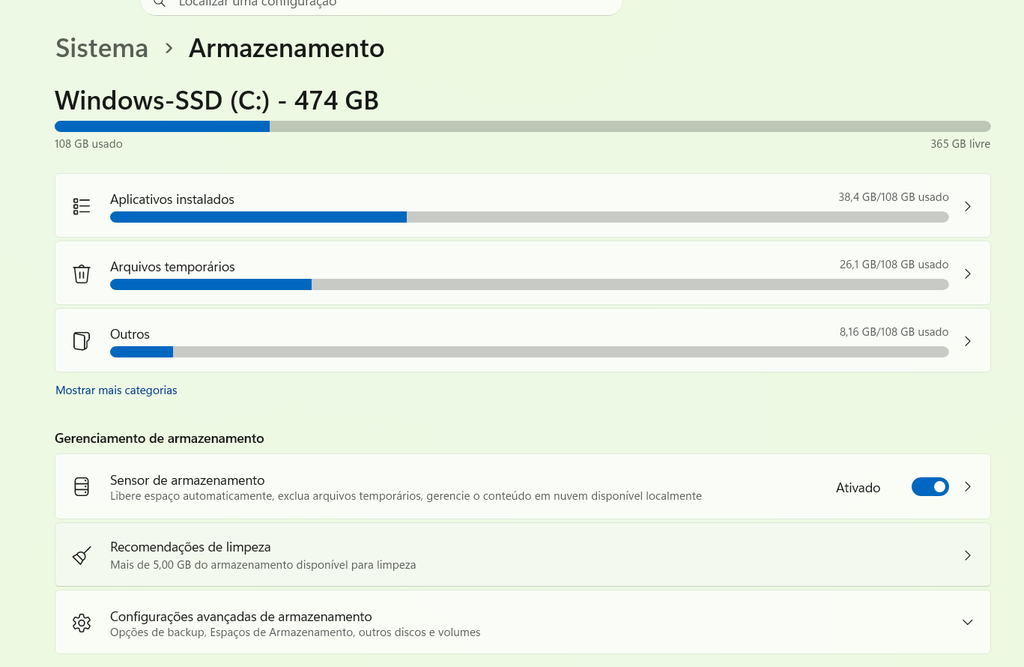
Windows showing installed applications after reviewing and removing programs that were no longer needed.
Do Not Uninstall Programs Solely Because They Use a Lot of Space
This is one of the most important rules.
A large application that you use every day is not a good candidate for removal.
A small application that you no longer need may be easier to remove.
Storage management should be based on both size and usefulness.
A Simple Review Process
A safe way to review installed programs is:
Open Settings → Apps → Installed apps.
Sort applications by size.
Identify the largest programs.
Check whether you recognize them.
Consider when you last used them.
Confirm that you do not need their associated files.
Uninstall unnecessary applications.
Restart Windows when necessary.
Check your storage again.
This process gives you useful information without encouraging unnecessary deletions.
Common Mistakes to Avoid
One common mistake is uninstalling a program simply because it is large.
Another is manually deleting application folders instead of using the normal uninstall process.
People also sometimes remove drivers or system components without understanding what they do.
Finally, uninstalling a useful application and discovering later that important project files were stored locally can create unnecessary problems.
Review before removing.
When Uninstalling Programs Is Not Enough
If the largest applications are all programs you actually need, uninstalling them may not solve the storage problem.
In that situation, look at personal files, temporary data, cloud-synchronized content, and other storage categories.
You may be able to recover much more space by moving or cleaning those files instead.
Keep a Simple Storage Routine
A few minutes every couple of months can be enough to keep installed applications under control.
Review large programs.
Remove software you no longer use.
Keep applications that are still important.
Check storage after cleanup.
This prevents old software from quietly consuming space for years.
Checking which programs use the most storage is a useful first step when a Windows computer is running out of space.
The safest approach is to sort installed applications by size, identify what you recognize, and remove only software you know you no longer need.
Never delete program folders manually just to recover storage. Use the normal uninstall process, protect important data, and remember that the largest application is not necessarily the one you should remove.
