

A Windows computer can become noticeably slower over time. Programs may take longer to open, websites can feel less responsive, and the computer may remain busy for several minutes after you sign in.
A slow computer does not always mean that the hardware is failing. In many cases, the problem can be related to too many startup applications, limited storage, background processes, outdated software, or a program that is using an unusual amount of system resources.
The key is to identify the cause before making major changes.
You do not need to reinstall Windows immediately or delete important files. Start with the simplest checks and work through the most common causes.
Restart the Computer First
Before changing settings or uninstalling programs, restart Windows.
A computer that has been running for a long time can accumulate temporary processes and background activity.
Restarting closes those processes and gives Windows a fresh start.
If the computer becomes noticeably faster after restarting, the problem may be related to a temporary process rather than a permanent performance issue.
If the slowdown returns shortly afterward, continue investigating.
Check How Much Storage Is Available
Low storage can make everyday computer maintenance more difficult and can interfere with tasks that require temporary disk space.
Open:
Settings → System → Storage
Check how much space is available on the Windows drive.
If the drive is almost full, start by removing unnecessary temporary files, unused applications, or personal files you no longer need.
Do not delete system files manually simply because they appear large.
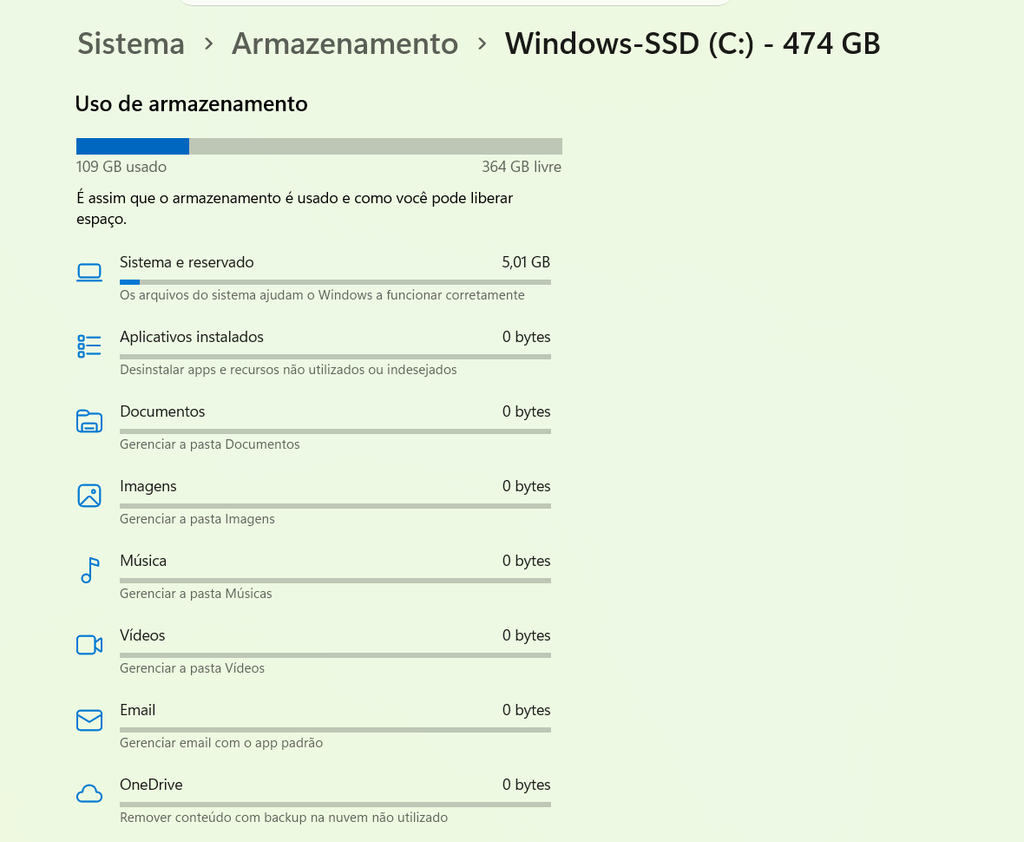
Windows Storage settings showing the amount of space used and available on the computer.
Check Which Applications Are Using System Resources
Windows includes Task Manager, which can help you identify programs that are currently using a large amount of system resources.
Press:
Ctrl + Shift + Esc
to open Task Manager.
Depending on your Windows version, you can review columns such as:
CPU
Memory
Disk
Network
These values can help you understand what the computer is doing.
For example, if one program is using an unusually high percentage of the CPU while you are not actively using it, that application may deserve further investigation.
Look at Memory Usage
Memory, also called RAM, is important for running multiple applications at the same time.
If memory usage remains very high, Windows may become less responsive.
Task Manager can show which applications are consuming the most memory.
A browser with many open tabs, an editing application, or several programs running simultaneously can all contribute to high memory usage.
Try closing applications that you are not currently using and see whether the computer becomes more responsive.
Check Disk Usage
High disk usage can also make Windows feel slow.
In Task Manager, look at the Disk column.
If disk usage stays very high for a long period, investigate which application or process is responsible.
Large file transfers, updates, backups, antivirus scans, and other tasks can temporarily produce high disk activity.
High usage is not automatically a sign of a problem.
The important question is whether the activity remains unusually high and whether it is affecting normal use.
Check CPU Usage
The CPU handles many of the calculations performed by Windows and applications.
Task Manager can show which processes are using the most CPU.
A program that briefly uses a large amount of CPU may be performing a normal task.
A process that continuously consumes significant CPU resources when the computer is otherwise idle may require further investigation.
Do not end unfamiliar system processes simply because they use CPU.
First determine what the process belongs to.
Close Programs You Are Not Using
It is easy to leave many applications open throughout the day.
A browser, messaging app, document editor, media player, and several other programs may all remain active.
Close applications that you no longer need.
This can release memory and reduce background activity.
You do not need to close everything.
Focus on programs you recognize and are not currently using.
Review Startup Applications
Programs that automatically launch with Windows can increase the time it takes for your computer to become fully responsive.
Open:
Settings → Apps → Startup
Review the applications listed there.
You can disable unnecessary programs that you do not need to start automatically.
For example, an application that you use only once a week may not need to launch every time you sign in.
Important security and synchronization software may need to remain enabled.
Do Not Disable Security Software
A slow computer can tempt people to disable antivirus or other security-related software.
Avoid doing this without understanding the consequences.
Security software can use system resources, especially during a scan, but disabling protection can create a much bigger problem.
If security software appears to be causing unusually high resource usage, check whether a scan or update is in progress instead of simply turning protection off.
Check for Windows Updates
Windows updates can include performance improvements, bug fixes, and security updates.
Open:
Settings → Windows Update
and check whether updates are available.
If your computer has been running poorly for some time, it is worth making sure that Windows is not waiting for important updates.
After installing updates, restart the computer when Windows asks you to.
Update Applications You Regularly Use
The operating system is not the only software that can affect performance.
Browsers, productivity applications, graphics tools, and other programs can also receive updates.
If one particular application has become unusually slow, check whether a newer version is available.
However, avoid installing updates from random websites.
Use the application’s normal update mechanism or its official source.
Check Your Browser
Web browsers can consume a large amount of memory when many tabs and extensions are open.
If Windows feels slow mainly when you are browsing, start by checking the browser itself.
Close tabs you no longer need.
Review extensions and remove ones you no longer use.
Restart the browser.
If the problem improves, the browser or one of its extensions may have been contributing to the slowdown.
Reduce the Number of Browser Extensions
Browser extensions can be useful, but every extension adds additional software to the browser.
Some extensions may also run in the background.
Review your installed extensions and remove those you no longer need.
If the browser becomes faster afterward, you have identified a possible source of the problem.
Do not install multiple extensions that provide essentially the same function.
Check for Programs You No Longer Use
Unused software does not always cause a major slowdown, but some applications install background services or startup components.
Open:
Settings → Apps → Installed apps
and review your installed programs.
If you recognize an application that you no longer need, uninstalling it may reduce clutter and free storage.
Do not remove software simply because you do not recognize its name.
Some components belong to Windows or your computer manufacturer.
Check for Unwanted Software
Unexpected programs can also contribute to poor performance.
If you notice new browser extensions, unfamiliar applications, repeated pop-ups, or unusual behaviour, investigate the issue carefully.
Use trusted security software and Windows’ built-in security features to check the computer.
Avoid downloading random “PC cleaner” applications simply because they promise to fix everything automatically.
Be Careful With PC Cleaner Programs
Software that promises to dramatically speed up Windows with one click can sound attractive.
Some of these utilities provide useful functions, but others may remove files or change settings without providing meaningful benefits.
Windows already includes tools for managing storage and startup applications.
Start with those tools before installing third-party cleanup software.
Check for Background Processes
Some programs continue working even when their main window is closed.
Cloud synchronization, update services, backup software, and communication applications may continue running in the background.
This can be normal.
If you notice unusually high resource usage, Task Manager can help you identify the responsible application.
Do not end a process simply because its name looks unfamiliar.
Research it first or leave it running if you are not certain what it does.
Check Available RAM
If your computer frequently slows down while several applications are open, limited RAM may be part of the problem.
You can see memory usage in Task Manager.
If memory remains close to full during normal use, consider reducing the number of applications and browser tabs running simultaneously.
A hardware upgrade may also be possible on some computers, but not all systems allow memory upgrades.
Investigate your specific computer before buying hardware.
Check the Health of Your Storage Drive
A failing or unhealthy storage drive can cause slowdowns, crashes, or file-access problems.
If the computer has become progressively slower and you also notice unusual noises, errors, freezing, or problems opening files, do not assume the issue is simply too many programs.
Back up important files first.
Storage hardware problems require a different approach from ordinary Windows cleanup.
Keep Important Files Backed Up
Before troubleshooting serious performance problems, make sure your important files are backed up.
This is especially important if the computer is showing signs of possible hardware failure.
Keep copies of important documents, photos, projects, and other irreplaceable information somewhere separate from the computer.
Troubleshooting is much safer when your data is protected.
Check Whether a Specific Application Is Causing the Problem
Sometimes Windows itself is not the main problem.
One application may be unusually slow or consuming significant resources.
Try closing the application and using the computer normally for a while.
If everything improves, reopen the application and observe whether the slowdown returns.
This can help you determine whether the problem is related to one particular program.
Restart After Major Changes
After uninstalling software, installing updates, or changing startup settings, restart Windows.
This allows the changes to take effect properly and gives you a clean environment for testing.
Do not make dozens of unrelated changes at once.
Changing one or two things at a time makes it easier to understand what improved the computer.
Test Windows With Fewer Programs Running
A useful troubleshooting approach is to reduce the number of applications running at the same time.
Close unnecessary programs and browser tabs.
Then perform the tasks that normally feel slow.
If the computer becomes much more responsive, the problem may be related to resource usage rather than a serious Windows issue.
Check Whether the Problem Happens Immediately After Startup
Pay attention to when the computer becomes slow.
If Windows is slow only for the first few minutes after you sign in, startup applications or background tasks may be involved.
If the computer remains slow all day, another cause may be responsible.
Timing can therefore provide a useful clue.
Check Task Manager During the Slowdown
The best time to use Task Manager is when the problem is actually happening.
Suppose your computer becomes extremely slow whenever you open a particular program.
Open Task Manager while the slowdown is occurring.
Then check CPU, memory, and disk usage.
This gives you actual information about what the computer is doing instead of relying only on guesswork.
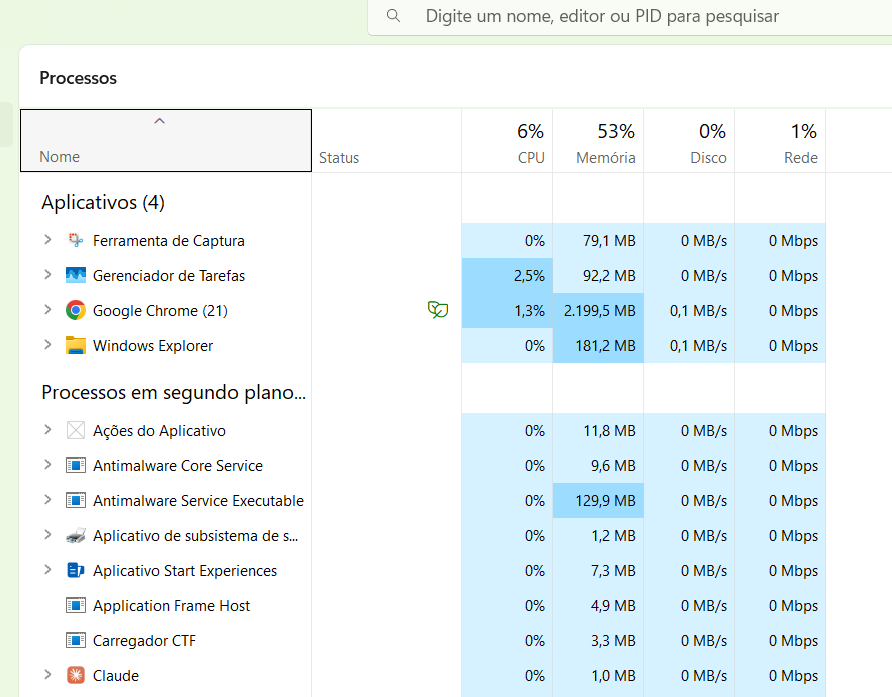
Windows Task Manager showing CPU, memory, disk, and other resource usage while applications are running.
Avoid Running Too Many Heavy Programs Together
Some applications require significant resources.
Video editors, games, virtual machines, graphics software, and large databases can use considerable CPU, memory, or storage resources.
Running several heavy applications at the same time can overwhelm a computer that has limited hardware.
Close programs you do not currently need before starting another resource-intensive task.
Keep Enough Free Storage
Even after performing a cleanup, continue monitoring available storage.
A computer with very little free space can become difficult to maintain.
Review storage periodically and remove unnecessary files before the drive becomes completely full.
Keeping your files organized also makes future cleanup easier.
Restart Programs That Have Been Running for a Long Time
Some applications may gradually consume more resources during a long session.
If a program has been open for several days, close it and start it again.
This can sometimes resolve temporary performance problems.
The same applies to your browser if you have kept it open continuously with many tabs.
Check for Pending Restarts
Windows and applications may sometimes require a restart after updates or configuration changes.
If your computer has been running continuously for a long time, check whether Windows is waiting for a restart.
A normal restart can complete pending changes and resolve temporary issues.
Do Not Change Advanced Settings Without a Reason
When searching online for ways to speed up Windows, you may find instructions involving registry changes, system services, or advanced configuration.
These changes can have unintended consequences.
For ordinary performance problems, start with straightforward tools such as Storage settings, Startup settings, Task Manager, Windows Update, and application management.
More advanced changes should have a specific reason behind them.
When a Hardware Upgrade May Be Necessary
Sometimes software cleanup is not enough.
Older computers may struggle with modern applications because the hardware itself is limited.
Signs that hardware may be the limiting factor include:
Persistent high memory usage
Long loading times even after cleanup
Difficulty running modern software
Frequent storage-related slowdowns
Poor performance during demanding tasks
Before buying new hardware, identify which component is actually limiting performance.
Adding RAM does not solve a problem caused by a failing drive, for example.
Consider the Age of the Computer
Software requirements change over time.
A computer that worked well several years ago may struggle with newer applications and websites.
That does not necessarily mean the computer is unusable.
Simple tasks such as email, documents, and web browsing may still work perfectly.
However, demanding applications can expose hardware limitations more clearly.
Do Not Expect Every Slowdown to Be Fixed by Cleanup
Cleaning temporary files and disabling unnecessary startup applications can help, but they are not universal solutions.
A slow computer could also have:
A hardware problem
Insufficient RAM
A failing storage drive
A problematic application
Malware
Driver issues
Network problems
Identifying the cause is more useful than repeatedly performing the same cleanup.
A Simple Windows Performance Checklist
When your computer becomes slow, work through the following:
Restart Windows.
Check available storage.
Open Task Manager.
Look at CPU usage.
Check memory usage.
Check disk usage.
Close unnecessary programs.
Review startup applications.
Install pending Windows updates.
Uninstall software you no longer need.
Check your browser and extensions.
Look for unusual applications or behaviour.
Back up important files.
Then test the computer again.
This systematic approach is safer than changing many settings at random.
Keep Track of What You Change
If you are troubleshooting a particularly difficult slowdown, make a note of the changes you make.
For example:
Disabled one startup application.
Uninstalled an unused program.
Installed a Windows update.
Restarted the computer.
This can help you identify which change made a difference.
It also makes it easier to reverse a change if necessary.
When to Seek Professional Help
If the computer continues to freeze, crash, restart unexpectedly, or show signs of hardware failure, the issue may require more advanced troubleshooting.
Professional assistance can be appropriate when:
Important files are at risk.
The storage drive may be failing.
Windows repeatedly crashes.
The computer cannot start normally.
You suspect a serious malware infection.
Continuing to experiment with random settings in these situations can make the problem worse.
Avoid Reinstalling Windows Too Quickly
A clean Windows installation can solve certain software problems, but it should not be your first response to every slowdown.
Before reinstalling the operating system, investigate simpler possibilities.
You may be able to solve the problem by removing unnecessary startup applications, freeing storage, updating software, or identifying one application that is consuming excessive resources.
A reinstall should be considered only after the simpler options have been investigated or when there is a specific reason to start fresh.
Make Regular Maintenance Part of Your Routine
You do not need to perform a complete system cleanup every week.
A simple monthly review can be enough for many users.
Check storage.
Review installed applications.
Look at startup apps.
Clear unnecessary downloads.
Install important updates.
Restart the computer normally.
Regular maintenance can prevent small problems from becoming major annoyances.
A Practical Way to Find the Cause
The most useful question is:
What exactly is slow?
If Windows takes a long time to start, investigate startup applications.
If one program is slow, investigate that application.
If everything freezes while saving or opening files, check disk usage and storage health.
If the computer becomes slow when many programs are open, investigate memory usage.
If only websites are slow, the browser or network may be involved.
Identifying the specific symptom helps narrow down the cause.
A slow Windows computer does not automatically mean that you need a new machine.
Start by restarting the system, checking storage, using Task Manager to identify resource-heavy processes, reviewing startup applications, and keeping Windows and important software updated.
Avoid deleting unfamiliar system files or installing questionable cleanup programs just to gain a quick performance improvement.
The best approach is to identify what is actually causing the slowdown before making major changes. A few careful checks can often reveal whether the problem is related to software, storage, memory, or simply too many applications running at the same time.
