
A Windows computer that suddenly stops connecting to Wi-Fi can be frustrating, especially when other devices in the same location continue working normally.
Sometimes the problem is caused by the wireless router. In other cases, the issue is limited to the computer and may involve the Wi-Fi adapter, network settings, saved connections, drivers, or a temporary Windows problem.
Before making complicated changes, start with the simplest checks. Many common Wi-Fi problems can be resolved without reinstalling Windows or changing advanced settings.
Check Whether Other Devices Can Connect
The first thing to determine is whether the problem affects only your Windows computer.
Try connecting a smartphone or another device to the same Wi-Fi network.
If other devices connect normally, the problem is more likely to be related to the Windows PC.
If no device can connect, the router or internet connection may be the more likely cause.
This simple test can save time because it tells you whether to focus on the computer or the network.
Make Sure Wi-Fi Is Turned On
Before troubleshooting anything else, make sure Wi-Fi is enabled.
On Windows, you can check this through the network controls on the taskbar.
Open the available network options and verify that Wi-Fi is switched on.
Some laptops also have a physical wireless key or keyboard shortcut that can disable wireless connectivity.
If Wi-Fi has been turned off accidentally, turning it back on may immediately solve the problem.
Check Airplane Mode
Airplane mode disables wireless connections on many devices.
Open the Windows quick settings and check whether Airplane mode is enabled.
If it is turned on, disable it and wait a few seconds for the Wi-Fi connection to become available again.
This is a simple setting, but it can easily be overlooked.
Check the Available Wi-Fi Networks
Open the list of available wireless networks and look for the network you normally use.
If the network is visible, select it and try connecting again.
If your usual network does not appear at all, that provides a useful clue.
The problem could involve:
The router
The Wi-Fi adapter
Signal range
A driver
The network itself
If nearby networks are visible but yours is missing, move closer to the router and check again.
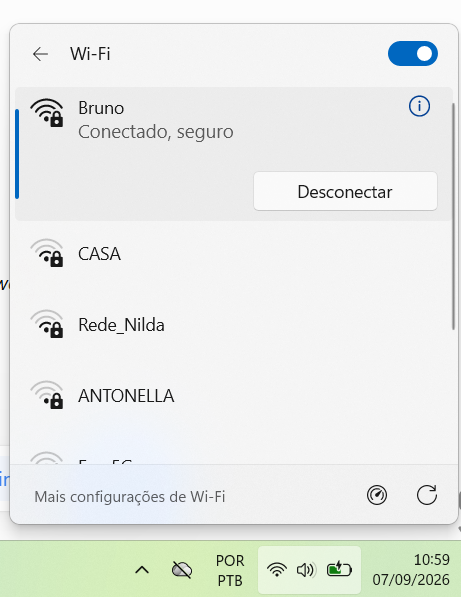
Windows showing the available Wi-Fi networks and the connection options for a wireless network.
Move Closer to the Router
Wi-Fi signal strength decreases with distance and can also be affected by walls, furniture, appliances, and other obstacles.
If the computer is far away from the router, move closer temporarily and check whether the connection improves.
This can help determine whether the problem is related to signal strength rather than Windows itself.
If the connection becomes stable when you are close to the router, the next step may be improving the wireless coverage in the area where you normally use the computer.
Restart the Wi-Fi Connection
Sometimes Windows simply needs to establish the wireless connection again.
Turn Wi-Fi off, wait a few seconds, and turn it back on.
Then select the network and reconnect.
This simple step can resolve temporary connection problems without changing any permanent settings.
Forget the Wi-Fi Network and Reconnect
A saved Wi-Fi connection can sometimes become problematic.
Windows stores information about networks you have connected to before.
If those settings become outdated or corrupted, forgetting the network and reconnecting can help.
Open the Wi-Fi settings, find the saved network, and choose the option to Forget it.
Then select the network again and enter the Wi-Fi password.
Make sure you know the correct password before forgetting the connection.
Check the Wi-Fi Password
If Windows refuses to connect, verify that the password is correct.
A single incorrect character can prevent the connection.
Be especially careful with:
Uppercase letters
Lowercase letters
Numbers
Special characters
It can also help to check whether another device can connect using the same password.
If another device connects successfully, the password is probably correct.
Restart the Router
If multiple devices are having trouble connecting, restart the wireless router.
Turn it off using its normal power method, wait for a short period, and turn it back on.
Allow the router enough time to fully restart before testing the connection again.
Do not repeatedly power-cycle the router every few seconds.
A normal restart is usually sufficient for a temporary network problem.
Check Whether the Internet Is Actually Down
A computer can sometimes remain connected to Wi-Fi while the internet connection itself is unavailable.
For example, Windows may show that you are connected to the router even though the router cannot reach your internet provider.
Check whether other devices connected to the same network can access websites.
If they cannot, the problem may not be your Windows computer at all.
Restart the Windows Computer
Restarting Windows is another simple but useful troubleshooting step.
A temporary problem with the network adapter, background service, or another system process may disappear after a restart.
If you have already tried several basic fixes, restart the computer before moving on to more advanced troubleshooting.
Run the Windows Network Troubleshooter
Windows provides built-in troubleshooting tools that can help identify some network problems.
Open the network settings and look for the available troubleshooting options.
Depending on your Windows version, the exact wording and location may differ.
The troubleshooter may identify issues related to:
Network configuration
Wi-Fi adapters
Internet access
IP settings
Other connection problems
It will not solve every problem, but it can provide useful information.
Check the Wi-Fi Adapter
Your computer needs a wireless network adapter to communicate with Wi-Fi networks.
Some laptops have built-in Wi-Fi hardware, while desktop computers may use a separate adapter.
If the Wi-Fi option has disappeared completely, the adapter may be disabled or experiencing a problem.
Device Manager can help you check whether Windows recognizes the network adapter.
Open Device Manager
Press the Windows key and search for Device Manager.
Open it and look for:
Network adapters
Expand that section and check whether a wireless adapter appears.
The exact name depends on your hardware manufacturer.
If the adapter is missing, disabled, or showing an error indicator, further investigation may be necessary.
Do not uninstall or disable the adapter unless you know what you are doing.
Check Whether the Adapter Is Disabled
Sometimes a Wi-Fi adapter is present but disabled.
In Device Manager, check the wireless adapter’s status and available options.
If Windows indicates that the device is disabled, enabling it may restore Wi-Fi connectivity.
Only change the wireless adapter you have identified as the Wi-Fi device.
Avoid changing unrelated hardware settings.
Check the Network Adapter Driver
Drivers allow Windows to communicate with hardware.
An outdated, damaged, or incompatible Wi-Fi driver can cause connection problems.
If your Wi-Fi stopped working after a Windows update or driver change, the driver may deserve attention.
Before downloading drivers manually, identify the exact computer or adapter model.
Using the wrong driver can create additional problems.
Update the Wi-Fi Driver Carefully
If a driver update is necessary, obtain it from a trustworthy source.
The safest source is generally the computer or hardware manufacturer’s official support channel.
Avoid random driver-download websites.
Drivers are an important part of the operating system and hardware, so downloading unknown files creates unnecessary risk.
Check Whether the Problem Started After an Update
Think about when the Wi-Fi problem began.
If the connection worked normally for months and stopped immediately after a Windows or driver update, the timing may be relevant.
This does not automatically mean the update caused the problem.
However, it is useful information when troubleshooting.
Write down what changed before the problem appeared.
Check Other Wireless Networks
If possible, try connecting the computer to another Wi-Fi network.
For example, you could temporarily use a smartphone hotspot.
If the computer connects successfully to the other network, your PC’s Wi-Fi hardware and software may be working normally.
The problem could instead be related to the original router or network.
This is one of the most useful tests because it separates computer problems from network-specific problems.
Try a Mobile Hotspot
A smartphone hotspot can provide another way to test the Wi-Fi adapter.
Enable a hotspot on your phone and attempt to connect the Windows computer.
If Windows connects to the hotspot but not your normal Wi-Fi, the problem may be related to the original network configuration.
Remember that hotspot use consumes mobile data, so avoid using large downloads during the test.
Check the Network Profile
Windows uses different network settings depending on whether a connection is treated as public or private.
For ordinary home Wi-Fi, a private network profile can be useful when you need local network features such as device discovery.
For public networks such as cafés and airports, public settings are generally more appropriate.
Choose the profile that matches the environment rather than changing it simply because another option looks more convenient.
Check the Connection Status
Windows network settings can show whether the PC is connected to Wi-Fi and whether the internet is available.
Use this information to distinguish between:
No Wi-Fi connection
Wi-Fi connected but no internet
Limited connectivity
A normal internet connection
This distinction matters because each situation can have a different cause.
Check for an IP Configuration Problem
Windows assigns network information to devices so they can communicate with the router and internet.
If the computer connects to Wi-Fi but cannot communicate correctly, the problem may involve its network configuration.
For ordinary users, it is usually better to start with Windows’ built-in troubleshooting and reset options rather than manually changing advanced network values.
Incorrect network settings can make the situation worse.
Restart the Network Adapter
Another troubleshooting option is to disable and re-enable the wireless adapter.
This effectively makes Windows initialize the network hardware again.
If you use Device Manager or network settings for this purpose, make sure you are changing only the correct Wi-Fi adapter.
This can sometimes resolve temporary communication problems.
Check for Interference
Wireless signals can be affected by physical obstacles and nearby electronic devices.
If your connection becomes unstable only in a particular location, interference or weak signal strength may be involved.
Try moving the computer closer to the router.
If possible, test the connection in another room.
This can help determine whether the problem is related to the environment rather than Windows.
Check the Router Lights
When the problem affects multiple devices, inspect the router.
Many routers use status lights to indicate power, internet access, and wireless activity.
The exact meaning varies by model.
If an internet-related indicator shows an unusual state, consult the router’s documentation or contact your internet provider.
Do not assume that every unusual light pattern indicates a failure.
Check Whether the Router Needs an Update
Routers also use firmware.
A router that has not been updated for a long time can occasionally develop compatibility, stability, or security problems.
Router updates vary significantly between manufacturers.
Only update the firmware using the manufacturer’s normal method.
Do not install firmware from an unknown website.
Test a Different Wi-Fi Band
Some routers provide multiple wireless bands, such as 2.4 GHz and 5 GHz.
Depending on your hardware and environment, one band may provide better range while another may offer better performance at shorter distances.
If your router displays multiple networks, you can test the other available network.
This can help determine whether the problem is specific to one wireless band.
Check Whether Other Devices Have the Same Problem
If your phone, tablet, smart TV, and another computer all lose internet access at the same time, the problem is unlikely to be limited to your Windows PC.
In that case, focus on the router and internet connection.
If every other device works normally, continue troubleshooting the Windows computer.
This simple comparison can prevent you from changing settings that were never causing the problem.
Reset Network Settings Only as a Last Resort
Windows provides network reset options that can restore network-related settings to their defaults.
This can be useful when ordinary troubleshooting does not resolve the issue.
However, a network reset can remove saved network information and require you to reconnect to Wi-Fi networks.
For that reason, it should not be your first step.
Before using it, make sure you know the passwords and settings required to reconnect to your important networks.
Save Your Wi-Fi Password Before Resetting
If you plan to forget a network or reset network settings, make sure you know the Wi-Fi password beforehand.
Otherwise, you may successfully reset the configuration and then be unable to reconnect because you do not know the credentials.
This is especially important for networks you rarely connect to.
Check the Physical Wi-Fi Hardware
A desktop computer may use a separate Wi-Fi adapter.
If that device is loose, disconnected, or malfunctioning, Windows may not see the wireless network properly.
For external USB adapters, make sure the device is firmly connected.
For internal hardware problems, professional assistance may be appropriate.
Do not open a computer unnecessarily if you are not comfortable working with hardware.
Check Whether Ethernet Works
If your computer has an Ethernet port, connecting it directly to the router can help isolate the problem.
If Ethernet works normally while Wi-Fi does not, the internet connection itself may be fine.
The problem is then more likely related to the wireless adapter, Wi-Fi settings, signal, or router wireless configuration.
This is another useful diagnostic test.
Keep Windows Updated
Windows updates can include fixes for networking and hardware compatibility issues.
Check:
Settings → Windows Update
and install important updates when appropriate.
If your computer is already up to date and the Wi-Fi problem continues, keep investigating rather than repeatedly checking for updates.
Restart After Driver or Network Changes
Whenever you make a significant change to the network adapter or driver, restart Windows when appropriate.
This allows Windows to reload the relevant components.
After restarting, reconnect to Wi-Fi and test the connection before making additional changes.
Change One Thing at a Time
Avoid changing many network settings at once.
If you disable the adapter, reset the network, update the driver, and change router settings simultaneously, it becomes much harder to identify what actually solved the problem.
A better approach is to make one change, test the connection, and continue only when necessary.
Keep Track of What Worked
When troubleshooting a persistent Wi-Fi problem, make a note of the steps you tried.
For example:
Restarted router.
Forgot and reconnected to Wi-Fi.
Restarted Windows.
Updated the driver.
Tested another network.
This can help you avoid repeating the same unsuccessful steps.
It is also useful information if you eventually need technical support.
When the Problem Is Probably the Router
The router is more likely to be responsible when:
Several devices cannot connect.
Wi-Fi frequently disappears for everyone.
The internet connection drops across multiple devices.
Restarting the router temporarily fixes the problem.
The problem affects both wired and wireless connections.
In these situations, changing Windows settings may not solve the underlying issue.
When the Problem Is Probably the Computer
The Windows PC is more likely to be responsible when:
Other devices connect normally.
The computer cannot see available networks.
The Wi-Fi adapter has an error.
Another network works normally on the same computer.
The problem began after a driver or Windows change.
This information can help you focus your troubleshooting efforts.
When to Contact Your Internet Provider
Contact your internet provider when the problem affects multiple devices and you have already restarted the router and checked the basic connections.
They can determine whether there is:
A local outage
A service problem
A line issue
A modem or router problem
An account-related issue
Before contacting support, note what devices are affected and whether a router restart made any difference.
A Simple Windows Wi-Fi Troubleshooting Routine
When Wi-Fi stops working, use this order:
Check whether other devices can connect.
Make sure Wi-Fi is enabled.
Check Airplane mode.
Move closer to the router.
Turn Wi-Fi off and on again.
Forget the network and reconnect.
Restart Windows.
Restart the router.
Test another Wi-Fi network or phone hotspot.
Check the Wi-Fi adapter.
Check the driver.
Use Windows troubleshooting tools.
Consider a network reset only if simpler solutions fail.
This sequence starts with the easiest checks and gradually moves toward more advanced troubleshooting.
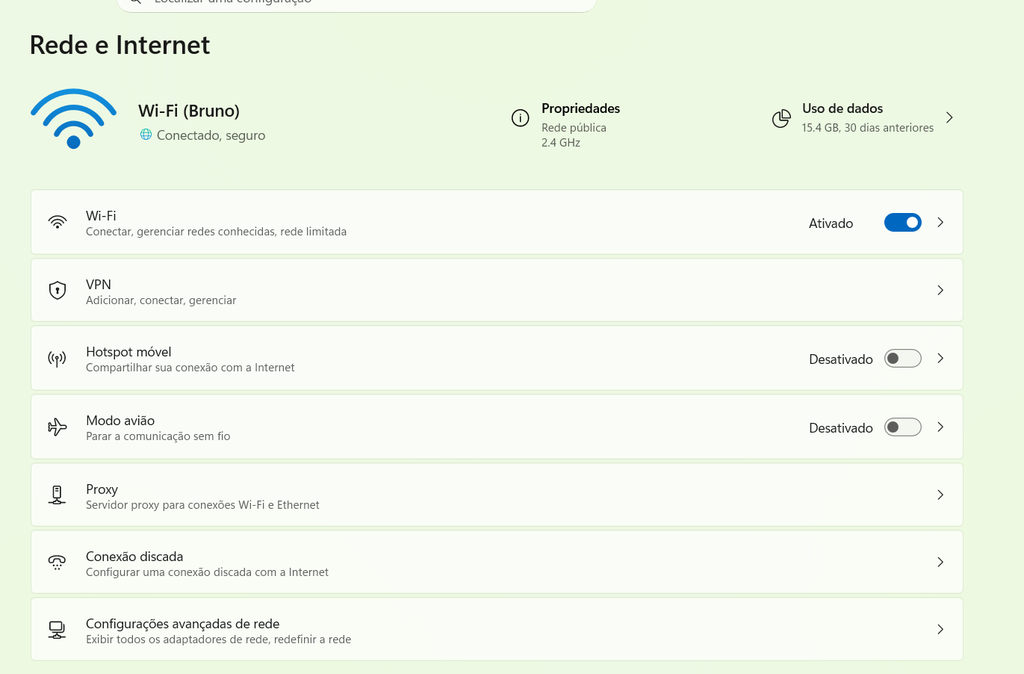
Windows network settings showing a wireless connection and available troubleshooting options.
Common Mistakes to Avoid
One common mistake is immediately resetting all network settings without first identifying the problem.
Another is downloading a random Wi-Fi driver from an unfamiliar website.
People also sometimes restart the router repeatedly when the problem actually affects only one computer.
Changing multiple network settings at the same time can create additional confusion.
Start with simple tests and gather information before making major changes.
Keep a Backup Connection Available
If you depend on your computer for work or other important tasks, having another way to access the internet can be useful.
A smartphone hotspot can sometimes provide temporary access when your normal Wi-Fi is unavailable.
It is not necessarily a replacement for a fixed connection, but it can help you finish an important task while troubleshooting continues.
Do Not Assume Slow Wi-Fi Means No Internet
Sometimes the connection works but is simply slow.
In that case, check whether the slowdown affects:
Only the Windows computer
Only one website
All websites
All devices
The entire internet connection
This can help distinguish a Wi-Fi signal problem from a website, application, or internet-service issue.
Test the Connection After Each Fix
After making a change, test the connection.
Open a few websites and see whether the problem remains.
If you changed the driver or network adapter, give the computer a moment to reconnect.
Testing after each step makes it easier to identify which solution worked.
Keep Your Wi-Fi Information Organized
If you regularly connect to several networks, keep track of the passwords and important connection information securely.
This becomes particularly helpful if you need to forget a network or reset the Windows network configuration.
Avoid storing passwords in plain text files on the desktop.
Use a secure password manager or another appropriate method instead.
A Reliable Approach to Wi-Fi Problems
The best way to troubleshoot a wireless connection is to avoid guessing.
First determine whether the problem affects one device or the entire network.
Then check the easiest possibilities, such as Wi-Fi being disabled, weak signal, an incorrect saved connection, or a temporary Windows problem.
Only after those checks should you move on to drivers, adapters, or network resets.
Most everyday Wi-Fi problems can be investigated without making complicated changes to Windows.
The key is to identify where the problem is coming from before changing anything important. Test another device, restart the connection, check the Wi-Fi adapter, and move gradually from simple fixes to more advanced troubleshooting.
A systematic approach saves time and reduces the chance of turning a small connection problem into a larger configuration problem.
