

Losing a file on your computer does not necessarily mean that the file has been deleted.
It is very common to save a document in one folder, download a copy later, move another version somewhere else, and eventually forget where the original was stored.
This can happen with photos, PDFs, Word documents, spreadsheets, downloaded files, and almost anything else you use regularly.
Fortunately, Windows includes several tools that can help you locate files without manually opening every folder on your computer.
The key is to search using information you still remember, such as the file name, file type, approximate date, or even part of the file name.
Start With Windows Search
The simplest way to look for a missing file is to use Windows Search.
Click the Search option on the Windows taskbar and enter a word or phrase related to the file.
You do not need to remember the exact name.
For example, if you think the document was related to insurance, you can search for:
insurance
Windows may display files whose names contain that word.
This is often much faster than opening folders one by one.
Search Using Part of the File Name
You do not need to know the complete file name.
Suppose you remember that the file was called something like:
Car_Insurance_2026.pdf
You could search for:
insurance
or:
car
This can return several possible results and help you identify the correct file.
Partial searches are especially useful when the original filename was automatically generated.
Search From File Explorer
You can also search directly inside File Explorer.
Open File Explorer and choose a location where the file is likely to be stored.
For example, you can search inside:
Documents
Downloads
Pictures
Desktop
Then use the search box in the upper-right corner.
Searching inside a specific folder can make the results easier to understand because Windows has fewer locations to examine.
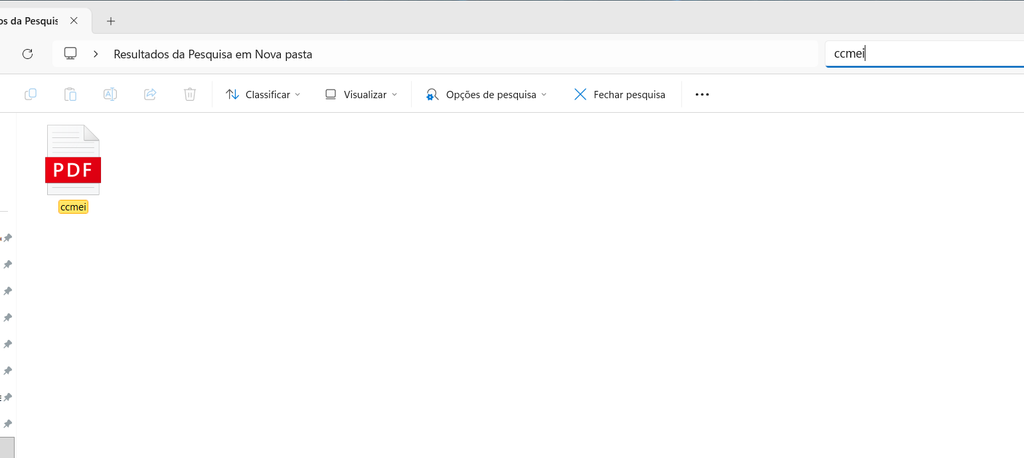
A Windows File Explorer window showing a search being used to locate a file.
Search for a Specific File Type
Sometimes you remember what kind of file you are looking for but not its name.
In that situation, searching by file extension can help.
For example:
.pdf
.jpg
.docx
.xlsx
.mp4
If you remember that the missing document was a PDF, searching for PDF files can give you a smaller list to review.
You can then examine the file names and dates to identify the correct one.
Search for Files by Name Patterns
Windows also lets you use broader searches.
For example, searching for:
*.pdf
can help find PDF files.
Similarly:
*.jpg
can help locate JPG images.
This can be useful when you know the format but not the name.
You do not need to use advanced search techniques for every situation, but file extensions can be a useful shortcut.
Check the Downloads Folder
If you downloaded the file from a website, email, or messaging service, the first place to check is usually Downloads.
Open:
File Explorer → Downloads
Then sort the files by Date modified or Date.
The most recent downloads will be easier to spot.
This is especially useful when you remember approximately when you obtained the file but cannot remember what you called it.
Check the Desktop
Some people save files directly to the Windows desktop because it is convenient.
If the file is not where you expected, take a quick look at the desktop.
You may find that the document was saved there temporarily and simply never moved to a permanent folder.
Keeping too many files on the desktop can eventually create clutter, but it is still worth checking when you have lost track of something.
Check the Documents Folder
Documents is another common location for files that were created or edited on your computer.
Open:
File Explorer → Documents
Then review the folders inside.
Many applications save documents to this location by default, although the exact location depends on the software and your settings.
If you remember what type of document you created, sorting by type or date can make the search easier.
Check OneDrive or Other Cloud Folders
If you use cloud storage, the missing file may not be stored only in the traditional Documents folder.
For example, OneDrive can synchronize files between your computer and the cloud.
Look for your cloud storage folder in File Explorer and search there as well.
This is particularly important if you regularly use more than one computer or device.
A file that seems to have disappeared from one location may simply be stored in a synchronized folder.
Search by Date
Sometimes the most useful information you remember is not the filename but the approximate date.
For example, you might remember:
“I created this document last Friday.”
or:
“I downloaded this PDF sometime last month.”
In File Explorer, you can sort files by date to narrow down the possibilities.
This works particularly well in folders that contain many documents.
If you know roughly when you worked with the file, start there instead of scanning everything.
Search by File Size
File size can also provide a useful clue.
Suppose you are trying to find a video that you remember being fairly large.
Sorting a folder by Size can help you identify it quickly.
The same technique can work with large PDFs, ZIP files, installers, and other types of files.
If you remember that the file was only a few megabytes, very large files can be ignored.
Look in the Recycle Bin
If you cannot find the file anywhere, check the Recycle Bin.
You may have accidentally deleted it.
Open the Recycle Bin and search through the contents.
If the file is there, you can restore it to its original location.
Do not empty the Recycle Bin immediately after deleting files when you are still unsure whether you might need something later.
Check Recent Files
Some applications keep a list of recently opened files.
For example, Microsoft Word and Excel may show recently used documents when you open the program.
This can be useful when you remember the application you used but not where the file was stored.
Open the relevant application and look for its recent files section.
If the document appears there, you can often open it directly without knowing the original folder.
Search Inside Common Folders First
You do not always need to search the entire computer.
Think about where you probably saved the file.
For a downloaded PDF, start with Downloads.
For a photo, start with Pictures.
For a Word document, start with Documents.
For something you were editing on the desktop, check Desktop.
Starting with the most likely location reduces the amount of information you need to review.
Use the File Type to Narrow the Results
If a search returns hundreds of results, add more information.
Suppose you search for:
report
and receive too many files.
You could instead look for PDF files or search within Documents.
You can also combine clues mentally by checking names, dates, and sizes.
The more information you remember, the easier it becomes to narrow down the possibilities.
What If You Remember Only Part of the Name?
That is completely fine.
Even a single useful word can help.
For example, if you remember that the missing file was related to:
car
you can search for that word.
Windows may return:
Car_Insurance.pdf
Car_Service_Receipt.pdf
Car_Registration.pdf
You can then identify the file based on its name and other information.
What If the File Was Renamed?
Sometimes the problem is not that the file is missing.
The file may have been renamed.
For example, you might remember it as:
Vacation Photos
but the actual file could now be called:
Trip_2026
In that situation, searching by the original name will not help.
Think about what other information you remember.
When did you create it?
What type of file was it?
Which application did you use?
What folder might you have placed it in?
These clues can help you locate a renamed file.
Check External Drives
If you regularly use USB drives, external hard drives, or memory cards, the file may have been moved there.
Connect the storage device and search through it.
This is particularly common with:
- Photos
- Videos
- Backups
- Large projects
- Archived documents
Do not assume that a file is missing from your computer just because it is not on the internal drive.
It may simply be stored somewhere else.
Check Your Email Attachments
If the file was originally received through email, you may not need to find the local copy at all.
Search your email for the message that contained the attachment.
For example, you could search for the sender’s name or a word from the subject line.
This can be especially useful when you remember where the file came from but cannot remember where you saved it.
Check Your Browser Downloads
Web browsers can also provide clues about downloaded files.
If you recently downloaded something but cannot remember where it went, open your browser’s download history.
You may be able to see the file name and location from there.
This is useful when working with PDFs, images, installers, and other files downloaded from websites.
Avoid Saving Everything in One Folder
Finding files becomes much harder when everything is stored in the same location.
Instead of keeping documents, downloads, photos, and project files together, create a few simple categories.
For example:
Documents
Pictures
Projects
Work
Personal
You do not need dozens of folders.
A small amount of structure can make future searches much easier.
Give Important Files Clear Names
The best way to find a file later is to make it easy to recognize from the beginning.
Instead of:
Document123.pdf
use something such as:
Car_Insurance_2026.pdf
Instead of:
IMG_7842.jpg
you might use:
Family_Birthday_2026.jpg
Clear names reduce the amount of guesswork required when searching.
Create a Temporary Review Folder
Sometimes you download files that you have not decided where to store yet.
Instead of leaving them scattered across the desktop, you can create a folder such as:
To Organize
Move temporary files there and review the folder regularly.
This gives you a predictable place to look when you are searching for something that you downloaded recently.
Do Not Download the Same File Again Immediately
When you cannot find a file, it may be tempting to download it again.
That can create duplicate copies and make your organization problem worse.
Before downloading the file again, search for the original using its name, type, date, or likely folder.
You may discover that the file was already on your computer.
What If the File Was Actually Deleted?
If you have checked your normal folders, searches, cloud storage, and the Recycle Bin, the file may have been permanently deleted.
At that point, the situation becomes different from simply losing track of the file.
Recovery may depend on whether you have a backup and what happened after the deletion.
This is one reason regular backups are so important for files that cannot easily be replaced.
Keep a Simple System Going Forward
The easiest way to avoid losing files is to make your storage predictable.
Try to save similar files in the same general locations.
Use clear filenames.
Keep downloads under control.
Move important documents into appropriate folders.
And maintain backups of files you cannot afford to lose.
These habits make future searches much easier.
A Simple File-Finding Routine
When you cannot find a file, work through these steps:
Start with Windows Search.
Search using part of the filename.
Check Downloads, Documents, Desktop, and Pictures.
Look for the correct file type.
Sort by date or size.
Check cloud storage.
Check the Recycle Bin.
Review recent files in the application you used.
Check external storage if applicable.
This process is often enough to locate a file without using any specialized recovery software.
A Windows search result showing a file located after searching by its name and file type.
Make Files Easier to Find in the Future
Once you locate the missing file, take a moment to improve its organization.
Move it into the appropriate folder.
Give it a descriptive name if necessary.
Delete unnecessary duplicate copies.
Then make sure important files are backed up.
This turns a frustrating search into an opportunity to improve your file-management system.
Losing track of a file is usually a problem of organization rather than a technical failure.
Windows provides several useful ways to locate missing files using names, file types, dates, sizes, recent documents, and common storage locations.
The most effective approach is to search systematically instead of guessing. Start with the information you remember, narrow down the possibilities, and check the most likely locations first.
Once your files have clear names and predictable folders, finding them later becomes much easier.
