

ZIP files are useful for grouping multiple files into one package, but receiving a ZIP archive is only part of the process. Before you can normally edit or use the files inside it, you often need to extract them.
Windows includes built-in support for ZIP files, so you usually do not need to install additional software for basic extraction.
Whether someone sends you a ZIP archive by email, you download one from a website, or you create one yourself, knowing how to extract its contents can make file management much easier.
What Does Extracting a ZIP File Mean?
A ZIP file is a container that can hold one or many files and folders.
For example, you may receive:
Project_Files.zip
Inside it could be:
Report.docx
Budget.xlsx
Images
Notes.txt
Extracting the ZIP creates normal files and folders that you can open, move, edit, or organize like any other files on your computer.
The original ZIP remains unchanged unless you decide to delete it later.
Find the ZIP File
Start by locating the ZIP archive on your computer.
Common places include:
Downloads
Desktop
Documents
If you downloaded the ZIP from the internet, the Downloads folder is usually the first place to check.
A ZIP file normally uses the .zip extension.
For example:
Photos_2026.zip
Documents.zip
Project_Files.zip
Open the ZIP File First
Before extracting everything, you can open the ZIP file in File Explorer.
Double-click the archive.
Windows will display the files and folders contained inside it.
This is useful because you can see what you are about to extract.
Take a moment to review the contents, especially when the ZIP came from another person or an unfamiliar website.
Extract All Files
Windows provides an Extract All option for ZIP archives.
Select the ZIP file and open the extraction option available in File Explorer.
Windows will ask where you want to place the extracted files.
You can usually choose a destination folder or use the default location suggested by the system.
After confirming, Windows creates a normal folder containing the files.
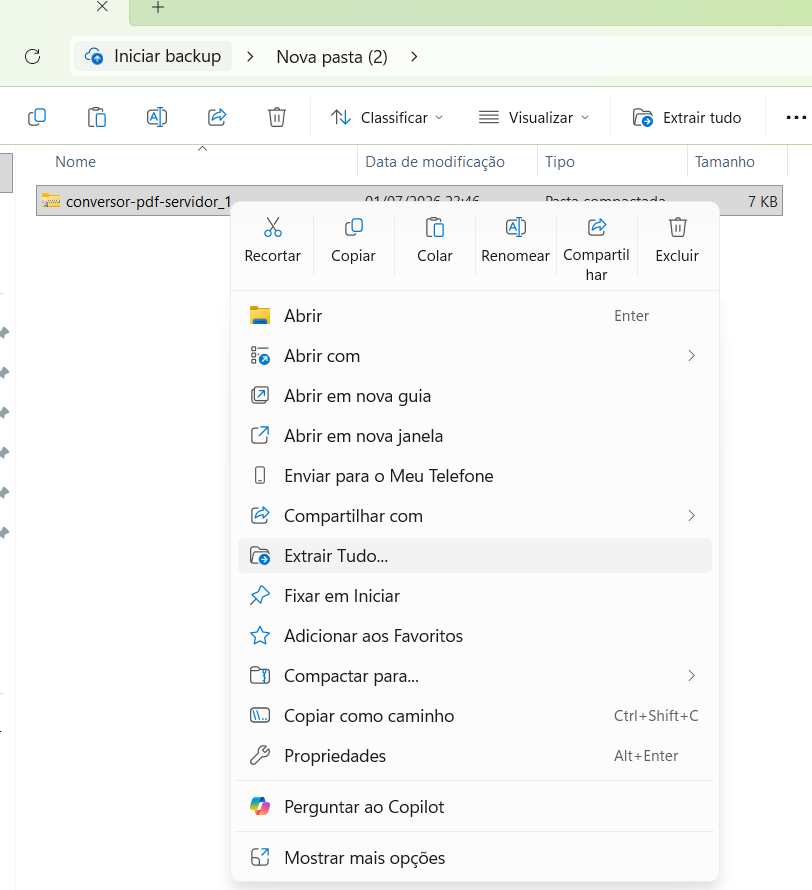
A Windows File Explorer window showing a ZIP file and the option to extract its contents.
Choose a Suitable Extraction Location
The best extraction location depends on what the files are.
For a document you downloaded temporarily, Downloads may be fine.
For a work project, you may prefer:
Documents → Work → Project
For photos, you might use:
Pictures → 2026 → Vacation
Choosing the correct destination immediately can prevent another organization task later.
Create a New Folder for the Extracted Files
When a ZIP contains many files, extracting everything into a folder of unrelated files can create clutter.
A simple approach is to create a new folder for the archive.
For example:
Project_Files
Then extract the ZIP contents there.
This keeps everything together and makes the original purpose of the archive easier to understand.
Check the Extracted Files
After extraction finishes, open the destination folder.
Check that the expected files are present.
For example, if the ZIP was supposed to contain:
3 documents
10 photos
1 spreadsheet
make sure the extracted folder contains them.
This quick check is especially important for large ZIP archives.
Compare the Contents With the Original ZIP
If the archive contains important information, compare the extracted contents with what you saw inside the ZIP.
Make sure:
No important files are missing.
The folders are present.
The filenames are correct.
The files open normally.
If something appears to be missing, do not immediately delete the original archive.
Keep it until you understand what happened.
Open a Few Files After Extraction
You do not necessarily need to open every file, especially if there are hundreds of them.
However, opening a few important files can confirm that the extraction worked correctly.
For example, if the ZIP contains:
A PDF
A Word document
An image
A spreadsheet
open one of each type.
This gives you a quick indication that the files are usable.
Be Careful With ZIP Files From Unknown Sources
ZIP files can contain many different types of files.
That makes them convenient, but it also means you should be cautious when receiving one unexpectedly.
Do not automatically extract an archive from an unknown sender.
Be particularly careful when the archive arrives through an unexpected email or message and the sender asks you to open it urgently.
Verify the source before continuing.
Check the File Names Before Opening Anything
When you open an unfamiliar ZIP, look at the filenames inside.
Be cautious if the archive contains files you did not expect.
For example, an archive that was supposedly supposed to contain photographs should not unexpectedly contain unrelated programs or documents.
Unexpected contents are a good reason to stop and verify the source.
Be Careful With Executable Files
Some ZIP archives contain programs or installation files.
Examples include files such as:
.exe
.msi
These files can install software or make changes to your computer.
If you were expecting photographs or documents but find executable files instead, do not open them automatically.
Verify what the archive is supposed to contain before running anything.
Do Not Assume a ZIP File Is Safe
A ZIP extension does not guarantee that the files inside are safe.
A malicious file can be placed inside an archive just like an ordinary file.
For this reason, your normal security habits still apply.
Only open files from trustworthy sources and be especially cautious with unexpected attachments or downloads.
Keep the Original ZIP Until You Are Done
After extracting the files, do not immediately delete the ZIP archive.
Keep it until you have confirmed that:
The extraction worked.
Important files are present.
The extracted files open correctly.
You no longer need to re-extract anything.
Once you are satisfied, you can decide whether the original archive is still useful.
ZIP and Extracted Files Are Different Copies
It is important to understand that extracting a ZIP does not normally move the files out of the archive.
The ZIP still contains its own copy.
The extracted folder contains another copy.
For example:
Project.zip
and:
Project\Report.docx
are separate copies of the same underlying content.
Changing the extracted document does not automatically change the file stored inside the ZIP.
Why Changes to Extracted Files Do Not Update the ZIP
Suppose you extract:
Budget.xlsx
from:
Project.zip
Then you edit the extracted spreadsheet.
The original ZIP still contains the old version.
This can surprise people who assume that both are automatically synchronized.
If you need the updated spreadsheet inside a new ZIP, you will have to create another archive containing the updated file.
Avoid Editing Files Inside the ZIP Directly
Some applications may allow you to open certain files directly from an archive.
For normal work, however, it is usually better to extract the files first.
This gives you a normal folder where changes can be saved properly.
It also makes it easier to organize multiple files and create updated versions.
Keep the Folder Structure Intact
Some ZIP archives contain several folders inside them.
For example:
Project
→ Documents
→ Images
→ Spreadsheets
When extracting the archive, keep this structure unless you have a reason to change it.
The folder structure may help the files remain organized and make it easier to understand how they belong together.
Watch for Duplicate Files
After extraction, you may discover files that already exist in the destination folder.
Windows may ask what you want to do if a file with the same name already exists.
Do not automatically replace existing files.
First determine whether the new file is:
The same file
A newer version
An older version
A completely different document with the same name
Replacing a file without checking can result in losing a version you still need.
Use a Separate Folder When Unsure
When you are not sure whether the extracted files will conflict with existing files, create a new folder first.
For example:
Documents → Extracted_Project
Then extract everything there.
This reduces the chance of accidentally overwriting something in an existing folder.
Once you have reviewed the contents, you can move the necessary files to their permanent locations.
Check the File Size After Extraction
The ZIP archive may be smaller than the total size of its extracted contents.
This is normal.
For example, a ZIP file might be:
50 MB
while the extracted files together occupy:
120 MB
Compression can reduce the space required by the archive, while the extracted files return to their normal sizes.
This is especially relevant when extracting large collections of documents or media.
Make Sure You Have Enough Free Space
Before extracting a large ZIP file, make sure your computer has enough available storage.
A compressed archive may look relatively small while containing a much larger collection of files.
For example, a ZIP archive of a large document collection may require significantly more space after extraction.
Check the available storage when dealing with very large archives.
Extracting Does Not Improve File Quality
Extraction simply restores the files contained inside the ZIP.
It does not increase the resolution of images or improve the quality of documents.
If the original file was low quality, the extracted copy will have the same quality.
ZIP compression is mainly about packaging and, in some cases, reducing the amount of storage needed for the archive.
What If Windows Shows an Error?
Sometimes extraction fails.
Possible reasons include:
Not enough storage space
A damaged ZIP archive
Permission problems
A corrupted download
A very long file path
If extraction fails, check whether the ZIP is complete and whether you have enough free disk space.
If the archive was downloaded from the internet, downloading it again may help when the original download was incomplete.
What If the ZIP Is Password Protected?
Some ZIP archives require a password before their contents can be extracted.
If you trust the source, obtain the password from the person or organisation that provided the archive.
Do not guess passwords repeatedly or download suspicious tools that claim to bypass archive protection.
Use the password provided by the legitimate sender.
Keep Sensitive Extracted Files Protected
After extraction, sensitive information is no longer hidden inside a ZIP archive.
The files become ordinary files on your computer.
If the archive contains:
Financial records
Identification documents
Private photographs
Work information
Personal records
store the extracted files in a secure location.
Avoid leaving sensitive documents on a shared computer where other users can access them.
Organize the Files After Extraction
Extraction is a good opportunity to organize the files properly.
For example, a ZIP archive containing several years of receipts could be organized into:
Documents
→ Receipts
→ 2024
→ 2025
→ 2026
You do not have to keep the same structure used by the person who created the ZIP.
Organize the files in a way that makes sense for your own computer.
Rename Files When Appropriate
Some ZIP archives contain generic filenames.
For example:
document1.pdf
document2.pdf
scan3.pdf
If you know what the files represent, give them clearer names after extraction.
For example:
Insurance_Form_2026.pdf
Proof_of_Address_2026.pdf
Clear names make future searches easier.
Do Not Delete the ZIP Too Quickly
If the archive was sent to you as an official package or important record, keep it until you are certain you do not need it.
The ZIP may serve as the original package exactly as it was delivered.
For less important files, you can eventually delete the archive if you already have organized copies of everything inside.
The decision depends on how important the information is and whether you need the original archive later.
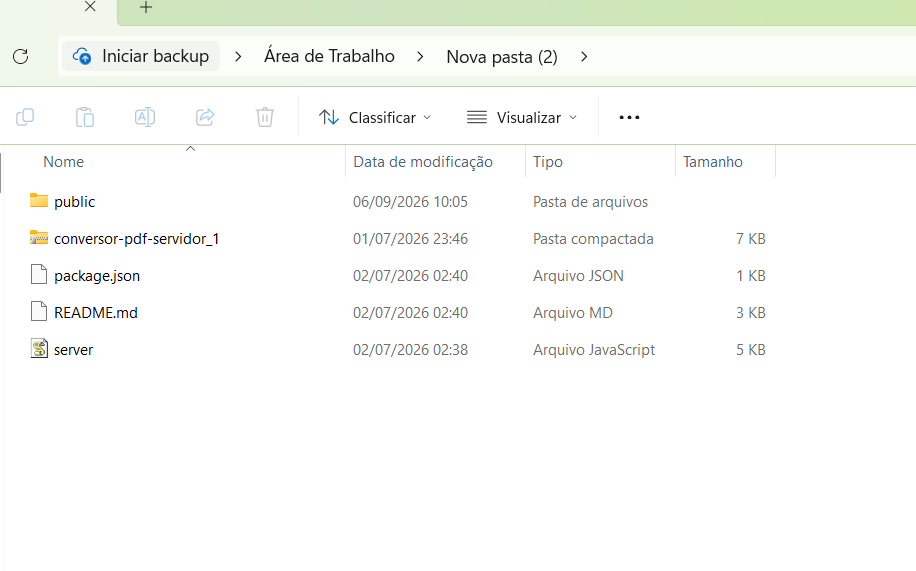
A Windows folder showing files after a ZIP archive has been extracted and organized.
Create a New ZIP After Editing the Files
Sometimes you extract a ZIP, make changes to the files, and later need to send the updated collection to someone else.
In that situation, create a new ZIP from the updated files.
Do not assume that changing the extracted files also changes the original archive.
For example:
Original: Project.zip
Updated: Project_Updated.zip
This makes the difference between the versions easier to understand.
A Simple ZIP Extraction Routine
For most ZIP files, the process is straightforward:
Find the ZIP archive.
Open it and check the contents.
Choose Extract All.
Select a destination.
Wait for extraction to finish.
Open the extracted folder.
Check the files.
Move important files to their permanent locations.
Keep or delete the original ZIP depending on whether you still need it.
This simple routine is enough for most everyday situations.
Common Mistakes to Avoid
One common mistake is extracting a large archive without checking how much free storage is available.
Another is opening unknown files immediately after extraction.
People also sometimes overwrite existing files without checking which version is newer.
Deleting the original ZIP before confirming that all important files were extracted is another unnecessary risk.
Take a moment to review the archive before and after extraction.
When You Should Keep the ZIP
Keeping the original ZIP can be useful when:
It contains important records.
It was provided as an official package.
You may need to extract the files again.
You want to preserve the original collection.
It is part of a backup or archive.
For temporary downloads, keeping the ZIP forever may not be necessary.
When You Can Delete the ZIP
After confirming that:
All required files were extracted.
The files open correctly.
Important information has been organized.
You have another appropriate copy when necessary.
you may decide that the ZIP is no longer needed.
Delete it only when you are certain it is not the only copy of something important.
Extracting ZIP files on Windows is a simple process because the operating system already includes the basic tools needed for everyday archives.
The important part is not only knowing how to click Extract All. You should also check the contents, choose an appropriate destination, protect sensitive files, and verify that everything was extracted correctly.
Treat unfamiliar ZIP archives carefully and keep the original archive until you know that the extracted files are complete.
Once you understand the difference between a ZIP archive and the files extracted from it, managing downloaded and shared files becomes much easier.
