
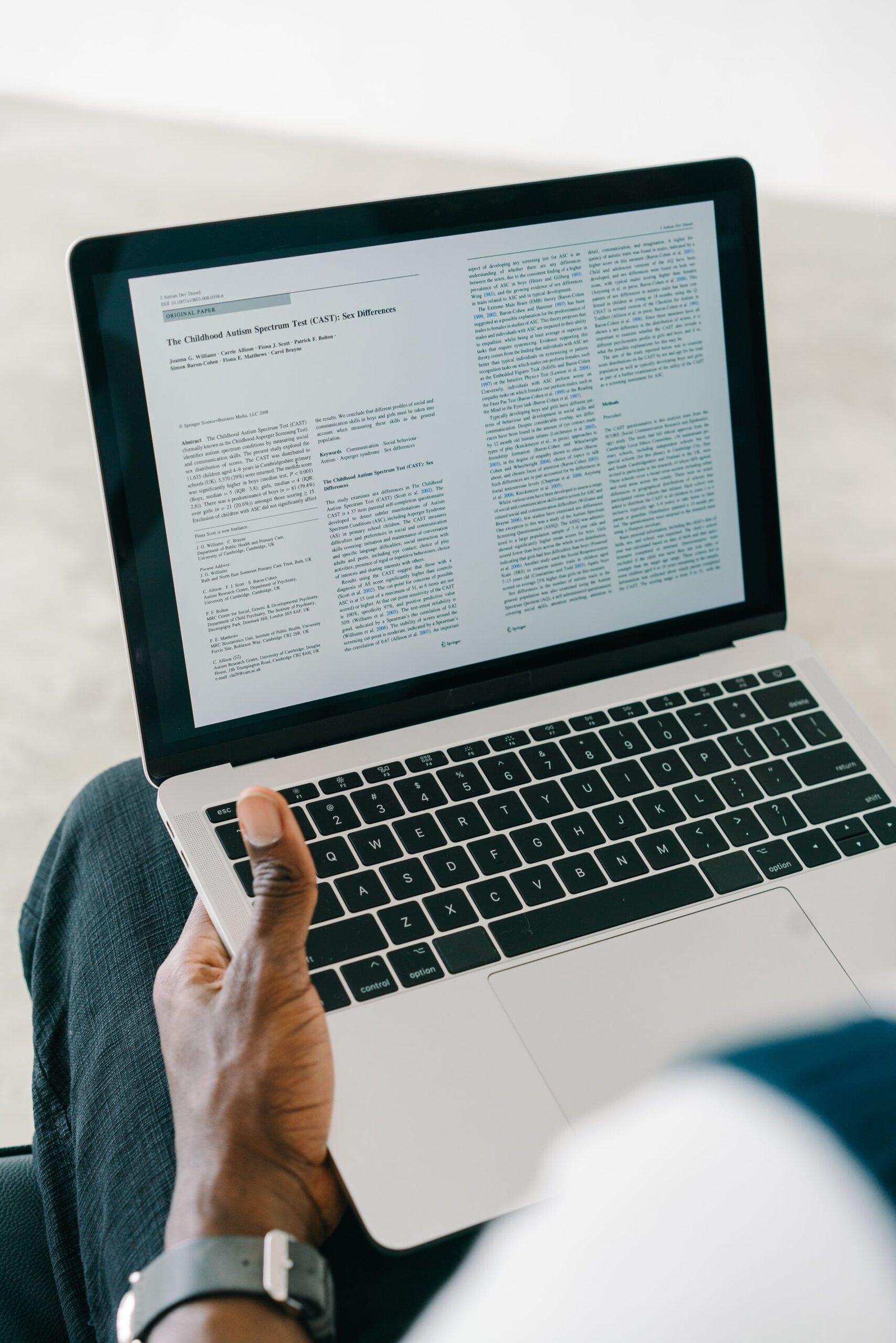
PDF files are useful because they preserve the appearance of a document across different devices. However, editing a PDF can be difficult when you need to change a sentence, update a date, correct a mistake, or reuse information from the document.
In many situations, converting the PDF into an editable Word document can make the job much easier.
The process is relatively simple, but the result depends on how the original PDF was created. A PDF containing normal selectable text is generally easier to convert than a scanned document that consists only of images.
Before converting an important document, it is also worth keeping the original PDF unchanged.
Why Convert a PDF to Word?
PDF files are often designed for viewing and sharing rather than editing.
A Word document, on the other hand, can be edited more easily.
You may want to convert a PDF when you need to:
Update existing text
Correct a mistake
Add new information
Reuse part of a document
Change formatting
Continue editing a document that was originally created in Word
For example, you might receive a PDF form containing text that needs to be updated before being returned.
Instead of recreating the entire document from scratch, converting it to an editable format may save time.
Check What Kind of PDF You Have
Not all PDFs are created the same way.
A PDF can contain actual text that a computer can recognize and select.
Another PDF may simply contain scanned images of pages.
This difference is important.
Try selecting some text with your mouse.
If you can highlight individual words or sentences, the PDF likely contains selectable text.
If clicking the page only selects the entire page as an image, the document may have been scanned.
Scanned PDFs often require OCR, or optical character recognition, to turn the image into editable text.
Keep the Original PDF
Before converting anything, keep the original file.
For example, if your original document is:
Contract.pdf
do not replace it immediately with the converted document.
Instead, create:
Contract_Editable.docx
This gives you an original copy to return to if the conversion does not preserve the formatting correctly.
Keeping the original is especially important for business documents, contracts, forms, and records.
Use a Trusted PDF Conversion Tool
There are several ways to convert PDFs into editable Word documents.
You may use a PDF application installed on your computer, a word-processing application that supports PDF opening, or a trusted conversion service.
The exact steps differ between applications.
When choosing a tool, consider whether the document contains sensitive information.
A private document should not automatically be uploaded to an unfamiliar website simply because the service is free.
Open the PDF in Microsoft Word
Microsoft Word can open many PDF files and attempt to convert them into an editable Word document.
In Word, open the PDF as you would open another document.
You may see a message explaining that Word will convert the PDF into an editable format.
The original PDF is not normally changed by this process.
After the conversion is complete, Word displays the result as an editable document.
Microsoft Word displaying a PDF that has been opened for conversion into an editable document.
Review the Conversion Carefully
Never assume that a converted document is identical to the original.
PDF and Word documents handle page layouts differently.
During conversion, you may notice changes to:
Fonts
Margins
Images
Tables
Page breaks
Spacing
Headers
Footers
A short document may convert almost perfectly, while a complicated layout may require substantial correction.
Compare the Word Document With the Original PDF
The easiest way to detect conversion problems is to compare the two documents.
Keep the original PDF available and review the converted Word version.
Look for:
Missing text
Changed spacing
Incorrect page breaks
Images in the wrong position
Tables that moved
Headers or footers that changed
Pay particular attention to pages containing complicated formatting.
Expect Problems With Complex Layouts
Documents with simple paragraphs are generally easier to convert.
More complicated PDFs can produce less predictable results.
For example, a document containing several columns, text boxes, tables, and images may not preserve the original layout perfectly.
If the document is important, expect to spend a little time cleaning up the converted version.
This does not necessarily mean the conversion failed.
It simply means that PDF and Word use different methods to structure pages.
Check the Fonts
A converted document may use different fonts from the original PDF.
If the original font is not available on your computer, Word may substitute another one.
This can change the appearance of the document.
Check headings, paragraphs, and other important sections after conversion.
If the document needs to look exactly like the original, compare the two versions carefully.
Check Images
Images may also move during conversion.
A picture that was positioned beside a paragraph in the PDF might appear above or below the text in Word.
Check important images after opening the converted file.
Make sure they are:
Visible
In the correct position
Not stretched unnecessarily
Not covering text
If necessary, reposition them manually in Word.
Check Tables Carefully
Tables are one of the areas most likely to require correction.
A PDF table may be converted into editable text and cells, but the column widths can change.
Look for:
Missing borders
Incorrect column widths
Rows that moved
Text wrapping differently
Merged cells that changed
If the table contains important information, compare it with the original PDF rather than assuming everything transferred correctly.
Scanned PDFs May Need OCR
A scanned PDF is essentially a collection of images.
Word or another application may not be able to treat the text as normal editable content without OCR.
OCR software examines the image and tries to identify the characters.
This can be very useful, but it is not always perfect.
Letters, numbers, handwriting, unusual fonts, and poor-quality scans can be misinterpreted.
For important documents, always compare the OCR result with the original.
Check Numbers and Names
Some types of information deserve extra attention after conversion.
Numbers and names can be especially vulnerable to OCR mistakes.
For example, a scanned document might contain:
2026
but the conversion could interpret one of the digits incorrectly.
The same problem can happen with:
Account numbers
Reference numbers
Dates
Addresses
Names
Invoice numbers
Always review these details carefully.
Do Not Assume a Signature Will Become Editable
A signature included in a PDF may simply be an image.
Converting the document to Word does not necessarily turn the signature into editable text.
The image may remain an image.
If the document is an official or legal record, do not assume that conversion preserves the same legal or formal characteristics as the original document.
Keep the original PDF whenever the document’s original format matters.
Be Careful With Forms
PDF forms can behave differently during conversion.
Some forms contain interactive fields, while others are simply scanned pages.
If you convert a form into Word, fields may not behave the same way.
Check whether information is still positioned correctly and whether the form’s intended structure has been preserved.
If the recipient specifically requests the original PDF form, converting it may not be appropriate.
Convert Only What You Need
You do not always have to convert an entire PDF.
If your goal is simply to reuse a paragraph or table, copying the specific content may be easier.
For example, you may only need a section from a long report.
Converting an entire document and fixing its formatting may take longer than extracting the specific information you actually need.
Choose the simplest approach for the task.
Save the Converted Document With a New Name
When the conversion is complete, save the Word document with a new filename.
For example:
Project_Report_Editable.docx
This makes it clear that the file is now an editable version.
Avoid overwriting the original PDF unless you have a specific reason to do so.
Save the Word Document in the Correct Folder
After conversion, move the Word document into an appropriate folder.
For example:
Documents
→ Work
→ Projects
This keeps the editable version close to the original while making both files easy to find.
Keep Both Versions When Necessary
For important documents, there is often a good reason to keep:
Document.pdf
and:
Document_Editable.docx
The PDF preserves the original version.
The Word document provides an editable working copy.
This is a simple way to have both the original and the version you can modify.
Check the Page Count
After conversion, compare the number of pages with the original PDF.
The page count may change because Word uses a different layout system.
A document that was five pages in PDF format might become six pages in Word.
That does not necessarily mean information was lost, but it is a reason to review the formatting.
Check Page Breaks
Page breaks are another common source of problems.
Text may move to a different page or leave a large blank area.
Look through the entire document and make sure important sections are still grouped sensibly.
A small adjustment to margins, font size, or spacing may fix the problem.
Check Headers and Footers
Headers and footers can also change during conversion.
Look at the top and bottom of each page.
Make sure items such as:
Page numbers
Document titles
Dates
Company information
Footer notes
are still present and positioned correctly.
Be Careful With Confidential Documents
PDF conversion may require uploading a document to a third-party service.
That can be convenient, but it also means another company is processing your file.
Before uploading a confidential document, ask whether the information could safely be handled that way.
For sensitive files, prefer a trusted application installed on your computer when possible.
This is particularly important for identity documents, financial records, contracts, private work documents, and personal information.
Do Not Upload Passwords or Private Credentials
A document containing passwords or authentication information should receive extra protection.
Do not upload it to a random conversion website simply because you want an editable copy.
The same principle applies to documents containing private access codes or other credentials.
When dealing with particularly sensitive information, choose a conversion method that minimizes unnecessary exposure.
Check the Final Word Document Before Sharing It
After conversion and editing, review the entire document.
Check:
Text
Images
Tables
Page breaks
Headers
Footers
Dates
Numbers
Names
Formatting
Then save the final version.
If the document will be sent to another person, opening it once more before sharing can help catch accidental changes.
An editable Word document converted from a PDF and reviewed before being shared.
What If the Conversion Looks Wrong?
Do not assume you need to recreate the entire document manually.
First determine what went wrong.
If the text is correct but the formatting is different, you may only need to adjust the layout.
If text is missing, check whether the original PDF was scanned.
If tables are damaged, you may need to reconstruct those specific sections.
If images moved, reposition them manually.
Different conversion tools may also produce different results, so another trusted method may work better for a complicated PDF.
Do Not Edit the Original PDF by Mistake
When working with both versions, pay attention to the filenames.
It is easy to accidentally open the PDF and assume you are editing the Word version.
Using clearly different names helps prevent confusion.
For example:
Invoice_September_2026.pdf
Invoice_September_2026_Editable.docx
The names immediately show which version is which.
When PDF Is Still the Better Format
Converting a document to Word is not always the best choice.
PDF is often preferable when the main goal is to preserve the document exactly as it appears.
For example, you may want to send a final version of:
A completed form
A signed document
An invoice
A report
A finished application
In these cases, keeping the PDF may be more appropriate than converting it simply to make it editable.
When Word Is the Better Format
Word can be more useful when the document still needs to be changed.
For example:
A draft report
A reusable template
A text-heavy document
An editable letter
A working project document
In these cases, an editable Word file can save time.
The important question is not which format is universally better.
It is which format better fits the task you need to perform.
Make a Backup Before Major Editing
If the converted document is important, make another copy before making substantial changes.
For example, you could keep:
Report_Original.pdf
and:
Report_Working.docx
This creates a clear separation between the original and the working copy.
If you make a mistake while editing, you still have the original.
A Simple PDF-to-Word Workflow
A practical workflow looks like this:
Keep the original PDF.
Check whether its text is selectable.
Choose a trusted conversion method.
Open or convert the PDF.
Save the result as a new Word document.
Compare it with the original.
Fix formatting problems.
Check names, numbers, tables, and images.
Save the editable version.
Keep the original PDF.
This process is simple and reduces the risk of losing important information.
Common Mistakes to Avoid
One common mistake is assuming that conversion preserves the exact appearance of every PDF.
Another is failing to check scanned documents for OCR errors.
People also sometimes overwrite the original PDF with the converted document.
Uploading confidential documents to unfamiliar online services is another risk worth avoiding.
Finally, do not share the converted document before checking the formatting and important information.
The Goal Is an Editable Copy, Not a Perfect Replica
Converting a PDF to Word works best when you understand what the process is actually doing.
The goal is to create an editable version of the document.
Depending on the original PDF, some formatting may need to be corrected manually afterward.
For simple text-based PDFs, the result may be very close to the original.
For scanned or highly formatted documents, more cleanup may be necessary.
The safest approach is to keep the original PDF, convert it into a separate Word file, and carefully review the result before editing or sharing it.
That way, you gain the flexibility of an editable document without giving up the original version.
