
When Windows starts, several applications may open automatically in the background.
Some of these programs are useful. Others may be applications you rarely use that were configured to start every time you turn on your computer.
Too many startup applications can make the startup process feel slower and can also use memory and processing resources while you are working.
Fortunately, Windows provides built-in tools that let you see which applications start automatically and disable the ones you do not need.
Disabling an application from startup does not normally uninstall it. You can still open the program manually whenever you need it.
What Are Startup Apps?
Startup apps are programs that Windows launches automatically when you sign in.
Some examples include:
Cloud storage applications
Messaging applications
Audio utilities
Software update tools
Game launchers
Printer utilities
Other background applications
Some startup programs are useful because they need to be ready immediately.
Others simply make the computer open more programs than necessary.
The goal is not to disable everything. It is to keep only the applications that actually need to start automatically.
Why Too Many Startup Apps Can Be a Problem
Every application that starts with Windows can potentially use system resources.
Depending on the program, this may include:
Memory
Processor resources
Disk activity
Network activity
When many applications launch simultaneously, the computer may take longer to become responsive after you sign in.
You may also notice several application icons appearing in the notification area even though you have not opened those programs yourself.
Reducing unnecessary startup applications can make Windows feel cleaner and easier to manage.
Check Which Apps Start With Windows
Windows includes a Startup apps section where you can review programs that are configured to launch automatically.
One way to find it is through:
Settings → Apps → Startup
The list shows applications that can start automatically when you sign in.
You can review each application and decide whether it really needs to launch at startup.
The exact appearance may differ slightly depending on your Windows version.
Look at the Startup Impact
Windows may display information about how much an application affects startup.
You may see categories such as:
Low
Medium
High
These labels can help you identify programs that have a larger effect on startup.
A program with a high startup impact may deserve more attention than an application with little impact.
However, startup impact alone does not tell you whether an application is safe to disable.
You should also consider what the program actually does.
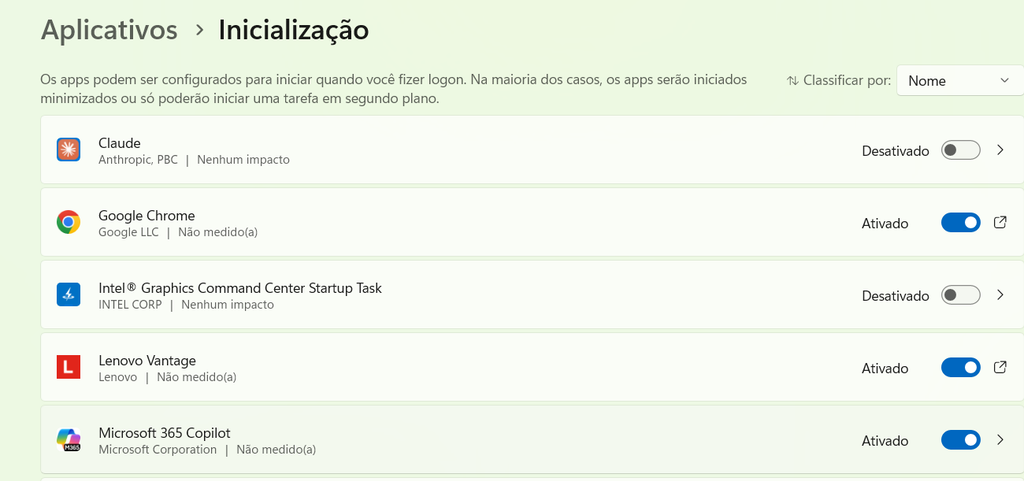
Windows Startup settings showing applications that are configured to launch automatically when the computer starts.
Decide Which Apps You Actually Need
Before disabling an application, think about how you use it.
For example, a cloud storage program may need to start automatically if you want your files synchronized immediately.
A security application may also need to remain enabled.
On the other hand, a game launcher that you use only occasionally may not need to run every time Windows starts.
The best candidates for disabling are usually programs that you rarely need immediately after signing in.
Disable an Unnecessary Startup App
In the Startup settings, Windows normally provides a switch for each application.
If a program is enabled and you decide that it does not need to start automatically, turn its startup option off.
The application remains installed.
You can still launch it manually later.
This distinction is important because disabling startup does not mean uninstalling the program.
Do Not Disable Everything
It may be tempting to turn off every application in the startup list.
That is not a good approach.
Some programs provide important functions, security features, hardware controls, or synchronization services.
Instead of trying to achieve the smallest possible startup list, focus on applications you recognize and understand.
When you are unsure about a program, investigate it before disabling it.
Use Task Manager When Necessary
Windows also provides startup management through Task Manager.
Press:
Ctrl + Shift + Esc
to open Task Manager.
Then look for the Startup apps section.
Depending on your Windows version, the interface may look slightly different.
Task Manager can provide additional information about startup applications and their impact.
This can be useful when you want to investigate a program more closely.
Check the Publisher
When reviewing an unfamiliar startup application, look at the publisher when Windows provides that information.
A recognizable publisher can help you understand which software the program belongs to.
For example, an application may belong to:
A hardware manufacturer
A cloud storage service
A printer manufacturer
A software company
Another program you installed
Do not disable an application solely because its name is unfamiliar.
Search for an Unknown Application
If you see a startup entry you do not recognize, take a moment to find out what it does.
You can search for the application’s name using a trusted source or check whether you recognize the program from something already installed on your computer.
Avoid deleting files associated with an unfamiliar startup program simply because you do not know what it is.
Disabling a startup entry is generally less disruptive than deleting application files manually.
Check the App After Disabling Startup
After disabling an application, restart Windows and see what happens.
The program should no longer launch automatically when you sign in.
You can then open it manually to confirm that it still works normally.
This is a useful way to make sure you disabled only startup behavior rather than interfering with the application itself.
Startup and Uninstalling Are Different
This distinction is worth repeating.
Disabling startup means:
The application stays installed but does not automatically launch with Windows.
Uninstalling means:
The application and its installed components are removed from the computer.
If your goal is simply to reduce startup activity, disabling the startup option is usually the more appropriate action.
Be Careful With Security Software
Security software deserves special attention.
Antivirus and other security-related applications may need to run automatically to provide protection.
Do not disable security software from startup simply because you want Windows to start faster.
If you are unsure about a security-related entry, leave it enabled unless you understand its purpose and the consequences of changing it.
Cloud Storage Apps May Need to Start Automatically
Applications that synchronize files with cloud storage may also be useful at startup.
If you turn off automatic startup, synchronization may not begin until you manually open the application.
This may be fine for some users, but not for someone who depends on continuous file synchronization.
Think about how the application fits into your daily routine before changing its startup setting.
Messaging Apps Are Common Startup Candidates
Messaging and communication applications frequently configure themselves to start automatically.
For example, you might have an app that opens in the background even though you only use it a few times a day.
If you do not need instant notifications from that application, disabling startup may be reasonable.
You can still open it manually whenever needed.
Game Launchers Can Usually Wait
Gaming platforms and launchers are another common source of unnecessary startup activity.
If you only use a game launcher occasionally, there may be little benefit to loading it every time Windows starts.
Disabling its startup option can keep the desktop cleaner without affecting your ability to launch the program later.
Printer Utilities May Not Need Startup
Some printer software adds background utilities that launch with Windows.
Depending on how you use your printer, these programs may not need to run continuously.
However, do not assume every printer-related application is unnecessary.
Some utilities may provide useful notifications, maintenance features, or device controls.
Check what the program does before changing its startup setting.
Review Startup Apps After Installing New Software
New applications sometimes add themselves to the startup list during installation.
This means your startup list can gradually become larger without you paying attention.
After installing several new programs, it is worth checking the Startup settings again.
You may discover that an application you use only occasionally has been configured to launch automatically.
Keep Your Startup List Simple
A smaller startup list is not automatically better.
The goal is to remove unnecessary applications while keeping the programs you actually rely on.
For example, a practical startup list might include:
Security software
Cloud synchronization
Hardware utilities you need
Other essential background services
Everything else can be evaluated based on your personal needs.
Restart Windows After Making Changes
After disabling several startup applications, restart your computer.
This lets you see the effect of the changes.
Pay attention to:
How quickly the desktop becomes usable
Which applications still open automatically
Whether important notifications still work
Whether synchronization still starts as expected
If something important no longer behaves as expected, you can return to the Startup settings and enable the relevant application again.
What If You Disabled the Wrong App?
Do not panic.
Open Settings → Apps → Startup again and turn the application’s startup option back on.
Then restart Windows to confirm that the original behavior has returned.
This is another reason to change startup settings instead of deleting application files manually.
Disable a Few Apps at a Time
There is no need to change the entire startup list at once.
A safer approach is to disable a few unnecessary applications, restart Windows, and see whether everything works normally.
This makes troubleshooting easier.
If you disable ten programs simultaneously and something stops working correctly, it may be difficult to know which change caused the problem.
Pay Attention to Programs You Rarely Use
The most obvious candidates are applications that:
You rarely open
Do not need notifications from
Do not use immediately after startup
Do not need to synchronize continuously
Examples might include an occasional game launcher, an editing application, or a communication tool that you only open manually.
Your own habits matter more than any generic list of applications to disable.
Startup Apps Do Not Explain Every Slow Computer
Disabling startup programs can help reduce unnecessary background activity, but it is not a complete solution for every performance problem.
A slow computer can also be caused by:
Insufficient memory
Low storage space
Too many background processes
Outdated drivers
Hardware problems
Malware
Other software issues
If Windows remains slow after cleaning up startup applications, you may need to investigate other causes.
Check Whether the Computer Feels Better
After making changes, use the computer normally.
You may notice that:
The desktop appears faster
Fewer programs open automatically
There is less activity immediately after sign-in
Notifications appear only from the applications you actually need
The improvement will vary depending on how many startup applications were previously running.
On a newer computer with few startup programs, the difference may be small.
On an older or heavily loaded system, it may be more noticeable.
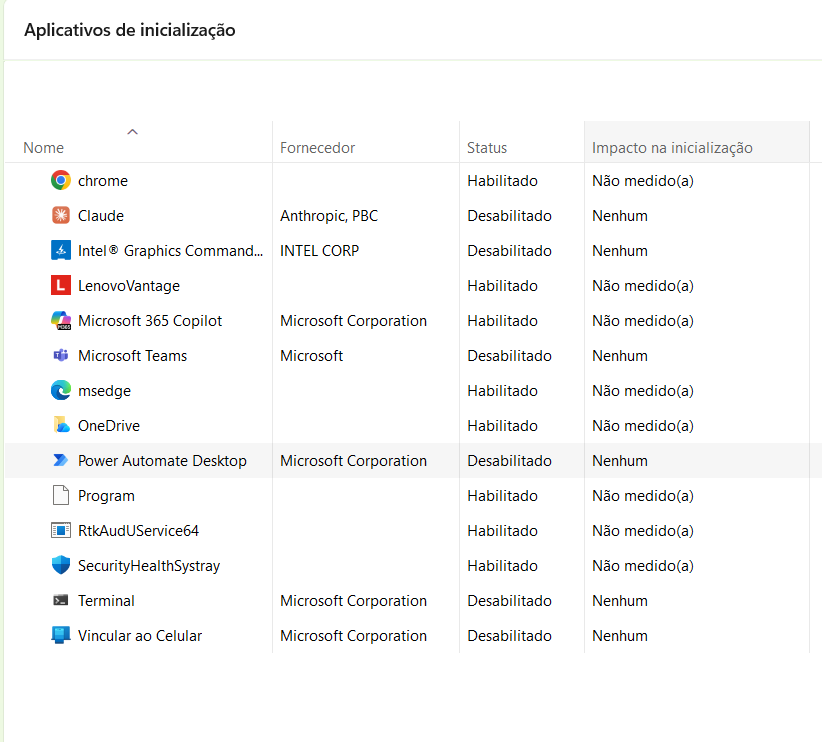
Windows Task Manager showing startup applications and information that can help identify programs that launch automatically.
Do Not Delete Startup Entries Manually
You generally do not need to search Windows folders and delete files just because an application appears in the startup list.
The Startup settings are designed to let you control automatic launching without manually changing application files.
This is much safer for everyday users.
Keep Windows Updated
Windows updates can change system behavior and application compatibility.
Keeping Windows reasonably up to date can help ensure that built-in settings work as expected.
The same applies to applications that you regularly use.
When a startup application behaves strangely after an update, check whether the software itself needs updating.
Check Startup Settings Occasionally
You do not need to review startup applications every day.
A quick check every few months is usually enough for many users.
It is particularly worthwhile after installing several new programs.
You may find applications that have quietly added themselves to startup.
A Simple Startup Cleanup Routine
A safe routine looks like this:
Open the Startup settings.
Review the applications listed.
Identify programs you recognize.
Consider how often you use each one.
Keep essential applications enabled.
Disable unnecessary applications.
Restart Windows.
Confirm that everything important still works.
This approach is simple and avoids unnecessary changes.
Common Mistakes to Avoid
One common mistake is disabling every startup application without checking what each one does.
Another is assuming that a high startup impact means the program is automatically safe to disable.
People also sometimes uninstall a program when they only wanted to stop it from starting automatically.
Finally, security and synchronization applications should not be disabled without understanding their purpose.
A little caution is enough to avoid most problems.
When You Should Leave a Startup App Enabled
Keep an application enabled when it provides something you depend on immediately after signing in.
Examples may include security protection, cloud synchronization, or hardware-related features that you use continuously.
The question is not:
“Can I disable this?”
It is:
“Do I need this application to start automatically?”
That is a much better way to approach startup management.
Keep Your Startup List Under Control
A computer’s startup list can change over time.
Applications are installed, removed, updated, and configured differently.
Checking the list periodically helps keep unnecessary programs from accumulating.
You do not need to maintain a perfect startup environment.
Just remove obvious unnecessary entries and leave important applications alone.
Stopping unwanted applications from starting with Windows is a simple way to reduce unnecessary background activity.
The safest approach is to use Windows’ built-in Startup apps settings, identify programs you recognize, and disable only those you do not need immediately after signing in.
Always leave essential security and synchronization software enabled unless you understand exactly what disabling it will do.
The goal is not to stop everything from starting. It is to make Windows start with only the applications that actually need to be there.
