
As the number of files on a computer grows, finding something you need can become surprisingly difficult. Photos, documents, downloads, screenshots, work files, and old projects can quickly end up mixed together in the same folders.
A disorganized computer does not only make files harder to find. It can also increase the chance of accidentally deleting something important or creating multiple copies of the same document.
The good news is that you do not need a complicated system to keep your files organized. A few simple folders, consistent names, and regular maintenance can make a major difference.
Start With the Files You Already Have
Before creating dozens of new folders, take a look at what is already stored on your computer.
Open File Explorer on Windows and review the folders where you normally save files.
Common locations include:
- Downloads
- Documents
- Pictures
- Videos
- Desktop
- OneDrive or another cloud storage folder
Do not try to organize everything at once.
Start with the places where files accumulate most quickly, especially the Downloads and Desktop folders.
Clean Up the Downloads Folder First
The Downloads folder is often one of the most disorganized locations on a computer.
Files downloaded from websites, email attachments, installers, PDFs, images, and temporary documents can remain there for months.
Open Downloads and look at the files you no longer need.
You may find old installers, duplicate documents, images you already moved somewhere else, or files that you downloaded only once and never used again.
Before deleting anything, open unfamiliar files or check their names and dates so you do not accidentally remove something important.
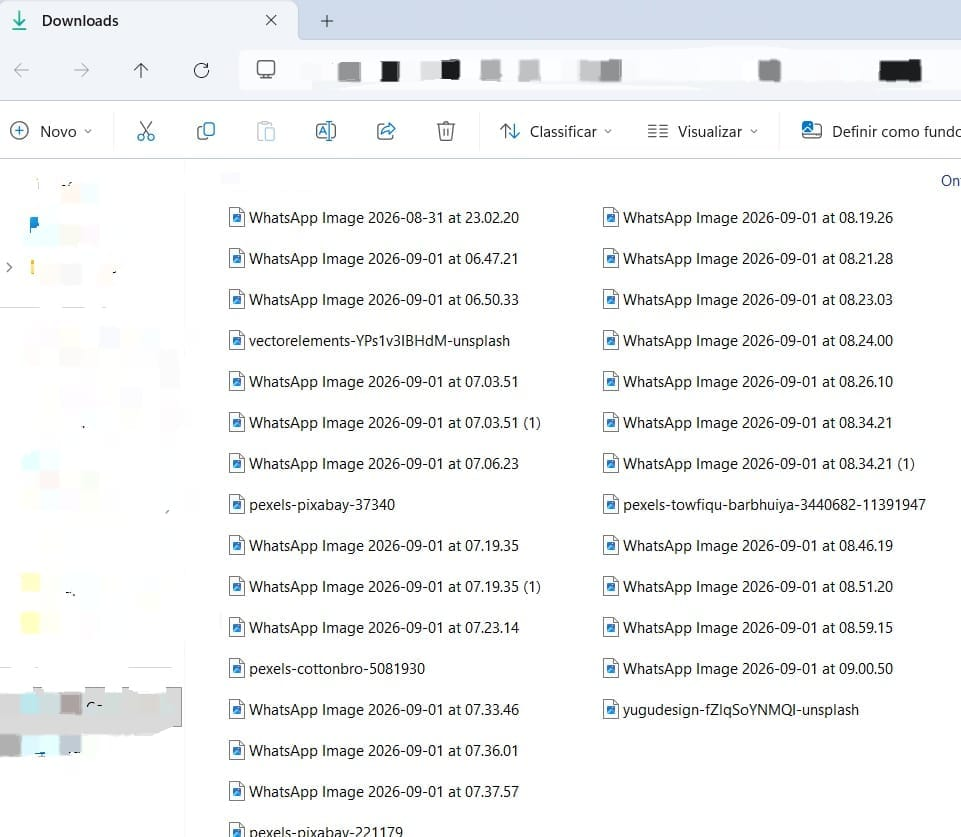
A Windows File Explorer window showing files organized inside the Downloads folder.
Create a Simple Folder Structure
A good folder system does not need to be complicated.
Instead of creating a separate folder for every small type of file, start with broad categories.
For example:
Documents
Photos
Videos
Work
Personal
Projects
You can then create smaller folders inside those categories when necessary.
For example, your Documents folder could contain:
Bills
Education
Travel
Personal Records
This makes it easier to predict where a file should go.
Organize Files by Purpose
Think about how you actually use your files.
A useful folder structure should reflect your daily activities rather than follow a system that looks good on paper but is difficult to maintain.
For example, someone who frequently manages documents for work might prefer:
Work → 2026 → Projects
Someone who takes many photos might prefer:
Photos → 2026 → Family
The best structure is the one that feels natural enough that you will actually continue using it.
Use Clear File Names
File names are just as important as folders.
A file named:
Document123.pdf
does not tell you much.
A better name might be:
Car_Insurance_2026.pdf
The goal is to make the contents recognizable without opening the file.
For photos, names such as:
2026-08-Birthday-Family.jpg
are easier to understand than a camera-generated name containing random numbers.
Include Dates When They Matter
Dates can be extremely useful for documents that change over time.
For example:
Electric_Bill_January_2026.pdf
Invoice_2026-08-15.pdf
Project_Backup_2026-09-03.zip
Using a consistent date format makes files easier to sort chronologically.
A format such as YYYY-MM-DD works particularly well because Windows can sort the filenames naturally from oldest to newest.
Avoid Creating Too Many Folders
Organization can become counterproductive when the folder structure becomes too deep.
For example, a path like:
Documents → Personal → Important → Financial → Bills → 2026 → August → Electricity
may be unnecessarily complicated for something you access frequently.
Try to keep the structure simple enough that you can reach the file in a few clicks.
If you need several levels of folders for a specific project, that is fine. Just avoid creating layers that do not add useful information.
Move Desktop Files Into Proper Folders
The Windows desktop is convenient because everything is visible immediately.
However, using it as a permanent storage location can quickly create clutter.
Instead of keeping dozens of files on the desktop, move them into appropriate folders.
For example, documents related to a project can go into that project’s folder, while images can be moved to Pictures.
A clean desktop also makes it easier to locate shortcuts and important items.
Separate Work and Personal Files
Keeping work and personal files separated can prevent confusion.
For example:
Documents → Work
and
Documents → Personal
This is especially useful if you use the same computer for several purposes.
It also makes backup and cleanup easier because you can manage each group of files separately.
Create Project Folders
Projects often involve several different types of files.
Instead of saving them throughout your computer, create one main folder for each project.
For example:
Website Project
Inside it, you might have:
Documents
Images
Exports
Backups
Final Files
This keeps related files together and reduces the need to search multiple locations.
A Windows folder structure showing project files grouped into clearly named folders.
Keep Important Files Away From Temporary Files
Not every file on your computer deserves the same level of importance.
Temporary downloads, installers, screenshots, and files that you no longer need should not be mixed with important documents.
Create a simple separation between files you want to keep and files that can eventually be deleted.
This makes future cleanup easier.
For example, you could have:
Documents → Important
and use the Downloads folder for files that still need to be reviewed.
Review Duplicate Files
Over time, it is common to save multiple copies of the same document or photo.
You might have:
Report.pdf
Report_Final.pdf
Report_Final2.pdf
Report_Final_New.pdf
Before deleting duplicates, open the files and make sure they really contain the same information.
Two files with similar names are not necessarily identical.
This is especially important for documents that have been edited over time.
Be Careful With Deleting Files
One of the biggest mistakes when cleaning a computer is deleting something simply because the filename looks unfamiliar.
Some files belong to applications or Windows itself.
Do not delete system files or application folders unless you know exactly what they are.
When cleaning personal files, use common sense.
If you do not recognize a file but believe it may be important, investigate it first rather than immediately sending it to the Recycle Bin.
Use the Recycle Bin as a Safety Net
When cleaning personal files, deleting them normally sends them to the Windows Recycle Bin.
This gives you a chance to restore something if you make a mistake.
Do not empty the Recycle Bin immediately after a large cleanup.
Give yourself some time to make sure everything you removed was actually unnecessary.
Once you are confident, you can empty it to permanently remove those files from the computer.
Keep a Separate Folder for Files That Need Attention
Sometimes you do not know where a file belongs yet.
Instead of leaving those files scattered across the desktop or Downloads folder, create a folder such as:
To Organize
or
Review Later
Move uncertain files there temporarily.
Then review that folder regularly.
This is much better than allowing miscellaneous files to accumulate everywhere.
Organize Photos by Year or Event
Large photo collections can become difficult to manage.
One practical approach is to organize photos by year.
For example:
Pictures → 2026
Inside that folder, you might create:
January Trip
Family Birthday
Vacation
Christmas
The exact structure does not matter as much as consistency.
Choose a system that helps you find a photo based on the information you are most likely to remember.
Keep a Backup of Important Files
Organization does not replace backup.
A perfectly organized folder can still be lost if your hard drive fails, your computer is stolen, or you accidentally delete important information.
Important files should therefore exist somewhere else as well.
You might use:
- An external drive
- Cloud storage
- Another computer
- A combination of these
The most important documents should not exist in only one location.
Review Your Files Regularly
You do not need to spend hours organizing your computer every week.
A short cleanup once a month can be enough for many people.
Check your Downloads folder, Desktop, and recently created project folders.
Delete unnecessary temporary files, move documents to the correct locations, and rename anything that will be difficult to identify later.
Small maintenance sessions are much easier than trying to organize several years of accumulated files at once.
A tidy Windows File Explorer window with documents grouped into clearly labeled folders.
Create a System You Can Actually Maintain
The biggest mistake people make when organizing files is building a system that is too complicated.
You do not need twenty categories, dozens of subfolders, or a perfect naming convention.
You need something simple enough that you will keep using it.
A basic system might be:
Documents
Pictures
Videos
Work
Projects
To Organize
Then use clear names and dates when necessary.
That is already enough to make a major improvement for most people.
A Simple File Organization Routine
Once your system is in place, maintaining it becomes much easier.
When you download a file, decide whether you actually need it.
When you create a document, give it a useful name.
When you finish a project, move its files into a dedicated folder.
When you no longer need something, delete it after making sure it is not important.
And when a file matters, make sure it is backed up somewhere else.
These habits take only a few seconds but prevent a large amount of future searching and cleanup.
A well-organized computer is not about making every folder perfect. It is about creating a system that helps you find important files quickly, reduces clutter, and makes it harder to accidentally lose something you need.
The best file organization system is the one that is simple, predictable, and easy to maintain.
