

Having several PDF files for the same task can make them difficult to manage.
You might have one PDF containing a form, another containing supporting documents, and several pages saved as separate files. Sending each file individually can be inconvenient, especially when someone asks you to submit everything as a single document.
Merging PDFs allows you to combine multiple files into one document. This can make files easier to send, store, print, and organize.
You do not always need complicated software to do this. Depending on the tools available on your computer, you may be able to combine PDFs using software you already have or a trusted PDF application.
When Merging PDFs Is Useful
Combining PDFs can be helpful in many everyday situations.
For example, you might have:
Application_Form.pdf
Identification.pdf
Proof_of_Address.pdf
Supporting_Document.pdf
Instead of sending four separate files, you can create:
Application_Documents.pdf
This can make the entire package easier for the recipient to review.
Organize the Files Before Merging
Before creating a combined PDF, put the files you want to merge in one folder.
This makes it easier to review them and decide which documents belong together.
You can also rename the files so that their intended order is obvious.
For example:
01_Form.pdf
02_Identification.pdf
03_Proof_of_Address.pdf
04_Supporting_Document.pdf
Using numbers at the beginning of the names can make the order much easier to understand.
Check the PDFs Before Combining Them
Do not merge files without looking at them first.
Open each PDF and make sure:
The document is readable.
The correct pages are present.
There are no accidental blank pages.
The file contains only information you intend to share.
This is particularly important when combining personal documents.
A merged PDF is only useful if the individual files are correct.
Put the Files in the Correct Order
Page order matters.
For example, if you are submitting an application, you may want the main form to appear first, followed by supporting documents.
If the order is wrong, the recipient may have to rearrange the files or spend extra time understanding them.
Decide the final order before merging.
Numbered filenames can help, but always verify the final document after the merge.
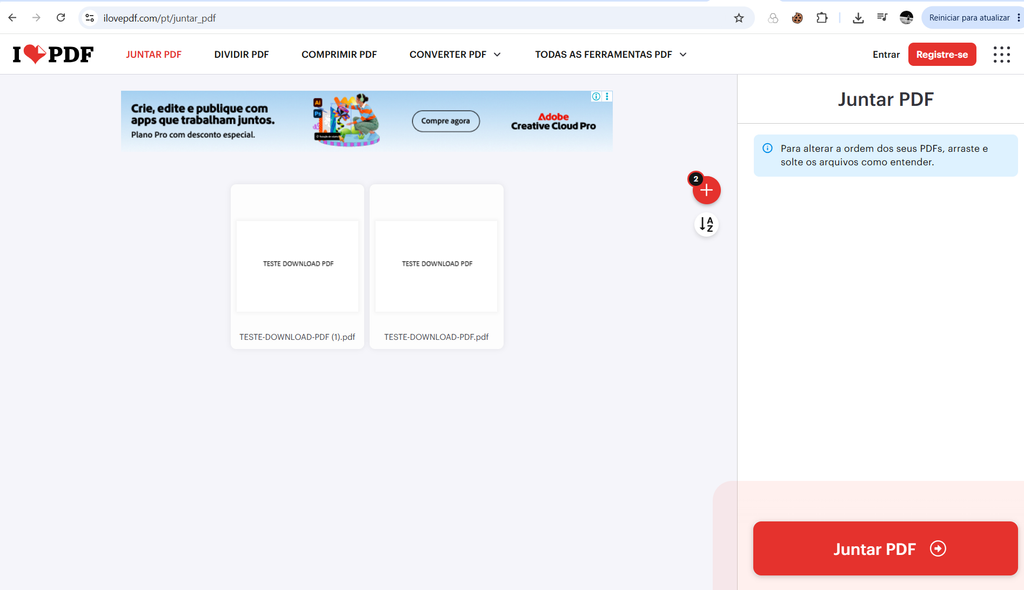
Several PDF files arranged in order before being combined into a single document.
Use a Trusted PDF Application
There are several applications that can combine PDF files.
Some computers may already have PDF software installed, while others may require an additional application.
When choosing a tool, prefer a reputable application from an official source.
Avoid installing unknown software simply because a website claims that it can merge PDFs for free.
Your PDF files may contain private information, so the software you use should be treated as part of your data-security decisions.
Be Careful With Online PDF Tools
Online PDF websites can be convenient because they allow you to combine files without installing software.
However, think carefully before uploading private documents.
A PDF containing an identity document, bank statement, contract, tax information, or personal records should not be uploaded to an unfamiliar service just to save a few minutes.
For non-sensitive files, an established online service may be practical.
For private documents, using a trusted application on your computer is often a better choice.
Merge the PDFs
Once you have selected the appropriate tool, add the PDF files you want to combine.
The application will usually provide a way to arrange the documents in the desired order.
Review the list before starting the merge.
Make sure you did not accidentally add a private or unrelated file.
Then create the combined PDF.
The exact buttons vary between applications, but the general process is usually similar.
Give the New PDF a Clear Name
After merging the files, rename the new PDF.
Instead of:
Merged.pdf
use something descriptive such as:
Job_Application_Documents.pdf
or:
Travel_Documents_2026.pdf
A clear name makes the file easier to recognize later.
Open the Final PDF
Never assume that the merge worked perfectly without checking the result.
Open the new PDF and review it from beginning to end.
Check:
The first page is correct.
The pages are in the intended order.
All source documents are included.
Text is readable.
Images appear correctly.
There are no unexpected blank pages.
This final check is especially important before sending the file to another person.
Check the Number of Pages
A simple way to confirm that nothing is missing is to compare the page counts.
For example, suppose you have:
PDF 1 — 2 pages
PDF 2 — 3 pages
PDF 3 — 1 page
The merged document should contain six pages unless your software changes or removes pages during the process.
The page count is not absolute proof that everything is correct, but it is a useful quick check.
Watch for Duplicate Pages
Sometimes the same document is accidentally added twice.
For example, you might merge:
Invoice.pdf
Invoice.pdf
along with two other files.
The final PDF would then contain a duplicate section.
Review the page thumbnails in the PDF application when possible.
This makes repeated pages much easier to identify.
Keep the Original PDFs
Creating a merged document does not mean you should immediately delete the original files.
Keep them until you are sure the combined PDF is correct.
The original files can also be useful later if you need to create a different version.
For example, you may eventually need to send only two of the documents rather than the entire package.
Keeping the originals provides more flexibility.
Be Careful With Sensitive Information
Merging PDFs does not remove private information.
If one of the original files contains sensitive data, that information will remain in the combined document.
Before sending the final PDF, review all pages carefully.
You may discover that a document contains information that the recipient does not need.
In some situations, it may be better to create a separate PDF containing only the pages required for that particular request.
Do Not Confuse Merging With Compressing
These are different tasks.
Merging combines multiple PDF files into one.
Compressing reduces the file size.
A merged PDF can actually be larger than the individual files were separately.
If the resulting document is too large to upload or email, you may need to compress it after merging.
Do not assume that combining files will automatically make them smaller.
Check the Final File Size
After creating the merged PDF, look at its file size.
A document containing mostly text may remain relatively small.
A PDF containing many high-resolution photographs or scanned documents can become much larger.
If a website has a file-size limit, check the requirement before uploading the document.
Avoid Repeated Resaving
If you repeatedly convert, merge, compress, and reconvert the same PDF, the process can sometimes affect image quality depending on the software.
For ordinary text documents this may not be noticeable, but scanned documents and photographs can be more sensitive.
When possible, start with the best-quality original files and avoid unnecessary conversions.
Combine Related Documents Only
A merged PDF should have a logical purpose.
For example:
Home_Insurance_Documents.pdf
might contain an application, supporting forms, and required documentation.
But putting unrelated files such as recipes, photos, invoices, and school documents into one giant PDF will make the file harder to use.
Create separate combined PDFs for different purposes.
Use a Consistent Naming System
If you frequently merge PDFs, consistent filenames can help you stay organized.
For example:
Tax_Documents_2026.pdf
Insurance_Documents_2026.pdf
Travel_Documents_2026.pdf
This makes it easier to recognize the documents later.
You can also add a date when the files are likely to have several versions.
Store the Final PDF in the Correct Folder
After creating the merged document, move it to a suitable folder.
For example:
Documents
→ Taxes
→ Insurance
→ Travel
→ Work
Do not leave important PDFs indefinitely on the desktop or in Downloads.
A simple folder structure makes future searches much easier.
Create a Copy Before Making Major Changes
If you already have an important PDF and are experimenting with merging, keep the original version.
You can create a working copy for editing or combining.
This protects you from accidentally changing the only copy you have.
This is particularly important for contracts, applications, financial records, and other documents you cannot easily recreate.
What If the Pages Are Rotated?
Sometimes one PDF contains a page that is sideways while the others are upright.
Check the final document for page orientation.
A sideways page can make the document difficult to read and may look unprofessional when submitted.
Many PDF applications provide tools to rotate individual pages.
Make those adjustments before sending the document.
What If You Need to Remove a Page?
You may discover that one page is unnecessary after merging.
If your PDF application allows page editing, remove the unnecessary page and then save the final document.
Always review the document again afterward.
It is easy to delete the wrong page when several pages look similar.
Review the Document Before Uploading It
Many websites and online forms have strict requirements for uploaded PDFs.
They may specify:
A maximum file size.
A required page order.
A specific number of documents.
A specific file type.
Before uploading, compare your final PDF with the instructions you were given.
A technically correct PDF can still be rejected if it does not meet the submission requirements.
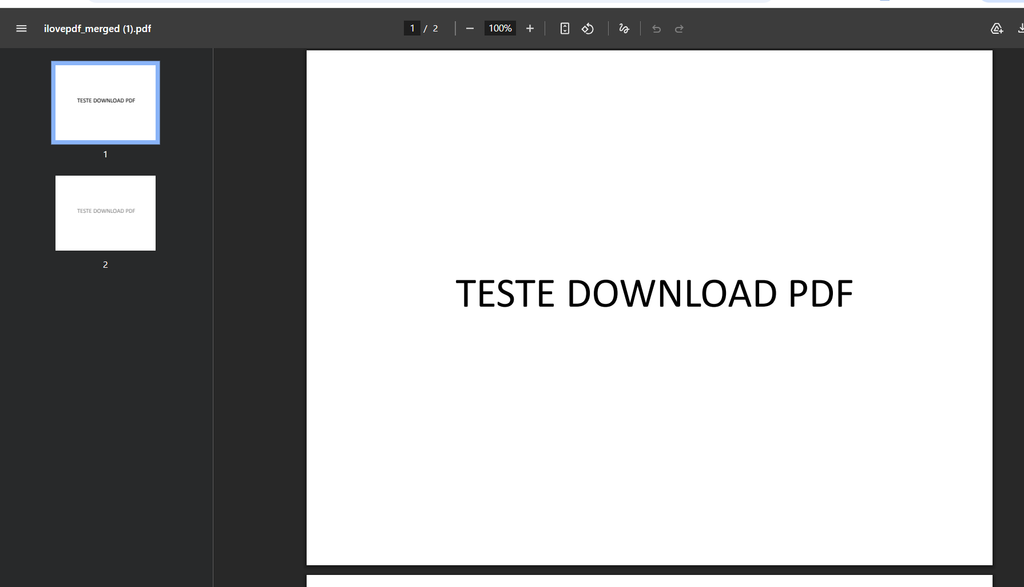
A computer showing a completed PDF document containing multiple pages that have been combined into one file.
When You Should Keep the PDFs Separate
Merging is not always the best option.
Keep files separate when the recipient specifically requests individual documents.
For example, a website may have separate upload fields for:
Identification
Proof of Address
Application Form
In that situation, creating one large PDF may make the submission more difficult.
Always follow the recipient’s instructions first.
A Simple PDF Merging Routine
A safe workflow looks like this:
Gather the PDFs.
Review their contents.
Put them in the correct order.
Rename them when useful.
Merge the files.
Open the new PDF.
Check the pages.
Check the file size.
Save the final document in an organized folder.
Then send or upload it.
This process takes only a few minutes and greatly reduces the chance of creating a document with missing or incorrect information.
Keep Your Original Documents Organized
Once you start combining PDFs regularly, it can be tempting to keep only the merged versions.
However, the original files can still be useful.
For example, you may later need only one document from the package.
Keeping the original PDFs separately allows you to create a new combined file whenever necessary.
A sensible system is to keep the original documents in an organized folder and the final merged version in the same project or category.
Common Mistakes to Avoid
One common mistake is merging files without checking their order.
Another is accidentally including a document that should have remained private.
People also sometimes forget to open the final PDF before sending it.
Uploading sensitive documents to an unfamiliar online PDF service is another unnecessary risk.
Finally, do not assume that merging automatically reduces file size.
Treat the final PDF as a new document that needs the same level of checking as any other important file.
Merging PDFs is a simple way to turn several related documents into one convenient file.
The process is especially useful for applications, work projects, travel documents, records, and other situations where multiple pages need to be submitted together.
The most important part is not clicking the merge button. It is checking the order, contents, privacy, and final result before sharing the document.
A few extra seconds of review can prevent missing pages, duplicated documents, or accidental sharing of information that was never meant to be included.
