

A Windows computer can gradually run out of storage space even when you do not have many large programs installed.
Temporary files, downloads, old updates, applications, system files, and large personal files can accumulate over time. When available storage becomes very low, Windows may also become less convenient to use, especially when you need to install updates, save new files, or download something important.
The good news is that you do not need to delete personal documents or photos blindly to recover storage space.
Windows includes several tools that can help you identify what is using your storage and remove unnecessary files safely.
Check How Much Storage Space You Have
Before deleting anything, check how much storage is currently available.
Open Settings → System → Storage.
Windows will show an overview of how the storage is being used.
You may see categories such as:
Installed apps
Temporary files
Documents
Pictures
Videos
Other
This overview gives you a starting point and helps you decide where to focus your cleanup.
If your drive still has plenty of available space, there may be no reason to perform a major cleanup.
Find Out What Is Taking Up Space
The Storage section can show you which categories are consuming the most space.
For example, you may discover that installed applications are using more storage than expected.
In another case, temporary files or large videos may be responsible for most of the usage.
Start with the largest categories instead of deleting random files.
This makes the cleanup more effective and reduces the chance of removing something you actually need.
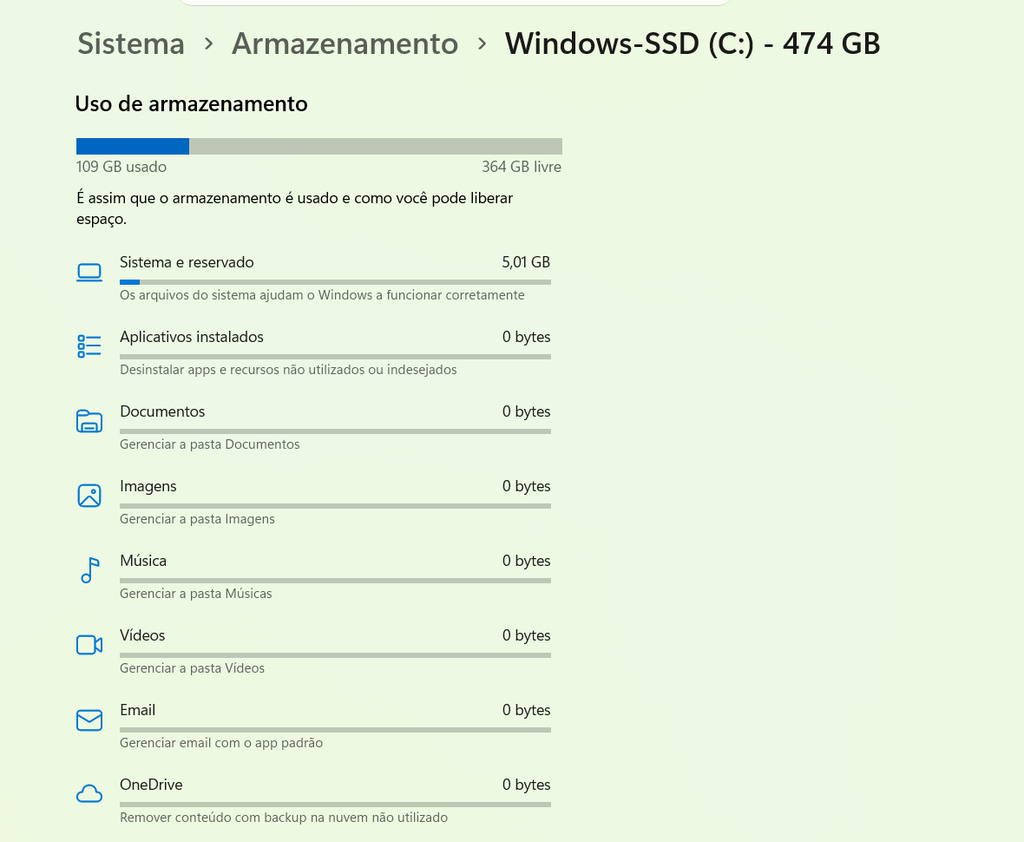
Windows Storage settings showing how available disk space is being used by different categories.
Clean Up Temporary Files
Temporary files are created by Windows and applications during normal use.
Some of these files are no longer necessary after the task that created them has finished.
Windows provides a Temporary files section where you can review categories that may be safe to remove.
You may see items related to:
Temporary files
Thumbnails
Delivery optimization files
Recycle Bin
Previous Windows installations
Not every category should be deleted automatically.
Read the description of each item before confirming the cleanup.
Be Careful With the Downloads Folder
Your Downloads folder may contain files that you still need.
Windows can identify Downloads as a possible source of storage usage, but that does not mean everything inside is safe to delete.
Open the folder and review the files yourself.
You may find:
Old installers
PDF documents
Images
ZIP files
Videos
Documents you downloaded for temporary use
Delete only files you are certain you no longer need.
Empty the Recycle Bin Carefully
Deleting a file normally moves it to the Recycle Bin rather than removing it immediately.
This means the file can continue using storage.
If you are certain that the files inside the Recycle Bin are no longer needed, emptying it can recover some space.
However, do not empty the Recycle Bin immediately after deleting important files.
First make sure that nothing there still needs to be restored.
Uninstall Programs You No Longer Use
Applications can consume several gigabytes of storage.
Open Settings → Apps → Installed apps and review the programs installed on your computer.
You may discover applications that you installed months ago but no longer use.
Removing unused programs can free a meaningful amount of space.
Before uninstalling an application, make sure you know what it is.
Avoid removing software simply because its name looks unfamiliar.
Some components belong to Windows, your hardware manufacturer, or another application you still use.
Check Large Applications
Sometimes one or two applications account for a surprisingly large amount of storage.
Sort installed applications by size when the option is available.
This can help you identify programs or games that occupy several gigabytes.
If you no longer use a large application, uninstalling it may provide more benefit than deleting dozens of small files.
Look for Large Personal Files
Personal files are another common source of storage usage.
Videos are often responsible for a large percentage of storage because individual files can be hundreds of megabytes or several gigabytes.
Check folders such as:
Videos
Pictures
Downloads
Documents
Review especially large files and decide whether you still need them.
Do not delete something simply because it is large.
Size alone does not determine whether a file is important.
Move Large Files Instead of Deleting Them
If you need to free space but want to keep your files, consider moving them.
For example, large photos and videos could be moved to:
An external drive
Another computer
A trusted cloud storage service
This can recover space on the Windows drive without permanently deleting the files.
Before removing the original copies, make sure the transferred files open correctly.
Use an External Drive for Archived Files
An external hard drive or SSD can be useful for files that you want to keep but do not need every day.
For example, older:
Photos
Videos
Projects
Installers
Archives
can be moved to external storage.
Keep important files organized and consider maintaining another backup for anything that cannot be replaced.
An external drive should not automatically be considered a complete backup solution if it is the only additional copy.
Check the Desktop
The Windows desktop can become a temporary storage location without you noticing.
Large files stored there still use the same internal drive.
Review the desktop and move files into appropriate folders.
For example:
Documents → Work
Pictures → Family
Projects → Website
This can improve organization while making it easier to understand what is actually stored on the computer.
Remove Temporary Files Safely
Windows can generate temporary data while installing updates, browsing the web, using applications, or performing other tasks.
Over time, some of these files may no longer be necessary.
The built-in Storage settings provide a safer way to review temporary data than manually deleting unknown files from system folders.
Do not start deleting files from folders such as Windows or Program Files simply because they occupy space.
Those locations contain files required by the operating system and applications.
Review Previous Windows Installations Carefully
After a major Windows update, your computer may retain files associated with the previous Windows installation.
These files can consume significant storage.
Windows may present them as cleanup options in Storage settings.
However, removing previous installation files can eliminate the ability to return to an earlier Windows version through the normal recovery process.
Only remove them when you are confident that you no longer need the previous installation.
Use Storage Sense
Windows includes a feature called Storage Sense that can help manage temporary files automatically.
Depending on your Windows version and settings, it can remove certain unnecessary files and manage items such as the Recycle Bin.
Storage Sense can be useful for ongoing maintenance because it reduces the need to perform every cleanup manually.
However, review its settings before enabling automatic cleanup so you understand what Windows may remove.
Avoid Random Cleanup Software
You may find third-party programs that promise to clean large amounts of storage with one click.
Be careful with these tools.
A poorly designed cleanup application could remove files you still need or install unwanted software.
Windows already provides several built-in storage management tools, so start with those.
Use third-party utilities only when you understand exactly what they do and obtain them from a trustworthy source.
Check One Folder at a Time
Large-scale cleanup can become confusing.
A safer approach is to work through one location at a time.
Start with:
Downloads
Then review:
Videos
Pictures
Desktop
Documents
You can decide what should be deleted, moved, or kept in each folder.
This makes the process more manageable.
Sort Files by Size
When reviewing personal files, sorting by size can help you find the biggest opportunities.
In File Explorer, you can change the folder view and sort files by size when the information is available.
Large videos and archives will usually appear near the top.
Review those files first.
Deleting one unnecessary 3 GB video can make a much bigger difference than deleting dozens of small documents.
Check for Duplicate Files
Duplicate files can also consume storage.
You may have multiple copies of the same:
Photo
Video
Project
Download
Before deleting duplicates, compare the files carefully.
Two files with similar names may actually be different versions.
Keep the copy you know is important and make sure you do not remove the only backup.
Compress Files You Rarely Use
If you want to keep a collection of files but access them only occasionally, compression may be another option.
Creating a ZIP archive can reduce the amount of storage used by some types of files.
The reduction depends on the file type.
Documents and certain uncompressed data may compress well, while many videos and JPG photos may not become much smaller.
Do not assume compression will always solve a storage problem.
Review Cloud-Synchronized Folders
Cloud storage folders can make storage management slightly more complicated.
Some services provide options that keep files in the cloud while reducing how much local storage they consume.
Before changing these settings, understand whether the file will remain available offline.
Do not remove local copies of important documents without confirming where another accessible copy exists.
Check Your Computer After Cleaning
After removing unnecessary files, return to:
Settings → System → Storage
Check how much space you recovered.
You may also notice that another category has become more significant after the cleanup.
For example, after removing several applications, personal videos may now represent most of the remaining used storage.
This information can help you decide where to focus next.
Do Not Try to Free Every Gigabyte
Your goal should not be to make the storage usage as low as possible.
A computer always needs space for Windows, applications, temporary data, updates, and your own files.
Focus on removing unnecessary data and maintaining a reasonable amount of free space.
Trying to delete everything that is not immediately needed can create unnecessary risks.
Keep Important Files Backed Up
Freeing storage should never come at the expense of your important data.
Before deleting irreplaceable photos, documents, or projects, make sure another copy exists.
For especially important files, consider maintaining more than one backup.
A good cleanup improves organization while protecting valuable information.
Create a Simple Storage Maintenance Routine
You do not need to perform a major cleanup every week.
A quick review once a month can help prevent storage problems from becoming serious.
Check:
Downloads
Temporary files
Large videos
Unused applications
Recycle Bin
Desktop files
Duplicate files
This routine can take only a few minutes when performed regularly.
What to Do When Storage Is Still Full
Sometimes you clean temporary files and remove unused applications but the drive is still almost full.
That usually means a large amount of personal data remains.
Return to the Storage overview and identify the largest categories.
Then inspect the corresponding folders.
For example, if videos use most of the storage, look at your video collection rather than continuing to delete small temporary files.
The goal is to identify where the storage is actually going.
Be Careful With System Folders
Windows contains many folders that are essential to the operating system.
Do not manually delete files from system locations just because they look old or unusually large.
If Windows needs to clean system files, use its built-in Storage or cleanup tools.
This is much safer than guessing which files are unnecessary.
Check Free Space Before Major Updates
Having enough free storage is particularly important before installing major Windows updates.
If the drive is nearly full, updates may fail or require additional cleanup.
Checking storage periodically can therefore prevent problems before they occur.
You do not need to wait until Windows displays a low-storage warning.
Keep the Downloads Folder Under Control
Downloads is often one of the easiest folders to forget.
Make a habit of reviewing it regularly.
Move important files into their permanent folders.
Delete files that were only needed temporarily.
Remove old installers once you are certain they are no longer required.
This simple habit can prevent the folder from becoming a large source of unnecessary storage usage.
Use Clear File Organization
A well-organized computer is easier to clean.
When documents, photos, videos, and projects have predictable locations, you can quickly determine what can be removed and what should be kept.
For example:
Documents → Work
Pictures → 2026
Videos → Personal
Projects → Website
A few simple folders can make future storage maintenance much easier.
A Safe Windows Storage Cleanup Routine
A practical cleanup process looks like this:
Check the Storage overview.
Identify the largest categories.
Review temporary files.
Inspect Downloads.
Uninstall unused applications.
Find large personal files.
Check for duplicates.
Empty the Recycle Bin when appropriate.
Move files you want to keep to another storage location.
Check the remaining free space.
This approach is safer than deleting files randomly.
Windows showing available storage after unnecessary files and applications have been removed.
Common Mistakes to Avoid
One of the biggest mistakes is deleting files simply because they are large.
Another is removing system files manually without knowing what they do.
People also sometimes empty the Recycle Bin immediately after deleting personal files.
Installing an unknown cleanup application can create another problem instead of solving the first one.
Finally, deleting the only copy of an important file to recover storage space can turn a simple cleanup into permanent data loss.
Take your time and focus on unnecessary files rather than important ones.
Freeing storage space on Windows does not require deleting everything you have accumulated over the years.
Start by understanding how the storage is being used, then target temporary files, unused applications, old downloads, large personal files, and other unnecessary data.
Keep important files backed up and avoid manually removing system files you do not recognize.
The safest approach is simple: find out what is using the space first, then remove or move only what you know you no longer need.
