
Printing a document from a Windows computer sounds simple, but it can become confusing when the wrong printer is selected, the page is cut off, or the document prints differently from what you see on the screen.
Whether you are printing a PDF, Word document, image, or another type of file, Windows provides several ways to start the process.
The most important part is checking the printer, paper size, page range, orientation, and preview before sending the job.
Make Sure the Printer Is Connected
Before opening the document, make sure the printer is turned on and connected to the computer.
Depending on your setup, the printer may be connected through:
A USB cable
Wi-Fi
A wired network
Another supported connection
If the printer is turned off or disconnected, Windows may not be able to send the document correctly.
If you are using a wireless printer, make sure the computer and printer are connected to the appropriate network.
Open the Document You Want to Print
Start by opening the file you want to print.
This could be a:
Word document
Spreadsheet
Image
Text document
The printing process can vary slightly depending on the application, but the basic steps are usually similar.
Take a moment to review the document before printing it.
This can help you avoid printing an incorrect version.
Use the Print Command
Once the document is open, look for the Print option.
In many Windows applications, you can find it under the File menu.
You can also often use the keyboard shortcut:
Ctrl + P
This opens the print settings or print dialog.
The exact appearance depends on the application and Windows version.
Select the Correct Printer
One of the first things to check is the selected printer.
You may see several options, including:
Your physical printer
Another printer on the network
A virtual PDF printer
Other printing devices
Make sure you select the printer you actually want to use.
If you accidentally choose a PDF printer, Windows may save the document as a PDF instead of printing it on paper.
This is a common source of confusion for beginners.
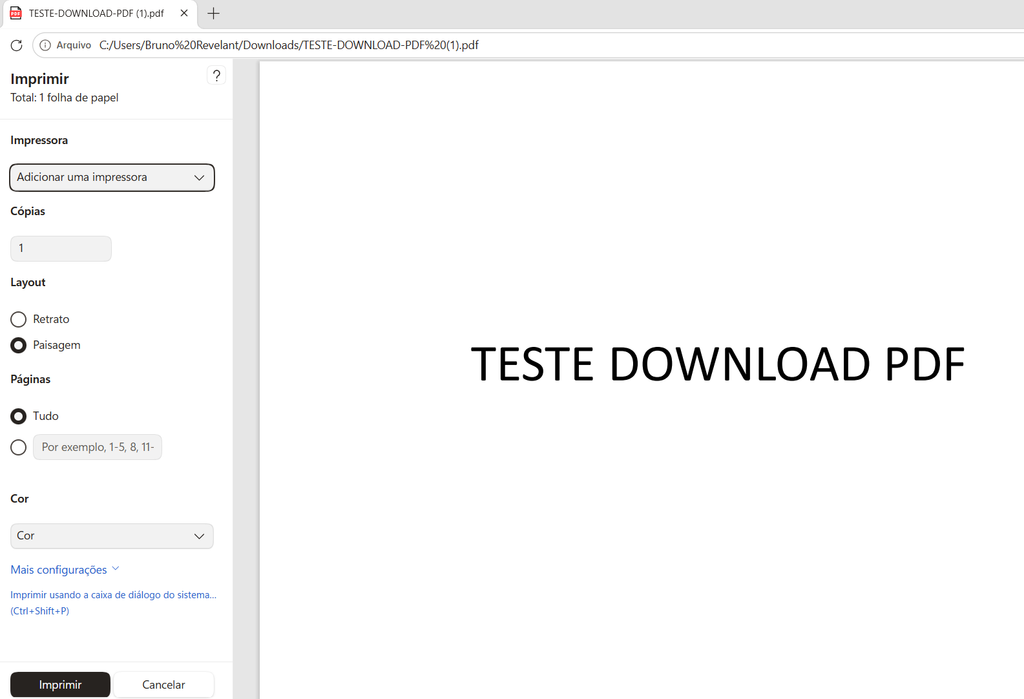
A Windows print settings screen showing a selected printer and the main printing options.
Check the Print Preview
Before clicking the final print button, look at the preview if the application provides one.
The preview can help you identify problems such as:
Text being cut off
Images positioned incorrectly
Blank pages
Wrong orientation
Incorrect margins
Unexpected page breaks
This is especially important when printing documents that you have not printed before.
A few seconds of checking can save paper and ink.
Choose the Number of Copies
If you need more than one copy, enter the number of copies you want.
For example, if you need three identical copies, select 3 instead of printing the document three separate times.
Be careful with this option.
If you accidentally enter a large number, the printer may begin producing more copies than you intended.
Choose Which Pages to Print
You do not always need to print the entire document.
The print settings may allow you to choose:
All pages
The current page
A custom page range
For example, if you only need pages 2 through 4 of a ten-page document, you can usually enter the appropriate range instead of printing all ten pages.
This can save paper and printing time.
Print Specific Pages
When printing a custom page range, make sure the numbers are correct.
For example:
1-3
usually means pages 1 through 3.
You may also be able to specify individual pages such as:
1, 4, 7
The exact syntax depends on the application.
Always check the preview when available.
Choose the Correct Paper Size
Paper size matters more than many people realize.
The most common sizes depend on where you live and the printer being used.
Your document may be designed for one paper format while the printer is configured for another.
If the wrong paper size is selected, the document may be:
Scaled unexpectedly
Cut off
Positioned incorrectly
Printed with larger margins
Check the paper size before printing important documents.
Check Page Orientation
Most documents use either:
Portrait
or
Landscape
Portrait is taller than it is wide and is common for letters, forms, and standard documents.
Landscape is wider than it is tall and is often useful for spreadsheets, wide tables, and some images.
If the document looks correct on the screen but the printed version is cut off, orientation is one of the first settings to check.
Choose Color or Black and White
Depending on your printer, you may be able to choose between color and black-and-white printing.
For documents that only contain text, black-and-white printing may be sufficient.
For photographs, diagrams, presentations, and documents containing important colors, color printing may be more appropriate.
Keep in mind that color printing generally uses more color ink or toner.
Check Print Quality
Some printers let you choose different print-quality settings.
For everyday documents, a standard setting may be enough.
For photographs or important visual material, a higher-quality setting may produce better results.
Higher quality can increase ink usage and may take longer, so use it when it actually improves the final result.
Choose One-Sided or Double-Sided Printing
If your printer supports duplex printing, you may be able to print on both sides of the paper.
This can reduce paper consumption for long documents.
However, not every printer supports automatic double-sided printing.
If the option is available, check how the pages will be turned before printing.
For an important document, printing a test page first can help you understand the orientation.
Check the Margins
Margins determine how much space is left between the content and the edges of the paper.
If a document was designed with very small margins, some printers may not be able to print all the way to the edge.
This can result in text or images being cut off.
If something looks too close to the edge, review the document layout before printing.
Use Fit to Page When Necessary
Some applications and printers provide a setting that scales the document to fit within the printable area.
This can be useful when the original document is slightly larger than the paper.
For example, a PDF may have content extending beyond the printable area.
A fit-to-page option can prevent parts of the document from being clipped.
However, scaling may make text or images slightly smaller.
Check the preview before deciding which option looks better.
Be Careful With Images
Printing an image is not always the same as printing a document.
Images may be positioned in different ways depending on the printing software.
Check the following:
Paper size
Orientation
Scale
Position
Margins
If you are printing a photo, make sure it is high enough in resolution for the size you want to print.
A very small image may look sharp on a phone but blurry when enlarged on paper.
Print a Test Page for Important Documents
If you are printing a large or important document for the first time, consider printing one page as a test.
This can help you verify:
Text size
Orientation
Margins
Color
Printer alignment
If everything looks correct, continue with the rest of the document.
This is especially useful when printing dozens of pages.
Check the Ink or Toner
Before printing a large job, check whether the printer has enough ink or toner.
A document may begin printing normally and then become faint if the supply is low.
Some printers display ink or toner levels in their software.
If your printer warns that the cartridge is nearly empty, consider replacing it before printing a large batch of important documents.
Make Sure You Have Enough Paper
This sounds obvious, but it is easy to overlook.
If you are printing a long document, make sure there is enough paper loaded into the printer.
Running out of paper halfway through a job can interrupt the process and may require you to restart or continue the print job manually.
Check the Printer Queue
Sometimes a document appears to have disappeared after you click Print.
The job may simply be waiting in the printer queue.
Windows can display pending print jobs through its printer settings.
If several documents are waiting, the printer may simply be processing them in order.
Avoid repeatedly clicking Print without checking the queue first, because you could accidentally create multiple copies.
Cancel a Print Job When Necessary
If you accidentally sent the wrong document to the printer, try to cancel the job as soon as possible.
This can prevent unnecessary pages from being printed.
The exact steps vary, but Windows provides a way to view pending print jobs and cancel them.
This is especially useful if you accidentally selected 20 copies instead of 2.
What If Nothing Prints?
If the printer does not respond, check the basics first.
Make sure the printer is turned on.
Check the connection.
Confirm that the correct printer is selected.
Look for error messages.
Check whether the printer is paused or offline.
Check the print queue.
If necessary, restart the printer and try again.
Many printing problems are caused by simple connection or printer-selection issues rather than a problem with the document itself.
What If the Document Looks Different on Paper?
A document can look correct on the computer but appear different when printed.
This can happen because of:
Different page sizes
Printer margins
Scaling
Font differences
Image positioning
Application-specific print settings
Use the print preview whenever possible.
For documents created in Word or other office applications, also make sure the page layout is configured correctly before printing.
Avoid Printing Unnecessary Pages
Before pressing Print, ask yourself whether you actually need a paper copy.
For documents that are only needed temporarily, keeping a digital version may be enough.
Printing only the pages you need can also save paper.
This is particularly useful when working with long PDFs, manuals, reports, or online documents.
Save a Digital Copy
If the document is important, keep a digital copy even after printing it.
A printed document can be lost, damaged, or misplaced.
Keeping the original file on your computer or in a reliable backup location means you can print it again later without recreating the document.
This is especially useful for forms, invoices, receipts, reports, and other documents you may need again.
Be Careful With Sensitive Documents
Before printing, think about what information the document contains.
Printed pages can expose information just as easily as digital files.
Be especially careful with:
Identification documents
Financial statements
Passwords
Private correspondence
Work information
Personal records
Collect sensitive documents promptly after printing and avoid leaving them unattended in shared spaces.
Use Print Preview as Your Final Check
A useful habit is to treat print preview as the final inspection before printing.
Look at:
The number of pages
The page orientation
The margins
The content position
The selected printer
The number of copies
The page range
If everything is correct, send the job.
This small step can prevent a surprising number of printing mistakes.
A document shown in Windows print preview with the page layout ready to be printed.
A Simple Printing Routine
For most documents, you can use the same basic routine every time.
Open the file.
Press Ctrl + P.
Select the correct printer.
Check the preview.
Choose the required pages.
Set the number of copies.
Check paper size and orientation.
Choose color or black and white.
Review the final settings.
Then click Print.
This process is simple enough to become a habit.
Common Printing Mistakes to Avoid
One common mistake is selecting the wrong printer.
Another is forgetting to check the number of copies.
People also sometimes print all pages when they only need one or two.
Using the wrong paper size or orientation can result in clipped content.
Finally, repeatedly clicking Print when nothing happens can create duplicate jobs in the printer queue.
Taking a few seconds to review the settings is usually much easier than correcting the mistake afterward.
When Saving as PDF Is Better
Sometimes you do not actually need a physical copy.
If the goal is simply to create a document that is easy to send or store, saving it as a PDF may be more practical.
This is especially useful when the recipient only needs a digital copy.
Windows applications often provide a PDF option through the print system, depending on the program you are using.
This can help avoid unnecessary printing.
Keep Your Printer Ready for Important Tasks
If you print regularly, keep the printer maintained.
Check paper supplies.
Monitor ink or toner.
Keep the printer connected correctly.
Install necessary updates or drivers through trusted sources.
Remove old print jobs from the queue when they are no longer needed.
A few minutes of maintenance can make future printing much less frustrating.
Printing from Windows is straightforward once you know which settings matter.
The most important habit is not simply clicking Print. It is checking the printer, pages, orientation, paper size, copies, and preview before starting the job.
That small routine can save paper, ink, time, and frustration while helping ensure that the document comes out the way you expected.
