

When you visit a website, your browser gives you several clues about the connection between your device and the site.
One of the most visible clues is the security icon next to the website address. In Google Chrome, this icon can indicate whether the browser has established a secure connection, whether the connection is not secure, or whether the site has been identified as dangerous.
However, seeing a lock or HTTPS in the address bar does not automatically mean that a website is trustworthy.
A secure connection protects information traveling between your browser and the website, but you still need to make sure that you are visiting the correct website before entering passwords, payment information, or other sensitive data. Google specifically recommends checking the site name in the address bar even when the connection is marked as secure.
This guide explains how to check a website connection on Android and how to distinguish a secure connection from a trustworthy website.
Practical example: The examples in this guide use Google Chrome on Android. The appearance of the browser can vary depending on the Android and Chrome versions installed on your phone.
What Does a Secure Website Connection Mean?
A secure website connection generally uses HTTPS, which encrypts information exchanged between your browser and the website.
This is important when you enter information such as:
- Passwords
- Personal information
- Payment details
- Messages
- Account credentials
Google explains that HTTPS connections are more secure because the information exchanged between the browser and the site is protected in transit.
However, HTTPS only tells you something about the connection.
It does not prove that the organization behind the website is legitimate.
For example, a fraudulent website can also use HTTPS.
That is why you should check both the connection status and the website address itself.
Step 1: Open Google Chrome on Your Android Phone
Open Google Chrome on your Android phone.
Enter the address of a website you want to visit.
Once the page loads, look at the area next to the website address.
Chrome displays a security-status icon that can provide information about the connection.

Google Chrome on Android showing the security icon next to a website address.
The icon is your first indication of how Chrome views the site’s connection.
Step 2: Check the Security Icon
Tap the icon next to the website address.
Depending on the site’s connection, Chrome may show a status indicating that the connection is secure, not secure, or dangerous.
A secure connection means the information sent to and received from the site is private between your browser and the site.
A Not secure warning means the connection does not provide the same private connection that HTTPS provides.
A Dangerous warning is much more serious. Google says a full-page red warning indicates that Safe Browsing has identified the site as unsafe and recommends not using it.
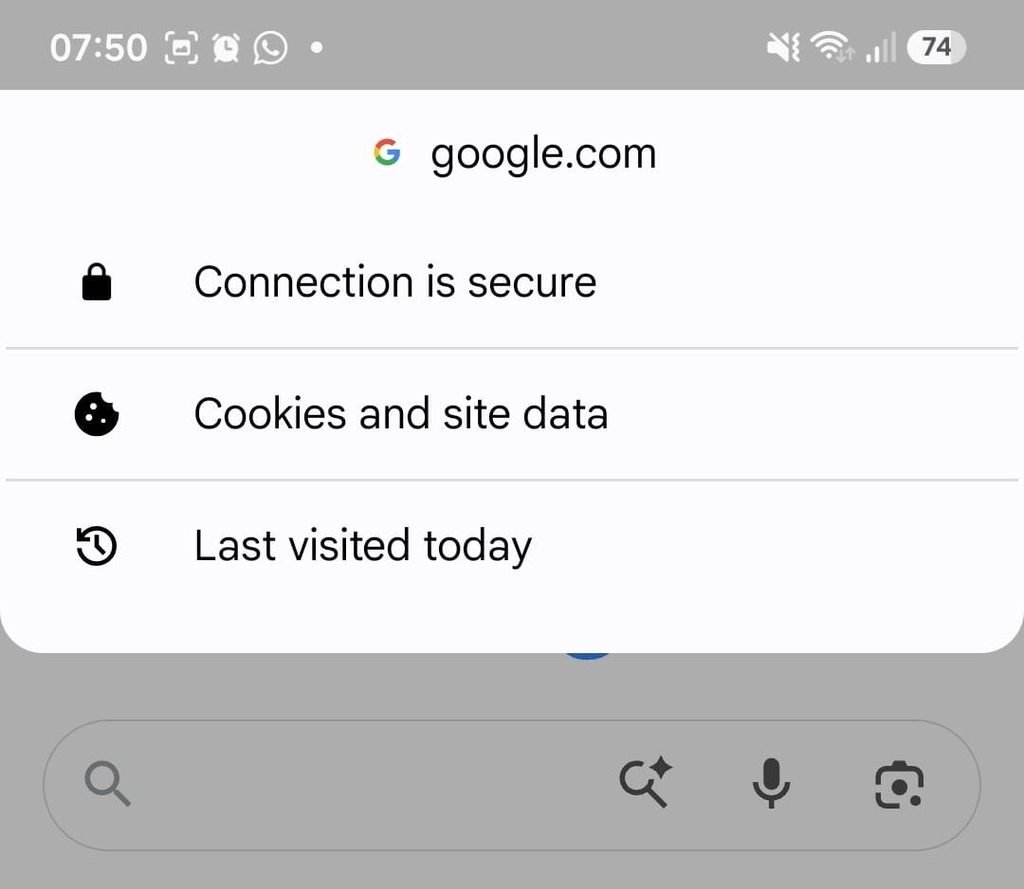
Google Chrome showing the security information for a website connection.
Step 3: Look for HTTPS in the Website Address
Another useful clue is the website address itself.
A website using an address beginning with:
https://
is using HTTPS.
Google explains that websites using HTTPS provide more secure connections than websites that do not use it.
You may not always see the entire https:// prefix because browsers can simplify the way the address is displayed.
That is why checking the security icon and tapping it can be useful.
Step 4: Check the Website Name Carefully
This is one of the most important steps.
Even when Chrome shows a secure connection, check the actual website name in the address bar.
Imagine you receive an email telling you to sign in to your bank.
The email takes you to a website that looks identical to your bank’s website.
The connection may still be encrypted.
That does not make the website legitimate.
Google explicitly recommends checking the site name in the address bar even when a site is marked as secure.
Look at the actual domain rather than the logo or design of the page.
Step 5: Understand Why HTTPS Does Not Mean “Safe Website”
This distinction causes a lot of confusion.
HTTPS = secure connection
HTTPS ≠ guaranteed legitimate website
A malicious website can use HTTPS just like a legitimate website.
The encryption protects communication between you and the site, but it does not prove that the person operating the site has good intentions.
This is why you should combine several checks before entering sensitive information.
Step 6: Check the Domain Before Logging In
Before entering your password, carefully examine the website address.
Look for:
- Unexpected spelling
- Extra words
- Unusual domains
- Strange combinations of letters
- Addresses that imitate well-known brands
For example, a website pretending to represent a company may include the company’s name somewhere in a much longer domain without actually belonging to that company.
Do not judge the site based solely on the name displayed in the page design.
The address bar is more useful.
Step 7: Be Careful With Links From Emails and Messages
A secure connection does not make a link from an unexpected message trustworthy.
Suppose you receive a message asking you to:
Verify your account
Confirm a payment
Reset your password
Track a package
The link may lead to an HTTPS website and still be fraudulent.
Google recommends avoiding suspicious links and, when possible, navigating directly to the legitimate website rather than entering sensitive information through an unexpected link.
This is particularly important for financial and account-related messages.
Step 8: Tap the Security Icon to See More Information
Chrome allows you to tap the security-status icon to view more information about the current site.
Depending on the site’s configuration and your Chrome version, this may include information about:
- Connection security
- Cookies
- Site data
- Permissions
- Site settings
- Other privacy information
Google documents these controls as part of Chrome’s website security information.
This can be useful when you want more information than the basic icon provides.
Step 9: Understand the “Not Secure” Warning
If Chrome says Not secure, it means the website is not using a private connection in the same way an HTTPS site does.
Google recommends caution when using such websites and advises against entering personal information on pages that do not provide a secure connection.
This is especially important for pages containing:
- Login forms
- Payment forms
- Personal information
- Password fields
Do not assume that a page is safe simply because it loads normally.
Step 10: Understand the “Dangerous” Warning
A Dangerous warning is significantly more serious.
Google states that a full-page red warning indicates the site has been flagged by Safe Browsing as unsafe. The company advises users not to use the site and not to enter personal information.
A dangerous site may attempt to:
- Steal personal information
- Trick you into giving away passwords
- Install harmful software
- Perform other malicious actions
When Chrome displays a full-page security warning, the safest choice is to leave the page.
Step 11: Check the Connection Before Entering a Password
Whenever you reach a login page, stop for a moment before typing your password.
Check:
The security status
The website address
The domain
How you reached the page
This simple routine is especially useful for email, banking, shopping, social media, and other important services.
Even when the connection is secure, make sure the website is actually the service you intended to visit.
Step 12: Use the Official App When Appropriate
For sensitive services, such as banking or account management, an official mobile application can reduce some of the risks associated with following unexpected links.
Instead of following a login link from an email, open the service’s official app directly.
This does not eliminate every security risk, but it avoids one common phishing technique: directing you to a fake website through a message.
Step 13: Turn On “Always Use Secure Connections” in Chrome
Chrome provides a setting called Always use secure connections.
When enabled, Chrome attempts to upgrade website addresses to HTTPS and can display a warning before visiting a website that does not support a secure connection.
On Android, the general path is:
Chrome → More → Settings → Privacy and security
Then look for the secure-connections setting.
The exact menu layout can vary by Chrome version.
Google Chrome security settings showing the option to use secure connections whenever possible.
This setting is useful because it adds another layer of protection when you encounter websites that do not support HTTPS.
Step 14: Do Not Ignore Browser Warnings
If Chrome displays a warning before loading a website, do not automatically dismiss it.
Read the message.
Google’s Safe Browsing system can warn users about potentially dangerous websites, phishing, malware, and other threats.
A warning does not necessarily mean you should try to investigate the site by continuing to it.
For suspicious websites, it is generally safer to leave the page and find the legitimate service through a trusted route.
Step 15: Be Careful With Downloads
Website security also matters when downloading files.
Google explains that Chrome may block downloads considered dangerous, suspicious, or unwanted. The browser can also display warnings when a download comes from an unsafe connection.
This means you should not assume that a download is safe merely because the page containing the download uses HTTPS.
The file itself can still be harmful.
Only download files when you understand what they are and trust their source.
Step 16: Check the Site Before Making a Payment
Before entering payment information, perform a more careful review.
Check:
HTTPS
Security status
Correct domain
Expected website
Reasonable page behavior
If you reached the site through an advertisement, email, text message, or social media post, be particularly careful.
For important purchases, consider opening the company’s official website directly instead of following a promotional link.
Step 17: Watch for Fake Security Messages
Some fraudulent pages display messages such as:
Your device is infected
Your account has been hacked
Call support immediately
Download this security application
These messages may attempt to frighten you into taking an unsafe action.
A website displaying a security message does not automatically mean the message itself is legitimate.
Do not install software or provide personal information simply because a web page claims that your device has a problem.
Step 18: Check “About This Page” When Available
Chrome can also provide an About this page option in supported situations.
Google says this feature can provide information about the source and other perspectives related to a page’s topic.
This does not replace checking the website address, but it can provide additional context when you are evaluating unfamiliar pages.
Step 19: What to Do If a Website Says “Your Connection Is Not Private”
Chrome may display a full-page warning saying:
Your connection is not private
Google explains that this can indicate a problem involving the website, network, or device.
Do not enter sensitive information on the page until the issue is resolved.
If the website is important, try accessing it later or contact the website owner through a trusted channel.
If the issue occurs only on one website, the problem may be specific to that website.
If it happens across many websites, the network or device may need investigation.
Step 20: Do Not Use HTTPS as Your Only Security Check
A useful security routine combines several checks.
Before entering sensitive information, ask:
Is the connection secure?
Is the domain correct?
Did I expect to visit this website?
Did I reach it through a trusted source?
Is the page asking for information that makes sense?
If something does not make sense, stop.
This approach is more reliable than simply looking for a lock icon.
A Simple Example
Imagine receiving an email that says your Google Account needs verification.
You click the link.
The page uses HTTPS.
Chrome shows a secure connection.
The page has Google’s logo.
Does that prove the page is legitimate?
No.
You should still check the domain and consider how you arrived at the page.
A phishing website can be designed to look convincing and can also use HTTPS.
The safer approach is to close the page and open your Google Account through the official app or by manually navigating to the known Google website.
Frequently Asked Questions
Does HTTPS mean a website is safe?
No. HTTPS indicates that the connection between your browser and the website is protected, but it does not guarantee that the website itself is legitimate. Google specifically recommends checking the website name in the address bar even when a site is marked as secure.
What does the lock or secure icon mean?
It indicates that Chrome has established a secure and private connection with the website. However, you should still verify that you are on the correct website before sharing sensitive information.
What does “Not secure” mean?
It means the site is not using a private HTTPS connection. Google recommends caution and advises against entering personal information on such pages.
What does “Dangerous” mean in Chrome?
A dangerous warning indicates that Chrome’s Safe Browsing system has identified the site as unsafe. Google recommends not using the site or entering personal information.
Can a phishing website use HTTPS?
Yes. HTTPS protects the connection to the website, but it does not prove who operates the site or whether its content is trustworthy.
Should I enter my password on a website with HTTPS?
Only after confirming that the website itself is legitimate. Check the domain, the context, and how you reached the site before entering your password.
How can I check a website’s security on Android?
Open Chrome, visit the website, and tap the security-status icon next to the address. Chrome can provide information about the site’s connection and security status.
How do I make Chrome warn me about websites without HTTPS?
Open Chrome’s settings, go to Privacy and security, and enable Always use secure connections. The exact wording can vary depending on your Chrome version.
Can a secure website still contain a malicious download?
Yes. Google notes that a download can be unsafe even when the page from which the download began was secure.
Should I continue to a site that Chrome marks as dangerous?
Google recommends not using a site that receives a dangerous warning and advises against entering personal information.
A Simple Website Safety Check
Before entering sensitive information on an unfamiliar website, take a few seconds to check the connection and the website itself.
Start with the security icon in Chrome.
Then check the website address carefully and make sure the domain belongs to the organization you intended to visit.
Remember that HTTPS protects the connection, not the identity or intentions of the website operator.
When an email, text message, advertisement, or search result sends you to a login or payment page, consider navigating to the service directly instead.
Chrome provides security warnings and connection information to help you make these decisions, but your own judgment remains an important part of safe browsing.
