

Seeing an unfamiliar device connected to one of your online accounts can be alarming. You may notice a phone, computer, browser session, or another device that you do not remember using.
An unfamiliar device does not automatically mean that someone has stolen your password. Online services can display old devices, multiple sessions from the same physical device, or activity that looks unfamiliar because of a different browser, location, or recent device reset.
However, an unfamiliar device should not simply be ignored. The safest approach is to identify the device, review its recent activity, and remove its access when you are certain that you no longer need or recognize it.
Google, Microsoft, Apple, Facebook, and other major services provide ways to review account sessions and sign out devices remotely. The names and locations of these options differ between services, but the basic process is similar.
Important: Do not remove a device simply because its name looks unfamiliar. First check the details and determine whether it could actually belong to you.
Why an Unknown Device Can Appear on Your Account
There are several reasons an account may display a device you do not immediately recognize.
You may have:
- Used an old phone that you no longer remember
- Signed in on another computer
- Used a browser at work or school
- Logged in temporarily on someone else’s device
- Reset a phone without removing the account first
- Created another browser or app session
- Used a different browser than usual
Google specifically explains that multiple sessions can appear for the same physical device and that activity timestamps can reflect automatic background synchronization rather than something you manually did at that exact time.
Because of this, an unfamiliar entry is a reason to investigate, not automatic proof that your account has been hacked.
Step 1: Decide Which Account You Need to Check
Start with the account where you noticed the unfamiliar device.
This might be:
- Microsoft
- Apple
- Amazon
- Another online service
Do not use a link from an unexpected email to access the account.
Instead, open the official app or type the service’s known website address yourself.
This reduces the risk of accidentally entering your credentials into a fake login page.
Step 2: Open the Account’s Security Settings
Most major online services place device-management tools inside their security settings.
Look for sections with names such as:
Security
Security and privacy
Login activity
Where you’re signed in
Your devices
Devices
Sessions
The exact wording depends on the service.
For a Google Account, the current path is:
Google Account → Security & sign-in → Your devices → Manage all devices
Google states that this section shows devices where the account is currently or was recently signed in.
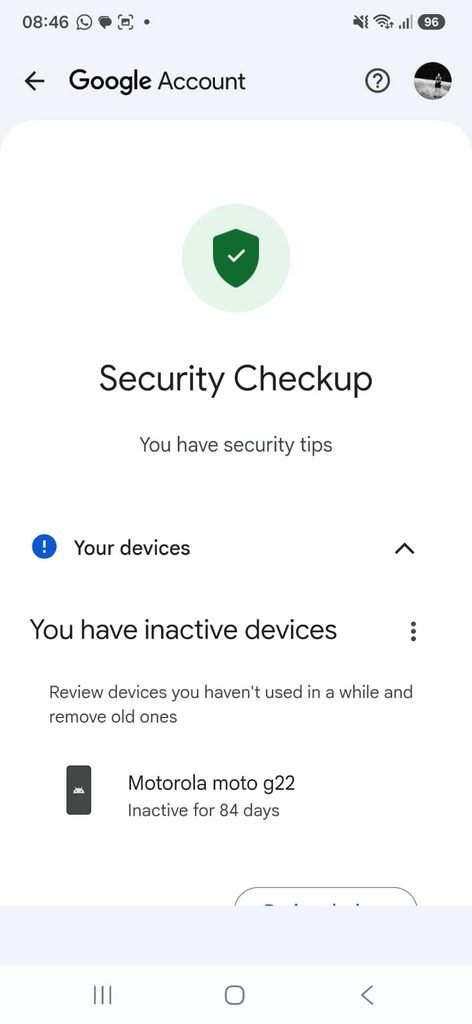
Online account security settings showing where connected devices or active sessions can be reviewed.
Step 3: Review the Complete Device List
Do not immediately focus on the device that looks unfamiliar.
First, review the entire list.
Look for information such as:
Device type
Device name
Recent activity
Approximate location
Browser or application
This information can help you determine whether a device belongs to you.
Google explains that the device-management page can contain devices and sessions that have accessed an account recently.
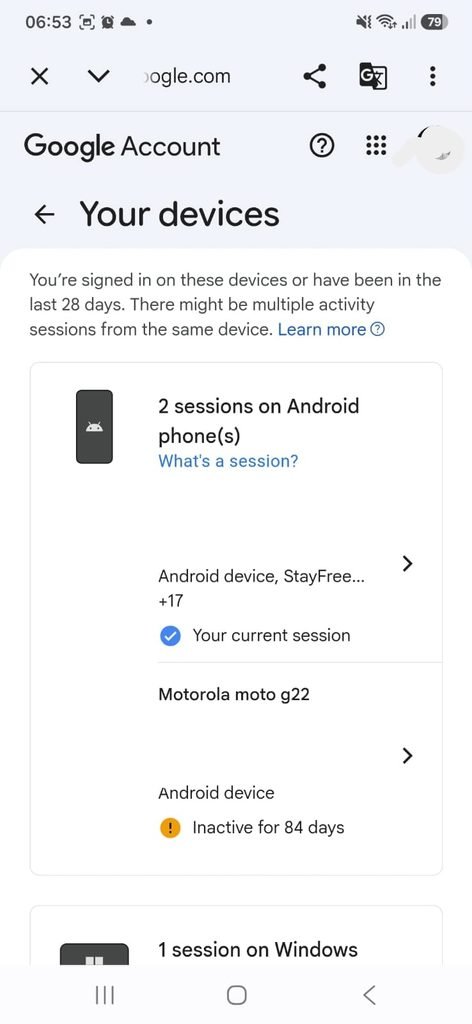
Account device-management page showing devices and sessions associated with the account.
Step 4: Check the Date and Time
The displayed date or time can provide an important clue.
If you see an activity time from a moment when you were using the account, the entry may be legitimate.
However, do not treat the timestamp as perfect proof.
Google explains that account activity can include automatic synchronization between a device and Google services. This means an activity time can sometimes be newer than the last time you remember actively using the device.
Use the timestamp together with the other information displayed.
Step 5: Check the Device Type
Look at the type of device associated with the session.
It might be identified as:
Android phone
iPhone
Windows computer
Mac
Tablet
Chrome browser
or another type.
Think about whether you recently used such a device.
For example, a Windows session might be completely legitimate if you recently signed into your account on a laptop.
An Android device that you do not own deserves more attention.
Step 6: Consider Whether It Could Be an Old Device
One of the easiest mistakes is assuming that an old device disappeared automatically after you stopped using it.
If you recently upgraded from an old Android phone, check whether it still appears in your account.
Google explains that devices can remain visible in the account’s device list even after you stop using them, and a recently reset device can also appear in the list.
If you recognize the old device but no longer own it, signing it out is generally appropriate.
Step 7: Check the Location Carefully
Some services display an approximate location associated with a login or device.
Do not assume that an unfamiliar city automatically means someone accessed your account from there.
Google specifically notes that locations can be approximate and that travel or network routing can cause the displayed location to differ from the exact place where the device was used.
For example, a mobile connection or public Wi-Fi network may produce a location that is different from your exact physical position.
Treat location as one clue rather than the only evidence.
Step 8: Open the Unfamiliar Device
Once you find a device that you cannot identify, open it.
Look at the additional information provided by the account.
Depending on the service, you may see:
- Device type
- Last activity
- Approximate location
- Browser
- Operating system
- Applications
- Sign-in information
- Sign-out option
This can help you determine whether the entry is actually unfamiliar.
Step 9: Decide Whether the Device Should Stay Connected
There are three common situations.
You recognize the device and still use it
Leave it connected.
You recognize the device but no longer use it
Sign it out.
You do not recognize the device at all
Investigate further and consider signing it out. If you believe someone else accessed the account, continue with the account-security steps described below.
Google recommends signing out devices that you no longer use, have lost, no longer own, or that do not belong to you.
Step 10: Sign Out of the Unknown Device
Once you are confident that a device should not have access, select the appropriate option to remove its session.
On Google Accounts, the process is:
Google Account → Security & sign-in → Your devices → Manage all devices → Select device → Sign out
Google documents this process specifically for devices that are no longer yours or that you do not recognize.
Account device settings showing the option to sign out a device.
The device may remain visible in the account’s history after being signed out. That does not necessarily mean that it still has access.
Google indicates that signed-out devices or sessions can remain listed and be marked as Signed out.
Step 11: Change Your Password If You Suspect Unauthorized Access
Signing out an unfamiliar device is important, but it may not be enough if you believe someone obtained your password.
If you genuinely suspect unauthorized access, change the account password through the official security settings.
Google recommends changing the password when you believe someone else has accessed the account. It also recommends changing the same password on other services where it was reused.
Create a new password that you have never used on another account.
Step 12: Check Whether You Reused the Password
Think about other websites where you used the same password.
Password reuse increases the consequences of a single compromised account.
For example, if the same password was used for your email and a shopping account, an attacker who obtains that password may attempt it elsewhere.
Google recommends using unique passwords for important accounts.
A password manager can make this much easier because you do not have to memorize every unique password yourself.
Step 13: Check Recent Security Activity
After removing the unfamiliar device, check your account’s recent security activity.
Look for events such as:
Password changes
New sign-ins
Recovery information changes
Security setting changes
Google provides a Recent security activity section to help users identify suspicious events associated with their accounts.
If you discover several activities that you do not recognize, take the situation more seriously.
Step 14: Check Your Recovery Information
Review your recovery email address and phone number.
Make sure they belong to you and are still accessible.
Recovery information is important because it can help you regain access if you forget your password or encounter suspicious activity.
If you find recovery information you did not add, treat that as a serious security warning.
Step 15: Review Two-Step Verification
Two-step verification provides another layer of protection beyond a password.
After changing your password, review your account’s two-step verification settings.
Check that:
- Your phone numbers are correct
- Your authentication devices are recognized
- Your authenticator app is yours
- Your backup methods are available
- No unfamiliar authentication method has been added
Google recommends additional verification methods as part of protecting an account from unauthorized access.
Step 16: Check Third-Party Apps and Services
An unfamiliar device is not the only type of account access worth reviewing.
Third-party applications can also be connected to your account.
For example, you may have previously authorized an application to access certain account information.
Review connected apps and services and remove access from anything you no longer use or do not recognize.
Google provides a dedicated area for reviewing third-party applications and services connected to your account.
Step 17: Check Your Email Account Carefully
Your main email account deserves special attention because it may be used to recover other accounts.
If someone has access to your email, they may potentially use password-reset functions on other services.
After a suspected security incident, check:
Sent messages
Deleted messages
Account recovery settings
Recent login activity
Forwarding rules
Filters
An attacker may sometimes change email settings without immediately changing the account password.
Step 18: Look for Password Reset Emails You Did Not Request
If you receive password-reset messages that you did not initiate, do not automatically click the links inside them.
Instead, open the service’s official app or website and check the account directly.
An unexpected password-reset message can have several explanations, including someone entering your email address by mistake.
However, repeated or unusual reset attempts deserve attention.
Step 19: Review Devices After Selling or Giving Away a Phone
Before selling, donating, or giving an old phone to someone else, remove your accounts from it.
Do not assume that a factory reset alone is the complete account-security process.
Review your online accounts afterward and confirm that the old device no longer has access.
Google explains that a device that was recently reset may still appear in the account’s device list.
Step 20: Be Careful When Using Someone Else’s Computer
Signing in on another person’s computer can create an account session that you later forget about.
This is particularly relevant on shared or public computers.
Google recommends using private browsing when signing in on a device that is not yours and closing the private browsing windows afterward.
Whenever possible, avoid saving passwords on computers that other people can access.
What If You Cannot Remove the Device?
If you select a device and the service does not immediately remove it, do not panic.
The account may still be processing the sign-out request, or the device may be listed as a historical session rather than an active connection.
Refresh the account’s device list and check the status again.
For Google Accounts, signed-out sessions can remain visible with an indication that they are no longer connected.
If the device still appears active, change your account password and review the account’s security settings.
What If the Device Is Actually Yours?
This is an important possibility.
Before removing a device, check whether it could be:
- Your old phone
- Another browser
- A tablet
- A work computer
- A device used while traveling
- A recently reset device
Google specifically warns that multiple sessions can appear for the same device and that an unfamiliar timestamp or location does not automatically indicate unauthorized access.
Avoid creating unnecessary problems by signing out devices that you actually need.
What If Several Sessions Have the Same Device Name?
This can happen.
For Google Accounts, multiple sessions with the same device name may come from one physical device or from several devices of the same type.
Review the details of each session.
If you cannot determine whether all of the sessions belong to you, Google recommends signing out of the sessions associated with that device name to ensure that another device does not retain access.
What If the Device Shows a Strange Location?
Do not immediately conclude that your account was hacked.
A location displayed by an online service may be approximate.
Mobile networks, VPNs, public Wi-Fi, and other network conditions can affect how an IP address is associated with a location.
Compare the location with the device type and activity time.
If the device itself is one you recognize and the activity fits your normal use, the location may simply be imprecise.
What If You Find a Device You Definitely Do Not Recognize?
Take action.
Start by signing out the device.
Then change your password.
Review recent security events.
Check recovery information.
Review two-step verification.
Check third-party apps.
Google’s security guidance recommends reviewing devices and recent account activity and changing the password when you believe someone else has accessed the account.
If the same password was used elsewhere, change those passwords too.
What If Your Account Was Actually Compromised?
If you believe someone has gained access, avoid making security changes through links received in suspicious messages.
Instead, go directly to the official service.
For a Google Account, Google recommends reviewing recent security events, checking devices, changing the password, and following the account-recovery process when necessary.
The sooner you secure the account, the better.
A Simple Device Security Check
You do not need to inspect your devices every day.
A quick review every few months is reasonable, and you should also check after:
Buying a new phone
Selling an old device
Using a public computer
Losing a phone
Changing an important password
Receiving an unexpected security alert
Keeping your device list organized makes genuine security problems easier to notice.
Frequently Asked Questions
How do I remove an unknown device from my Google Account?
Open your Google Account, go to Security & sign-in, select Your devices, choose Manage all devices, select the unfamiliar device, and choose Sign out.
Does seeing an unfamiliar device mean my account was hacked?
Not necessarily. Multiple sessions, old devices, different browsers, approximate locations, and background synchronization can make legitimate activity appear unfamiliar.
Should I sign out of a device I no longer own?
Yes. Google specifically recommends signing out of devices that are lost, no longer yours, or do not belong to you.
Should I change my password after finding an unknown device?
If you believe the device represents unauthorized access, changing the password is an important step. Google recommends changing the password when you believe someone else has accessed your account.
Why does an old phone still appear in my Google Account?
Old devices can remain visible in your account’s device list. A recently reset device may also continue to appear.
Why does Google show several sessions for the same phone?
Several sessions can be created by the same physical device through different browsers, applications, or sign-in events.
Why is the location shown for my device different from where I am?
Locations can be approximate. Network routing, travel, mobile connections, and other factors can affect the location displayed by an online service.
What should I do if I do not recognize a device and recent activity?
Sign out the device, change your password, and review your account’s recent security activity and other security settings. Google recommends these actions when you suspect unauthorized account access.
Can I remove a device remotely?
Many major online services provide remote sign-out or device-management features. The exact process depends on the service.
Will a signed-out device disappear immediately?
Not necessarily. A service may continue displaying the device as a historical or signed-out session. Google specifically indicates that signed-out devices can remain visible in the device list.
Should I remove every device I do not recognize immediately?
First investigate the device details. An unfamiliar name or location does not automatically mean that the device belongs to someone else.
Should I use a different password after removing an unknown device?
If you believe the device had unauthorized access, yes. Use a new, unique password and update other accounts if the old password was reused.
Keeping Unknown Devices Out of Your Accounts
Finding an unfamiliar device does not necessarily mean that your account has been compromised, but it should always be investigated.
Start by checking the device type, activity time, location, and other available information.
If the device belongs to you, you can leave it connected.
If it is an old device you no longer use, sign it out.
If you are certain that it does not belong to you, sign it out and take additional security measures, especially changing your password and reviewing recent account activity.
The most important habit is to avoid reacting to one unfamiliar detail in isolation. A strange location, old device name, or unexpected timestamp can have an innocent explanation. Looking at the complete picture gives you a much better chance of distinguishing an old session from a genuine security problem
