

Finding an unfamiliar login, security alert, password change, or device on an online account can be worrying. Sometimes the activity has a simple explanation, such as a new phone, a different browser, travel, or an old session that you forgot about.
However, unusual activity should not be ignored.
Most major online services provide security pages where you can review recent activity and identify events that may require attention. Google, for example, provides a Recent security activity section and tools for reviewing devices connected to the account. Microsoft provides a Recent activity page that shows when and where the account was used and allows users to investigate unusual sign-ins.
The important part is knowing how to separate normal activity from something that genuinely needs action.
What Counts as Unusual Account Activity?
Unusual activity can take several forms.
You might notice:
- A login from a device you do not recognize
- An unfamiliar location
- A password change you did not make
- A new recovery method
- A new security setting
- An unexpected sign-in alert
- An application gaining account access
- Messages or emails sent without your knowledge
Google lists unfamiliar security-setting changes, unusual sign-ins, new devices, and other activities you do not recognize as possible signs that someone else may be using an account.
The presence of one unfamiliar event does not automatically prove that your account was compromised.
Instead, investigate the details.
Step 1: Access the Account Through the Official App or Website
When you receive a security alert, do not automatically click the link inside the email or text message.
Open the official app for the service or type the known website address yourself.
This is particularly important when the alert claims that your account has been compromised and asks you to sign in immediately.
Using the official app or website removes a suspicious link from the process.
Step 2: Find the Account Security Section
Most large online services have a security area.
Depending on the service, it may be called:
Security
Security and privacy
Recent activity
Login activity
Sign-in activity
Recent security activity
For Google Accounts, Google currently places Recent security events within the account’s security settings. Users can select Review security events to investigate activity.
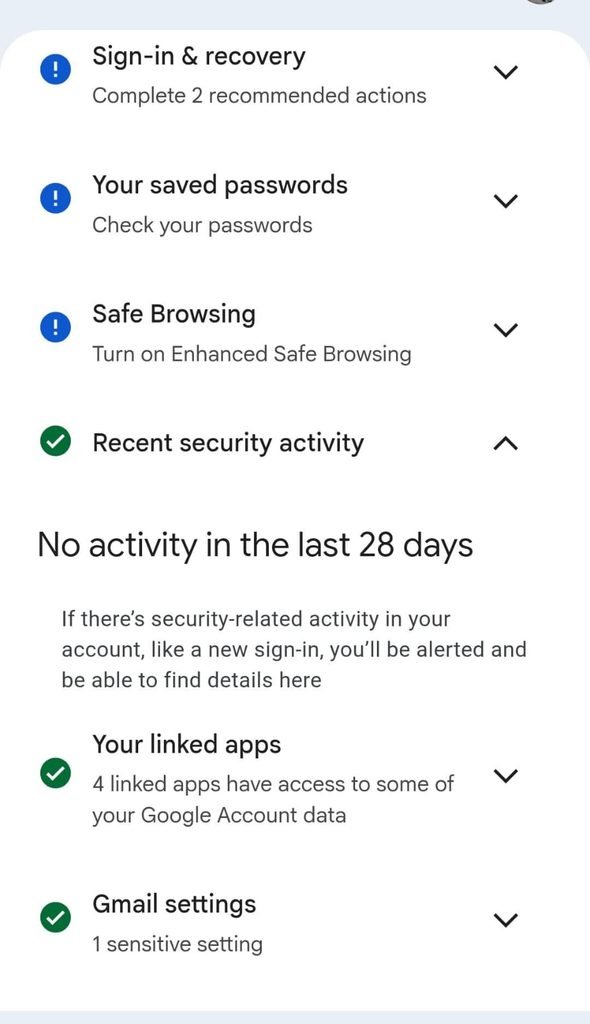
Online account security settings showing where recent security activity can be reviewed.
Step 3: Review Recent Security Events
Open the recent security activity page and read through the events.
Do not focus only on whether an event looks unfamiliar.
Look at:
Date
Time
Device
Location
Type of activity
Application or browser
Google explains that its security alerts can provide details such as the type of device, time, and location of a login.
These details can help you determine whether the activity was actually yours.
Google Account recent security activity showing sign-in or account-security events.
Step 4: Compare the Activity With What You Were Doing
Think about what you were doing at the time of the event.
For example:
Were you using a new phone?
Did you recently sign in on your computer?
Did you travel?
Did you install a new application?
Did you reset an old device?
Did you recently change your password?
Google explains that security alerts can sometimes be triggered by legitimate actions such as signing in on a new device.
This context can help distinguish a normal event from suspicious activity.
Step 5: Do Not Assume an Unfamiliar Location Means a Hack
Location information can be confusing.
A security system may show an approximate location rather than your exact physical position.
Your internet provider, mobile network, VPN, or network routing can cause an activity to appear to come from a nearby or different location.
This is why you should not decide that an account has been hacked based only on a city or country shown in an alert.
Consider the device + time + activity + location together.
Step 6: Check the Device
Look at the device associated with the event.
You may recognize:
- Your Android phone
- Your Windows computer
- Your tablet
- Your work laptop
- An old phone
- Another browser session
Google explains that multiple sessions can sometimes be associated with the same physical device.
That means a list containing several Android or browser sessions does not necessarily represent several different people.
Step 7: Review Your Signed-In Devices
If the activity still looks unfamiliar, check the devices associated with the account.
For Google, go to:
Google Account → Security & sign-in → Your devices → Manage all devices
Google recommends checking for devices you do not recognize and signing out of devices that should no longer have access.
A device list is especially useful when an alert mentions a new device.
Step 8: Check Whether the Activity Was Actually Yours
Google can sometimes ask you to confirm whether an activity was yours.
If you recognize the event and know you initiated it, confirm it appropriately.
If you did not perform the activity, use the available security response rather than simply dismissing the alert.
Google’s current security guidance says that when users find activity they did not initiate, they should indicate that it was not them and follow the steps provided to secure the account.
Step 9: Check for Password Changes
A password change that you did not make deserves immediate attention.
A password is one of the most important credentials associated with an online account.
If an attacker changes it, you may be locked out.
If you see an unfamiliar password change, go directly to the legitimate service and follow its account-recovery or security process.
Google specifically lists unfamiliar changes to important security settings as a sign that another person may be using the account.
Step 10: Check Your Recovery Information
Recovery information can include a recovery email address or phone number.
Review these details if you suspect suspicious activity.
An attacker who gains access to an account may try to change recovery settings.
Google recommends keeping recovery information current so it can help you regain access if you forget your password or encounter suspicious activity.
If a recovery phone number or email address appears that you do not recognize, treat that as a serious warning.
Step 11: Check Two-Step Verification
Review your two-step verification settings after noticing suspicious activity.
Look for:
- Authentication devices
- Phone numbers
- Authenticator apps
- Backup methods
- Passkeys
Google recommends additional verification as another layer of account protection.
If an unfamiliar authentication method has been added, investigate it immediately.
Step 12: Check Password Reuse
If you discover suspicious activity on one account, consider whether you reused the same password elsewhere.
Google recommends using unique passwords for important accounts because password reuse can allow a compromised credential to affect multiple services.
For example, if the same password was used for your email, shopping account, and social media account, update those credentials separately.
Step 13: Review Third-Party Apps
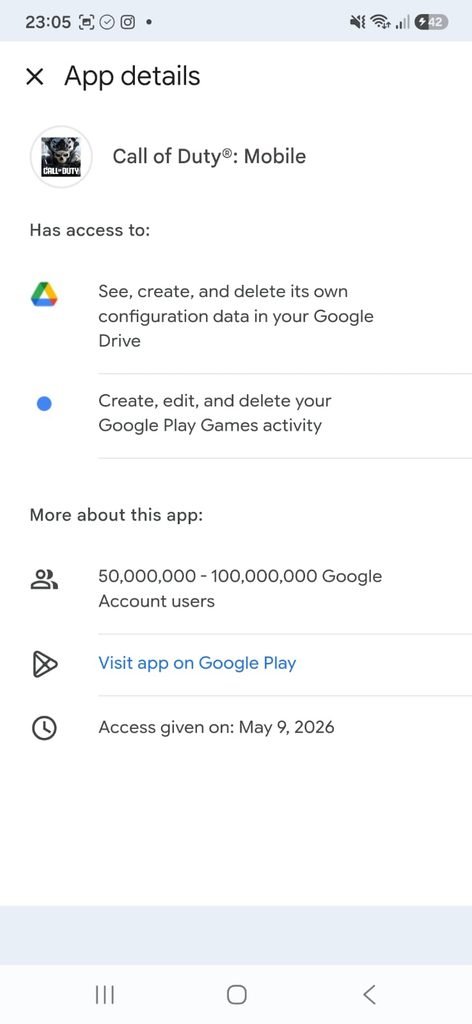
Account access can come from more than traditional sign-ins.
Third-party applications may have authorization to access information from your account.
If something looks suspicious, review the connected apps and services.
Google provides tools for reviewing third-party connections and removing access when appropriate.
An unfamiliar application does not automatically mean your password was stolen, but it should be investigated.
Step 14: Check Email Settings
For email accounts, review settings that can silently affect how messages are handled.
Look for:
Forwarding
Filters
Delegation
Automatic replies
Blocked addresses
Google’s security guidance specifically lists unfamiliar Gmail forwarding rules, filters, delegation, and other settings among the signs that may indicate suspicious account activity.
This is important because an attacker may change email settings without immediately deleting or modifying your messages.
Step 15: Check Sent Messages
Open your sent folder.
Look for messages you do not remember sending.
Unexpected messages can be a useful clue that someone else accessed your account or that another application had access.
If you find suspicious messages, investigate the account’s security settings immediately.
Step 16: Check Recent Activity in Microsoft Accounts
The same general principles apply outside Google.
Microsoft provides a Recent activity page showing when and where your Microsoft Account was used during the previous 30 days. You can expand an event to see additional details such as the location and how the account was accessed.
Microsoft also distinguishes between ordinary recent activity and Unusual activity, where users may be asked to confirm whether they recognize an event.
This illustrates an important principle: the exact interface changes between services, but the general security workflow is similar.
Step 17: Look for Repeated Failed Sign-In Attempts
Several failed sign-in attempts can be worth investigating, particularly when they happen repeatedly.
However, failed attempts do not necessarily mean someone successfully accessed your account.
An attacker may know your email address but not your password.
Look for patterns:
Repeated attempts
Unfamiliar locations
Unfamiliar devices
Successful sign-ins you do not recognize
A successful unknown sign-in is generally more concerning than a failed attempt.
Step 18: Be Careful With Security Emails
Not every email that says “unusual activity detected” is itself legitimate.
Scammers can create fake security alerts designed to trick you into clicking a phishing link.
This is why you should access the account directly rather than using the link in the message.
Google recommends going directly to the relevant account when investigating suspicious messages rather than trusting unexpected links.
Step 19: Check Your Account After Changing Phones
Replacing a smartphone is a good reason to review account activity.
A new phone may create legitimate sign-in events.
Your old phone may also remain visible among your account’s devices.
Review the account after the transition and make sure the devices shown are still expected.
Step 20: Check After Using a Shared Computer
If you signed into an account using a computer that is not yours, review your active sessions afterward.
This is especially important for:
- Public computers
- School computers
- Workstations shared with other people
- Hotel computers
- Friends’ computers
When possible, use private browsing and make sure you sign out before leaving.
Step 21: What to Do If You Confirm Unauthorized Activity
If you are certain that an activity was not yours, act promptly.
For a Google Account, Google recommends:
Reviewing security activity
Checking devices
Changing the password
Reviewing recovery information
Checking other security settings
Google’s guidance specifically recommends changing the password if you believe another person is signed in to the account.
Do not wait for additional suspicious events before securing the account.
Step 22: Sign Out Unrecognized Devices
If you find an unfamiliar device, sign it out when the service allows remote session management.
For Google Accounts, you can select a device under Your devices and choose Sign out.
The device may remain visible in the account’s history even after sign-out.
That does not necessarily mean it still has access.
Step 23: Change the Password From the Official Account Page
After confirmed unauthorized access, change your password through the official service.
Choose a password you have never used elsewhere.
If the old password was reused on other websites, update those accounts too.
Google recommends changing passwords on other sites where the same compromised password was used.
Step 24: Check Whether Anything Else Was Changed
After securing the password, review the rest of the account.
Check:
Recovery information
Two-step verification
Connected devices
Third-party apps
Email settings
Recent security events
This is important because changing the password alone may not address every unwanted change.
Step 25: Take Screenshots of Important Security Information
When you are investigating suspicious activity, screenshots can be useful for keeping a record.
For example, you might save an image showing:
The date and time
Device type
Location
Type of event
Do not publish or share screenshots containing passwords, verification codes, private email addresses, or other sensitive information.
A private record can help you remember what happened if you need to contact support later.
Step 26: Contact the Service When Necessary
If you cannot regain control of an account or find serious unauthorized changes, use the service’s official support or account-recovery process.
Do not pay someone who unexpectedly contacts you claiming they can recover your account.
Use the support links provided by the legitimate service.
Step 27: Do Not Confuse an Alert With a Successful Attack
A security alert can be generated because a service noticed something unusual, not necessarily because someone successfully accessed the account.
For example, Microsoft says unusual activity can be triggered by a new device, a new location, travel, or certain application sign-ins.
Google similarly provides alerts for new devices and unusual sign-ins so that users can review whether the activity was theirs.
The alert is a reason to investigate.
It is not automatically proof of compromise.
A Simple Four-Step Security Check
Whenever you notice something unusual, follow this sequence:
Check the event.
Look at the device, time, location, and type of activity.
Compare it with your own actions.
Think about recent logins, travel, devices, and apps.
Secure the account if necessary.
Sign out unfamiliar devices and change the password when unauthorized access is suspected.
Review everything else.
Check recovery settings, two-step verification, connected applications, and recent security events.
This approach keeps you from either ignoring a genuine problem or unnecessarily changing everything because of an innocent notification.
Frequently Asked Questions
How do I know if someone is using my online account?
Look for unfamiliar successful sign-ins, unknown devices, unexpected security changes, password changes, or other actions you did not perform. Google recommends reviewing recent security activity and connected devices when suspicious activity appears.
Does an unfamiliar location mean someone hacked my account?
Not necessarily. Location information can be approximate and may be affected by your network or mobile connection. Review the device, time, and activity together.
What should I do if I see a login I do not recognize?
Open the account through the official app or website, investigate the event, sign out the unfamiliar device when appropriate, and change your password if you believe the account was accessed without permission.
Should I change my password after every unusual login alert?
Not necessarily. First determine whether the activity was actually yours. If you confirm or strongly suspect unauthorized access, changing the password is an important security step.
Can a security alert be caused by my own device?
Yes. New devices, new browsers, travel, and background communication can produce activity that appears unfamiliar. Google and Microsoft both document legitimate situations that can trigger security alerts.
How long does Microsoft show recent account activity?
Microsoft says its Recent activity page shows information about account usage during the previous 30 days.
Can multiple sessions belong to the same device?
Yes. Google explains that multiple sessions can sometimes be associated with one physical device because of different browsers, applications, or authentication events.
What if I see a password change I did not make?
Treat it as a serious security issue. Access the account through its official website or app and follow its security or account-recovery process. Google lists unfamiliar password changes among signs that another person may be using the account.
What if my recovery phone number was changed?
Secure the account immediately using the service’s official recovery and security procedures. An unfamiliar recovery method can indicate that someone has changed an important account setting.
What should I do if I find an unknown app connected to my account?
Review the app’s permissions and remove its access if you do not recognize it or no longer want it connected. Also review other account security settings if you suspect unauthorized activity.
Should I click an email link to investigate suspicious activity?
It is safer to access the account directly through the official app or website. This helps avoid phishing pages that imitate legitimate security notifications.
What if I see several failed login attempts?
Failed attempts do not necessarily mean that someone successfully accessed your account. Review whether any successful sign-ins or security changes occurred and strengthen the account if necessary.
Make Account Reviews Part of Your Routine
You do not need to monitor your accounts constantly.
A quick review every few months is useful, and you should also check security activity after:
Changing phones
Using a new computer
Traveling
Installing unfamiliar applications
Receiving an unusual security alert
Recovering an account
The exact tools vary between services, but the principle remains the same: check the event, compare it with your own activity, and take action when something genuinely does not match.
Google provides recent security events and device-management tools, while Microsoft provides its own Recent activity page with information about account access.
A Few Minutes Can Prevent a Bigger Problem
Unusual account activity should not be ignored, but it also should not automatically cause panic.
Start with the facts.
Check when the event happened, what device was involved, where it appears to have originated, and what action took place.
Then compare those details with your own activity.
When the event was yours, there may be nothing else to do.
When it was not yours, act quickly: secure the account, sign out unfamiliar devices, change the password, and review the remaining security settings.
The most valuable habit is simple:
When an account tells you something unusual happened, stop and investigate before assuming what it means.
