
Social media accounts contain much more personal information than many people realize. Photos, messages, contacts, email addresses, saved payment information, and details about your daily life can all be associated with a single account.
A compromised social media account can also be used to impersonate you, contact your friends, spread scams, or gain access to other services connected to the account.
The good news is that improving the security of your social media accounts does not require advanced technical knowledge. A few basic changes can significantly reduce common risks.
This guide explains practical steps you can take to protect your social media accounts, including stronger passwords, two-step verification, privacy settings, connected devices, third-party apps, recovery information, and suspicious login activity.
Practical example: The screenshots in this guide may use a social media application on Android. The names and locations of security settings can vary depending on the platform and app version.
Why Social Media Security Matters
Social media accounts are attractive targets because they can contain a large amount of personal information.
An attacker who gains access to your account may be able to:
- Read private messages
- View personal photos
- Post content
- Contact your friends
- Change your account information
- Attempt to scam people who know you
- Access connected services
The consequences can extend beyond the social network itself.
For example, if your social media account is connected to your email address or another service, losing control of the account may create additional problems.
That is why account security should be treated as more than simply choosing a password.
Step 1: Use a Unique Password
Start with the password.
Your social media password should not be the same password you use for another important account.
Password reuse creates a problem because a password exposed on one website can potentially be tried on another service.
Use a unique password that is long and difficult to guess.
A password manager can make this much easier because you do not need to remember every password manually.
Step 2: Avoid Personal Information in Your Password
Do not build passwords around information that someone could easily discover.
Avoid using:
- Your name
- Birthday
- Phone number
- Pet’s name
- Children’s names
- Favorite sports team
- Street name
- Important dates
This information may already be available through your social media profile.
A password should not become easier to guess simply because someone knows you personally.
Step 3: Turn On Two-Step Verification
Two-step verification adds an additional layer of protection after your password.
Depending on the platform, you may be able to use:
- An authentication app
- Text messages
- Security keys
- Device prompts
- Backup codes
- Passkeys
The options vary between social networks.
The important point is that a stolen password alone becomes less useful when another verification step is required.
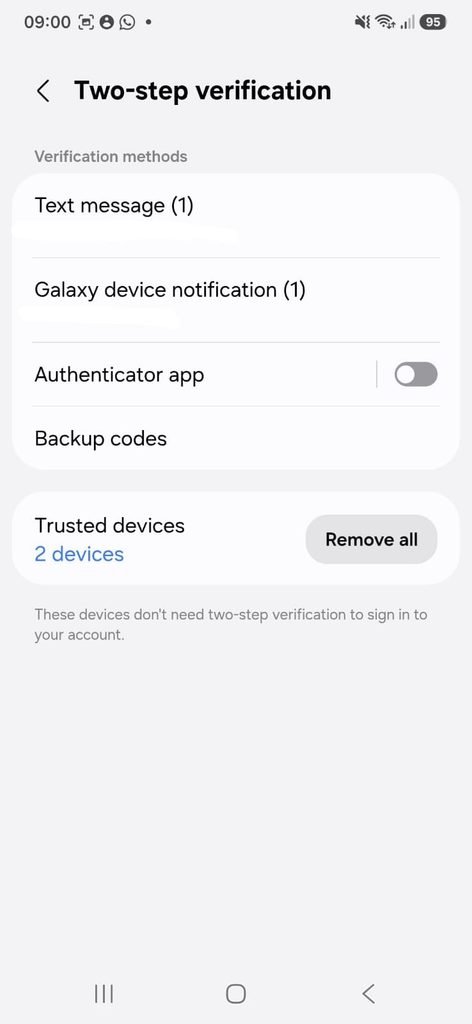
Social media account security settings showing the option to enable two-step verification.
Step 4: Choose a Strong Verification Method
If the platform provides several options, review them carefully.
Authentication apps, device-based approvals, security keys, and passkeys can provide alternatives to SMS verification.
SMS can still be useful, particularly when it is the only practical option available, but you should understand that different verification methods have different characteristics.
The most important thing is to have an additional security layer enabled rather than relying only on your password.
Step 5: Save Your Backup Codes
Some social networks provide backup codes that can be used when your normal authentication method is unavailable.
For example, you may need them if:
- You lose your phone
- You replace your phone
- Your authentication app is unavailable
- You cannot receive text messages
Store backup codes somewhere secure.
Do not publish them, send them to friends, or leave them in an exposed note on an unlocked device.
Step 6: Review Your Active Sessions
Social networks usually provide a section showing where your account is currently signed in.
Depending on the platform, this may appear under:
Where you’re logged in
Login activity
Active sessions
Devices
Review the list regularly.
Look for devices you recognize and sessions that match your recent activity.
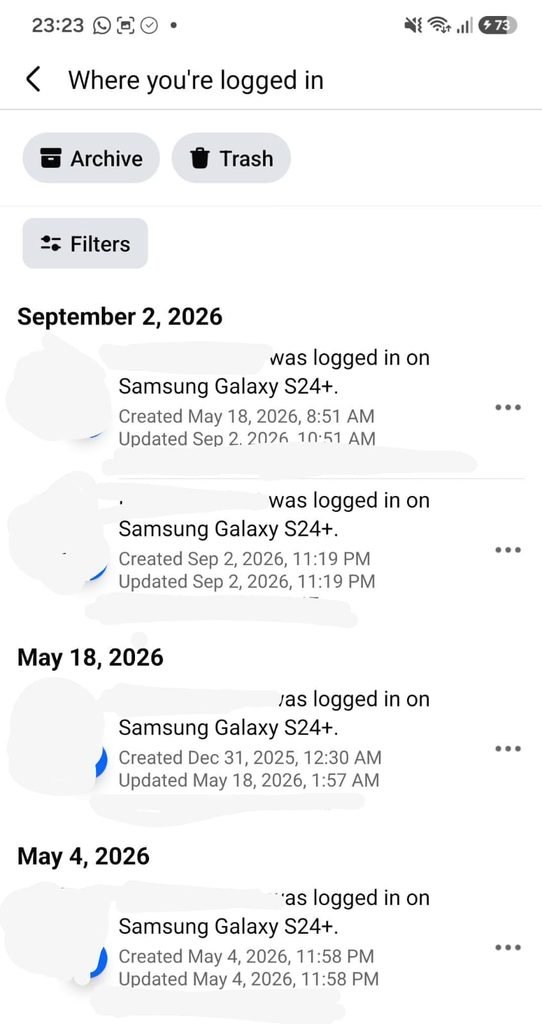
Social media account showing active sessions or devices currently signed in.
An unfamiliar device does not automatically mean that someone has hacked your account.
You may see an old phone, another browser session, or an entry created by a recent login.
However, anything you cannot identify should be investigated.
Step 7: Sign Out of Old Devices
If you replaced your phone recently, check whether the old device is still signed in.
The same applies to computers that you no longer use.
Sign out of devices that:
- You no longer own
- You gave to someone else
- You sold
- You lost
- You used temporarily
Removing unnecessary sessions reduces the number of places where the account can remain accessible.
Step 8: Check Recent Login Activity
Many social networks provide information about recent logins.
Depending on the platform, you may see:
- Date
- Time
- Device
- Approximate location
- Login method
Review these details together.
A location that looks unfamiliar does not automatically mean someone else accessed the account.
Mobile networks and internet routing can cause location information to be approximate.
The device and time are often just as important as the location.
Step 9: Take Unexpected Login Alerts Seriously
If a social network tells you that someone signed into your account and you were not the person who did it, investigate immediately.
Do not ignore repeated alerts.
Start by checking recent sessions and account activity.
If you confirm that the login was not yours, secure the account by changing the password and checking your other security settings.
Step 10: Check Your Recovery Information
Your recovery email address and phone number can help you regain access to an account.
Make sure these details are still correct.
Remove old phone numbers or email addresses that you no longer control.
An outdated recovery method may not help when you actually need it.
Step 11: Protect the Email Address Connected to Your Account
Your social media account may depend heavily on your email account.
If someone gains access to your email, they may be able to request password resets for other services.
For this reason, your primary email account should have:
- A unique password
- Two-step verification
- Current recovery information
- Secure devices
Protecting the email address associated with your social accounts strengthens the entire security chain.
Step 12: Review Connected Apps
Many social networks allow third-party apps and websites to connect to your account.
You might have authorized:
- Photo-editing tools
- Games
- Scheduling services
- Shopping applications
- Analytics tools
- Other websites
Over time, some of these connections may become unnecessary.
Review the list and remove services you no longer use or recognize.
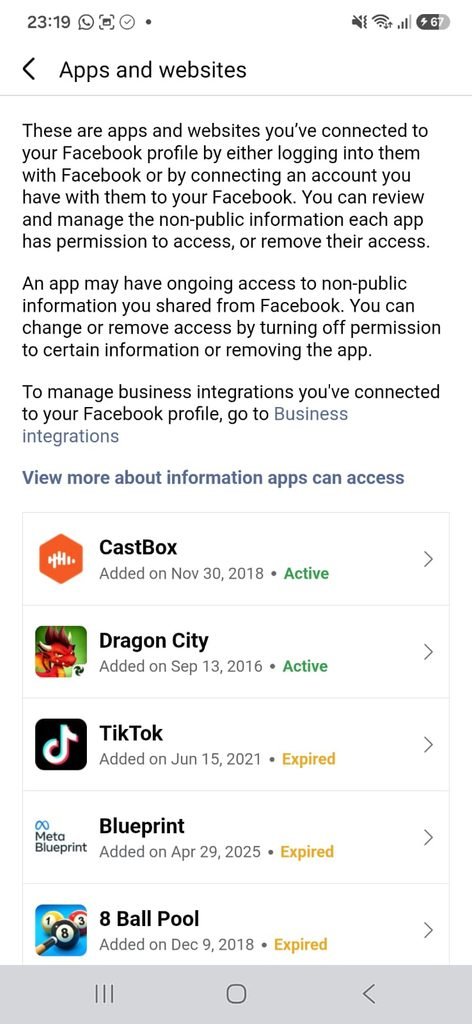
Social media account settings showing connected apps and websites with account access.
Step 13: Be Careful When Authorizing New Apps
Do not approve every access request automatically.
Read what the application is asking to access.
Ask:
Why does this app need this information?
Do I actually need this feature?
Do I recognize the developer?
Will I continue using this service?
If the requested access does not make sense, stop before authorizing it.
Step 14: Review Your Privacy Settings
Security and privacy are related, but they are not exactly the same.
Privacy settings determine who can see or interact with your information.
Review settings related to:
- Public posts
- Profile visibility
- Friend or follower lists
- Location information
- Contact information
- Tagging
- Mentions
- Direct messages
You do not have to make your entire profile private.
Instead, choose settings that match how much information you are comfortable sharing.
Step 15: Limit What Strangers Can See
Consider whether strangers really need access to personal information on your profile.
Information such as:
Phone number
Email address
Home location
Daily routine
Work schedule
Travel plans
may provide more information than necessary.
The less personal information publicly exposed, the less information is available to someone trying to impersonate you or target you.
Step 16: Be Careful With Location Sharing
Location information can reveal more than a single place.
Frequent posts from your home, workplace, school, or other predictable locations can help someone build a picture of your routine.
Review location permissions and location-sharing features within your social media apps.
Only enable them when they serve a purpose you actually need.
Step 17: Think Before Posting Travel Plans
Posting that you are away from home can reveal useful information to strangers.
Consider sharing vacation photos after returning instead of announcing exactly when your home will be empty.
This is not about avoiding social media entirely.
It is about understanding how individual posts can combine to reveal more information than you intended.
Step 18: Review Tagging and Mentions
Some platforms allow other people to tag you in photos or mention your account.
Review the available controls.
Depending on the platform, you may be able to review tags before they appear publicly or restrict who can mention you.
This can help reduce unwanted exposure.
Step 19: Restrict Who Can Contact You
Social media platforms often provide controls for messages, comments, friend requests, or follow requests.
Review these settings.
You may be able to limit interactions from:
- People you do not follow
- Unknown accounts
- New accounts
- Accounts that do not share connections with you
Reducing unnecessary contact can also reduce the number of scam messages you encounter.
Step 20: Be Careful With Direct Messages
Scammers frequently use direct messages because they can make the conversation feel personal.
Be cautious if someone unexpectedly asks you to:
- Click a link
- Send money
- Share a code
- Provide a password
- Move the conversation to another service
- Invest money
- Download an application
A familiar profile picture does not guarantee that the account is genuine.
The account itself may have been compromised.
Step 21: Never Share Verification Codes
A verification code should be treated as private authentication information.
If someone asks you to send them a code that was just delivered to your phone or authenticator app, do not provide it.
The same applies to backup codes.
A person claiming to be a friend, employee, moderator, or support agent should not need you to send them a private verification code.
Step 22: Watch for Fake Support Accounts
Scammers sometimes impersonate customer-support employees.
They may contact you after you post a public complaint or ask for help with an account.
Be careful with messages asking you to:
- Share your password
- Send a verification code
- Click a login link
- Install remote-access software
- Pay a fee to recover the account
Use the platform’s official support tools instead of trusting an unsolicited support message.
Step 23: Check Your Sent Messages and Activity
If you suspect someone accessed your account, review what the account has done recently.
Look for:
- Messages you did not send
- Posts you did not create
- Comments you did not write
- New followers
- Accounts you followed
- Profile changes
Unexpected activity can provide useful evidence that another person or application accessed the account.
Step 24: Check for Changes to Your Profile
Review important profile information after suspicious activity.
Check:
Email address
Phone number
Username
Profile picture
Bio
Linked accounts
An attacker may make changes designed to maintain access or impersonate you.
If something changed without your permission, secure the account immediately.
Step 25: Be Careful With Third-Party Login Pages
Some websites allow you to sign in using a social media account.
This can be convenient, but make sure the login page is legitimate.
If you are unexpectedly asked to sign in, close the page and access the service through its official app or website.
Do not enter your social media password into a random website simply because it displays the correct logo.
Step 26: Use a Password Manager
A password manager can help you maintain different passwords for different services.
This is particularly useful for social media because people often have multiple accounts.
A unique password for each account limits the damage if one password is exposed.
You also do not need to remember every password manually.
Step 27: Consider Passkeys
Some social networks support passkeys.
A passkey can allow you to authenticate using your device’s security features, such as a fingerprint, face recognition, or screen lock.
Where supported, passkeys can provide a convenient alternative to traditional passwords.
Because the technology is newer, the exact setup and account-recovery options differ between services.
Step 28: Keep the Social Media App Updated
App updates can include security fixes and changes to authentication features.
Keep your operating system and social media applications updated through official app stores.
Avoid installing modified versions of social media applications from unknown websites.
Step 29: Protect Your Phone
Your social media account is only as secure as the device used to access it.
Use a screen lock on your smartphone.
Avoid leaving your device unlocked when other people can access it.
Consider enabling biometric authentication when supported.
If your phone is lost, use the platform’s account-management tools from another trusted device as soon as possible.
Step 30: Be Careful With Public or Shared Computers
Avoid saving passwords on computers that other people can access.
If you have to use a shared computer, consider private browsing and make sure you sign out before leaving.
Afterward, review your account’s active sessions and remove the computer if necessary.
Step 31: What to Do If You Think Your Account Was Hacked
If you believe someone has gained unauthorized access, do not wait.
Start by accessing the account through its official app or website.
Then:
Change the password.
Sign out unfamiliar devices.
Check recovery information.
Review recent activity.
Remove suspicious connected apps.
Check two-step verification settings.
Also update any other account that used the same compromised password.
Step 32: Secure the Account Before Investigating Too Much
If the evidence strongly suggests unauthorized access, secure the account first.
You can investigate details afterward.
This is particularly important when the attacker may still have access.
Changing the password and ending suspicious sessions can reduce ongoing access.
Step 33: Check Other Accounts With the Same Password
Think about whether the compromised password was used elsewhere.
If it was, change those passwords too.
Prioritize:
Cloud storage
Financial services
Shopping accounts
Other social networks
Password reuse can allow one compromised account to become a gateway to others.
Step 34: Review Your Connected Email Account
After securing a social media account, check the email address associated with it.
If the email account has been compromised, an attacker could potentially regain access through password-reset mechanisms.
Make sure your email password is unique and that two-step verification is enabled.
Step 35: Remove Unused Connections
Even when your account has never been compromised, removing old connections is good maintenance.
Review:
Old devices
Third-party apps
Unused login methods
Old phone numbers
Old email addresses
Connected accounts
This reduces unnecessary access and keeps the account easier to understand.
Step 36: Create a Simple Security Routine
You do not need to check every setting every day.
A practical routine is:
Every few months: review active sessions and connected apps.
After changing phones: remove the old device when appropriate.
After suspicious activity: review security immediately.
After installing a new app: examine the permissions and account access requested.
This small amount of maintenance can prevent old access from being forgotten.
What Information Should You Keep Private?
There is no single rule that works for everyone, but sensitive information generally deserves more protection.
Be especially cautious with:
- Home address
- Personal phone number
- Passwords
- Verification codes
- Financial information
- Government identification numbers
- Detailed travel plans
- Private documents
Think carefully before publishing information that could be combined with other public information.
What If Someone Creates a Fake Profile Using Your Name?
Impersonation can happen even if your own account is secure.
If someone creates a profile pretending to be you, use the platform’s reporting tools.
Ask friends or followers not to interact with the fake account while the report is being processed.
Do not provide your password or account credentials to anyone claiming they can remove the profile for you.
Frequently Asked Questions
How can I make my social media account more secure?
Start with a unique password, enable two-step verification, review active sessions, remove unused third-party apps, update recovery information, and check privacy settings regularly.
Should I use the same password for multiple social media accounts?
No. Each important account should have its own unique password so that one compromised credential does not automatically expose other accounts.
Is two-step verification worth enabling?
Yes. It adds another layer of protection beyond the password and can reduce the risk of unauthorized access when a password has been exposed.
Should I make my social media profile completely private?
Not necessarily. Privacy settings should match how you use the platform. However, limiting unnecessary public information can reduce exposure.
What should I do if I see a device I do not recognize?
Investigate the device details first. If you are certain it does not belong to you, sign it out and secure the account by changing the password and reviewing other security settings.
Can someone access my social media account if they know my password?
Yes. A password can provide access unless another security layer, such as two-step verification, blocks or challenges the login.
Should I share a verification code with support?
No. Treat verification codes as private authentication information. Use the platform’s official support process instead.
Can a hacked friend’s account send me a scam message?
Yes. A compromised account can be used to contact friends or followers.
If a message seems unusual, verify it through another communication method before clicking links or sending money.
Should I allow every app to connect to my social media account?
No. Review what each app needs and remove connections you no longer use or recognize.
Does changing my password sign out every device?
The behavior varies between platforms. Some services allow you to sign out sessions separately, while others may end certain existing sessions after a password change. Check the account’s device-management settings.
What should I do after losing my phone?
Use another trusted device to access your account and review active sessions. Sign out the lost device when possible, change passwords when appropriate, and make sure recovery methods are available.
Can passkeys replace passwords?
For supported services, passkeys can provide an alternative way to sign in using your device’s authentication methods. Availability depends on the platform.
How often should I review social media security settings?
Every few months is a practical schedule. You should also review them after changing phones, losing a device, installing many new apps, or receiving suspicious security alerts.
Can an unfamiliar login location mean my account was hacked?
Not necessarily. Location information can be approximate because of mobile networks, internet routing, or other factors. Review the device, time, and activity as well.
Should I click a link from a social media support message?
Be cautious, especially if the message was unsolicited. Access the platform’s official app or website directly rather than relying on an unexpected support link.
A Simple Social Media Security Checklist
Before considering your account well protected, check the following:
Your password is unique.
Two-step verification is enabled.
Recovery information is current.
Old devices have been removed.
Connected apps have been reviewed.
Privacy settings match your preferences.
You know how to report suspicious activity.
Your primary email account is also protected.
These steps do not make an account impossible to compromise, but they remove many common weaknesses.
Protecting a Social Media Account Is an Ongoing Process
Account security is not something you configure once and forget forever.
Phones are replaced, applications are installed, passwords change, and new services become connected to your account.
That is why periodic reviews are useful.
Start with the basics: use a unique password, enable two-step verification, keep recovery information current, and review where your account is signed in.
Then look beyond the password.
Check connected applications, privacy settings, recent activity, and the information you make publicly available.
The goal is not to make social media difficult to use.
The goal is to make sure the people and applications accessing your account are there because you chose them to be.
