

Your Google Account can contain access to email, photos, documents, contacts, saved passwords, and other personal information. Because one account can connect to many Google services, protecting it is more important than simply choosing a strong password.
One of the most useful security features available for a Google Account is 2-Step Verification, also called two-factor authentication. It adds another verification step when you sign in with a password, making it harder for someone to access the account using only a stolen password.
This guide explains how to enable 2-Step Verification, understand the available verification methods, prepare backup options, and check that your account remains accessible after the feature is activated.
Practical example: The screenshots in this guide use a Samsung Galaxy running Android. Menu names can vary depending on the Android version and device.
What Is 2-Step Verification?
Normally, a password is the main thing protecting an online account.
With 2-Step Verification enabled, signing in with a password can require an additional verification step. Depending on your account and Google’s security assessment, this can involve a Google prompt on your phone, a verification code, or another supported authentication method.
The idea is simple:
Password + second verification step = additional protection
This matters because a password can potentially be stolen through phishing, reused after a data breach, or exposed in another way.
If someone learns your password but does not have the required second factor, they may still be prevented from completing the sign-in.
Before You Enable 2-Step Verification
Make sure you can access your Google Account normally before changing its security settings.
You should know:
- Your Google Account password
- Which phone is connected to the account
- Which recovery options are available
- How you would regain access if your phone were lost
This preparation is important because adding additional security is only useful if you also maintain a reliable way to recover the account.
Step 1: Open Your Google Account
On your Android phone, open Settings.
Tap Google, then select the option to manage your Google Account.
You can also access your Google Account through a web browser.
Google’s current instructions for Android say to open the Google Account and then go to Security & sign-in. Under How you sign in to Google, you can select 2-Step Verification.
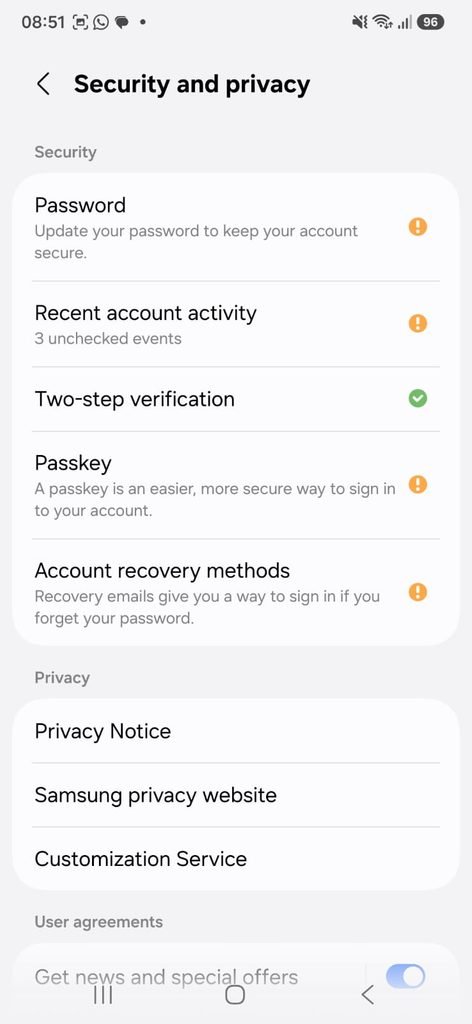
Google Account security settings on Android showing the section where 2-Step Verification can be accessed.
Step 2: Open 2-Step Verification
Inside your Google Account’s security settings, find:
2-Step Verification
Tap it.
Google may ask you to enter your password again before allowing security changes.
This is an important distinction: simply seeing the 2-Step Verification option does not mean the feature is enabled.
Look for the current status before changing anything.
Step 3: Start the Setup
If 2-Step Verification is not already enabled, choose the option to turn it on.
Google will guide you through the available verification methods.
The exact options can vary depending on the account, device, and security configuration. Google’s current setup process begins from Google Account → Security & sign-in → 2-Step Verification.
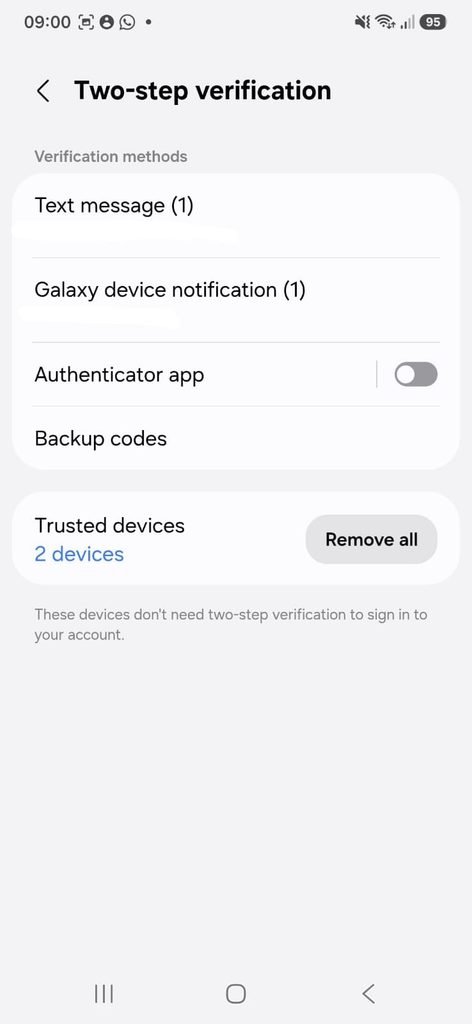
Google Account 2-Step Verification setup screen showing the option to enable additional sign-in protection.
Follow the instructions presented on the screen rather than assuming that every account will display exactly the same options.
Step 4: Verify Your Identity
Google may ask you to confirm that you are the person making the change.
Depending on your account configuration, this can involve your existing password or another verification method.
This prevents someone who happens to have access to an unlocked session from immediately changing important security settings without additional confirmation.
Step 5: Choose a Second Verification Method
After 2-Step Verification is activated, Google can use different types of authentication challenges.
For example, Google may send a Google prompt to your Android phone, or it may ask for a code depending on the method available on your account.
Google currently recommends Google prompts instead of SMS codes in many situations because phone-number-based attacks can be used to steal SMS verification codes.
The exact methods offered to you may be different from those available on another person’s account.
Step 6: Understand Google Prompts
A Google prompt is a notification that can appear on your phone when someone attempts to sign in to your Google Account.
If the sign-in is yours, you can approve it.
If you did not initiate the sign-in, you should reject it.
Google says prompts can be used as an additional step when 2-Step Verification is enabled and are delivered to Android phones signed in to the relevant Google Account.
This provides a convenient alternative to manually typing a code every time a second verification step is required.
Step 7: Do Not Approve Unexpected Sign-In Requests
This is one of the most important habits after activating 2-Step Verification.
Imagine you receive a Google sign-in prompt even though you are not trying to sign in anywhere.
Do not approve it.
An unexpected prompt can indicate that someone is attempting to access your account using your password or another compromised credential.
Google’s account-security guidance explains that sign-in prompts allow users to approve or deny a login request based on the information shown on the notification.
If an unexpected request appears, deny it and investigate the security of your account.
Step 8: Understand Verification Codes
Some accounts can use verification codes as a second step.
A code may be delivered by text message or generated through an authentication app, depending on your configuration.
Google says SMS and phone-call codes provide additional security compared with a password alone, but they can be more vulnerable to attacks based on phone numbers than other methods.
For that reason, do not automatically assume that every second-step method offers exactly the same level of protection.
Step 9: Set Up Google Authenticator When Appropriate
Google Authenticator can generate verification codes without relying on receiving an SMS message.
Google’s current guidance includes an authenticator app as one of the options that can be used for verification in situations where you do not have an internet or mobile connection.
This can be useful when traveling, changing mobile carriers, or dealing with situations where text messages are unreliable.
Keep in mind that authenticator setup should be completed carefully because losing access to the device or configuration can complicate account recovery if you have no alternative methods available.
Step 10: Create Backup Codes
Backup codes are an important part of account recovery.
Google allows users with 2-Step Verification enabled to create a set of backup codes that can be used when the normal second step is unavailable.
They can be useful if:
- You lose your phone
- You change your phone number
- You cannot receive a verification message
- Your normal verification method is unavailable
Google currently provides a set of 10 backup codes. Each code can be used for one sign-in, and generating a new set makes the previous set inactive.
Store the codes somewhere secure.
Do not publish them, send them to another person, or save them in an exposed document.
Google specifically warns users not to share backup codes.
Step 11: Add Recovery Information
2-Step Verification should not be your only recovery preparation.
Google recommends adding recovery information to help regain access if you forget your password or encounter suspicious activity.
Depending on your account, this can include a recovery email address or phone number.
Make sure the recovery information is current.
An old phone number that you no longer control is not a useful recovery method.
Step 12: Review Your Security Settings After Activation
Once 2-Step Verification is enabled, take a few minutes to review the rest of your security settings.
Look at:
Recovery information
Devices
Recent security activity
Passkeys
2-Step Verification methods
Google’s account-security tools provide several of these controls in the Security section of the account.
This is a good opportunity to remove old devices or update outdated recovery information.
Step 13: Check Devices Connected to Your Account
Your Google Account can be used on multiple phones, tablets, and computers.
Review the list of devices associated with your account.
If you see a device that you do not recognize, investigate it instead of ignoring it.
An unfamiliar device does not automatically prove that someone has hacked your account. It may be an old device, a browser session, or another legitimate sign-in.
However, an unfamiliar device deserves investigation.
Step 14: Consider Using a Passkey
A passkey is another modern way to sign in to supported accounts.
Google says passkeys can use your fingerprint, facial recognition, or the screen lock on your device, such as a PIN.
A passkey works differently from a traditional password.
Google explains that passkeys are stored on your devices and are designed to be more resistant to phishing. When you sign in using a passkey, it can bypass the normal second authentication step because the passkey itself verifies possession of the device.
This makes passkeys an option worth considering for compatible accounts.
Step 15: Keep Your Phone Secure
2-Step Verification depends heavily on the security of your devices.
If your Google Account sends authentication requests to your phone, protect the phone itself with an appropriate screen lock.
Avoid leaving the device permanently unlocked in places where other people can access it.
A security feature is only as effective as the devices and credentials used to access it.
Step 16: Be Careful With Verification Requests
Never provide a verification code to someone who contacts you unexpectedly.
Google explicitly warns that users should never share verification codes because scammers can try to use them to take control of an account.
The same principle applies to backup codes.
Your second-step code is part of your account authentication. Treat it as private information.
Step 17: What to Do If You Receive an Unexpected Code
Suppose you receive a verification code even though you did not try to sign in.
Do not send the code to anyone.
Instead, review your account security.
Change your password if you believe someone may know it, check recent account activity, and review your connected devices and security settings.
An unexpected code can have several explanations, so investigate rather than assuming exactly what happened.
Step 18: What If You Lose Your Phone?
Losing your phone does not necessarily mean losing access to your Google Account.
This is one reason Google provides backup codes and additional verification methods.
If you have another trusted verification option available, use it to sign in and then review the devices and security settings associated with the account.
You should also consider removing the lost device from your account when appropriate.
Step 19: Test Your Recovery Options
After configuring your account, make sure you understand how you would recover access.
You do not need to intentionally lock yourself out of your account to perform a test.
Instead, confirm that you know:
Which Google Account you are protecting
Which recovery email is registered
Which phone number is registered, if applicable
Where your backup codes are stored
Which devices can receive Google prompts
This preparation can save considerable time if your normal phone becomes unavailable.
What Happens When You Turn On 2-Step Verification?
When you sign in using your password, Google may require another verification step.
The exact challenge is determined by Google’s authentication system and the methods configured on your account.
You should not necessarily expect to perform an additional step every single time you open Gmail or another Google service.
Google explains that additional verification is generally required when using a new device or when Google needs to confirm that it is really you.
Does 2-Step Verification Make a Google Account Completely Safe?
No security feature guarantees complete protection.
2-Step Verification adds an important layer of security, particularly when a password has been compromised.
However, you should still protect your password, avoid phishing pages, keep recovery information current, and avoid approving unexpected sign-in requests.
Google specifically recommends multiple protections rather than relying on a single security measure.
Is SMS the Best Second Step?
SMS can provide additional protection compared with a password alone, but Google notes that SMS and phone-call verification can be more vulnerable to attacks involving phone numbers.
Where supported and practical, Google prompts, authenticator apps, passkeys, and security keys provide other options.
The best choice depends on your account and the authentication methods that Google offers you.
What Are Security Keys?
Security keys are physical or supported-device-based authentication methods that can provide an additional verification factor.
Google says security keys can be used with 2-Step Verification and are designed to help keep attackers away from your Google Account.
They are particularly relevant for people who need stronger protection against targeted attacks, although ordinary users can also use compatible security keys.
What If My Account Is Managed by Work or School?
A Google Account provided by a company, school, or another organization may be managed by an administrator.
Google notes that the normal setup instructions for 2-Step Verification may not work the same way for managed accounts.
In that situation, follow the organization’s security instructions or contact the administrator.
Frequently Asked Questions
Is 2-Step Verification the same as two-factor authentication?
They are closely related terms. Google’s 2-Step Verification is an additional authentication process that requires another step after the password when signing in with a password.
Does Google 2-Step Verification use my phone?
It can. Google may send a sign-in prompt to a connected Android phone, while other verification methods can use codes, authenticator apps, security keys, or other supported methods.
What happens if I lose my phone?
Backup codes and other configured recovery methods can help you regain access. Google specifically provides backup codes for situations in which the normal second step is unavailable.
Can I use Google Authenticator instead of SMS?
For supported account configurations, Google Authenticator can provide verification codes as an alternative method.
Are Google prompts safer than SMS?
Google recommends Google prompts instead of SMS in some situations because they can reduce risks associated with attacks targeting phone numbers.
Should I save my backup codes on my phone?
You should store backup codes securely. Avoid keeping them somewhere that could be easily accessed by someone who gains access to your unlocked phone. Google also recommends storing or printing them in a secure location.
What if I receive a Google sign-in request that I did not make?
Do not approve it. Deny the request and review your account security, particularly your password and recent activity. Google prompts allow you to approve or deny sign-in requests.
Can I use a passkey instead of 2-Step Verification?
Passkeys are a separate sign-in method. Google explains that signing in with a passkey can bypass the normal second authentication step because the passkey verifies possession of the device.
How many backup codes does Google provide?
Google currently provides a set of 10 backup codes. A used code becomes inactive, and generating a new set invalidates the previous set.
A Simple Security Routine for Your Google Account
You do not need to constantly change security settings.
A practical routine is to review the account every few months and whenever something important changes.
Check:
Your password
2-Step Verification
Recovery information
Connected devices
Recent security activity
Passkeys
Backup codes
Also review these settings whenever you lose a device, replace your phone, change your phone number, or notice suspicious activity.
Protecting Your Google Account Is About More Than One Setting
Enabling 2-Step Verification is one of the most useful steps you can take to improve the security of a Google Account.
Start by activating the feature, then make sure you have a reliable second verification method and at least one recovery option.
Google provides several methods, including Google prompts, verification codes, authenticator apps, backup codes, security keys, and passkeys. The options available can vary according to your account and device.
The most important habits are simple:
Use a unique, strong password.
Do not approve unexpected sign-in requests.
Never share verification or backup codes.
Keep recovery information current.
Review unfamiliar devices and security activity.
With these measures working together, a stolen or exposed password becomes much less useful to someone trying to access your account.
